Add, delete, and download attachments for features from a service.
Use case
Attachments provide a flexible way to manage additional information that is related to your features. Attachments allow you to add files to individual features, including: PDFs, text documents, or any other type of file. For example, if you have a feature representing a building, you could use attachments to add multiple photographs of the building taken from several angles, along with PDF files containing the building’s deed and tax information.
How to use the sample
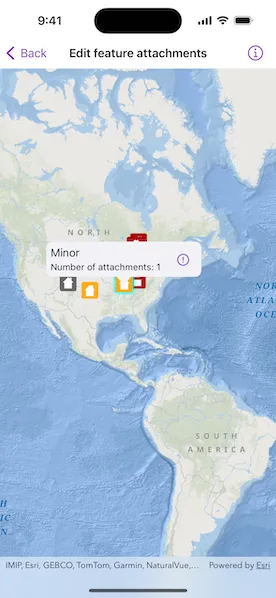
Tap a feature on the map to open a callout displaying the number of attachments. Tap on the info button to view/edit the attachments. Select an entry from the list to download and view the attachment in the gallery. Tap on the floating action button ’+’ to add an attachment or long press to delete.
How it works
- Create a
ServiceFeatureTablefrom a URL. - Create a
FeatureLayerobject from the service feature table. - Select features from the feature layer with
selectFeatures. - To fetch the feature’s attachments, cast to an
ArcGISFeatureand useArcGISFeature.attachments. - To add an attachment to the selected feature, create an attachment and use
ArcGISFeature.addAttachment(). - To delete an attachment from the selected feature, use the
ArcGISFeature.deleteAttachment(_:). - After a change, apply the changes to the server using
ServiceFeatureTable.applyEdits().
Relevant API
- ArcGISFeature.deleteAttachment(_:)
- Attachments
- FeatureLayer
- ServiceFeatureTable
- ServiceFeatureTable.applyEdits()
Additional information
Attachments can only be added to and accessed on service feature tables when their hasAttachments property is true.
Tags
Edit and manage data, image, JPEG, PDF, picture, PNG, TXT
Sample code
// Copyright 2024 Esri//// Licensed under the Apache License, Version 2.0 (the "License");// you may not use this file except in compliance with the License.// You may obtain a copy of the License at////   https://www.apache.org/licenses/LICENSE-2.0//// Unless required by applicable law or agreed to in writing, software// distributed under the License is distributed on an "AS IS" BASIS,// WITHOUT WARRANTIES OR CONDITIONS OF ANY KIND, either express or implied.// See the License for the specific language governing permissions and// limitations under the License.
import ArcGISimport SwiftUI
struct EditFeatureAttachmentsView: View {    /// The error shown in the error alert.    @State private var error: (any Error)?    /// The data model for the sample.    @StateObject private var model = Model()    /// The location that the user tapped on the screen.    @State private var screenPoint: CGPoint?    /// The location that the user tapped on the map.    @State private var mapPoint: Point?    /// A Boolean value indicating whether the attachment sheet is showing.    @State private var attachmentSheetIsPresented = false
    var body: some View {        MapViewReader { mapProxy in            MapView(map: model.map)                .callout(placement: $model.calloutPlacement.animation(.default.speed(2))) { _ in                    if model.selectedFeature != nil {                        HStack {                            CalloutView(model: model)                                .padding(6)                            Button {                                attachmentSheetIsPresented = true                            } label: {                                Image(systemName: "info.circle")                            }                            .sheet(isPresented: $attachmentSheetIsPresented) {                                NavigationStack {                                    AttachmentSheetView(model: model)                                }                            }                            .padding(8)                        }                    }                }                .onSingleTapGesture { screenPoint, mapPoint in                    self.mapPoint = mapPoint                    self.screenPoint = screenPoint                }                .task(id: screenPoint) {                    guard let screenPoint, let mapPoint else { return }                    model.featureLayer.clearSelection()                    do {                        let result = try await mapProxy.identify(                            on: model.featureLayer,                            screenPoint: screenPoint,                            tolerance: 2                        )                        guard let feature = result.geoElements.first as? ArcGISFeature else {                            model.calloutPlacement = nil                            model.selectedFeature = nil                            return                        }                        try await model.selectFeature(feature)                        model.calloutPlacement = .location(mapPoint)                    } catch {                        model.calloutPlacement = nil                        model.selectedFeature = nil                        self.error = error                    }                }        }        .errorAlert(presentingError: $error)    }}
// MARK: - AttachmentSheetView
private extension EditFeatureAttachmentsView {    struct AttachmentSheetView: View {        /// The error shown in the error alert.        @State private var error: (any Error)?        /// The data model for the sample.        @ObservedObject var model: Model        /// The action to dismiss the sheet.        @Environment(\.dismiss) private var dismiss: DismissAction
        var body: some View {            Form {                Section {                    List {                        ForEach(model.attachments, id: \.id) { attachment in                            AttachmentView(attachment: attachment, onDelete: { attachment in                                Task {                                    do {                                        try await model.deleteAttachment(attachment)                                    } catch {                                        self.error = error                                    }                                }                            })                        }                    }                }                Section {                    AddAttachmentView(onAdd: {                        Task {                            do {                                guard let pngData = UIImage.pinBlueStar.pngData() else { return }                                try await model.addAttachment(                                    named: "Attachment",                                    type: "png",                                    dataElement: pngData                                )                            } catch {                                self.error = error                            }                        }                    })                }            }            .navigationTitle("Attachments")            .navigationBarTitleDisplayMode(.inline)            .toolbar {                ToolbarItem(placement: .confirmationAction) {                    Button("Done") {                        dismiss()                    }                }            }            .errorAlert(presentingError: $error)        }    }}
// MARK: - CalloutView
private extension EditFeatureAttachmentsView {    struct CalloutView: View {        /// The data model for the sample.        @ObservedObject var model: Model
        var body: some View {            VStack(alignment: .leading, spacing: 3) {                Text(model.calloutText)                    .font(.callout)                    .multilineTextAlignment(.leading)                Text(model.calloutDetailText)                    .font(.footnote)                    .multilineTextAlignment(.leading)            }        }    }}
// MARK: - AttachmentView
private extension EditFeatureAttachmentsView {    struct AttachmentView: View {        /// The attachment that is being displayed.        let attachment: Attachment        /// The closure called when the delete button is tapped.        let onDelete: ((Attachment) -> Void)        /// The image in the attachment.        @State private var image: Image?        /// The image to show if an image cannot be created from the attachment's data.        private let warningImage = Image(systemName: "exclamationmark.triangle")
        var body: some View {            HStack {                Text(attachment.name)                    .font(.title3)                Spacer()                Button {                    Task {                        let result = try? await attachment.data                        image = if let result, let uiImage = UIImage(data: result) {                            Image(uiImage: uiImage)                        } else {                            warningImage                        }                    }                } label: {                    if let image {                        image                            .resizable()                            .scaledToFit()                            .frame(width: 40, height: 40)                    } else {                        Image(systemName: "arrow.down.circle.fill")                    }                }                .disabled(image != nil && image != warningImage)            }            .swipeActions {                Button("Delete") {                    onDelete(attachment)                }                .tint(.red)            }        }    }}
// MARK: - AddAttachmentView
private extension EditFeatureAttachmentsView {    struct AddAttachmentView: View {        /// The closure called when add button is tapped.        let onAdd: (() -> Void)
        var body: some View {            HStack {                Spacer()                Button {                    onAdd()                } label: {                    Label("Add Attachment", systemImage: "paperclip")                }                Spacer()            }        }    }}
#Preview {    EditFeatureAttachmentsView()}
// Copyright 2024 Esri//// Licensed under the Apache License, Version 2.0 (the "License");// you may not use this file except in compliance with the License.// You may obtain a copy of the License at//// https://www.apache.org/licenses/LICENSE-2.0//// Unless required by applicable law or agreed to in writing, software// distributed under the License is distributed on an "AS IS" BASIS,// WITHOUT WARRANTIES OR CONDITIONS OF ANY KIND, either express or implied.// See the License for the specific language governing permissions and// limitations under the License.
import ArcGISimport Combineimport Foundation
extension EditFeatureAttachmentsView { @MainActor class Model: ObservableObject { /// A map with ArcGIS Oceans basemap style. let map = Map(basemapStyle: .arcGISOceans)
/// The currently selected map feature. var selectedFeature: ArcGISFeature?
/// The placement of the callout on the map. @Published var calloutPlacement: CalloutPlacement?
/// Holds the attachments of the currently selected feature. @Published private(set) var attachments: [Attachment] = []
/// The text shown on the callout. @Published private(set) var calloutText = ""
/// The detail text shown on the callout. @Published private(set) var calloutDetailText = ""
/// The feature layer populated with data by the feature table using the remote service url. let featureLayer = FeatureLayer(featureTable: ServiceFeatureTable(url: .featureServiceURL))
init() { map.addOperationalLayer(featureLayer) }
/// Selects the tapped feature. /// - Parameter feature: The selected feature. func selectFeature(_ feature: ArcGISFeature) async throws { selectedFeature = feature featureLayer.selectFeature(feature) try await fetchAttachmentsAndUpdate(feature) }
/// Updates the callout text for the selected feature. private func updateCalloutDetails(for feature: ArcGISFeature) { let title = feature.attributes["typdamage"] as? String calloutText = title ?? "Callout" calloutDetailText = "Number of attachments: \(attachments.count)" }
/// Adds a new attachment with the given parameters and syncs this change with the server. /// - Parameters: /// - name: The attachment name. /// - type: The attachments data type. /// - dataElement: The attachment data. func addAttachment(named name: String, type: String, dataElement: Data) async throws { if let selectedFeature, let table = selectedFeature.table as? ServiceFeatureTable, table.hasAttachments { try await selectedFeature.addAttachment( named: "Attachment.png", contentType: "png", data: dataElement ) _ = try await table.applyEdits() try await fetchAttachmentsAndUpdate(selectedFeature) } }
/// Deletes the specified attachment and syncs the changes with the server. /// - Parameter attachment: The attachment to be deleted. func deleteAttachment(_ attachment: Attachment) async throws { if let selectedFeature, let table = selectedFeature.table as? ServiceFeatureTable, table.hasAttachments { try await selectedFeature.deleteAttachment(attachment) _ = try await table.applyEdits() try await fetchAttachmentsAndUpdate(selectedFeature) } }
/// Fetches attachments for the selected feature from the server. private func refreshAttachments(for feature: ArcGISFeature) async throws { if let table = feature.table as? ServiceFeatureTable, table.hasAttachments { attachments = try await feature.attachments } }
/// Fetches attachments from server and updates the selected feature's callout with the details. private func fetchAttachmentsAndUpdate(_ feature: ArcGISFeature) async throws { try await refreshAttachments(for: feature) updateCalloutDetails(for: feature) } }}
private extension URL { static var featureServiceURL: URL { URL(string: "https://sampleserver6.arcgisonline.com/arcgis/rest/services/DamageAssessment/FeatureServer/0")! }}