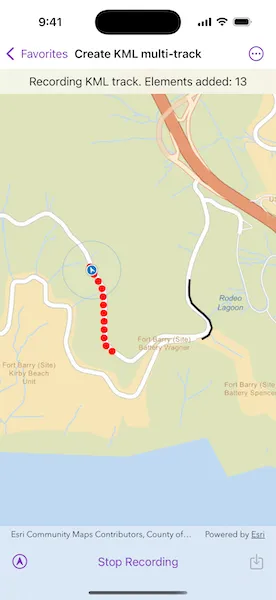
Create, save, and preview a KML multi-track captured from a location data source.
Use case
When capturing location data for outdoor activities such as hiking or skiing, it can be useful to record and share your path. This sample demonstrates how you can collect individual KML tracks during a navigation session, then combine and export them as a KML multi-track.
How to use the sample
Tap “Record Track” to start recording your current path on the simulated trail. Tap “Stop Recording” to end recording and capture a KML track. Repeat these steps to capture multiple KML tracks in a single session. Tap the save button to convert the recorded tracks into a KML multi-track and save it to a local .kmz file. Then, use the picker to select a track from the saved KML multi-track. Tap the Delete button to remove the local file and reset the sample.
How it works
- Create a
Mapwith a basemap style and aGraphicsOverlayto display the path geometry for your navigation route. - Create a
SimulatedLocationDataSourceto drive theLocationDisplay. - As you receive
Locationupdates, add each point to a list ofKMLTrackElementobjects while recording. - Once recording stops, create a
KMLTrackusing one or moreKMLTrackElementobjects. - Combine one or more
KMLTrackobjects into aKMLMultiTrack. - Save the
KMLMultiTrackinside aKMLDocument, then export the document to a.kmzfile. - Load the saved
.kmzfile into aKMLDatasetand locate theKMLDocumentin the dataset’srootNodes. From the document’schildNodes, get theKMLPlacemarkand retrieve theKMLMultiTrackgeometry. - Retrieve the geometry of each track in the
KMLMultiTrackby iterating through the list of tracks and obtaining the respectiveKMLTrack.geometry.
Relevant API
- KMLDataset
- KMLDocument
- KMLMultiTrack
- KMLPlacemark
- KMLTrack
- KMLTrackElement
- LocationDisplay
- SimulatedLocationDataSource
Tags
export, hiking, KML, KMZ, multi-track, record, track
Sample code
// Copyright 2025 Esri//// Licensed under the Apache License, Version 2.0 (the "License");// you may not use this file except in compliance with the License.// You may obtain a copy of the License at////   https://www.apache.org/licenses/LICENSE-2.0//// Unless required by applicable law or agreed to in writing, software// distributed under the License is distributed on an "AS IS" BASIS,// WITHOUT WARRANTIES OR CONDITIONS OF ANY KIND, either express or implied.// See the License for the specific language governing permissions and// limitations under the License.
import ArcGISimport SwiftUI
struct CreateKMLMultiTrackView: View {    /// The view model for the sample.    @StateObject private var model = Model()
    /// The KML multi-track loaded from the KMZ file.    @State private var multiTrack: KMLMultiTrack?
    /// A Boolean value indicating whether the recenter button is enabled.    @State private var isRecenterEnabled = false
    /// The error shown in the error alert.    @State private var error: (any Error)?
    /// Represents the various states of the sample.    private enum SampleState {        /// The sample is navigating without recording.        case navigating        /// A KML track is being recorded.        case recording        /// The KML multi-track is being saved, loaded, and viewed.        case viewingMultiTrack        /// The sample is being reset.        case reseting    }
    /// The current state of the sample.    @State private var state = SampleState.navigating
    /// The text shown in the status bar. This describes the current state of the sample.    private var statusText: String {        return switch state {        case .recording: "Recording KML track. Elements added: \(model.trackElements.count)"        case .viewingMultiTrack: "Saved KML multi-track to 'HikingTracks.kmz'."        default: "Tap record to capture KML track elements."        }    }
    var body: some View {        MapViewReader { mapViewProxy in            MapView(map: model.map, graphicsOverlays: model.graphicsOverlays)                .locationDisplay(model.locationDisplay)                .overlay(alignment: .top) {                    Text(statusText)                        .multilineTextAlignment(.center)                        .frame(maxWidth: .infinity, alignment: .center)                        .padding(8)                        .background(.regularMaterial, ignoresSafeAreaEdges: .horizontal)                }                .toolbar {                    ToolbarItemGroup(placement: .bottomBar) {                        if let multiTrack {                            Button("Delete", systemImage: "trash", role: .destructive) {                                state = .reseting                            }
                            Spacer()
                            TrackPicker(tracks: multiTrack.tracks) { geometry in                                await mapViewProxy.setViewpointGeometry(geometry.extent, padding: 25)                            }                        } else {                            Button("Recenter", systemImage: "location.north.circle") {                                model.locationDisplay.autoPanMode = .navigation                            }                            .disabled(!isRecenterEnabled)
                            Spacer()
                            Toggle(                                state == .recording ? "Stop Recording" : "Record Track",                                isOn: .init {                                    state == .recording                                } set: { newValue in                                    state = newValue ? .recording : .navigating                                }                            )
                            Spacer()
                            Button("Save", systemImage: "square.and.arrow.down") {                                state = .viewingMultiTrack                            }                            .disabled(model.tracks.isEmpty)                        }                    }                }                .task(id: state) {                    // Runs the asynchronous action associated with the sample state.                    do {                        switch state {                        case .navigating:                            break                        case .recording:                            for await location in model.locationDisplay.$location where location != nil {                                model.addTrackElement(at: location!.position)                            }
                            model.addTrack()                        case .viewingMultiTrack:                            await model.locationDisplay.dataSource.stop()
                            try await model.saveKMLMultiTrack()                            multiTrack = try await model.loadKMLMultiTrack()                        case .reseting:                            model.reset()                            multiTrack = nil
                            await mapViewProxy.setViewpointScale(model.locationDisplay.initialZoomScale)                            try await model.startNavigation()                        }                    } catch {                        self.error = error                    }                }                .task {                    // Starts the navigation when the sample opens.                    do {                        try await model.startNavigation()                    } catch {                        self.error = error                    }
                    // Monitors the auto pan mode to determine if recenter button should be enabled.                    for await autoPanMode in model.locationDisplay.$autoPanMode {                        isRecenterEnabled = autoPanMode != .navigation                    }                }                .errorAlert(presentingError: $error)        }    }}
private extension CreateKMLMultiTrackView {    /// A picker for selecting a track from a KML multi-track.    struct TrackPicker: View {        /// The KML tracks options shown in the picker.        let tracks: [KMLTrack]
        /// The closure to perform when the selected track has changed.        let onSelectionChanged: (Geometry) async -> Void
        /// The track selected by the picker.        @State private var selectedTrack: KMLTrack?
        var body: some View {            Picker("Track", selection: $selectedTrack) {                Text("All Tracks")                    .tag(nil as KMLTrack?)
                ForEach(Array(tracks.enumerated()), id: \.offset) { offset, track in                    Text("KML Track #\(offset + 1)")                        .tag(track)                }            }            .task(id: selectedTrack) {                guard let geometry = selectedTrack?.geometry                        ?? GeometryEngine.union(of: tracks.map(\.geometry)) else {                    return                }
                await onSelectionChanged(geometry)            }        }    }}
#Preview {    CreateKMLMultiTrackView()}
// Copyright 2025 Esri//// Licensed under the Apache License, Version 2.0 (the "License");// you may not use this file except in compliance with the License.// You may obtain a copy of the License at//// https://www.apache.org/licenses/LICENSE-2.0//// Unless required by applicable law or agreed to in writing, software// distributed under the License is distributed on an "AS IS" BASIS,// WITHOUT WARRANTIES OR CONDITIONS OF ANY KIND, either express or implied.// See the License for the specific language governing permissions and// limitations under the License.
import ArcGISimport Combineimport Foundation
extension CreateKMLMultiTrackView { /// The view model for the sample. @MainActor final class Model: ObservableObject { /// A map with a streets basemap. let map = Map(basemapStyle: .arcGISStreets)
/// The map view's location display. let locationDisplay = LocationDisplay()
/// The graphics overlays to display on the map view. var graphicsOverlays: [GraphicsOverlay] { return [trackElementGraphicsOverlay, trackGraphicsOverlay] }
/// The graphics overlay for the track element graphics. private let trackElementGraphicsOverlay = GraphicsOverlay()
/// The graphics overlay for the track graphics. private let trackGraphicsOverlay = GraphicsOverlay()
/// The KML track elements for the KML track that is being recorded. @Published private(set) var trackElements: [KMLTrackElement] = []
/// The recorded KML tracks used to create the KML multi-track. @Published private(set) var tracks: [KMLTrack] = []
/// The local URL where the KMZ file will be saved to. private let kmzFileURL = FileManager.createTemporaryDirectory() .appending(component: "HikingTracks.kmz")
init() { // Sets up the graphics overlays. let redCircleSymbol = SimpleMarkerSymbol(style: .circle, color: .red, size: 10) trackElementGraphicsOverlay.renderer = SimpleRenderer(symbol: redCircleSymbol)
let blackLineSymbol = SimpleLineSymbol(style: .solid, color: .black, width: 3) trackGraphicsOverlay.renderer = SimpleRenderer(symbol: blackLineSymbol) }
deinit { let temporaryDirectory = kmzFileURL.deletingLastPathComponent() try? FileManager.default.removeItem(at: temporaryDirectory) }
/// Starts the simulated navigation route. func startNavigation() async throws { let routePolyline = try Polyline.fromJSON(.costalTrailJSON) let parameters = SimulationParameters(startDate: .now, speed: 25) let simulatedLocationDataSource = SimulatedLocationDataSource( polyline: routePolyline, parameters: parameters ) locationDisplay.dataSource = simulatedLocationDataSource
locationDisplay.autoPanMode = .navigation try await locationDisplay.dataSource.start() }
/// Records a track element. /// - Parameter point: The point at which to add the track element. func addTrackElement(at point: Point) { let kmlTrackElement = KMLTrackElement(when: .now, coordinate: point, angle: nil) trackElements.append(kmlTrackElement)
let graphic = Graphic(geometry: point) trackElementGraphicsOverlay.addGraphic(graphic) }
/// Records a track by converting the elements in `trackElements` to a /// KML track. func addTrack() { if trackElements.count > 1, let kmlTrack = KMLTrack(elements: trackElements, altitudeMode: .relativeToGround), let multipoint = kmlTrack.geometry as? Multipoint { tracks.append(kmlTrack)
let polyline = Polyline(points: multipoint.points) let graphic = Graphic(geometry: polyline) trackGraphicsOverlay.addGraphic(graphic) }
trackElements.removeAll() trackElementGraphicsOverlay.removeAllGraphics() }
/// Creates a KML multi-track using the recorded `tracks` and saves it to local KMZ file. func saveKMLMultiTrack() async throws { let multiTrack = KMLMultiTrack(tracks: tracks) let placemark = KMLPlacemark(geometry: multiTrack)
let document = KMLDocument() document.addChildNode(placemark)
try await document.save(to: kmzFileURL) }
/// Loads the KML multi-track from the local KMZ file. /// - Returns: The `KMLMultiTrack` object. func loadKMLMultiTrack() async throws -> KMLMultiTrack? { let dataset = KMLDataset(url: kmzFileURL) try await dataset.load()
let document = dataset.rootNodes.first as? KMLDocument let placemark = document?.childNodes.first as? KMLPlacemark let multiTrack = placemark?.kmlGeometry as? KMLMultiTrack return multiTrack }
/// Removes the tracks and local KMZ file. func reset() { trackGraphicsOverlay.removeAllGraphics() tracks.removeAll()
try? FileManager.default.removeItem(at: kmzFileURL) } }}
// MARK: - Helper Extensions
private extension FileManager { /// Creates a temporary directory. /// - Returns: The URL of the created directory. static func createTemporaryDirectory() -> URL { try! FileManager.default.url( for: .itemReplacementDirectory, in: .userDomainMask, appropriateFor: .temporaryDirectory, create: true ) }}
private extension Data { /// A JSON string representing the geometry of a costal trail near San Fransisco, CA, USA. static var costalTrailJSON: Data { Data( #"{ "paths" : [ [ [ -122.4835314726743, 37.83211865911945 ], [ -122.48368189197535, 37.83187118241683 ], [ -122.48380566095689, 37.83165751914316 ], [ -122.48388894197024, 37.83145169600181 ], [ -122.48397936099687, 37.83118043717595 ], [ -122.48400315647044, 37.83104956678124 ], [ -122.48402338114072, 37.830918696154455 ], [ -122.48402814041512, 37.830775928900714 ], [ -122.48402725647286, 37.83065575512642 ], [ -122.4840254014518, 37.8306072300538 ], [ -122.48401768492351, 37.83055928604177 ], [ -122.48400422097404, 37.830512629058774 ], [ -122.48398520902936, 37.8304679452088 ], [ -122.48396092666893, 37.83042589221653 ], [ -122.48393173142219, 37.83038708736564 ], [ -122.48389805358218, 37.83035210182205 ], [ -122.48386038812063, 37.830321452119506 ], [ -122.4837611170952, 37.83025151926742 ], [ -122.48375681057175, 37.830247746053175 ], [ -122.48366652719073, 37.83019051634461 ], [ -122.48350989334455, 37.83007565307785 ], [ -122.48338378245505, 37.82997452594437 ], [ -122.48337304219753, 37.82996166234225 ], [ -122.48334246534189, 37.82993380302198 ], [ -122.48331659206505, 37.82990152834285 ], [ -122.48330212200248, 37.829883812313646 ], [ -122.48328996510173, 37.82986443529098 ], [ -122.48327420775335, 37.82983760474022 ], [ -122.4832628090307, 37.82980865270958 ], [ -122.48325604381832, 37.82977828304244 ], [ -122.48325465951446, 37.829736521980415 ], [ -122.48325940890734, 37.82969500922772 ], [ -122.48327019228401, 37.829654640912736 ], [ -122.48328677518418, 37.82961628833229 ], [ -122.48330880007832, 37.829580780923116 ], [ -122.48333579085934, 37.82954888426596 ], [ -122.48336716541894, 37.82952128802347 ], [ -122.4833988256428, 37.82949318304136 ], [ -122.48343379705682, 37.82946932029889 ], [ -122.4834715110274, 37.82945008578193 ], [ -122.4835113611917, 37.82943579026623 ], [ -122.48355047743246, 37.82942204817761 ], [ -122.48359096270566, 37.82941311099388 ], [ -122.48363223041152, 37.82940911210755 ], [ -122.4836736777804, 37.829410106152956 ], [ -122.48383061435887, 37.8294303950351 ], [ -122.48388774451598, 37.82944460824695 ], [ -122.48394601373688, 37.82945299696391 ], [ -122.48400483272674, 37.82945547462583 ], [ -122.48433804301844, 37.82945355606976 ], [ -122.4847002015202, 37.82946846815932 ], [ -122.48476089259908, 37.82947500572284 ], [ -122.48482190527488, 37.82947691789268 ], [ -122.48488387645307, 37.82947778706078 ], [ -122.48494567066315, 37.82947301692427 ], [ -122.48500677406878, 37.82946264792504 ], [ -122.48504444851348, 37.82945476510069 ], [ -122.48508119410018, 37.829443311944246 ], [ -122.48511667575728, 37.829428394173405 ], [ -122.48516495211896, 37.82940757456553 ], [ -122.48521008617378, 37.829380612586306 ], [ -122.48525130267564, 37.82934797296873 ], [ -122.48535147291467, 37.829272927762155 ], [ -122.48573645311619, 37.82892955211324 ], [ -122.48591674050213, 37.828760237428405 ], [ -122.48595566360507, 37.82873302900504 ], [ -122.48598939803894, 37.828721079063996 ], [ -122.48602446467437, 37.82871392059287 ], [ -122.48606018438501, 37.82871169053279 ], [ -122.48609110799036, 37.82871612794789 ], [ -122.48612131833336, 37.82872408393298 ], [ -122.48615041656204, 37.82873545347624 ], [ -122.48626991585101, 37.82881679064391 ], [ -122.48686379927189, 37.82921515592806 ], [ -122.48689678540913, 37.82924047754071 ], [ -122.48692585219676, 37.82927021665974 ], [ -122.48695041303496, 37.829303773729634 ], [ -122.48696997295194, 37.82934047185724 ], [ -122.48698413579072, 37.82937956958323 ], [ -122.48699261768361, 37.82942028074957 ], [ -122.48699524795076, 37.8294617815949 ], [ -122.48699197179495, 37.82950323771682 ], [ -122.48698398038215, 37.82993403361622 ], [ -122.48700845677871, 37.830648260533444 ], [ -122.48700761056573, 37.83067257982134 ], [ -122.48700868764573, 37.83069688916802 ], [ -122.48701571875947, 37.83075467119421 ], [ -122.48702933272759, 37.830811264742294 ], [ -122.48704934898875, 37.83086592269937 ], [ -122.48707550253995, 37.83091792491589 ], [ -122.48710744842808, 37.83096658317209 ], [ -122.48714476713994, 37.83101125465843 ], [ -122.487323504932, 37.83124731116835 ], [ -122.48741675724503, 37.83139446297001 ], [ -122.48744101984254, 37.831443582800446 ], [ -122.4875141148589, 37.831616409760244 ], [ -122.48754615776508, 37.83168849608147 ], [ -122.48758326177958, 37.83175811184267 ], [ -122.48762523915447, 37.83182490300923 ], [ -122.48767187429414, 37.831888529737434 ], [ -122.4877229300433, 37.83194866566494 ], [ -122.48777814589057, 37.83200500713399 ], [ -122.48783724066321, 37.832057264677225 ], [ -122.48786344182511, 37.83207726690301 ], [ -122.48786530403268, 37.83207815590645 ], [ -122.48807228126402, 37.832205450731635 ], [ -122.4881376372942, 37.83225954857125 ], [ -122.48819890958313, 37.83231823185467 ], [ -122.48825577473723, 37.83238119406823 ], [ -122.4882838668528, 37.83243614956031 ], [ -122.48831646581614, 37.83248855792079 ], [ -122.48835334255688, 37.8325380487985 ], [ -122.48839423836019, 37.83258427454664 ], [ -122.48843886396857, 37.83262691093234 ], [ -122.48848690586995, 37.832665657136175 ], [ -122.48865428895684, 37.8327738428775 ], [ -122.48875650735471, 37.83282875408856 ], [ -122.48884649069839, 37.83286507585097 ], [ -122.48889117020568, 37.83287425171545 ], [ -122.48893661867086, 37.83287811702946 ], [ -122.4889822063749, 37.832876618581736 ], [ -122.48902730359879, 37.832869777656875 ], [ -122.48907128421679, 37.83285768790635 ], [ -122.48911354096774, 37.83284051818675 ], [ -122.4891724542807, 37.83282177764611 ], [ -122.48954335069523, 37.832650632883166 ], [ -122.48959461575184, 37.83262831147479 ], [ -122.48964780230489, 37.83261106152894 ], [ -122.48970240909438, 37.8325990441045 ], [ -122.48975792408062, 37.83259237201367 ], [ -122.48981382354579, 37.83259110769355 ], [ -122.48986958377212, 37.83259526462479 ], [ -122.48992467744847, 37.83260480307474 ], [ -122.48997621110139, 37.832614560047894 ], [ -122.49002627960206, 37.8326301859597 ], [ -122.49007421460394, 37.832651473634094 ], [ -122.49011937920147, 37.832678140687506 ], [ -122.49016117242178, 37.832709830948126 ], [ -122.49023068226181, 37.83275956574309 ], [ -122.49026306922278, 37.832780573839855 ], [ -122.49030543556819, 37.832804600113775 ], [ -122.49035076635404, 37.83282241193269 ], [ -122.49039815518022, 37.83283365384526 ], [ -122.49044665612074, 37.832838101654836 ], [ -122.49049530079171, 37.832835668094994 ], [ -122.490543114521, 37.832826398572614 ], [ -122.49058914419615, 37.8328104811008 ], [ -122.49063246994231, 37.832788230690106 ], [ -122.49067222578353, 37.8327600950252 ], [ -122.49070761671078, 37.832726634599354 ], [ -122.49073793664826, 37.832688518458234 ], [ -122.49082473456593, 37.83257808774918 ], [ -122.49086935029284, 37.83252239945379 ], [ -122.49089077062078, 37.83249764301668 ], [ -122.49091592883865, 37.83247669443703 ], [ -122.49094415659981, 37.83246011351073 ], [ -122.49098463019493, 37.83244232147022 ], [ -122.49099373372202, 37.83243859590428 ], [ -122.4910023314976, 37.83243381744524 ], [ -122.49101030224914, 37.83242805491412 ], [ -122.491018105914, 37.832420952852864 ], [ -122.49102474266732, 37.832412749652015 ], [ -122.49103005889717, 37.832403635456345 ], [ -122.49103393063605, 37.83239382098607 ], [ -122.49103627074737, 37.832383531860984 ], [ -122.49103702353558, 37.832373007890915 ], [ -122.49103937263004, 37.832361138003094 ], [ -122.49104356327085, 37.83234978675593 ], [ -122.49104948945677, 37.83233923794863 ], [ -122.49105700476245, 37.8323297548051 ], [ -122.49106591964332, 37.83232157358853 ], [ -122.49107601221553, 37.832314899344134 ], [ -122.49108703095081, 37.83230989951385 ], [ -122.49109869916803, 37.83230669755051 ], [ -122.49114375147617, 37.83229005485964 ], [ -122.49119043153159, 37.83227875894242 ], [ -122.49123810781863, 37.832272960924264 ], [ -122.4912861344487, 37.83227273956087 ], [ -122.49133386283806, 37.83227809981875 ], [ -122.4913806444031, 37.83228896648985 ], [ -122.4914497032889, 37.832311761945334 ], [ -122.49146307830515, 37.83231896973225 ], [ -122.49147522262948, 37.832328100966336 ], [ -122.49148585958076, 37.83233894989266 ], [ -122.49149475020712, 37.83235127031487 ], [ -122.49150169418427, 37.832364784818786 ], [ -122.4915065334087, 37.83237918761059 ], [ -122.49150915828595, 37.83239415232114 ], [ -122.49151461734795, 37.832407376633014 ], [ -122.49152190987142, 37.83241968569183 ], [ -122.49153088583776, 37.83243082691724 ], [ -122.49154136109226, 37.83244057185197 ], [ -122.49155312093764, 37.83244871970903 ], [ -122.49165264708462, 37.83251124050483 ], [ -122.49170158370804, 37.83254221992262 ], [ -122.4917477903513, 37.83257714057318 ], [ -122.49179095080746, 37.832615762641574 ], [ -122.49183076953072, 37.83265782289962 ], [ -122.49186697253498, 37.832703031867915 ], [ -122.49202598601836, 37.83298442443593 ], [ -122.49210611574172, 37.833117423416 ], [ -122.4921433778597, 37.833163624678505 ], [ -122.49218487014437, 37.83320606845782 ], [ -122.49223021440496, 37.83324436879858 ], [ -122.49227900100973, 37.833278177348404 ], [ -122.49233078259763, 37.83330718761463 ], [ -122.49238509294308, 37.83333113567338 ], [ -122.49283970066398, 37.833413136821356 ], [ -122.49312652105611, 37.833456201967486 ], [ -122.49324314304124, 37.833477260948875 ], [ -122.49335882538858, 37.83350298834403 ], [ -122.49346332011737, 37.83352714847554 ], [ -122.49356913536963, 37.83354464156086 ], [ -122.49361827052074, 37.83355233593457 ], [ -122.49366794825427, 37.833554671561714 ], [ -122.49371758825855, 37.8335516214824 ], [ -122.49379700112628, 37.83354132258596 ], [ -122.49387536745672, 37.83352485257872 ], [ -122.4939522075495, 37.83350231291309 ], [ -122.49402705248401, 37.8334738398049 ], [ -122.49409944501782, 37.83343960849056 ], [ -122.49416925579352, 37.83339903363501 ], [ -122.49423571225992, 37.83335316881714 ], [ -122.49429841197178, 37.83330228930838 ], [ -122.49453762434882, 37.83312377476988 ], [ -122.49458938886875, 37.83308543179706 ], [ -122.49463757809386, 37.83304268215786 ], [ -122.49468181832493, 37.83299585717693 ], [ -122.49472176550732, 37.83294532010619 ], [ -122.49475710882386, 37.83289146470621 ], [ -122.49478757608503, 37.83283470531341 ], [ -122.4948129292373, 37.83277548677341 ], [ -122.49483297244791, 37.832714265284764 ], [ -122.49498619000107, 37.83220090142562 ], [ -122.49499765340244, 37.83214462608956 ], [ -122.49501311430679, 37.83208931633994 ], [ -122.4950265324422, 37.83204720609278 ], [ -122.49504488143018, 37.832006999411824 ], [ -122.49506789806439, 37.83196926957701 ], [ -122.49509525445976, 37.83193455723217 ], [ -122.49513805738638, 37.831887085191816 ], [ -122.49518490452846, 37.83184359839491 ], [ -122.4952354239834, 37.83180443953837 ], [ -122.49528811107314, 37.83176867421362 ], [ -122.49534435369475, 37.83173881122903 ], [ -122.4954034942815, 37.83171519895808 ], [ -122.49546483933392, 37.83169811553204 ], [ -122.49552767019985, 37.831687758197596 ], [ -122.49559125295568, 37.83168425041114 ], [ -122.4961075955978, 37.8317212872069 ], [ -122.49613495289148, 37.8317209069131 ], [ -122.49623972789465, 37.831720735213274 ], [ -122.49634437623536, 37.83171555512881 ], [ -122.49644865626678, 37.831705381558166 ], [ -122.49655233173205, 37.8316902343655 ], [ -122.49665516457756, 37.83167015115136 ], [ -122.49675691944475, 37.831645175901 ], [ -122.4967770479953, 37.831640510911264 ], [ -122.49697923361293, 37.831584102470416 ], [ -122.49705029394518, 37.831565446041715 ], [ -122.4971199556005, 37.83154209694165 ], [ -122.49718790506692, 37.831514159463005 ], [ -122.4972538423071, 37.831481754926116 ], [ -122.49726954395994, 37.8314719644564 ], [ -122.49730905635771, 37.83144600931114 ], [ -122.49734523959904, 37.831415584976455 ], [ -122.49737759152569, 37.83138111431287 ], [ -122.49740566118335, 37.83134307623196 ], [ -122.4974290604999, 37.831301999311215 ], [ -122.4974474624885, 37.83125845328032 ], [ -122.49746061202762, 37.83121304476455 ], [ -122.49750996457102, 37.83101837743121 ], [ -122.49752449122748, 37.83096557992402 ], [ -122.49754512013965, 37.83091485415169 ], [ -122.49757156474499, 37.83086690395394 ], [ -122.49760345853082, 37.830822391310846 ], [ -122.4976403604244, 37.830781932795055 ], [ -122.49767692275478, 37.830737544975015 ], [ -122.49771008047021, 37.830705203953194 ], [ -122.49774190149253, 37.83067164397307 ], [ -122.49777243343242, 37.83063874169697 ], [ -122.49780693053596, 37.830610026248856 ], [ -122.4978448250679, 37.83058597017017 ], [ -122.49788549180082, 37.83056697008407 ], [ -122.49808111881853, 37.83047276281848 ], [ -122.49814084331021, 37.83044946232918 ], [ -122.49818555605516, 37.83043219484554 ], [ -122.4982277580089, 37.830409473308514 ], [ -122.49826678801135, 37.830381650342645 ], [ -122.49830203161491, 37.83034916513296 ], [ -122.49833293545731, 37.8303125271065 ], [ -122.4983590144483, 37.83027231167552 ], [ -122.49837986075279, 37.8302291510146 ], [ -122.49839514468903, 37.83018372199883 ], [ -122.49840462640687, 37.83013673910934 ], [ -122.49840815858256, 37.830088938114436 ], [ -122.49840568462227, 37.83004107110319 ], [ -122.49823317035847, 37.829449845962415 ], [ -122.49822651204559, 37.82942865385972 ], [ -122.4982172620931, 37.829391938747385 ], [ -122.49819795999261, 37.82932136218335 ], [ -122.49817403516164, 37.82925221595857 ], [ -122.4981455918048, 37.82918480162631 ], [ -122.49811275568624, 37.82911941506465 ], [ -122.4980756678414, 37.82905634221925 ], [ -122.49802898778596, 37.82899575693072 ], [ -122.49797913488098, 37.82893775357273 ], [ -122.4979262519585, 37.82888249960063 ], [ -122.49789337182249, 37.8288388669981 ], [ -122.4978645260204, 37.8287924679063 ], [ -122.49783994452095, 37.828743674824274 ], [ -122.49781982405521, 37.828692880118815 ], [ -122.49780400292644, 37.82863373701263 ], [ -122.49778639415025, 37.82857510188516 ], [ -122.49776761846248, 37.82851554218796 ], [ -122.49775808104911, 37.8284864001929 ], [ -122.49775257527475, 37.82845623503713 ], [ -122.49775120175067, 37.828425602994976 ], [ -122.49775398742636, 37.82839506672737 ], [ -122.4977558891598, 37.82837721907239 ], [ -122.49775589005814, 37.82835926853041 ], [ -122.49775315738304, 37.828339510796106 ], [ -122.49775289238003, 37.82831956715807 ], [ -122.49775509864237, 37.828299742716744 ], [ -122.49775504025189, 37.82829435307889 ], [ -122.49775412307199, 37.828289042199195 ], [ -122.49775237225548, 37.828283944179994 ], [ -122.49774983181987, 37.828279189576165 ], [ -122.49774656824043, 37.828274899718394 ], [ -122.4977426623656, 37.828271186004095 ], [ -122.49773821480662, 37.82826813996359 ], [ -122.49772966823501, 37.828263032009424 ], [ -122.49772202986013, 37.828256644760316 ], [ -122.49771549102317, 37.828249135732946 ], [ -122.49771298292691, 37.82824308693168 ], [ -122.49771131385711, 37.828236755734196 ], [ -122.49771051615315, 37.828230255666426 ], [ -122.4977106023914, 37.82822370876859 ], [ -122.49771194088117, 37.82820150380411 ], [ -122.49771620248889, 37.82817967063058 ], [ -122.4977233090611, 37.828158591689146 ], [ -122.49773313932525, 37.828138636649626 ], [ -122.4977483127687, 37.82811292015561 ], [ -122.49776756636018, 37.82809009502134 ], [ -122.49779035841559, 37.828070802672265 ], [ -122.4978160493344, 37.828055583779545 ], [ -122.49783288016957, 37.828045169880234 ], [ -122.49786895291813, 37.82803058105274 ], [ -122.4978894884055, 37.828020969638466 ], [ -122.49791097970038, 37.82801374653139 ], [ -122.49791707926114, 37.828012578630116 ], [ -122.49793710720041, 37.82800721380515 ], [ -122.49795773431596, 37.828005095121334 ], [ -122.49797843509337, 37.82800627579443 ], [ -122.49799868581479, 37.82801072673316 ], [ -122.49801515103566, 37.82801536215173 ], [ -122.49803215704229, 37.828017199148256 ], [ -122.49804923311754, 37.82801618805518 ], [ -122.49806590315424, 37.82801235583484 ], [ -122.49833957490557, 37.827932762538865 ], [ -122.49834853021062, 37.82793002158651 ], [ -122.49835701030693, 37.82792604603464 ], [ -122.49836484271789, 37.82792091393246 ], [ -122.49837187472993, 37.82791472887262 ], [ -122.49837796530757, 37.8279076136052 ], [ -122.49839488058437, 37.827888585866916 ], [ -122.49841417100677, 37.82787197198021 ], [ -122.4984354961133, 37.82785806498696 ], [ -122.49845847950984, 37.82784711180884 ], [ -122.4984945594449, 37.82783261305393 ], [ -122.4985323084498, 37.82781874507803 ], [ -122.49856835155393, 37.827800905798135 ], [ -122.49860227104074, 37.827779301687926 ], [ -122.49862292330913, 37.82776567139835 ], [ -122.49864314258954, 37.82775238594348 ] ] ], "spatialReference" : { "wkid" : 4326 } }"#.utf8 ) }}