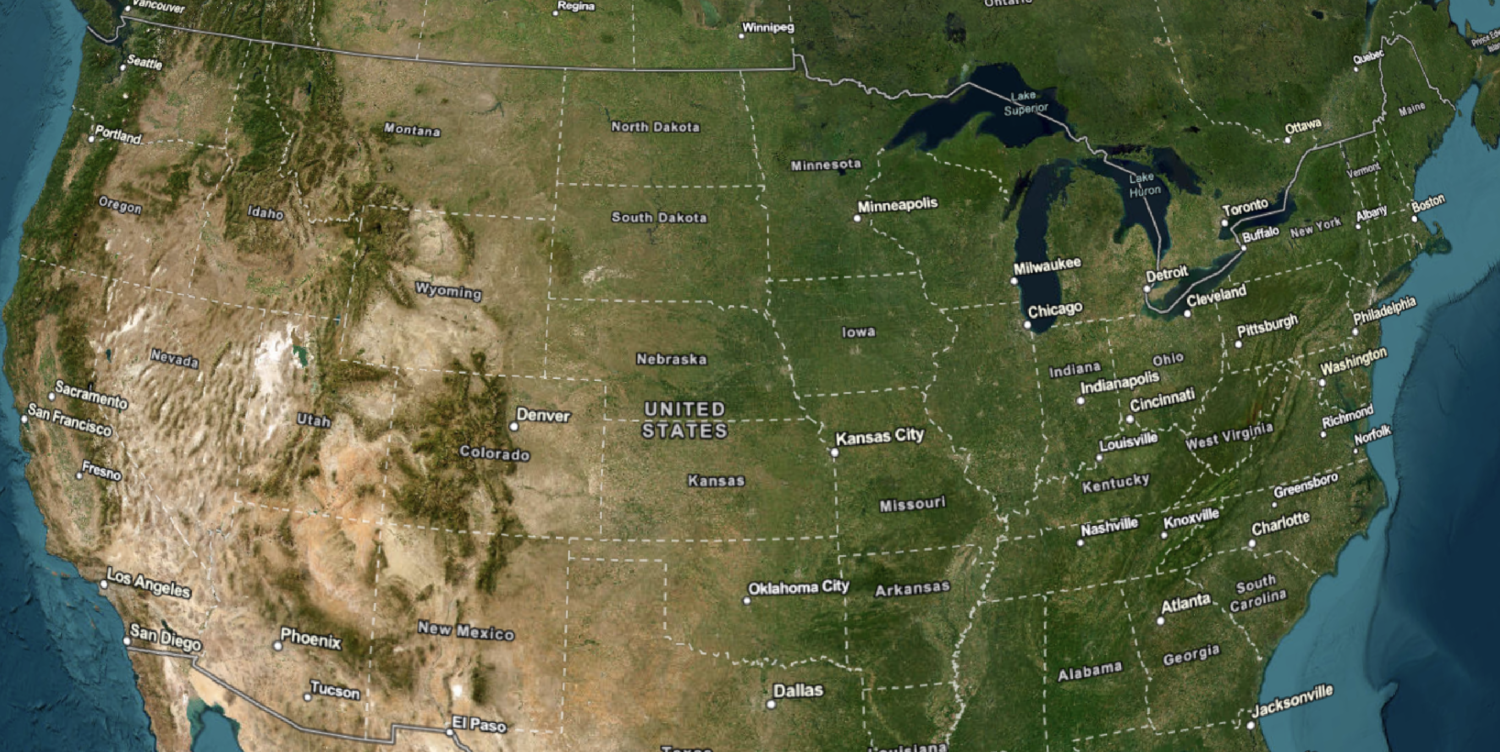
Learn how to change static basemap tiles style.
You can display a scene with raster basemap tiles using the ArcGIS Static Basemap Tiles servicenavigation, streets, outdoor, and light-gray. The tiles are returned as PNG files.
In this tutorial, you customize the Base widget to display the different basemap layer styles and display them as raster tiles on your scene.
Prerequisites
You need an ArcGIS Location Platform account.
ArcGIS Online and ArcGIS Enterprise accounts are not supported.
Steps
Get the starter app
Select a type of authentication and follow the steps to create a new app.
Choose API key authentication if you:
- Want the easiest way to get started.
- Want to build public applications
A public application is an application that allows anonymous access without requiring users to sign in with an ArcGIS account. It supports API key or app authentication. that access ArcGIS Location ServicesArcGIS Location Services, also referred to as Location Services, are services hosted by Esri that provide geospatial functionality for developing mapping applications. They include the ArcGIS Basemap Styles service, ArcGIS Static Basemap Tiles service, ArcGIS Static Maps service, ArcGIS Places service, ArcGIS Geocoding service, ArcGIS Routing service, ArcGIS GeoEnrichment service, and ArcGIS Elevation service. An ArcGIS Location Platform or ArcGIS Online account is required to use the services. and secure itemsAn item, also known as a content item, is a resource stored in a portal such as a web map, hosted layer, style, script tool, file, or notebook. . - Have an ArcGIS Location Platform or ArcGIS Online account.
Choose user authentication if you:
- Want to build private applications.
- Require application users to sign in with their own ArcGIS account
An ArcGIS account is an identity with a user type and set of privileges that can access specific ArcGIS products, tools, APIs, services, and resources. The main account types that can be used for development are an ArcGIS Location Platform account, ArcGIS Online account, and ArcGIS Enterprise account. ArcGIS Location Platform and ArcGIS Online accounts are also associated with a subscription. and access resources their behalf. - Have an ArcGIS Online account.
To learn more about both types of authentication, go to Authentication.
Set up authentication
Set developer credentials
Get a Cesium ion access token
All Cesium applications must use an access token provided through Cesium ion. This token allows you to access assets such as Cesium World Terrain in your application.
-
Go to your Cesium ion dashboard to generate an access token. Copy the key to your clipboard.
-
Create a
cesiumvariable and replaceAccess Token YOURwith the access token you copied from the Cesium ion dashboard._CESIUM _ACCESS _TOKEN Use dark colors for code blocks <script> /* Use for API key authentication */ const accessToken = "YOUR_ACCESS_TOKEN"; // or /* Use for user authentication */ // const session = await arcgisRest.ArcGISIdentityManager.beginOAuth2({ // clientId: "YOUR_CLIENT_ID", // Your client ID from OAuth credentials // redirectUri: "YOUR_REDIRECT_URI", // The redirect URL registered in your OAuth credentials // portal: "YOUR_PORTAL_URL" // Your portal URL // }) // const accessToken = session.token; Cesium.ArcGisMapService.defaultAccessToken = accessToken; const cesiumAccessToken = "YOUR_CESIUM_ACCESS_TOKEN"; </script> -
Configure
Cesium.with the Cesium access token to validate the application.Ion.default Access Token Use dark colors for code blocks <script> /* Use for API key authentication */ const accessToken = "YOUR_ACCESS_TOKEN"; // or /* Use for user authentication */ // const session = await arcgisRest.ArcGISIdentityManager.beginOAuth2({ // clientId: "YOUR_CLIENT_ID", // Your client ID from OAuth credentials // redirectUri: "YOUR_REDIRECT_URI", // The redirect URL registered in your OAuth credentials // portal: "YOUR_PORTAL_URL" // Your portal URL // }) // const accessToken = session.token; Cesium.ArcGisMapService.defaultAccessToken = accessToken; const cesiumAccessToken = "YOUR_CESIUM_ACCESS_TOKEN"; Cesium.Ion.defaultAccessToken = cesiumAccessToken; </script>
Remove basemap code
- Remove the code that adds a basemap layer because you will load it dynamically from a menu instead.
Use dark colors for code blocks <script> /* Use for API key authentication */ const accessToken = "YOUR_ACCESS_TOKEN"; // or /* Use for user authentication */ // const session = await arcgisRest.ArcGISIdentityManager.beginOAuth2({ // clientId: "YOUR_CLIENT_ID", // Your client ID from OAuth credentials // redirectUri: "YOUR_REDIRECT_URI", // The redirect URL registered in your OAuth credentials // portal: "YOUR_PORTAL_URL" // Your portal URL // }) // const accessToken = session.token; Cesium.ArcGisMapService.defaultAccessToken = accessToken; const cesiumAccessToken = "YOUR_CESIUM_ACCESS_TOKEN"; Cesium.Ion.defaultAccessToken = cesiumAccessToken; const basemapEnum = "arcgis/navigation"; const baseUrl = `https://static-map-tiles-api.arcgis.com/arcgis/rest/services/static-basemap-tiles-service/v1/${basemapEnum}/static`; const imageryProvider = new Cesium.UrlTemplateImageryProvider({ url: `${baseUrl}/tile/{z}/{y}/{x}?token=${accessToken}`, tileWidth: 512, tileHeight: 512 }); const viewer = new Cesium.Viewer("cesiumContainer", { baseLayerPicker: false, timeline: false, animation: false, geocoder: false }); viewer.camera.setView({ destination: Cesium.Cartesian3.fromDegrees(-91.2996, 37.1174, 12000000) }); viewer.imageryLayers.addImageryProvider(imageryProvider); fetch(`${baseUrl}?token=${accessToken}`) .then((response) => response.json()) .then((data) => { const basemapAttribution = new Cesium.Credit(data.copyrightText, false); viewer.creditDisplay.addStaticCredit(basemapAttribution); }); const poweredByEsri = new Cesium.Credit("Powered by <a href='https://www.esri.com/en-us/home' target='_blank'>Esri</a>", true); viewer.creditDisplay.addStaticCredit(poweredByEsri); </script>
Update the camera's viewpoint
-
Change the camera's
destinationto-91.2996, 37.1174, 4622324.434309. This will focus the camera on the United States of America.Use dark colors for code blocks Copy viewer.camera.setView({ destination: Cesium.Cartesian3.fromDegrees(-91.2996, 37.1174, 4622324.434309) });
Load the basemaps
-
Create a variable called
viewto obtain theModel Basewidget. You will be able to customize the widget through this variable.Layer Picker Use dark colors for code blocks /* Use for API key authentication */ const accessToken = "YOUR_ACCESS_TOKEN"; // or /* Use for user authentication */ // const session = await arcgisRest.ArcGISIdentityManager.beginOAuth2({ // clientId: "YOUR_CLIENT_ID", // Your client ID from OAuth credentials // redirectUri: "YOUR_REDIRECT_URI", // The redirect URL registered in your OAuth credentials // portal: "YOUR_PORTAL_URL" // Your portal URL // }) // const accessToken = session.token; const cesiumAccessToken = "YOUR_CESIUM_ACCESS_TOKEN"; Cesium.Ion.defaultAccessToken = cesiumAccessToken; const viewer = new Cesium.Viewer("cesiumContainer", { timeline: false, animation: false, geocoder: false }); const viewModel = viewer.baseLayerPicker.viewModel; viewer.camera.setView({ destination: Cesium.Cartesian3.fromDegrees(-91.2996, 37.1174, 4622324.434309) }); -
Create an
asyncfunction calledload.Basemaps Use dark colors for code blocks /* Use for API key authentication */ const accessToken = "YOUR_ACCESS_TOKEN"; // or /* Use for user authentication */ // const session = await arcgisRest.ArcGISIdentityManager.beginOAuth2({ // clientId: "YOUR_CLIENT_ID", // Your client ID from OAuth credentials // redirectUri: "YOUR_REDIRECT_URI", // The redirect URL registered in your OAuth credentials // portal: "YOUR_PORTAL_URL" // Your portal URL // }) // const accessToken = session.token; const cesiumAccessToken = "YOUR_CESIUM_ACCESS_TOKEN"; Cesium.Ion.defaultAccessToken = cesiumAccessToken; const viewer = new Cesium.Viewer("cesiumContainer", { timeline: false, animation: false, geocoder: false }); const viewModel = viewer.baseLayerPicker.viewModel; async function loadBasemaps() { } viewer.camera.setView({ destination: Cesium.Cartesian3.fromDegrees(-91.2996, 37.1174, 4622324.434309) }); -
Import
arcgisto make a request to the static basemap tiles service. This dynamically fetches the available basemap styles.Rest.request() Use dark colors for code blocks <!-- ArcGIS REST JS --> <script src="https://unpkg.com/@esri/arcgis-rest-request@4/dist/bundled/request.umd.js"></script>Use dark colors for code blocks async function loadBasemaps() { const data = await arcgisRest.request("https://static-map-tiles-api.arcgis.com/arcgis/rest/services/static-basemap-tiles-service/v1/self", { httpMethod: "GET", authentication: arcgisRest.ApiKeyManager.fromKey(accessToken) }); } -
Create an empty list of
imagery. We will use this list to store the basemap styles that will be displayed in the base layer picker.Providers Use dark colors for code blocks async function loadBasemaps() { const data = await arcgisRest.request("https://static-map-tiles-api.arcgis.com/arcgis/rest/services/static-basemap-tiles-service/v1/self", { httpMethod: "GET", authentication: arcgisRest.ApiKeyManager.fromKey(accessToken) }); const imageryProviders = []; } -
For each basemap style returned by the service, create a new
Cesium.and push it into ourProvider View Model imagerylist.Providers Use dark colors for code blocks async function loadBasemaps() { const data = await arcgisRest.request("https://static-map-tiles-api.arcgis.com/arcgis/rest/services/static-basemap-tiles-service/v1/self", { httpMethod: "GET", authentication: arcgisRest.ApiKeyManager.fromKey(accessToken) }); const imageryProviders = []; for (const style of data.styles) { imageryProviders.push(new Cesium.ProviderViewModel({ name: style.name, iconUrl: style.thumbnailUrl, creationFunction: () => { return new Cesium.UrlTemplateImageryProvider({ url: style.templateUrl + "?token=" + accessToken, tileWidth: 512, tileHeight: 512, }); } })); } } -
Apply the
imagerylist into theProviders viewand use the first basemap style as the default basemap.Model Use dark colors for code blocks async function loadBasemaps() { const data = await arcgisRest.request("https://static-map-tiles-api.arcgis.com/arcgis/rest/services/static-basemap-tiles-service/v1/self", { httpMethod: "GET", authentication: arcgisRest.ApiKeyManager.fromKey(accessToken) }); const imageryProviders = []; for (const style of data.styles) { imageryProviders.push(new Cesium.ProviderViewModel({ name: style.name, iconUrl: style.thumbnailUrl, creationFunction: () => { return new Cesium.UrlTemplateImageryProvider({ url: style.templateUrl + "?token=" + accessToken, tileWidth: 512, tileHeight: 512, }); } })); } viewModel.imageryProviderViewModels = imageryProviders; viewModel.selectedImagery = imageryProviders[0]; // set the first basemap style as the default style }
Load the new base layer picker
-
Call the
loadfunction to load the new base layer picker with the static basemap styles.Basemaps Use dark colors for code blocks loadBasemaps(); viewer.camera.setView({ destination: Cesium.Cartesian3.fromDegrees(-91.2996, 37.1174, 4622324.434309) });
Add attribution
You are required to provide data attribution to the Static Basemap Tiles service. CesiumJS does not add the attribution automatically. Therefore, you are required to add it manually. To do this, you make another call to the service to retrieve the basemap style's metadata, then attach the copyright attribute to the imagery provider's credit.
-
Inside the
forloop, make a call to the style's URL to retrieve its metadata. Store the JSON response into a variable calledattribution.Data Use dark colors for code blocks async function loadBasemaps() { const data = await arcgisRest.request("https://static-map-tiles-api.arcgis.com/arcgis/rest/services/static-basemap-tiles-service/v1/self", { httpMethod: "GET", authentication: arcgisRest.ApiKeyManager.fromKey(accessToken) }); const imageryProviders = []; for (const style of data.styles) { const attributionData = await arcgisRest.request(`${style.url}`, { httpMethod: "GET", authentication: arcgisRest.ApiKeyManager.fromKey(accessToken) }); imageryProviders.push(new Cesium.ProviderViewModel({ name: style.name, iconUrl: style.thumbnailUrl, creationFunction: () => { return new Cesium.UrlTemplateImageryProvider({ url: style.templateUrl + "?token=" + accessToken, tileWidth: 512, tileHeight: 512, }); } })); } viewModel.imageryProviderViewModels = imageryProviders; viewModel.selectedImagery = imageryProviders[0]; // set the first basemap style as the default style } -
In the
creationof the style, use theFunction copyrightfrom theText attributionin theData creditattribute.Use dark colors for code blocks async function loadBasemaps() { const data = await arcgisRest.request("https://static-map-tiles-api.arcgis.com/arcgis/rest/services/static-basemap-tiles-service/v1/self", { httpMethod: "GET", authentication: arcgisRest.ApiKeyManager.fromKey(accessToken) }); const imageryProviders = []; for (const style of data.styles) { const attributionData = await arcgisRest.request(`${style.url}`, { httpMethod: "GET", authentication: arcgisRest.ApiKeyManager.fromKey(accessToken) }); imageryProviders.push(new Cesium.ProviderViewModel({ name: style.name, iconUrl: style.thumbnailUrl, creationFunction: () => { return new Cesium.UrlTemplateImageryProvider({ url: style.templateUrl + "?token=" + accessToken, tileWidth: 512, tileHeight: 512, credit: new Cesium.Credit(attributionData.copyrightText) }); } })); } viewModel.imageryProviderViewModels = imageryProviders; viewModel.selectedImagery = imageryProviders[0]; // set the first basemap style as the default style }
Run the app
Run the app.
The scene should display an area of the United States of America with a customized base layer picker.What's next?
Learn how to use additional location services in these tutorials: