Using the routing service
Your routing app can do things like:
- Calculate point-to-point and multi- stop
A stop is a single point along a route: it can be the origin, an intermediate stop, or destination. routesA route is a polyline that defines the best path between two or more points in a street network. - Optimize the results to find the shortest or the fastest route
- Find the best sequence between stops
A stop is a single point along a route: it can be the origin, an intermediate stop, or destination. - Create routes based on the travel mode
A travel mode is the means of transportation, such as walking or driving, that defines how you can travel in a street network. (driving, cycling, walking, and so on) - Avoid restricted areas and maneuvers
- Specify time windows of arrival and departure for each stop
A stop is a single point along a route: it can be the origin, an intermediate stop, or destination. - Generate driving directions in multiple languages
What is routing?
Routing is the process of finding the best path between two or more stops
In addition to the routing described above, functionality is provided to analyze street networks. This includes the ability to create service areas
Directions
If requested, directions are returned for each route
Directions are composed of maneuvers. Each maneuver contains properties such as the direction text, which contains instructions that describe travel through a section of a route
If supported by the service
Navigation
The navigation API allows you to further enhance the routing experience using the current device location
The route tracker object provides the following functionality using the current device location
- Progress information relative to the next stop
A stop is a single point along a route: it can be the origin, an intermediate stop, or destination. , to the next maneuver, or along the entire route - Guidance for navigation as it’s needed (when approaching a maneuver, for example)
- Automatic recalculation of a route
A route is a polyline that defines the best path between two or more points in a street network. if the device locationA location is a position or region (point, line, or polygon) on the earth's surface. goes off route
How routing works
Online and local routing both rely on a transportation network to model travel. These networks are created from features
Network Analyst services
You can create a transportation network using ArcGIS Pro.mmpk), a mobile scene package.mspk), or a mobile geodatabase
If you’d like a ready-to-use and regularly updated network dataset (and locator
Route task
A route task is a network analysis task that is executed asynchronously
The RouteTask refers to the local transportation network dataset or online service. It solves a Route using the configured RouteParameters and reports the RouteResult.
// Creating a new route task via a URL. m_routeTask = new RouteTask(QUrl( "https://sampleserver7.arcgisonline.com/server/rest/services/NetworkAnalysis/SanDiego/NAServer/Route"), this);Route parameters
Route task parameters specify how a route
To initially create RouteParameters, call RouteTask::createDefaultParametersAsync() to retrieve the default routing parameters defined for the service. You can then change individual route parameters as needed before executing the RouteTask. The service’s default parameters typically support the most common use case anticipated for that service. Different services can have different defaults.
    // Call the create default route parameters method on the route task.    m_routeTask->createDefaultParametersAsync().then(this, [this](const RouteParameters& routeParameters)    {        // Store the resulting route parameters.        m_routeParameters = routeParameters;
        // Create a list of stops using points.        const QList<Stop> stops =            {Stop(Point(-122.690, 45.522, SpatialReference::wgs84())),  // start point             Stop(Point(-122.615, 45.526, SpatialReference::wgs84())),  // intermediate point             Stop(Point(-122.688, 45.512, SpatialReference::wgs84()))}; // end point
        // Add the stops to the route parameters.        m_routeParameters.setStops(stops);
        // Return driving directions in Spanish.        m_routeParameters.setReturnDirections(true);        m_routeParameters.setDirectionsLanguage("es");     });
Route results
The results returned from finding a route
    // Call the solve route method on the route task using route parameters.    m_routeTask->solveRouteAsync(m_routeParameters).then(this,[this](const RouteResult& routeResult)    {        // If a result is returned, display the route.        if (!routeResult.isEmpty())        {            // Add the route graphic once the solve completes.            const Route generatedRoute = routeResult.routes().at(0);
            // Show the route as a graphic in the map view.            m_routeGraphic->setGeometry(generatedRoute.routeGeometry());
            // Get the driving directions.            m_directions = generatedRoute.directionManeuvers(this);
            // Notify QML controls of the change.            emit routeChanged();        }    });
Examples
Find a route and directions
Use the routing service
To find a route, you need to define at least two stops to visit. The default travel mode
The result contains a set of ordered stops
    // Test of the route task is loded and there are valid route parameters.    if (m_routeTask->loadStatus() != LoadStatus::Loaded || m_routeParameters.isEmpty())        return;
    // Return driving directions in Spanish.    m_routeParameters.setReturnDirections(true);    m_routeParameters.setDirectionsLanguage("es");
    // Clear previous stops from the parameters.    m_routeParameters.clearStops();
    // Set the stops to the parameters.    const Stop stop1(geometry_cast<Point>(m_startGraphic->geometry()));    const Stop stop2(geometry_cast<Point>(m_stopGraphic->geometry()));    const Stop stop3(geometry_cast<Point>(m_endGraphic->geometry()));
    m_routeParameters.setStops(QList<Stop> { stop1, stop2, stop3 });
    // Call the solve route on the router task using route parameters.    QFuture<RouteResult> resultSolveRoute = m_routeTask->solveRouteAsync(m_routeParameters);
Use API key access tokens
Tutorials

Samples

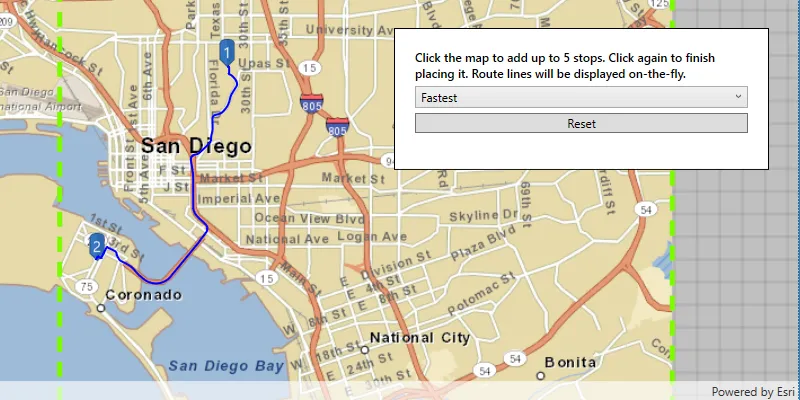
Find route
Offline routing

Route around barriers

Display device location

Mobile map (search and route)

Find service area
