Learn how to search for places of interest, such as hotels, cafes, and gas stations using the geocoding service
Geocoding
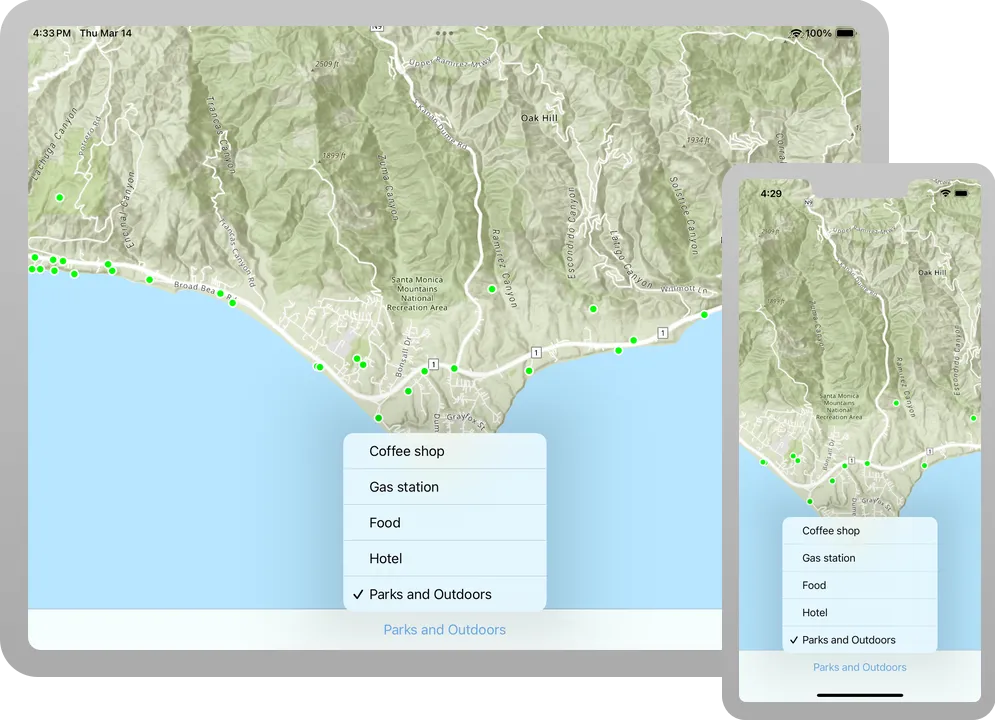
In this tutorial, you use a picklist in the user interface to select a category of places, for example, coffee shops or gas stations. You locate all the places that match this category by accessing a geocoding service. The places are displayed on the map so that you can click on them to get further information.
Prerequisites
Before starting this tutorial:
-
You need an ArcGIS Location Platform or ArcGIS Online account.
-
Your system meets the system requirements.
Set up authentication
To access the secure ArcGIS location services
You can implement API key authentication or user authentication in this tutorial. Compare the differences below:
API key authentication
- Users are not required to sign in.
- Requires creating an API key credential
API key credentials are an item that contains the parameters used to create and manage long-lived access tokens for API key authentication. They are a type of developer credential. with the correct privileges. - API keys
An API key is a long-lived access token created using API key credentials. They are valid for up to one year and are typically embedded directly into client applications. are long-lived access tokens. - Service usage is billed to the API key owner/developer.
- Simplest authentication method to implement.
- Recommended approach for new ArcGIS developers.
Learn more in API key authentication.
User authentication
- Users are required to sign in with an ArcGIS account
An ArcGIS account is an identity with a user type and set of privileges that can access specific ArcGIS products, tools, APIs, services, and resources. The main account types that can be used for development are an ArcGIS Location Platform account, ArcGIS Online account, and ArcGIS Enterprise account. ArcGIS Location Platform and ArcGIS Online accounts are also associated with a subscription. . - User accounts must have privilege
Privileges are a set of permissions assigned to ArcGIS accounts, developer credentials, and applications that grant access to secure resources and functionality in ArcGIS. to access the ArcGIS servicesA service, also known as an ArcGIS service, is software that supports an ArcGIS REST API and provides geospatial functionality or data. A service can be hosted by Esri or in ArcGIS Enterprise. used in application. - Requires creating OAuth credentials
OAuth credentials are an item that contains parameters required to implement user authentication or app authentication, including a .client_id,client_secret, and redirect URIs. They are a type of developer credential. - Application uses a redirect URL and client ID.
- Service usage is billed to the organization of the user signed into the application.
Learn more in User authentication.
To complete this tutorial, click on the tab in the switcher below for your authentication type of choice, either API key authentication or User authentication.
Create a new API key access token
-
Complete the Create an API key tutorial and create an API key with the following privilege(s)
Privileges are a set of permissions assigned to ArcGIS accounts, developer credentials, and applications that grant access to secure resources and functionality in ArcGIS. :- Privileges
- Location services > Basemaps
- Location services > Geocoding
- Privileges
-
Copy and paste the API key access token into a safe location. It will be used in a later step.
Create new OAuth credentials to access the secure resources used in this tutorial.
-
Complete the Create OAuth credentials for user authentication tutorial to obtain a Client ID and Redirect URL.
A
Client IDuniquely identifies your app on the authenticating server. If the server cannot find an app with the provided Client ID, it will not proceed with authentication.The
Redirect URL(also referred to as a callback url) is used to identify a response from the authenticating server when the system returns control back to your app after an OAuth login. Since it does not necessarily represent a valid endpoint that a user could navigate to, the redirect URL can use a custom scheme, such asmy-app://auth. It is important to make sure the redirect URL used in your app’s code matches a redirect URL configured on the authenticating server. -
Copy and paste the Client ID and Redirect URL into a safe location. They will be used in a later step.
All users that access this application need account privileges
Develop or Download
You have two options for completing this tutorial:
Option 1: Develop the code
To start the tutorial, complete the Display a map tutorial. This creates a map to display the Santa Monica Mountains in California using the topographic basemap from the ArcGIS Basemap Styles service
Continue with the following instructions search for places of interest, such as hotels, cafes, and gas stations using the ArcGIS Geocoding service
Set developer credentials
If you implemented API key authenticationLocatorTask. To create an API Key access token that has the Basemaps and Geocoding privileges, see the Set up authentication step and then follow the instructions below.
Pass your API Key access token to the ArcGISEnvironment.
-
In the Project Navigator, click MainApp.swift.
-
Set the
ArcGISEnvironment.apiKeyproperty with your API key access token.MainApp.swiftArcGISEnvironment.apiKey = APIKey("<#YOUR-ACCESS-TOKEN#>")
Best Practice: The access token is stored directly in the code as a convenience for this tutorial. Do not store credentials directly in source code in a production environment.
Use the Authenticator toolkit component to manage your OAuth credentialsclient_id, client_secret, and redirect URIs. They are a type of developer credential. ArcGISEnvironment.
-
In the Project Navigator, click MainApp.swift.
-
Set your
PortalURL,clientIDandredirectURLvalues.MainApp.swiftauthenticator = Authenticator(oAuthUserConfigurations: [OAuthUserConfiguration(portalURL: URL(string: "<#YOUR-PORTAL-URL#>")!,clientID: ""<#YOUR-CLIENT-ID#>"",redirectURL: URL(string: "<#YOUR-REDIRECT-URL#>")!)])ArcGISEnvironment.authenticationManager.handleChallenges(using: authenticator)
Best Practice: The OAuth credentials are stored directly in the code as a convenience for this tutorial. Do not store credentials directly in source code in a production environment.
Update the map
-
In Xcode, in the Project Navigator, click ContentView.swift.
-
Create a private extension of
ContentViewand make a private class namedModelof typeObservableObject. Add a@StateObjectvariable of theModelto theContentView. See the programming patterns page for more information on how to manage states.ContentView.swiftstruct ContentView: View {@StateObject private var model = Model()@State private var map = {let map = Map(basemapStyle: .arcGISTopographic)map.initialViewpoint = Viewpoint(latitude: 34.02700, longitude: -118.80500, scale: 72_000)return map}()}private extension ContentView {private class Model: ObservableObject {}} -
Create a
GraphicsOverlaynamedgraphicsOverlayin theModelclass. A graphics overlayA graphics overlay is a client-side, temporary container of graphics to display on a map view or scene view. is a container for graphicsA graphic is a visual element composed of a geometry, symbol, and attributes that is displayed on a map or scene. .A graphics overlay
A graphics overlay is a client-side, temporary container of graphics to display on a map view or scene view. is a container for graphicsA graphic is a visual element composed of a geometry, symbol, and attributes that is displayed on a map or scene. . It is used with a map viewA map view is a user interface that displays map layers and graphics in 2D. It controls the area (extent) of the map that is visible and supports user interactions such as pan and zoom. to display graphics on a mapA map is a collection of layers that are displayed in 2D. It is typically composed of a basemap layer and data layers. . You can add more than one graphics overlay to a map view. Graphics overlays are displayed on top of all the other layersA layer is a reference to a collection of geographic data that is used to access and display data. The data for layers are typically provided by the basemap layer service and data services. .ContentView.swiftprivate class Model: ObservableObject {let graphicsOverlay = GraphicsOverlay()} -
Add the graphics overlay to the map view, wrap the map view inside a
MapViewReader, and expose theMapViewProxyclass in its closure.MapViewProxyprovides operations that can be performed on the map view, such as ‘identify’. For more information see Perform GeoView operations.ContentView.swiftvar body: some View {MapViewReader { mapViewProxy inMapView(map: map, graphicsOverlays: [model.graphicsOverlay])}}
Set up the LocatorTask
A locator task is used to search for places using a geocoding service. Results from this search contain the place location and additional information ( attributes
-
In the Model, create a
LocatorTaskproperty namedlocatorbased on the Geocoding service.A locator task is used to convert an address to a point
A point is a type of geometry containing a single set of (geocode) or vice-versa ( reverse geocodex,ycoordinates and a spatial reference.Reverse geocoding is the process of converting a point to its nearest address or place. ). An address includes any type of information that distinguishes a place. A locatorA locator is an ArcGIS dataset that stores address information and the rules for translating descriptions of places (such as street addresses or place names) into spatial data that can be displayed on a map. involves finding matching locations for a given address. Reverse-geocoding is the opposite and finds the closest address for a given point.ContentView.swiftprivate extension ContentView {private class Model: ObservableObject {let graphicsOverlay = GraphicsOverlay()let locator = LocatorTask(url: URL(string: "https://geocode-api.arcgis.com/arcgis/rest/services/World/GeocodeServer")!)}} -
To support the geocode operation, create an
enumnamedCategoryin theContentViewextension. Provide aStringnamed “label” and aUIColornamed “color”. Each category is searched using itslabeland is distinguished on the map using its associatedcolor.This tutorial uses category filtering to provide accurate search results based on pre-determined place categories. Feel free to modify this list to your specific requirements.
ContentView.swiftprivate extension ContentView {enum Category: CaseIterable, Equatable {case coffeeShop, gasStation, food, hotel, parksOutdoorsvar label: String {switch self {case .coffeeShop: return "Coffee shop"case .gasStation: return "Gas station"case .food: return "Food"case .hotel: return "Hotel"case .parksOutdoors: return "Parks and Outdoors"}}var color: UIColor {switch self {case .coffeeShop: return .browncase .gasStation: return .orangecase .food: return .purplecase .hotel: return .bluecase .parksOutdoors: return .green}}}private class Model: ObservableObject {let graphicsOverlay = GraphicsOverlay()let locator = LocatorTask(url: URL(string: "https://geocode-api.arcgis.com/arcgis/rest/services/World/GeocodeServer")!)}} -
In the
ContentViewstruct, create a private variable namedgeoViewExtentof typeEnvelopewith the@Stateproperty wrapper. This will be used to define the search location.ContentView.swiftstruct ContentView: View {@StateObject private var model = Model()@State private var geoViewExtent: Envelope?@State private var map = {let map = Map(basemapStyle: .arcGISTopographic)map.initialViewpoint = Viewpoint(latitude: 34.02700, longitude: -118.80500, scale: 72_000)return map}()var body: some View {MapViewReader { mapViewProxy inMapView(map: map, graphicsOverlays: [model.graphicsOverlay])}}} -
In the
body, add theonVisibleAreaChanged(perform:)method to the map view. Set thegeoViewExtentvariable to the new visible area’s extent.ContentView.swiftvar body: some View {MapViewReader { mapViewProxy inMapView(map: map, graphicsOverlays: [model.graphicsOverlay]).onVisibleAreaChanged { newVisibleArea ingeoViewExtent = newVisibleArea.extent}}} -
In the
Model, create a private, asynchronous method calledfindPlaces(forCategory:searchPoint:)to perform the geocodeGeocoding is the process of converting text for an address or place to a complete address with a location. search operation. The method takes a parameter of typeCategorythat you created in the previous step to indicate which category of places to search for and aPointthat acts as the preferred search location.ContentView.swiftprivate class Model: ObservableObject {let graphicsOverlay = GraphicsOverlay()let locator = LocatorTask(url: URL(string: "https://geocode-api.arcgis.com/arcgis/rest/services/World/GeocodeServer")!)func findPlaces(forCategory category: Category, searchPoint: Point? = nil) async {}} -
Clear the previous results by removing all graphics from the graphics overlay. Create and configure new
GeocodeParameters. Populate them with thesearchPointparameter as the search location and add result attribute names.ContentView.swiftfunc findPlaces(forCategory category: Category, searchPoint: Point? = nil) async {graphicsOverlay.removeAllGraphics()let geocodeParameters = GeocodeParameters()geocodeParameters.preferredSearchLocation = searchPointgeocodeParameters.addResultAttributeNames(["Place_addr", "PlaceName"])} -
Perform the search query using
geocode(forSearchText:using:). Pass in the category’slabeland the geocode parameters.ContentView.swiftfunc findPlaces(forCategory category: Category, searchPoint: Point? = nil) async {graphicsOverlay.removeAllGraphics()let geocodeParameters = GeocodeParameters()geocodeParameters.preferredSearchLocation = searchPointgeocodeParameters.addResultAttributeNames(["Place_addr", "PlaceName"])do {let geocodeResults = try await locator.geocode(forSearchText: category.label, using: geocodeParameters)} catch {print(error)}} -
Create graphics for each of the results and add them to the graphics overlay.
Populate the
graphicsOverlaywithSimpleMarkerSymbols representing each place returned in the search results. This is very similar to the Add a point, line, and polygon tutorial.ContentView.swiftfunc findPlaces(forCategory category: Category, searchPoint: Point? = nil) async {graphicsOverlay.removeAllGraphics()let geocodeParameters = GeocodeParameters()geocodeParameters.preferredSearchLocation = searchPointgeocodeParameters.addResultAttributeNames(["Place_addr", "PlaceName"])do {let geocodeResults = try await locator.geocode(forSearchText: category.label, using: geocodeParameters)if !geocodeResults.isEmpty {let placeSymbol = SimpleMarkerSymbol(style: .circle,color: category.color,size: 10)placeSymbol.outline = SimpleLineSymbol(style: .solid,color: .white,width: 2)let graphics = geocodeResults.map { Graphic(geometry: $0.displayLocation, attributes: $0.attributes, symbol: placeSymbol) }graphicsOverlay.addGraphics(graphics)}} catch {print(error)}}
Add a category picker
You will add a Picker to the user interface to show categories of places to find, for example, coffee shops or gas stations. Each category will be displayed with a different color on the map.
-
In the
ContentViewstruct, add a variable of typeCategorywith the@Stateproperty wrapper and give it a default value ofcoffeeShop. This will indicate the currently selected category.ContentView.swiftstruct ContentView: View {@StateObject private var model = Model()@State private var geoViewExtent: Envelope?@State private var selectedCategory: Category = .coffeeShop@State private var map = {let map = Map(basemapStyle: .arcGISTopographic)map.initialViewpoint = Viewpoint(latitude: 34.02700, longitude: -118.80500, scale: 72_000)return map}() -
In the
ContentViewbody, add atoolbarview modifier to the map view that places aToolbarat the bottom of the view where thePickerwill be contained.ContentView.swiftvar body: some View {MapViewReader { mapViewProxy inMapView(map: map, graphicsOverlays: [model.graphicsOverlay]).onVisibleAreaChanged { newVisibleArea ingeoViewExtent = newVisibleArea.extent}.toolbar {ToolbarItemGroup(placement: .bottomBar) {}}}} -
Add a
Pickerto the toolbar and label it “Choose a category”. Set the selection to$selectedCategory. This will iterate through.allCasesofCategoryto populate the Picker with all the category labels. Add the.labelsHiddenmodifier.ContentView.swift.toolbar {ToolbarItemGroup(placement: .bottomBar) {Picker("Choose a category", selection: $selectedCategory) {ForEach(Category.allCases, id: \.self) { category inText(category.label)}}.labelsHidden()}} -
Lastly, add a
.taskmodifier to thePickerthat calls the model’sfindPlaces(forCategory:searchPoint:)function. Pass inselectedCategoryand thegeoViewExtent?.center. This will initiate a geocode search when a category is selected.ContentView.swift.toolbar {ToolbarItemGroup(placement: .bottomBar) {Picker("Choose a category", selection: $selectedCategory) {ForEach(Category.allCases, id: \.self) { category inText(category.label)}}.labelsHidden().task(id: selectedCategory) {await model.findPlaces(forCategory: selectedCategory, searchPoint: geoViewExtent?.center)}}}
Show information about a tapped location in the map
An identify
-
In the
ContentViewstruct, add objects to track the map and screen locations. CreatePointandCGPointvariables with the@Stateproperty wrappers. Name themmapLocationandtapLocation, respectively.ContentView.swiftstruct ContentView: View {@StateObject private var model = Model()@State private var geoViewExtent: Envelope?@State private var selectedCategory: Category = .coffeeShop@State private var tapLocation: CGPoint?@State private var mapLocation: Point?@State private var map = {let map = Map(basemapStyle: .arcGISTopographic)map.initialViewpoint = Viewpoint(latitude: 34.02700, longitude: -118.80500, scale: 72_000)return map}() -
Add objects to support the callout. Create
CalloutPlacementandStringvariables with the@Stateproperty wrapper. Name themcalloutPlacementandcalloutTextrespectively.ContentView.swiftstruct ContentView: View {@StateObject private var model = Model()@State private var geoViewExtent: Envelope?@State private var selectedCategory: Category = .coffeeShop@State private var tapLocation: CGPoint?@State private var mapLocation: Point?@State private var calloutPlacement: CalloutPlacement?@State private var calloutText: String?@State private var map = {let map = Map(basemapStyle: .arcGISTopographic)map.initialViewpoint = Viewpoint(latitude: 34.02700, longitude: -118.80500, scale: 72_000)return map}() -
In the
body, add a.calloutmodifier to the map view. Pass in$calloutPlacementas the placement parameter. In the closure, create aTextobject using thecalloutTextand provide a defaultStringin case it is nil.ContentView.swiftvar body: some View {MapViewReader { mapViewProxy inMapView(map: map, graphicsOverlays: [model.graphicsOverlay]).callout(placement: $calloutPlacement.animation(.default.speed(2))) { _ inText(calloutText ?? "No address found.").font(.callout).padding(8).frame(maxWidth: 350)}.onVisibleAreaChanged { newVisibleArea ingeoViewExtent = newVisibleArea.extent}.toolbar {ToolbarItemGroup(placement: .bottomBar) {Picker("Choose a category", selection: $selectedCategory) {ForEach(Category.allCases, id: \.self) { category inText(category.label)}}.labelsHidden().task(id: selectedCategory) {await model.findPlaces(forCategory: selectedCategory, searchPoint: geoViewExtent?.center)}}}}} -
Add the
onSingleTapGesture(perform:)method to the map view and setmapLocationandtapLocation.ContentView.swiftvar body: some View {MapViewReader { mapViewProxy inMapView(map: map, graphicsOverlays: [model.graphicsOverlay]).callout(placement: $calloutPlacement.animation(.default.speed(2))) { _ inText(calloutText ?? "No address found.").font(.callout).padding(8).frame(maxWidth: 350)}.onVisibleAreaChanged { newVisibleArea ingeoViewExtent = newVisibleArea.extent}.onSingleTapGesture { screenPoint, mapPoint intapLocation = screenPointmapLocation = mapPoint}.toolbar {ToolbarItemGroup(placement: .bottomBar) {Picker("Choose a category", selection: $selectedCategory) {ForEach(Category.allCases, id: \.self) { category inText(category.label)}}.labelsHidden().task(id: selectedCategory) {await model.findPlaces(forCategory: selectedCategory, searchPoint: geoViewExtent?.center)}}}}} -
Add a
.taskmodifier to the map view, passing intapLocationas the idefntifier. Ensure that the location objects are not nil.ContentView.swiftvar body: some View {MapViewReader { mapViewProxy inMapView(map: map, graphicsOverlays: [model.graphicsOverlay]).callout(placement: $calloutPlacement.animation(.default.speed(2))) { _ inText(calloutText ?? "No address found.").font(.callout).padding(8).frame(maxWidth: 350)}.onVisibleAreaChanged { newVisibleArea ingeoViewExtent = newVisibleArea.extent}.onSingleTapGesture { screenPoint, mapPoint intapLocation = screenPointmapLocation = mapPoint}.task(id: tapLocation) {guard let tapLocation, let mapLocation else { return }}.toolbar {ToolbarItemGroup(placement: .bottomBar) {Picker("Choose a category", selection: $selectedCategory) {ForEach(Category.allCases, id: \.self) { category inText(category.label)}}.labelsHidden().task(id: selectedCategory) {await model.findPlaces(forCategory: selectedCategory, searchPoint: geoViewExtent?.center)}}}}} -
Perform
identify(on:screenPoint:tolerance:returnPopupsOnly:maximumResults:)on the map view proxy to identify the graphics at thetapLocation.ContentView.swift.task(id: tapLocation) {guard let tapLocation, let mapLocation else { return }do {let identifyResult = try await mapViewProxy.identify(on: model.graphicsOverlay,screenPoint: tapLocation,tolerance: 12)} catch {print(error)}} -
Lastly, assign the
calloutTextandcalloutPlacementvariables with with attributes from the first graphic of the identify results. This change in state will trigger the callout to be displayed.ContentView.swift.task(id: tapLocation) {guard let tapLocation, let mapLocation else { return }do {let identifyResult = try await mapViewProxy.identify(on: model.graphicsOverlay,screenPoint: tapLocation,tolerance: 12)if let graphic = identifyResult.graphics.first {let placeName = graphic.attributes["PlaceName"] as? String ?? "Unknown"let placeAddress = graphic.attributes["Place_addr"] as? String ?? "no address provided"calloutText = "\(placeName)\n\(placeAddress)"calloutPlacement = .location(mapLocation)} else {calloutPlacement = nil}} catch {print(error)}}
Run the solution
Press Command + R to run the app.
If you are using the Xcode simulator your system must meet these minimum requirements: macOS 14 (Sonoma), Xcode 16, iOS 18. If you are using a physical device, then refer to the system requirements.
When the app opens, use the picker to search different categories of places in the Malibu area near Los Angeles, California. You can tap one of the places and see its name and address.
Alternatively, you can download the tutorial solution, as follows.
Option 2: Download the solution
-
Click the
Download solutionlink under Solution and unzip the file to a location on your machine. -
Open the
.xcodeprojfile in Xcode.
Since the downloaded solution does not contain authentication credentials, you must add the developer credentials that you created in the Set up authentication section.
Set developer credentials in the solution
To allow your app users to access ArcGIS location services
Pass your API Key access token to the ArcGISEnvironment.
-
In the Project Navigator, click MainApp.swift.
-
Set the
AuthenticationModeto.apiKey.MainApp.swift// Change the `AuthenticationMode` to `.apiKey` if your application uses API key authentication.private var authenticationMode: AuthenticationMode { .apiKey } -
Set the
apiKeyproperty with your API key access token.MainApp.swift31 collapsed lines// Copyright 2022 Esri//// Licensed under the Apache License, Version 2.0 (the "License");// you may not use this file except in compliance with the License.// You may obtain a copy of the License at//// https://www.apache.org/licenses/LICENSE-2.0//// Unless required by applicable law or agreed to in writing, software// distributed under the License is distributed on an "AS IS" BASIS,// WITHOUT WARRANTIES OR CONDITIONS OF ANY KIND, either express or implied.// See the License for the specific language governing permissions and// limitations under the License.import SwiftUIimport ArcGISimport ArcGISToolkit@mainstruct MainApp: App {// The authentication mode.private enum AuthenticationMode {case apiKeycase user}// Change the `AuthenticationMode` to `.apiKey` if your application uses API key authentication.private var authenticationMode: AuthenticationMode { .apiKey }// Please enter an API key access token if your application uses API key authentication.private let apiKey = APIKey("<#YOUR-ACCESS-TOKEN#>")43 collapsed lines// Setup an `Authenticator` with OAuth configuration if your application uses OAuth credentials.@ObservedObject var authenticator = Authenticator(oAuthUserConfigurations: [OAuthUserConfiguration(// Please enter OAuth credentials for user authentication.portalURL: URL(string: "<#YOUR-PORTAL-URL#>")!,clientID: "<#YOUR-CLIENT-ID#>",redirectURL: URL(string: "<#YOUR-REDIRECT-URL#>")!)])func setAuthentication() {switch authenticationMode {case .apiKey:ArcGISEnvironment.apiKey = apiKeycase .user:ArcGISEnvironment.authenticationManager.arcGISAuthenticationChallengeHandler = authenticator}}init() {setAuthentication()}var body: some SwiftUI.Scene {WindowGroup {ContentView().authenticator(authenticator).ignoresSafeArea()}}}
Best Practice: The access token is stored directly in the code as a convenience for this tutorial. Do not store credentials directly in source code in a production environment.
Use the Authenticator toolkit component to manage your OAuth credentialsclient_id, client_secret, and redirect URIs. They are a type of developer credential. ArcGISEnvironment.
-
In the Project Navigator, click MainApp.swift.
-
Set the
AuthenticationModeto.user.MainApp.swift// Change the `AuthenticationMode` to `.user` if your application uses OAuth credentials.private var authenticationMode: AuthenticationMode { .user } -
Set your
portalURL,clientIDandredirectURLvalues.MainApp.swift36 collapsed lines// Copyright 2022 Esri//// Licensed under the Apache License, Version 2.0 (the "License");// you may not use this file except in compliance with the License.// You may obtain a copy of the License at//// https://www.apache.org/licenses/LICENSE-2.0//// Unless required by applicable law or agreed to in writing, software// distributed under the License is distributed on an "AS IS" BASIS,// WITHOUT WARRANTIES OR CONDITIONS OF ANY KIND, either express or implied.// See the License for the specific language governing permissions and// limitations under the License.import SwiftUIimport ArcGISimport ArcGISToolkit@mainstruct MainApp: App {// The authentication mode.private enum AuthenticationMode {case apiKeycase user}// Change the `AuthenticationMode` to `.user` if your application uses OAuth credentials.private var authenticationMode: AuthenticationMode { .apiKey }// Please enter an API key access token if your application uses API key authentication.private let apiKey = APIKey("<#YOUR-ACCESS-TOKEN#>")// Setup an `Authenticator` with OAuth configuration if your application uses OAuth credentials.@ObservedObject var authenticator = Authenticator(oAuthUserConfigurations: [OAuthUserConfiguration(// Please enter OAuth credentials for user authentication.portalURL: URL(string: "<#YOUR-PORTAL-URL#>")!,clientID: "<#YOUR-CLIENT-ID#>",redirectURL: URL(string: "<#YOUR-REDIRECT-URL#>")!)])28 collapsed linesfunc setAuthentication() {switch authenticationMode {case .apiKey:ArcGISEnvironment.apiKey = apiKeycase .user:ArcGISEnvironment.authenticationManager.arcGISAuthenticationChallengeHandler = authenticator}}init() {setAuthentication()}var body: some SwiftUI.Scene {WindowGroup {ContentView().authenticator(authenticator).ignoresSafeArea()}}}
Best Practice: The OAuth credentials are stored directly in the code as a convenience for this tutorial. Do not store credentials directly in source code in a production environment.
Run the solution
Press Command + R to run the app.
If you are using the Xcode simulator your system must meet these minimum requirements: macOS 14 (Sonoma), Xcode 16, iOS 18. If you are using a physical device, then refer to the system requirements.
When the app opens, use the picker to search different categories of places in the Malibu area near Los Angeles, California. You can tap one of the places and see its name and address.
What’s next?
Learn how to use additional API features, ArcGIS location services, and ArcGIS tools in these tutorials: