Learn how to use an ArcGIS portal item to access and display a feature layer
You can host a variety of geographic data and other resources using ArcGIS Online
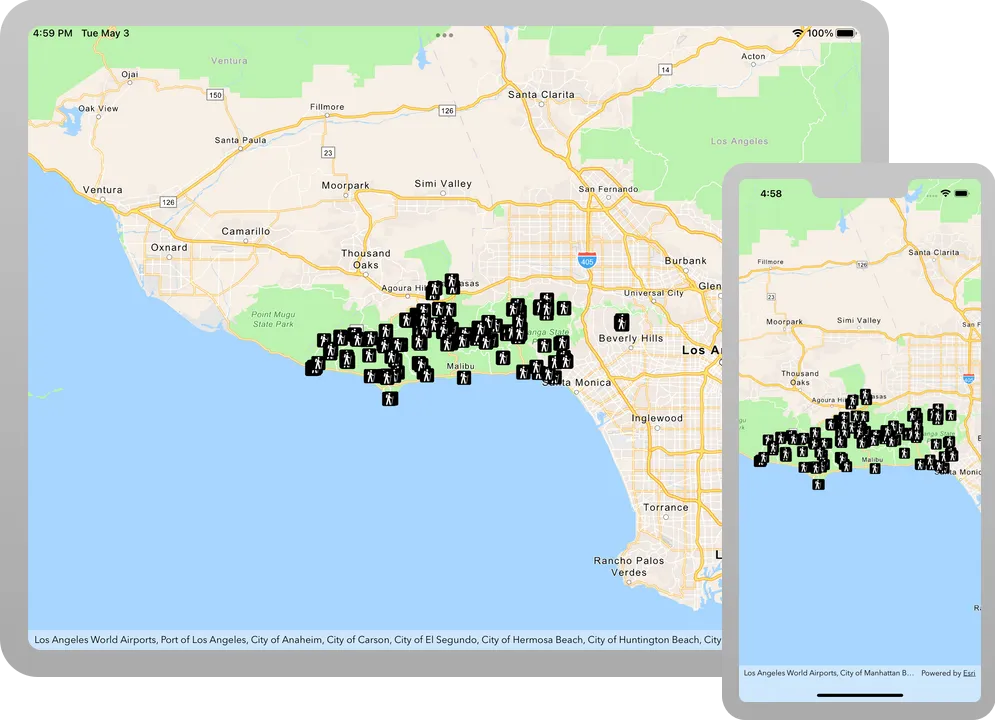
In this tutorial, you will add a hosted feature layer to display trailheads in the Santa Monica Mountains of Southern California. The hosted layer defines the trailhead locations (points) as well as the symbols used to display them.
Prerequisites
Before starting this tutorial:
-
You need an ArcGIS Location Platform or ArcGIS Online account.
-
Your system meets the system requirements.
Develop or Download
You have two options for completing this tutorial:
Option 1: Develop the code
To start the tutorial, complete the Display a map tutorial. This creates a map to display the Santa Monica Mountains in California using the topographic basemap from the ArcGIS Basemap Styles service
Open an Xcode project
- Open the
.xcodeprojproject you created by completing the Display a map tutorial. - Continue with the following instructions to use an ArcGIS portal item to access and display a feature layer in a map.
Add a feature layer to the map
-
Open the ContentView.swift file and update the
mapobject. Create aPortalItemobject referencing the feature layer by passing in the portal and item ID.Each portal item has a unique
Item.ID, identified from its URL on ArcGIS Online.In your browser, go to the Trailheads Styled layer on ArcGIS Online and find the item ID at the end of the URL. It should be
2e4b3df6ba4b44969a3bc9827de746b3.The feature layer referenced with this portal item contains trailheads in and around the Santa Monica Mountains.
ContentView.swift19 collapsed lines// Copyright 2023 Esri//// Licensed under the Apache License, Version 2.0 (the "License");// you may not use this file except in compliance with the License.// You may obtain a copy of the License at//// https://www.apache.org/licenses/LICENSE-2.0//// Unless required by applicable law or agreed to in writing, software// distributed under the License is distributed on an "AS IS" BASIS,// WITHOUT WARRANTIES OR CONDITIONS OF ANY KIND, either express or implied.// See the License for the specific language governing permissions and// limitations under the License.import SwiftUIimport ArcGISstruct ContentView: View {@State private var map = {// Creates a map with the topographic basemap style.let map = Map(basemapStyle: .arcGISTopographic)// Sets the initial viewpoint to Malibu, California.map.initialViewpoint = Viewpoint(latitude: 34.027, longitude: -118.805, scale: 72_000)// Creates an anonymous portal item pointing to https://www.arcgis.com with an item ID.let portalItem = PortalItem(portal: .arcGISOnline(connection: .anonymous),id: Item.ID("2e4b3df6ba4b44969a3bc9827de746b3")!)return map}()7 collapsed linesvar body: some View {// Displays the map.MapView(map: map)}} -
Create a
FeatureLayerobject from the portal item and a layer ID. The layer ID uniquely identifies one of the layers from the portal item. Add the layer to the map’s operational layers.A layer ID is required because a portal item may have more than one layer. For instance, when a feature service has 3 layers - trailheads (points), trails (polylines) and trail areas (polygons), the corresponding portal item would contain all three layers.
ContentView.swift19 collapsed lines// Copyright 2023 Esri//// Licensed under the Apache License, Version 2.0 (the "License");// you may not use this file except in compliance with the License.// You may obtain a copy of the License at//// https://www.apache.org/licenses/LICENSE-2.0//// Unless required by applicable law or agreed to in writing, software// distributed under the License is distributed on an "AS IS" BASIS,// WITHOUT WARRANTIES OR CONDITIONS OF ANY KIND, either express or implied.// See the License for the specific language governing permissions and// limitations under the License.import SwiftUIimport ArcGISstruct ContentView: View {@State private var map = {// Creates a map with the topographic basemap style.let map = Map(basemapStyle: .arcGISTopographic)// Sets the initial viewpoint to Malibu, California.map.initialViewpoint = Viewpoint(latitude: 34.027, longitude: -118.805, scale: 72_000)// Creates an anonymous portal item pointing to https://www.arcgis.com with an item ID.let portalItem = PortalItem(portal: .arcGISOnline(connection: .anonymous),id: Item.ID("2e4b3df6ba4b44969a3bc9827de746b3")!)// Creates a feature layer from the portal item and a layer ID.let layer = FeatureLayer(featureServiceItem: portalItem, layerID: 0)// Adds the layer to the map's operational layers.map.addOperationalLayer(layer)return map}()7 collapsed linesvar body: some View {// Displays the map.MapView(map: map)}}
Run the solution
Press Command + R to run the app.
If you are using the Xcode simulator your system must meet these minimum requirements: macOS 14 (Sonoma), Xcode 16, iOS 18. If you are using a physical device, then refer to the system requirements.
You should see a map of trail heads in the Santa Monica mountains. Tap, drag, and zoom on the map view to explore the map.
Alternatively, you can download the tutorial solution, as follows.
Option 2: Download the solution
-
Click the
Download solutionlink under Solution and unzip the file to a location on your machine. -
Open the
.xcodeprojfile in Xcode.
Since the downloaded solution does not contain authentication credentials, you must first set up authentication to create credentials, and then add the developer credentials to the solution.
Set developer credentials in the solution
To access the secure ArcGIS location services
You can implement API key authentication or user authentication in this tutorial. Compare the differences below:
API key authentication
- Users are not required to sign in.
- Requires creating an API key credential
API key credentials are an item that contains the parameters used to create and manage long-lived access tokens for API key authentication. They are a type of developer credential. with the correct privileges. - API keys
An API key is a long-lived access token created using API key credentials. They are valid for up to one year and are typically embedded directly into client applications. are long-lived access tokens. - Service usage is billed to the API key owner/developer.
- Simplest authentication method to implement.
- Recommended approach for new ArcGIS developers.
Learn more in API key authentication.
User authentication
- Users are required to sign in with an ArcGIS account
An ArcGIS account is an identity with a user type and set of privileges that can access specific ArcGIS products, tools, APIs, services, and resources. The main account types that can be used for development are an ArcGIS Location Platform account, ArcGIS Online account, and ArcGIS Enterprise account. ArcGIS Location Platform and ArcGIS Online accounts are also associated with a subscription. . - User accounts must have privilege
Privileges are a set of permissions assigned to ArcGIS accounts, developer credentials, and applications that grant access to secure resources and functionality in ArcGIS. to access the ArcGIS servicesA service, also known as an ArcGIS service, is software that supports an ArcGIS REST API and provides geospatial functionality or data. A service can be hosted by Esri or in ArcGIS Enterprise. used in application. - Requires creating OAuth credentials
OAuth credentials are an item that contains parameters required to implement user authentication or app authentication, including a .client_id,client_secret, and redirect URIs. They are a type of developer credential. - Application uses a redirect URL and client ID.
- Service usage is billed to the organization of the user signed into the application.
Learn more in User authentication.
To complete this tutorial, click on the tab in the switcher below for your authentication type of choice, either API key authentication or User authentication.
Create a new API key access token
-
Complete the Create an API key tutorial and create an API key with the following privilege(s)
Privileges are a set of permissions assigned to ArcGIS accounts, developer credentials, and applications that grant access to secure resources and functionality in ArcGIS. :- Privileges
- Location services > Basemaps
- Privileges
-
Copy and paste the API key access token into a safe location. It will be used in a later step.
Create new OAuth credentials to access the secure resources used in this tutorial.
-
Complete the Create OAuth credentials for user authentication tutorial to obtain a Client ID and Redirect URL.
A
Client IDuniquely identifies your app on the authenticating server. If the server cannot find an app with the provided Client ID, it will not proceed with authentication.The
Redirect URL(also referred to as a callback url) is used to identify a response from the authenticating server when the system returns control back to your app after an OAuth login. Since it does not necessarily represent a valid endpoint that a user could navigate to, the redirect URL can use a custom scheme, such asmy-app://auth. It is important to make sure the redirect URL used in your app’s code matches a redirect URL configured on the authenticating server. -
Copy and paste the Client ID and Redirect URL into a safe location. They will be used in a later step.
All users that access this application need account privileges
Set developer credentials
To allow your app users to access ArcGIS location services
Pass your API Key access token to the ArcGISEnvironment.
-
In the Project Navigator, click MainApp.swift.
-
Set the
AuthenticationModeto.apiKey.MainApp.swift// Change the `AuthenticationMode` to `.apiKey` if your application uses API key authentication.private var authenticationMode: AuthenticationMode { .apiKey } -
Set the
apiKeyproperty with your API key access token.MainApp.swift31 collapsed lines// Copyright 2022 Esri//// Licensed under the Apache License, Version 2.0 (the "License");// you may not use this file except in compliance with the License.// You may obtain a copy of the License at//// https://www.apache.org/licenses/LICENSE-2.0//// Unless required by applicable law or agreed to in writing, software// distributed under the License is distributed on an "AS IS" BASIS,// WITHOUT WARRANTIES OR CONDITIONS OF ANY KIND, either express or implied.// See the License for the specific language governing permissions and// limitations under the License.import SwiftUIimport ArcGISimport ArcGISToolkit@mainstruct MainApp: App {// The authentication mode.private enum AuthenticationMode {case apiKeycase user}// Change the `AuthenticationMode` to `.apiKey` if your application uses API key authentication.private var authenticationMode: AuthenticationMode { .apiKey }// Please enter an API key access token if your application uses API key authentication.private let apiKey = APIKey("<#YOUR-ACCESS-TOKEN#>")43 collapsed lines// Setup an `Authenticator` with OAuth configuration if your application uses OAuth credentials.@ObservedObject var authenticator = Authenticator(oAuthUserConfigurations: [OAuthUserConfiguration(// Please enter OAuth credentials for user authentication.portalURL: URL(string: "<#YOUR-PORTAL-URL#>")!,clientID: "<#YOUR-CLIENT-ID#>",redirectURL: URL(string: "<#YOUR-REDIRECT-URL#>")!)])func setAuthentication() {switch authenticationMode {case .apiKey:ArcGISEnvironment.apiKey = apiKeycase .user:ArcGISEnvironment.authenticationManager.arcGISAuthenticationChallengeHandler = authenticator}}init() {setAuthentication()}var body: some SwiftUI.Scene {WindowGroup {ContentView().authenticator(authenticator).ignoresSafeArea()}}}
Best Practice: The access token is stored directly in the code as a convenience for this tutorial. Do not store credentials directly in source code in a production environment.
Use the Authenticator toolkit component to manage your OAuth credentialsclient_id, client_secret, and redirect URIs. They are a type of developer credential. ArcGISEnvironment.
-
In the Project Navigator, click MainApp.swift.
-
Set the
AuthenticationModeto.user.MainApp.swift// Change the `AuthenticationMode` to `.user` if your application uses OAuth credentials.private var authenticationMode: AuthenticationMode { .user } -
Set your
portalURL,clientIDandredirectURLvalues.MainApp.swift36 collapsed lines// Copyright 2022 Esri//// Licensed under the Apache License, Version 2.0 (the "License");// you may not use this file except in compliance with the License.// You may obtain a copy of the License at//// https://www.apache.org/licenses/LICENSE-2.0//// Unless required by applicable law or agreed to in writing, software// distributed under the License is distributed on an "AS IS" BASIS,// WITHOUT WARRANTIES OR CONDITIONS OF ANY KIND, either express or implied.// See the License for the specific language governing permissions and// limitations under the License.import SwiftUIimport ArcGISimport ArcGISToolkit@mainstruct MainApp: App {// The authentication mode.private enum AuthenticationMode {case apiKeycase user}// Change the `AuthenticationMode` to `.user` if your application uses OAuth credentials.private var authenticationMode: AuthenticationMode { .apiKey }// Please enter an API key access token if your application uses API key authentication.private let apiKey = APIKey("<#YOUR-ACCESS-TOKEN#>")// Setup an `Authenticator` with OAuth configuration if your application uses OAuth credentials.@ObservedObject var authenticator = Authenticator(oAuthUserConfigurations: [OAuthUserConfiguration(// Please enter OAuth credentials for user authentication.portalURL: URL(string: "<#YOUR-PORTAL-URL#>")!,clientID: "<#YOUR-CLIENT-ID#>",redirectURL: URL(string: "<#YOUR-REDIRECT-URL#>")!)])28 collapsed linesfunc setAuthentication() {switch authenticationMode {case .apiKey:ArcGISEnvironment.apiKey = apiKeycase .user:ArcGISEnvironment.authenticationManager.arcGISAuthenticationChallengeHandler = authenticator}}init() {setAuthentication()}var body: some SwiftUI.Scene {WindowGroup {ContentView().authenticator(authenticator).ignoresSafeArea()}}}
Best Practice: The OAuth credentials are stored directly in the code as a convenience for this tutorial. Do not store credentials directly in source code in a production environment.
Run the solution
Press Command + R to run the app.
If you are using the Xcode simulator your system must meet these minimum requirements: macOS 14 (Sonoma), Xcode 16, iOS 18. If you are using a physical device, then refer to the system requirements.
You should see a map of trail heads in the Santa Monica mountains. Tap, drag, and zoom on the map view to explore the map.
What’s next?
Learn how to use additional API features, ArcGIS location services, and ArcGIS tools in these tutorials: