Set the map’s reference scale and which feature layers should honor the reference scale.
Use case
Setting a reference scale on a map fixes the size of symbols and text to the desired height and width at that scale. As you zoom in and out, symbols and text will increase or decrease in size accordingly. When no reference scale is set, symbol and text sizes remain the same size relative to the map view.
Map annotations are typically only relevant at certain scales. For instance, annotations to a map showing a construction site are only relevant at that construction site’s scale. When the map is zoomed out, that information shouldn’t scale with the map view but should instead remain scaled with the map.
How to use the sample
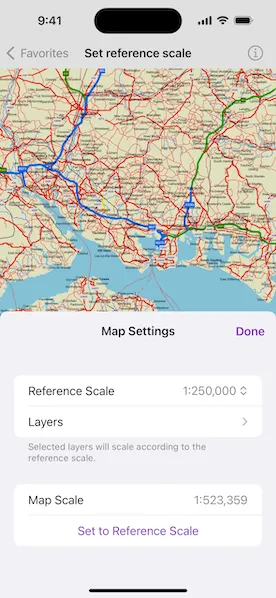
When the sample loads, tap or click the “Map Settings” button. Use the “Reference Scale” picker to set the map’s reference scale (1:500,000, 1:250,000, 1:100,000, or 1:50,000). Then tap or click the “Set to Reference Scale” button to set the map scale to the reference scale.
Tap or click “Layers” to show a list of the map’s feature layers. Tap or click a layer to toggle whether that layer should honor the reference scale. Tap or click Done to dismiss the settings view.
How it works
- Get and set the
referenceScaleproperty on theMapobject. - Get and set the
scaleSymbolsproperty on individualFeatureLayerobjects.
Relevant API
- FeatureLayer
- Map
Additional information
The map reference scale should normally be set by the map’s author and not exposed to the end user like it is in this sample.
Tags
map, reference scale, scene
Sample code
// Copyright 2024 Esri//// Licensed under the Apache License, Version 2.0 (the "License");// you may not use this file except in compliance with the License.// You may obtain a copy of the License at////   https://www.apache.org/licenses/LICENSE-2.0//// Unless required by applicable law or agreed to in writing, software// distributed under the License is distributed on an "AS IS" BASIS,// WITHOUT WARRANTIES OR CONDITIONS OF ANY KIND, either express or implied.// See the License for the specific language governing permissions and// limitations under the License.
import ArcGISimport SwiftUI
struct SetReferenceScaleView: View {    /// A map of the "Isle of Wight" portal item.    @State private var map: Map = {        // Creates the map from a portal item on ArcGIS Online.        let portalItem = PortalItem(portal: .arcGISOnline(connection: .anonymous), id: .isleOfWight)        let map = Map(item: portalItem)
        // Sets the initial reference scale for the map.        map.referenceScale = 250_000        return map    }()
    /// The scale of the map view.    @State private var mapScale: Double = .nan
    /// A Boolean value indicating whether the map settings popover is presented.    @State private var settingsPopoverIsPresented = false
    var body: some View {        MapViewReader { mapViewProxy in            MapView(map: map)                .onScaleChanged { mapScale = $0 }                .toolbar {                    ToolbarItem(placement: .bottomBar) {                        Button("Map Settings") {                            settingsPopoverIsPresented = true                        }                        .popover(isPresented: $settingsPopoverIsPresented) { [mapScale] in                            MapSettingsView(map: map, mapScale: mapScale) { scale in                                // Sets the map's scale to the selected reference scale                                // when the "Set to Reference Scale" button is tapped.                                Task {                                    await mapViewProxy.setViewpointScale(scale)                                }                            }                            .presentationDetents([.fraction(0.5)])                            .frame(idealWidth: 320, idealHeight: 380)                        }                    }                }        }    }}
private extension SetReferenceScaleView {    /// The view containing settings controls for a map.    struct MapSettingsView: View {        /// The map.        let map: Map
        /// A binding to the scale of the map.        let mapScale: Double
        /// The action to set the map scale, i.e, when the "Set to Reference Scale" button is pressed.        let setMapScaleAction: (_ scale: Double) -> Void
        /// The action to dismiss the view.        @Environment(\.dismiss) private var dismiss
        /// The reference scale option selected in the picker.        @State private var selectedReferenceScale: Double = 250_000
        /// The options for the reference scale picker        private let referenceScaleOptions: [Double] = [500_000, 250_000, 100_000, 50_000]
        var body: some View {            NavigationStack {                Form {                    Section {                        Picker("Reference Scale", selection: $selectedReferenceScale) {                            ForEach(referenceScaleOptions, id: \.self) { option in                                Text("1:\(option, format: .number.rounded(increment: 1))")                            }                        }                        .onChange(of: selectedReferenceScale) {                            map.referenceScale = selectedReferenceScale                        }
                        NavigationLink("Layers") {                            List(map.operationalLayers as! [FeatureLayer], id: \.id) { layer in                                ScalesSymbolsToggle(layer: layer)                            }                            .navigationTitle("Layers")                            .navigationBarTitleDisplayMode(.inline)                            .toolbar {                                ToolbarItem(placement: .confirmationAction) {                                    Button("Done") { dismiss() }                                }                            }                        }                    } footer: {                        Text("Selected layers will scale according to the reference scale.")                    }
                    Section {                        LabeledContent("Map Scale") {                            Text("1:\(mapScale, format: .number.rounded(increment: 1))")                        }
                        Button("Set to Reference Scale") {                            setMapScaleAction(selectedReferenceScale)                        }                        .frame(maxWidth: .infinity)                        .disabled(mapScale == selectedReferenceScale)                    }                }                .navigationTitle("Map Settings")                .navigationBarTitleDisplayMode(.inline)                .toolbar {                    ToolbarItem(placement: .confirmationAction) {                        Button("Done") { dismiss() }                    }                }            }            .onAppear {                selectedReferenceScale = map.referenceScale!            }        }    }
    /// A control that toggles the `scalesSymbols` property of a feature layer.    struct ScalesSymbolsToggle: View {        /// The feature layer.        let layer: FeatureLayer
        /// A Boolean value indicating whether layer’s symbols and labels honor the map’s reference scale.        @State private var layerScalesSymbol = false
        var body: some View {            Toggle(layer.name, isOn: $layerScalesSymbol)                .onChange(of: layerScalesSymbol) {                    layer.scalesSymbols = layerScalesSymbol                }                .onAppear { layerScalesSymbol = layer.scalesSymbols }        }    }}
private extension PortalItem.ID {    /// The ID for the "Isle of Wight" portal item on ArcGIS Online.    static var isleOfWight: Self { Self("3953413f3bd34e53a42bf70f2937a408")! }}
#Preview {    NavigationStack {        SetReferenceScaleView()    }}