Position graphics relative to a surface using different surface placement modes.
Use case
Depending on the use case, data might be displayed at an absolute height (e.g. flight data recorded with altitude information), at a relative height to the terrain (e.g. transmission lines positioned relative to the ground), at a relative height to objects in the scene (e.g. extruded polygons, integrated mesh scene layer), or draped directly onto the terrain (e.g. location markers, area boundaries).
How to use the sample
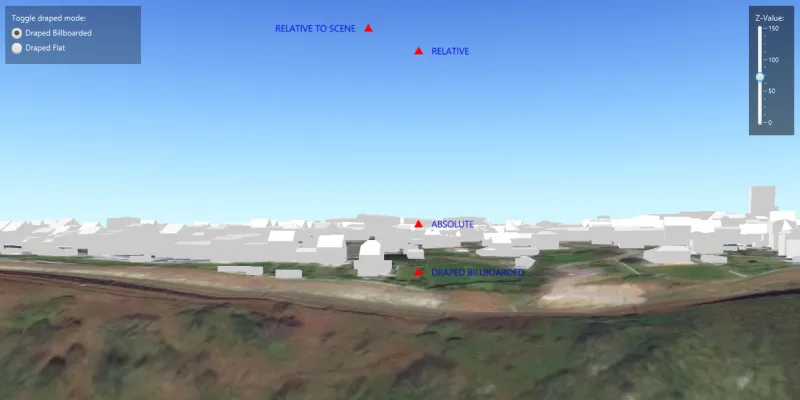
The application loads a scene showing four points that use individual surface placement modes (Absolute, Relative, Relative to Scene, and either Draped Billboarded or Draped Flat). Use the toggle to change the draped mode and the slider to dynamically adjust the Z value of the graphics. Explore the scene by zooming in/out and by panning around to observe the effects of the surface placement rules.
How it works
- Create a
GraphicsOverlayfor each placement mode, settingLayerSceneProperties.setSurfacePlacement(...):ABSOLUTE, position graphic using only its Z value.RELATIVE, position graphic using its Z value plus the elevation of the surface.DRAPED_BILLBOARDED, position graphic upright on the surface and always facing the camera, not using its Z value.DRAPED_FLAT, position graphic flat on the surface, not using its Z value.RELATIVE_TO_SCENE, position graphic using its Z value plus the altitude values of the scene.
- Add graphics to the graphics overlay,
GraphicsOverlay.getGraphics().add(graphic). - Add each graphics overlay to the scene view by calling
SceneView.getGraphicsOverlays().add(overlay).
Relevant API
- Graphic
- GraphicsOverlay
- LayerSceneProperties.SurfacePlacement
- SceneProperties
- Surface
About the data
The scene launches with a view of Brest, France. Four points are shown hovering with positions defined by each of the different surface placement modes.
Additional information
This sample uses an elevation service to add elevation/terrain to the scene. Graphics are positioned relative to that surface for the DRAPED_BILLBOARDED, DRAPED_FLAT, ABSOLUTE and RELATIVE surface placement modes. It also uses a scene layer containing 3D models of buildings. Graphics are positioned relative to that scene layer for the RELATIVE_TO_SCENE surface placement mode.
Tags
3D, absolute, altitude, draped, elevation, floating, relative, scenes, sea level, surface placement
Sample code
/* * Copyright 2017 Esri. * * Licensed under the Apache License, Version 2.0 (the "License"); you may not * use this file except in compliance with the License. You may obtain a copy of * the License at * * http://www.apache.org/licenses/LICENSE-2.0 * * Unless required by applicable law or agreed to in writing, software * distributed under the License is distributed on an "AS IS" BASIS, WITHOUT * WARRANTIES OR CONDITIONS OF ANY KIND, either express or implied. See the * License for the specific language governing permissions and limitations under * the License. */
package com.esri.samples.surface_placement;
import java.util.Arrays;
import javafx.fxml.FXML;import javafx.scene.control.RadioButton;import javafx.scene.control.Slider;import javafx.scene.control.ToggleGroup;
import com.esri.arcgisruntime.ArcGISRuntimeEnvironment;import com.esri.arcgisruntime.geometry.Geometry;import com.esri.arcgisruntime.geometry.GeometryType;import com.esri.arcgisruntime.geometry.Point;import com.esri.arcgisruntime.geometry.SpatialReferences;import com.esri.arcgisruntime.layers.ArcGISSceneLayer;import com.esri.arcgisruntime.mapping.ArcGISScene;import com.esri.arcgisruntime.mapping.ArcGISTiledElevationSource;import com.esri.arcgisruntime.mapping.BasemapStyle;import com.esri.arcgisruntime.mapping.Surface;import com.esri.arcgisruntime.mapping.view.Camera;import com.esri.arcgisruntime.mapping.view.Graphic;import com.esri.arcgisruntime.mapping.view.GraphicsOverlay;import com.esri.arcgisruntime.mapping.view.LayerSceneProperties;import com.esri.arcgisruntime.mapping.view.SceneView;import com.esri.arcgisruntime.symbology.SimpleMarkerSymbol;import com.esri.arcgisruntime.symbology.TextSymbol;import javafx.scene.paint.Color;
public class SurfacePlacementController {
  @FXML private SceneView sceneView;  @FXML private Slider zValueSlider;  @FXML private ToggleGroup toggleGroup;  @FXML private RadioButton drapedBillboardedRadioButton;  @FXML private RadioButton drapedFlatRadioButton;
  public void initialize() {    try {
      // authentication with an API key or named user is required to access basemaps and other location services      String yourAPIKey = System.getProperty("apiKey");      ArcGISRuntimeEnvironment.setApiKey(yourAPIKey);
      // create a scene and add a basemap to it      ArcGISScene scene = new ArcGISScene(BasemapStyle.ARCGIS_IMAGERY);
      // set the scene to the scene view      sceneView.setArcGISScene(scene);
      // add base surface for elevation data      Surface surface = new Surface();      ArcGISTiledElevationSource elevationSource = new ArcGISTiledElevationSource(        "https://elevation3d.arcgis.com/arcgis/rest/services/WorldElevation3D/Terrain3D/ImageServer");      surface.getElevationSources().add(elevationSource);      scene.setBaseSurface(surface);
      // add buildings to the scene with a scene layer URI      ArcGISSceneLayer sceneLayer = new ArcGISSceneLayer(        "http://tiles.arcgis.com/tiles/P3ePLMYs2RVChkJx/arcgis/rest/services/Buildings_Brest/SceneServer/layers/0");      scene.getOperationalLayers().add(sceneLayer);
      // set an initial viewpoint camera position to the scene view      sceneView.setViewpointCamera(new Camera(48.3889, -4.4595, 90, 330, 90, 0));
      // create a text symbol for each surface placement type      TextSymbol drapedBillboardedText = createTextSymbol("DRAPED BILLBOARDED");      TextSymbol drapedFlatText = createTextSymbol("DRAPED FLAT");      TextSymbol relativeText = createTextSymbol("RELATIVE");      TextSymbol absoluteText = createTextSymbol("ABSOLUTE");      TextSymbol relativeToSceneText = createTextSymbol("RELATIVE TO SCENE");
      // create graphics overlays with surface placement types, and add graphics to them      GraphicsOverlay drapedBillboardedOverlay = new GraphicsOverlay();      drapedBillboardedOverlay.getSceneProperties().setSurfacePlacement(LayerSceneProperties.SurfacePlacement.DRAPED_BILLBOARDED);      addGraphicsToGraphicsOverlay(drapedBillboardedOverlay, drapedBillboardedText);
      GraphicsOverlay drapedFlatOverlay = new GraphicsOverlay();      drapedFlatOverlay.getSceneProperties().setSurfacePlacement(LayerSceneProperties.SurfacePlacement.DRAPED_FLAT);      addGraphicsToGraphicsOverlay(drapedFlatOverlay, drapedFlatText);
      GraphicsOverlay relativeOverlay = new GraphicsOverlay();      relativeOverlay.getSceneProperties().setSurfacePlacement(LayerSceneProperties.SurfacePlacement.RELATIVE);      addGraphicsToGraphicsOverlay(relativeOverlay, relativeText);
      GraphicsOverlay absoluteOverlay = new GraphicsOverlay();      absoluteOverlay.getSceneProperties().setSurfacePlacement(LayerSceneProperties.SurfacePlacement.ABSOLUTE);      addGraphicsToGraphicsOverlay(absoluteOverlay, absoluteText);
      GraphicsOverlay relativeToSceneOverlay = new GraphicsOverlay();      relativeToSceneOverlay.getSceneProperties().setSurfacePlacement(LayerSceneProperties.SurfacePlacement.RELATIVE_TO_SCENE);      addGraphicsToGraphicsOverlay(relativeToSceneOverlay, relativeToSceneText);
      // add graphics overlays to the scene view      sceneView.getGraphicsOverlays().addAll(Arrays.asList(        drapedBillboardedOverlay, relativeOverlay, absoluteOverlay, relativeToSceneOverlay));
      // link up the ToggleGroup RadioButtons to the corresponding draped overlay      drapedBillboardedRadioButton.setUserData(drapedBillboardedOverlay);      drapedFlatRadioButton.setUserData(drapedFlatOverlay);
      // add a listener to the toggle group to switch between billboarded and flat draped surface placement modes      toggleGroup.selectedToggleProperty().addListener((observableValue, oldToggle, newToggle) -> {        if (toggleGroup.getSelectedToggle() != null) {          sceneView.getGraphicsOverlays().remove(oldToggle.getUserData());          sceneView.getGraphicsOverlays().add((GraphicsOverlay) toggleGroup.getSelectedToggle().getUserData());        }      });    } catch (Exception e) {      // on any exception, print the stack trace      e.printStackTrace();    }  }
  /**   * Sets the Z-Value to the value selected by the slider.   */  @FXML  private void changeZValue() {    // get the z-value from the slider    double zValue = zValueSlider.getValue();
    // update the geometry of each of the existing graphics to include the new z-value    sceneView.getGraphicsOverlays().forEach(graphicsOverlay ->      graphicsOverlay.getGraphics().stream().filter(        graphic -> graphic.getGeometry().getGeometryType() == GeometryType.POINT).forEach(graphic -> {        Geometry geometry = graphic.getGeometry();        Point currentPoint = (Point) geometry;        Point updatedPoint = new Point(currentPoint.getX(), currentPoint.getY(), zValue, currentPoint.getSpatialReference());        graphic.setGeometry(updatedPoint);      })    );  }
  /**   * Creates a new TextSymbol from a string used to identify a surface placement type.   *   * @param text string to be used as text within the TextSymbol constructor   * @return a new TextSymbol   */  private TextSymbol createTextSymbol(String text) {
    TextSymbol textSymbol = new TextSymbol(14, text, Color.BLUE,      TextSymbol.HorizontalAlignment.LEFT, TextSymbol.VerticalAlignment.MIDDLE);    textSymbol.setOffsetX(20);
    if (text.equals("RELATIVE TO SCENE")) {      textSymbol.setOffsetX(-20);      textSymbol.setHorizontalAlignment(TextSymbol.HorizontalAlignment.RIGHT);    }
    return textSymbol;  }
  /**   * Creates a graphic from a Point, SimpleMarkerSymbol, and TextSymbol and adds it to a GraphicsOverlay.   *   * @param graphicsOverlay the graphics overlay to add graphics to   * @param textSymbol the text symbol to create a graphic from   */  private void addGraphicsToGraphicsOverlay(GraphicsOverlay graphicsOverlay, TextSymbol textSymbol) {
    // create points for graphic locations    Point relativeToScenePoint = new Point(-4.4610562, 48.3902727, 70, SpatialReferences.getWgs84());    Point relativeToSurfacePoint = new Point(-4.4609257, 48.3903965, 70, SpatialReferences.getWgs84());    // create a red triangle symbol    SimpleMarkerSymbol triangleSymbol = new SimpleMarkerSymbol(SimpleMarkerSymbol.Style.TRIANGLE, Color.RED, 12);
    if (graphicsOverlay.getSceneProperties().getSurfacePlacement() != LayerSceneProperties.SurfacePlacement.RELATIVE_TO_SCENE) {      graphicsOverlay.getGraphics().add(new Graphic(relativeToSurfacePoint, triangleSymbol));      graphicsOverlay.getGraphics().add(new Graphic(relativeToSurfacePoint, textSymbol));    } else {      graphicsOverlay.getGraphics().add(new Graphic(relativeToScenePoint, triangleSymbol));      graphicsOverlay.getGraphics().add(new Graphic(relativeToScenePoint, textSymbol));    }  }
  /**   * Disposes application resources.   */  void terminate() {    if (sceneView != null) {      sceneView.dispose();    }  }}
/* * Copyright 2017 Esri. * * Licensed under the Apache License, Version 2.0 (the "License"); you may not * use this file except in compliance with the License. You may obtain a copy of * the License at * * http://www.apache.org/licenses/LICENSE-2.0 * * Unless required by applicable law or agreed to in writing, software * distributed under the License is distributed on an "AS IS" BASIS, WITHOUT * WARRANTIES OR CONDITIONS OF ANY KIND, either express or implied. See the * License for the specific language governing permissions and limitations under * the License. */
package com.esri.samples.surface_placement;
import java.io.IOException;
import javafx.application.Application;import javafx.fxml.FXMLLoader;import javafx.scene.Parent;import javafx.scene.Scene;import javafx.stage.Stage;
public class SurfacePlacementSample extends Application {
private static SurfacePlacementController controller;
@Override public void start(Stage stage) throws IOException {
// set up the scene FXMLLoader loader = new FXMLLoader(getClass().getResource("/surface_placement/main.fxml")); Parent root = loader.load(); controller = loader.getController(); Scene scene = new Scene(root);
// set title, size, and add JavaFX scene to stage stage.setTitle("Surface Placement Sample"); stage.setWidth(800); stage.setHeight(700); stage.setScene(scene); stage.show();
}
/** * Stops and releases all resources used in application. */ @Override public void stop() { controller.terminate(); }
/** * Opens and runs application. * * @param args arguments passed to this application */ public static void main(String[] args) {
Application.launch(args); }}