Learn how to use OpenLayers
A map contains layers
In this tutorial, display a map of the world with the arcgis/outdoor basemap style.
This application will use the basemap tiles usage model .
Prerequisites
You need an ArcGIS Location Platform or ArcGIS Online account.
Steps
Create a new app
Select a type of authentication and follow the steps to create a new app.
Choose API key authentication if you:
- Want the easiest way to get started.
- Want to build public applications
A public application is an application that allows anonymous access without requiring users to sign in with an ArcGIS account. It supports API key or app authentication. that access ArcGIS Location ServicesArcGIS Location Services, also referred to as Location Services, are services hosted by Esri that provide geospatial functionality for developing mapping applications. They include the ArcGIS Basemap Styles service, ArcGIS Static Basemap Tiles service, ArcGIS Static Maps service, ArcGIS Places service, ArcGIS Geocoding service, ArcGIS Routing service, ArcGIS GeoEnrichment service, and ArcGIS Elevation service. An ArcGIS Location Platform or ArcGIS Online account is required to use the services. and secure itemsAn item, also known as a content item, is a resource stored in a portal such as a web map, hosted layer, style, script tool, file, or notebook. . - Have an ArcGIS Location Platform or ArcGIS Online account.
Choose user authentication if you:
- Want to build private applications.
- Require application users to sign in with their own ArcGIS account
An ArcGIS account is an identity with a user type and set of privileges that can access specific ArcGIS products, tools, APIs, services, and resources. The main account types that can be used for development are an ArcGIS Location Platform account, ArcGIS Online account, and ArcGIS Enterprise account. ArcGIS Location Platform and ArcGIS Online accounts are also associated with a subscription. and access resources their behalf. - Have an ArcGIS Online account.
To learn more about both types of authentication, go to Authentication.
Set up authentication
Set developer credentials
Add script references
You will need add <script and <link tags to load the JavaScript and CSS files for OpenLayers and ol-mapbox-style.
-
In the index.html file, add the following
<linkand> <scriptreferences if they are missing.> Use dark colors for code blocks <style> html, body, #map { padding: 0; margin: 0; height: 100%; width: 100%; font-family: Arial, Helvetica, sans-serif; font-size: 14px; color: #323232; } </style> <link rel="stylesheet" href="https://cdn.jsdelivr.net/npm/ol@v10.11.0/ol.css"> <script src="https://cdn.jsdelivr.net/npm/ol@v10.11.0/dist/ol.js"></script> <script src="https://cdn.jsdelivr.net/npm/ol-mapbox-style@13.5.1/dist/olms.js"></script>
Create a map
Use the Map and View classes to create an OpenLayers map.
The OpenLayers Map class displays the contents of the map and provides a user interface to interact with it. It supports clicking, zooming, panning, rotating, and tilting the perspective of the map. It also lets you interact with the visible contents of the map data, for example finding features at the mouse cursor. You can also use it to modify the data displayed by adding new sources or changing layer properties. OpenLayers takes care of automatically re-rendering as needed in response to changes made to layers.
For further details, see the OpenLayers documentation.
-
Use the
Mapclass to create the map with options to control its display and behavior. Set thetargetproperty to"map", which is the id of the div element.Use dark colors for code blocks const map = new ol.Map({ target: "map" }); -
Create a
View, and usesetto apply it to the map. To center the map view, set theView centerproperty to-20, 30and thezoomproperty to3.Use dark colors for code blocks map.setView( new ol.View({ center: ol.proj.fromLonLat([-20, 30]), zoom: 3 }) );
Add a basemap layer
OpenLayers does not directly support a vector basemap or a vector style file, so you will use the openlayers-mapbox-style (olms) JavaScript library to load a Mapbox style from the ArcGIS Basemap Styles service and render it with OpenLayers.
The Mapbox style is JSON file that contains a reference to the vector tile layers used in the style, and visual styling rules to apply to one or more data layers in those tiles.
-
Create a
basemapvariable and set it toId arcgis/outdoor.Use dark colors for code blocks const basemapId = "arcgis/outdoor"; -
Construct the basemap URL based on
basemapand your API key.Id Use dark colors for code blocks const basemapId = "arcgis/outdoor"; const basemapURL = `https://basemapstyles-api.arcgis.com/arcgis/rest/services/styles/v2/styles/${basemapId}?token=${accessToken}`; -
Use
olmsto apply the basemap style to your map. Theolmsfunction takes two inputs, themapelement and the URL for a basemap layer.Use dark colors for code blocks const basemapId = "arcgis/outdoor"; const basemapURL = `https://basemapstyles-api.arcgis.com/arcgis/rest/services/styles/v2/styles/${basemapId}?token=${accessToken}`; olms.apply(map, basemapURL) });
Add attribution
You need to display Esri
-
Add a load event handler to the
olmsfunction call. Inside, retrieve the basemap source and usesetto prepend Powered by Esri.Attributions() Use dark colors for code blocks const basemapId = "arcgis/outdoor"; const basemapURL = `https://basemapstyles-api.arcgis.com/arcgis/rest/services/styles/v2/styles/${basemapId}?token=${accessToken}`; olms.apply(map, basemapURL) .then(() => { // Add Esri attribution // Learn more in https://esriurl.com/attribution const source = map.getLayers().item(0).getSource(); const poweredByEsriString = "Powered by <a href='https://www.esri.com/en-us/home' target='_blank'>Esri</a> | "; const attributionFn = source.getAttributions(); if (attributionFn) { source.setAttributions((ViewStateLayerStateExtent) => { return [poweredByEsriString, ...attributionFn(ViewStateLayerStateExtent)]; }); } else source.setAttributions(poweredByEsriString); });
Run the app
Run the app.
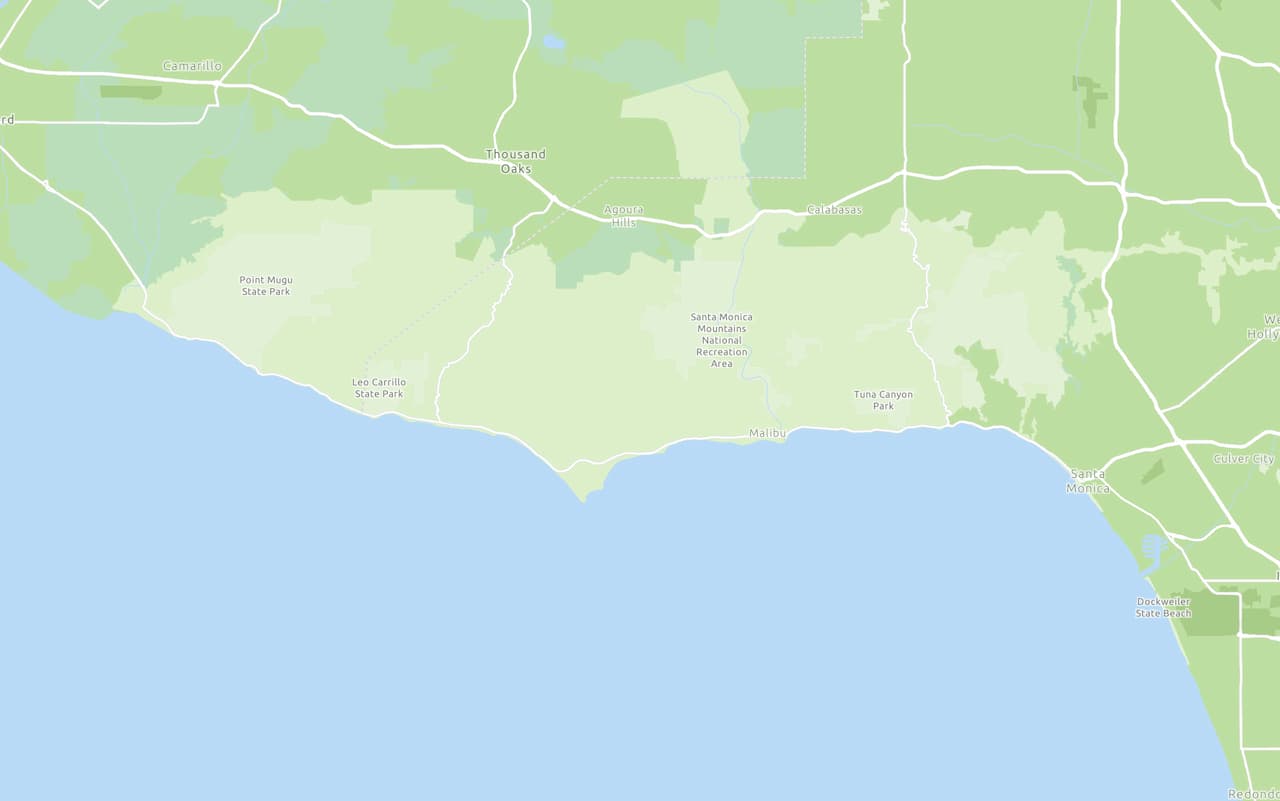
The map should display the outdoor basemap layerWhat's next?
Learn how to use additional location services in these tutorials: