Maps
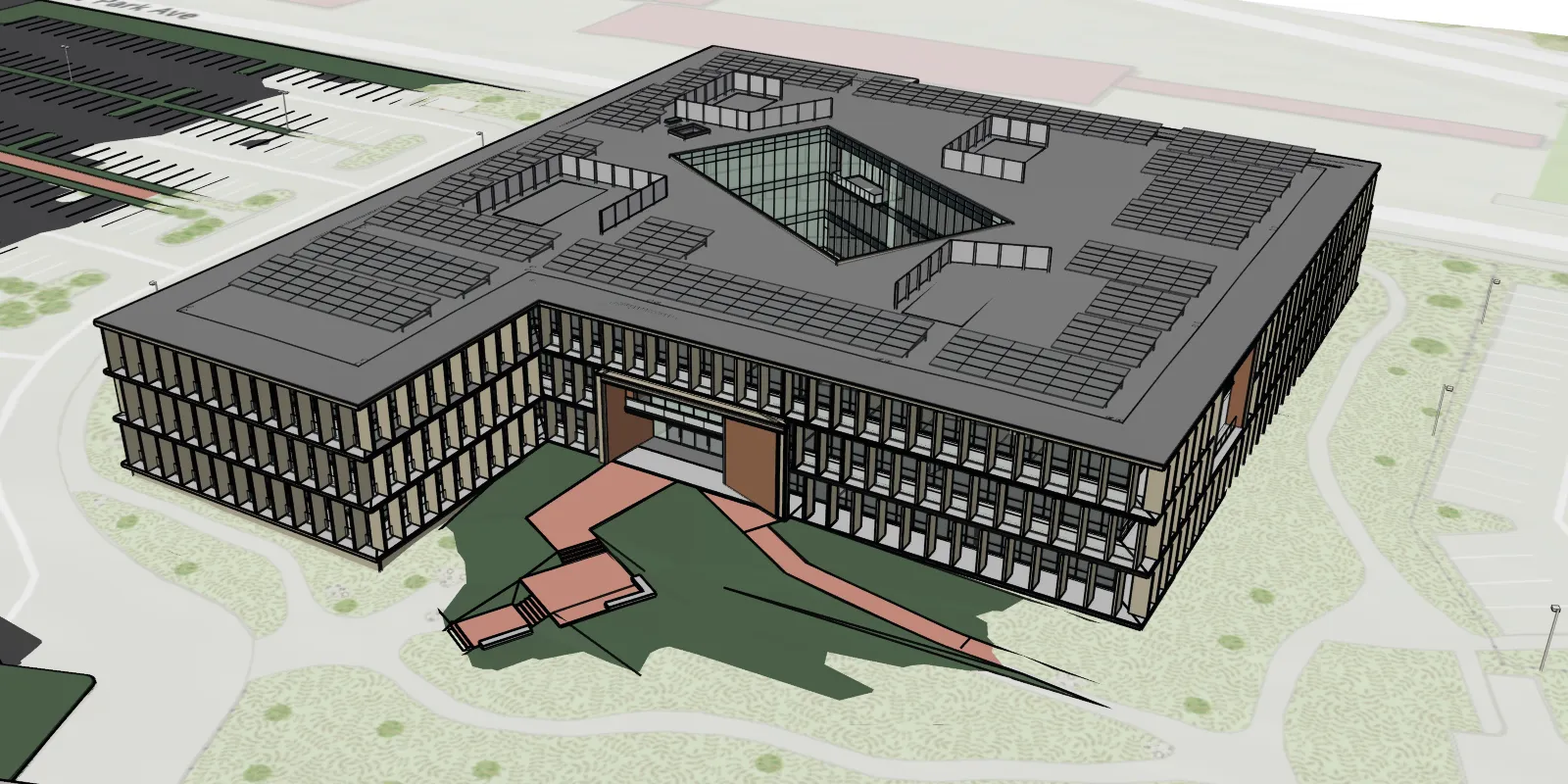
With scenes, you can use a global or local scene to display your data, such as airline flight patterns, campus facilities, or underground utilities. Global scenes are spatially referenced using a geographic coordinate system and are used to display and work with world scale data. Local scenes, by contrast, are spatially referenced using a projected coordinate system and are used to display localized data drawn on a flat plane.
Use one of the following scene views
ArcGISSceneViewfor a global scene.ArcGISLocalSceneViewfor a local scene.
How a scene works
A sceneArcGISSceneView (global scene) or ArcGISLocalSceneView (local scene) to display geographic content in three dimensions. A scene contains a collection of layers
For offline
Scene
A scene contains a collection of layers
You can instantiate a new ArcGISScene by creating a new scene and building it entirely with code. With this approach, you typically first add a basemap layer
// Authenticate your application using a supported method:// - API key authentication// - User authentication
// Create a new ArcGISScene with the topographic basemap style.final scene = ArcGISScene.withBasemapStyle(BasemapStyle.arcGISTopographic);
// Use the world 3D terrain service, which provides global elevation to use// as a ground surface.const elevationUrl =    'https://elevation3d.arcgis.com/arcgis/rest/services/WorldElevation3D/Terrain3D/ImageServer';
// Create an elevation source using the global elevation service.final source = ArcGISTiledElevationSource.withUri(Uri.parse(elevationUrl));
// Create a new surface.final surface = Surface();
// Add the elevation source to the surface.surface.elevationSources.add(source);
// Set the base surface of the ArcGISScene to the surface.scene.baseSurface = surface;
// Set the scene to the scene view controller's arcGISScene property.sceneViewController.arcGISScene = scene;
You can also instantiate a ArcGISScene that’s stored in a portal
// Instantiate a Portal object to connect to the portal anonymously.final portal = Portal.arcGISOnline();const itemId = '579f97b2f3b94d4a8e48a5f140a6639b'; // Web scene item ID.
// Create a PortalItem object using the item ID that// references the web scene.final portalItem =    PortalItem.withPortalAndItemId(portal: portal, itemId: itemId);
// Create a scene with the portal item.final scene = ArcGISScene.withItem(portalItem);
// Set the scene to the scene view controller's arcGISScene property.sceneViewController.arcGISScene = scene;
The portal itemSceneViewingMode to specify an appropriate option.
When the ArcGISScene first appears in the ArcGISSceneView or ArcGISLocalSceneView, you can focus the initial display at a specified view point by setting ArcGISScene.initialViewpoint.
Global scene
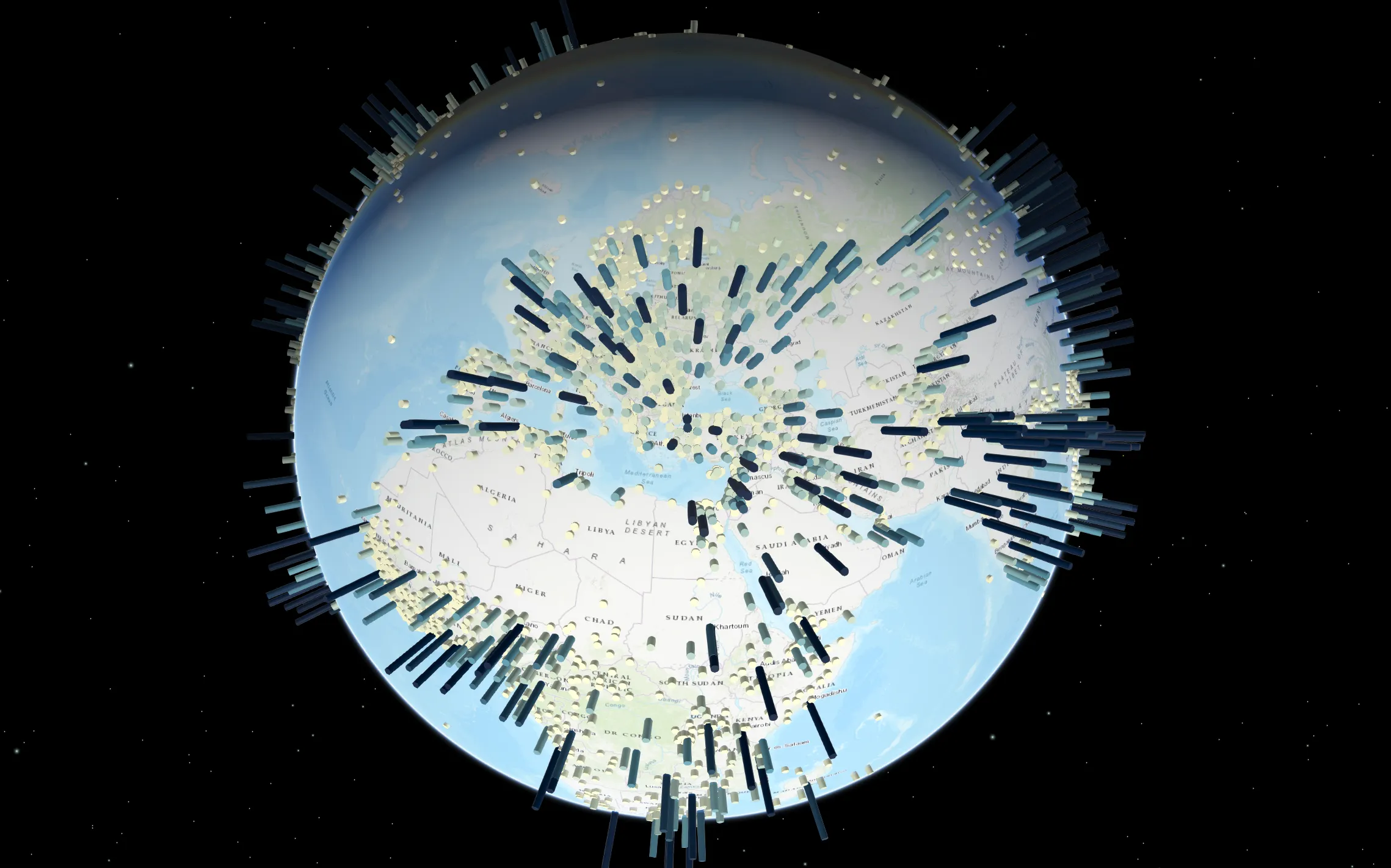
In a global scene, you can display spatial content on a sphere based on geographic coordinate systems. A global scene is recommended when you want to understand or provide context for phenomena that wrap around the spherical surface of the earth, such as global weather measurements, world population, or shipping lanes. You can also use a global scene to display data at a city-wide level or down to a building site level. Once you have a global ArcGISScene, in order to display it in an application, you need to connect it to ArcGISSceneView. See global scene overview for details about working with global scenes.
Local scene
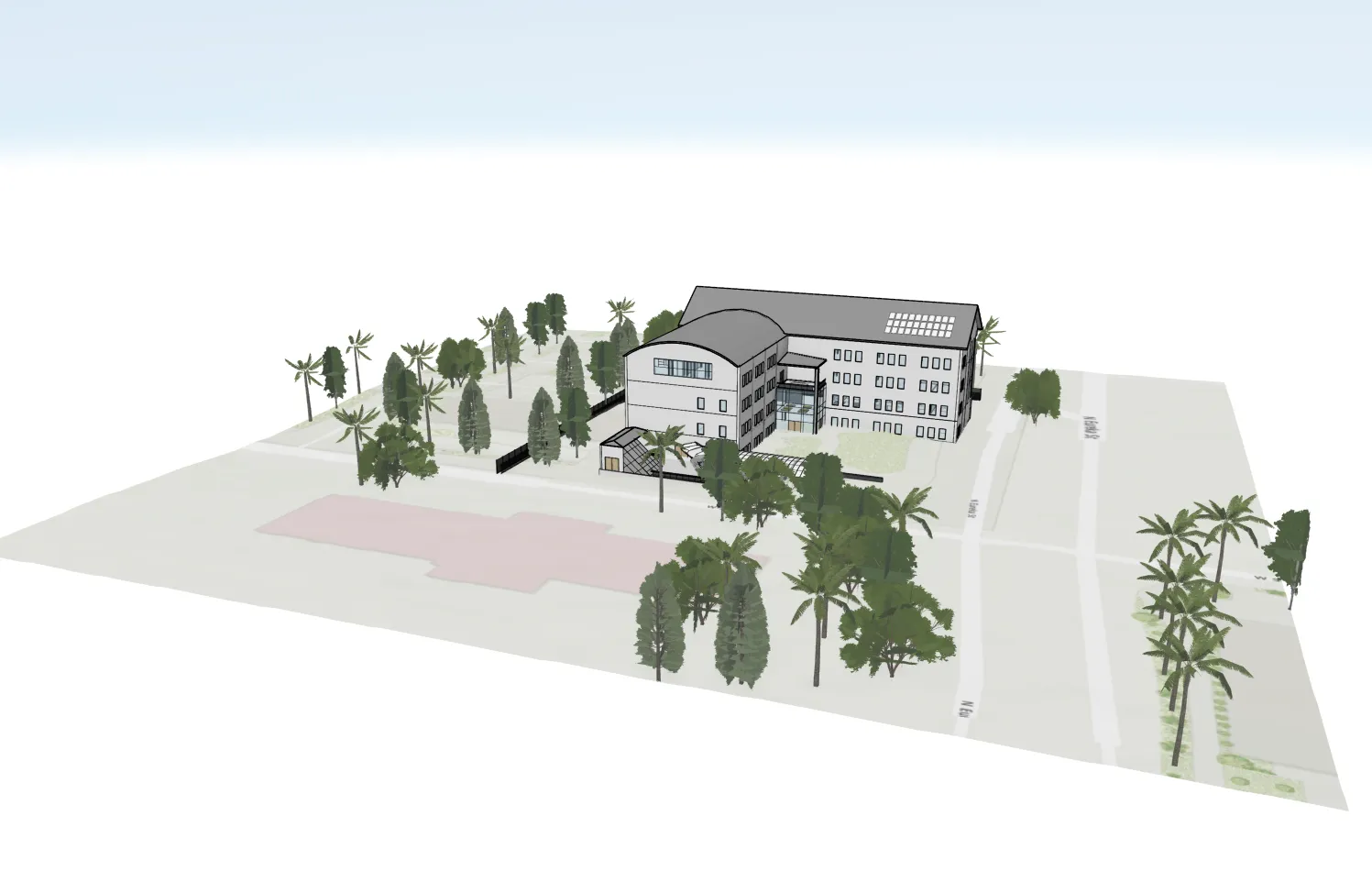
In a local scene, you can display data that has a spatial reference in a projected coordinate system, and the terrain and layers are shown projected on a planar surface rather than on a sphere. Local scenes are recommended for displaying data at a local or city scale that have a fixed extent in which you work. Local scenes are helpful for urban planning and visualization, such as when viewing campus facilities or building developments. You can also navigate underground and interact with subsurface data, such as utility networks or earthquake data. Once you have a local ArcGISScene, in order to display it in an application, you need to connect it to ArcGISLocalSceneView. See local scene overview for details about working with local scenes.
Scene views
ArcGISLocalSceneView does not currently support all the capabilities or layer types available in ArcGISSceneView. This section outlines the main differences between ArcGISLocalSceneView and ArcGISSceneView, and describes how we plan to resolve these differences in future releases.
Layer types
Here are some notable differences between the supported layer types in ArcGISLocalSceneView and ArcGISSceneView:
-
ArcGISLocalSceneView- Does not yet support
FeatureLayerorRasterLayer. - Supports all I3S scene layers
A scene layer is a data layer is used to access and display 3D data from a scene service. . - Does not yet support OGC layer types, such as
WmsLayerandWmtsLayer.
- Does not yet support
-
ArcGISSceneViewdoes not support the newBuildingSceneLayer.
See Layer types for more details.
Capabilities
Similarly, here are some ArcGISSceneView capabilities that are not yet available in ArcGISLocalSceneView:
- Overlays, including
GraphicsOverlay - Camera Controllers
- Rasters as an
ElevationSourcefor a scene’sSurface - Labeling and labeling APIs
Delivering additional capabilities
The ArcGISLocalSceneView will be aligned with ArcGISSceneView over time; expect to see the capabilities and layer types listed above delivered in future releases, starting with:
-
GraphicsOverlay -
FeatureLayer - Labeling and labeling APIs
- Camera controllers
Samples
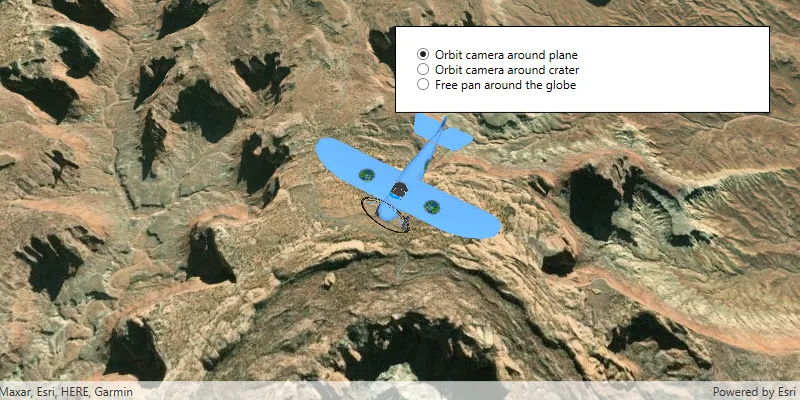
Change camera controller

Show realistic light and shadows

Animate images with image overlay

Display a web scene from a portal item
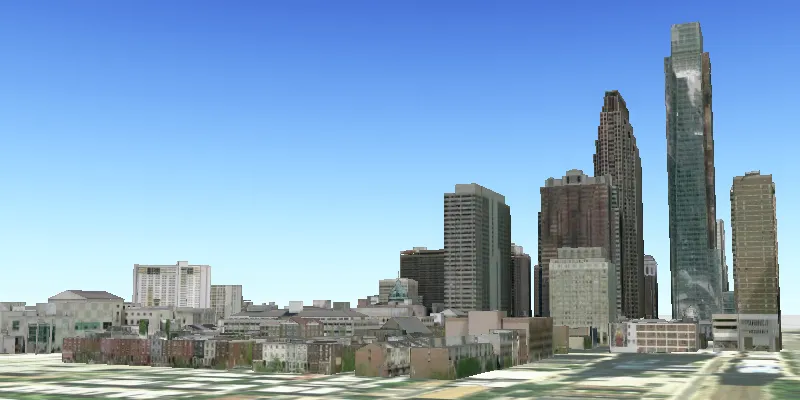
Display scene from mobile scene package

Display a local scene clipped to a local area
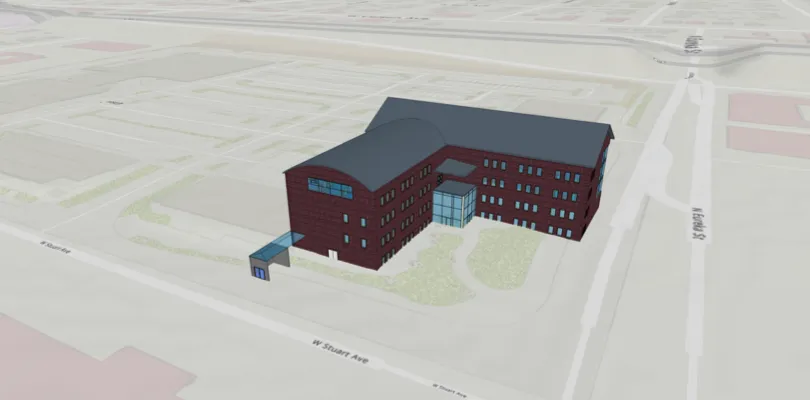
Add a building scene layer to a local scene view