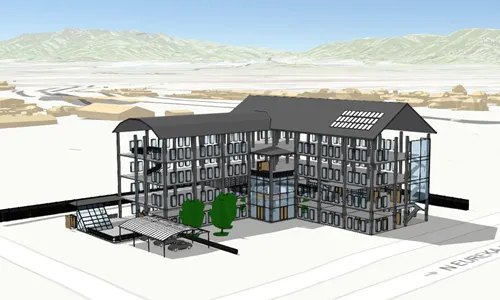
A BuildingSceneLayer allows you to display and analyze detailed building models created from 3D BIM data. These building models are usually exported from Building Information Modeling (BIM) projects. Unlike 3D object scene layers, which represent all features within a single layer, building scene layers are organized into a hierarchy of sublayers representing individual building components such as walls, light fixtures, and mechanical systems. These sublayers are often grouped by disciplines like architecture, structural, or mechanical. This structure enables deeper interaction and analysis of both interior and exterior features, providing insight into how a building is designed, used, and situated in its spatial context.
Structure
Building scene layers visualize complex digital models of buildings and allow you to interact with all the components of the building such as walls, light fixtures, and mechanical systems. Due to the high complexity, the data in BuildingSceneLayer is organized into a hierarchy of building sublayers. The sublayers of the building scene layer are:
-
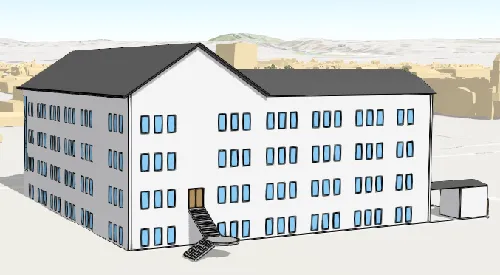
An overview sublayer: contains just the building components necessary to visualize the exterior shell of the building. In cases where viewing the interior features of a building are not required, the overview sublayer provides a means to quickly visualize the building’s exterior. The overview sublayer is optional and may not exist for every building scene layer. When it is present the overview is built during the creation of the underlying model, which is usually made up of building components on the outside of the model merged into a single feature.
-
A full model sublayer: contains all building components that are organized into a hierarchy of sublayers, grouped by discipline such as architectural, mechanical, or structural.
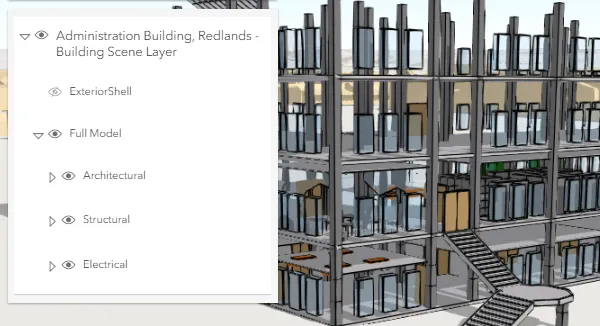
Due to the complexity of the building scene layer, the data in this layer is organized using BuildingSublayer to represent a building component (BuildingComponentSublayer) or a group of components (BuildingGroupSubLayer).
-
BuildingComponentSublayer: a sublayer that contains 3D object or point features representing building components like doors, pipes, or air conditioning units. The buildling component sublayer contains data that can be rendered in the view. -
BuildingGroupSubLayer: a group that manages a hierarchy of sublayers. Used to group building component sublayers into disciplines (for example, architectural, mechanical, or structural); however, this sublayer could contain the building component data in this group and additional groups.
The building scene layer often contains an overview building component sublayer that can be loaded to display the exterior shell of a building. This provides a preview of the entire building without loading all interior features. The building scene layer might also contain a full model building group sublayer with all the features in a building grouped by disciplines. Each discipline is a building group sublayer containing building component sublayers with features such as rooftops, walls, doors, air conditioning units, lighting fixtures, columns, or foundations.
Add buildings to local scene view
Building data coming from a Revit or from IFC files can be imported and published as a scene service using ArcGIS Pro version 2.3. To add a building scene layer to a local scene view, create the building scene layer with a link to the portal item.
// Initialize the building scene layer.final buildingSceneLayer = BuildingSceneLayer.withUri(  Uri.parse(    'https://www.arcgis.com/home/item.html?id=669f6279c579486eb4a0acc7eb59d7ca',  ),);
// Load the building scene layer.await buildingSceneLayer.load();
Extract the sublayer for the building overview and set the visibility on the layer as true.
// Extract the overview model sublayer from the building scene layer.overviewSublayer = buildingSceneLayer.sublayers.firstWhere(  (sublayer) => sublayer.name == 'Overview',);
// Turn the visibility on for the overview model layer.// "showFullModelFlag" is a boolean flag used to indicate if the app is displaying// the full model or overview sublayer.overviewSublayer.isVisible = showFullModelFlag;
Similar logic can be utilized to retrieve the full model sublayer. Depending on your application requirements, you can provide some sort of toggle between the two layers so only the overview or full model layer is displayed at a time.
Lastly, you need to add the building scene layer as an operational layer to the scene, then take the scene and attach it to the view to display on the map.
// Add the building scene layer to the scene.scene.operationalLayers.add(buildingSceneLayer);
// Add the Scene to the LocalSceneViewController.localSceneViewController.arcGISScene = scene;
Visualization
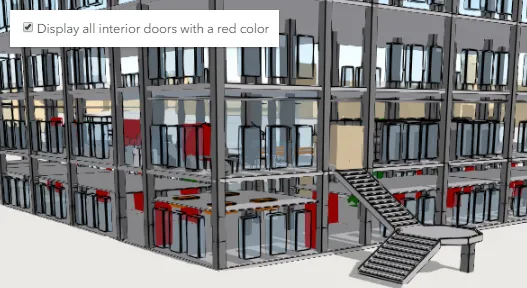
Being able to visualize detailed building information in its spatial context and landscape is a useful capability. To extract even more information from the visualization, attribute driven renderers can be assigned to a BuildingComponentSublayer.renderer. For example, the Doors sublayer can use a UniqueValueRenderer to render all the interior doors that need replacement with a red color. For more details, see Symbols, renderers, and styles topic to investigate different renderers that can be applied to data.
Filtering data
Features in a building scene layer often obstruct one another. Attribute based filtering can be used to display only the features that satisfy a certain SQL expression. Use BuildingFilter to filter features based on their attributes. A building filter uses BuildingFilterBlock to define conditions for displaying or hiding components. Only a single filter block may apply to a feature at a time and the order of the filter blocks influences the order in which the filter blocks are applied. For example, it is common to filter floors within a building scene to display the selected floor with its original texture (BuildingSolidFilterMode) while displaying the floors below the selected floor with a semi-transparent white color, referred to as an xray view (BuildingXrayFilterMode).
// Build a building filter to show the selected floor and an xray view of the floors below.// Floors above the selected floor are not shown at all.final buildingFilter = BuildingFilter(  name: 'Floor filter',  description: 'Show selected floor and xray filter for lower floors.',  blocks: [    // Display the selected floor with the original texture    // defined in the building scene layer.    BuildingFilterBlock(      title: 'solid block',      whereClause: 'BldgLevel = $_selectedFloor',      mode: BuildingSolidFilterMode(),    ),
    // Display the floors below the selected floor using    // an xray view.    BuildingFilterBlock(      title: 'xray block',      whereClause: 'BldgLevel < $_selectedFloor',      mode: BuildingXrayFilterMode(),    ),  ],);
// Apply the filter to the building scene layer.buildingSceneLayer.activeFilter = buildingFilter;
Identify features
It can be helpful to allow users working with a building scene layer to identify features and display the associated attribute information.
// Identify features on the building scene layer at a given location.final identifyResult = await _localSceneViewController.identifyLayer(  // Pass in the building scene layer.  buildingSceneLayer,
  // Pass the location where you want to identify features.  screenPoint: point,
  // Stipulate how precise the identify operation should be.  tolerance: 12,);
// Select the first identified feature and show the feature details in a popup.if (identifyResult.sublayerResults.isNotEmpty) {  final sublayerResult = identifyResult.sublayerResults.first;
  if (sublayerResult.geoElements.isNotEmpty) {    // Retrieve the first feature identified at the stipulated location.    final identifiedFeature = sublayerResult.geoElements.first as Feature;
    // Retrieve the building scene layer's component sub layer.    final sublayer =        sublayerResult.layerContent as BuildingComponentSublayer;
    // Select the identified feature for visual feedback.    sublayer.selectFeature(identifiedFeature);
    // Using Flutter's toolkit PopupView widget to display a pop-up for    // the identified feature.    if (mounted) {      // Create a pop-up definition with the identified feature. The name      // of the attribute is used for the title if a value is available.      final popupDefinition =          PopupDefinition.withGeoElement(identifiedFeature)            ..title = identifiedFeature.attributes['name'] as String? ?? '';
      // A modal bottom sheet was used as an alternative to a menu or dialog      // to prevent the user from interacting with the rest of the app while      // the pop-up information is displayed. Other approaches can be utilized      // depending on your application requirements.      showModalBottomSheet<void>(        context: context,        isScrollControlled: true,        useSafeArea: true,        builder: (_) => SizedBox(          height: MediaQuery.sizeOf(context).height * 0.7,          // Flutter's toolkit widget, PopupView, is used to display the pop-up          // for the identified feature.          child: PopupView(            // Pass a new pop-up with the identified feature            // and definition defined earlier.            popup: Popup(                geoElement: identifiedFeature,                popupDefinition: popupDefinition),            onClose: () => Navigator.of(context).maybePop(),          ),        ),      );    }  }}
Querying
Querying a BuildingComponentSublayer retrieves results from the attributes in the associated feature layer. Queries on the component sublayer are important because they are made on all the features in the component sublayer.