Combine multiple symbols from a mobile style file into a single symbol.
Use case
You may choose to display individual elements of a dataset like a water infrastructure network (such as valves, nodes, or endpoints) with the same basic shape, but wish to modify characteristics of elements according to some technical specifications. Multilayer symbols lets you add or remove components or modify the colors to create advanced symbol styles.
How to use the sample
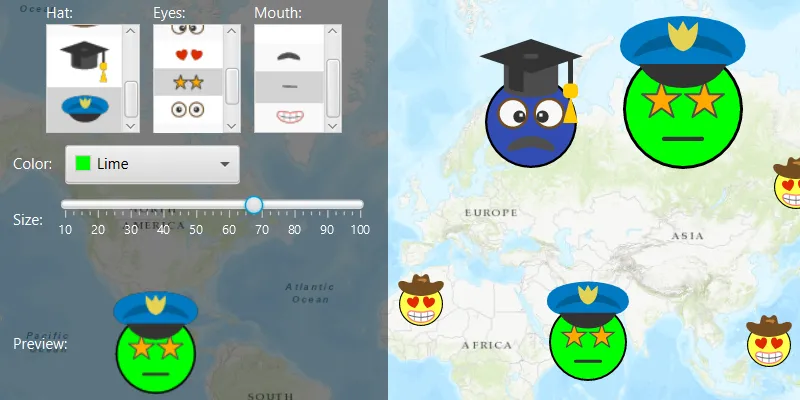
Select a symbol and a color from each of the category lists to create an emoji. A preview of the symbol is updated as selections are made. The size of the symbol can be set using the slider. Click the map to create a point graphic using the customized emoji symbol, and click “Reset” to clear all graphics from the display.
How it works
- Create a new
SymbolStylefrom a stylx file, and load it. - Get a set of default search parameters using
symbolStyle.getDefaultSearchParametersAsync(), and use these to retrieve a list of all symbols within the style file:symbolStyle.searchSymbolsAsync(defaultSearchParameters). - Get the
SymbolStyleSearchResult, which contains the symbols, as well as their names, keys, and categories. - Use a
Listof keys of the desired symbols to build a composite symbol usingsymbolStyle.getSymbolAsync(symbolKeys). - Create a
Graphicusing theMultilayerPointSymbol.
Relevant API
- MultilayerPointSymbol
- MultilayerSymbol
- SymbolLayer
- SymbolStyle
- SymbolStyleSearchParameters
About the data
The mobile style file used in this sample was created using ArcGIS Pro, and is hosted on ArcGIS Online. It contains symbol layers that can be combined to create emojis.
Additional information
While each of these symbols can be created from scratch, a more convenient workflow is to author them using ArcGIS Pro and store them in a mobile style file (.stylx). ArcGIS Maps SDKs for Native Apps can read symbols from a mobile style, and you can modify and combine them as needed in your app.
Tags
advanced symbology, mobile style, multilayer, stylx
Sample code
/* * Copyright 2019 Esri. * * Licensed under the Apache License, Version 2.0 (the "License"); you may not * use this file except in compliance with the License. You may obtain a copy of * the License at * * http://www.apache.org/licenses/LICENSE-2.0 * * Unless required by applicable law or agreed to in writing, software * distributed under the License is distributed on an "AS IS" BASIS, WITHOUT * WARRANTIES OR CONDITIONS OF ANY KIND, either express or implied. See the * License for the specific language governing permissions and limitations under * the License. */
package com.esri.samples.read_symbols_from_mobile_style_file;
import java.io.File;import java.util.Arrays;import java.util.List;import java.util.concurrent.ExecutionException;
import javafx.beans.value.ChangeListener;import javafx.fxml.FXML;import javafx.geometry.Point2D;import javafx.scene.control.Alert;import javafx.scene.control.ColorPicker;import javafx.scene.control.ListView;import javafx.scene.control.Slider;import javafx.scene.image.Image;import javafx.scene.image.ImageView;import javafx.scene.input.MouseButton;import javafx.scene.input.MouseEvent;import javafx.scene.paint.Color;
import com.esri.arcgisruntime.ArcGISRuntimeEnvironment;import com.esri.arcgisruntime.concurrent.ListenableFuture;import com.esri.arcgisruntime.geometry.Point;import com.esri.arcgisruntime.loadable.LoadStatus;import com.esri.arcgisruntime.mapping.ArcGISMap;import com.esri.arcgisruntime.mapping.BasemapStyle;import com.esri.arcgisruntime.mapping.view.Graphic;import com.esri.arcgisruntime.mapping.view.GraphicsOverlay;import com.esri.arcgisruntime.mapping.view.MapView;import com.esri.arcgisruntime.symbology.MultilayerPointSymbol;import com.esri.arcgisruntime.symbology.Symbol;import com.esri.arcgisruntime.symbology.SymbolStyle;import com.esri.arcgisruntime.symbology.SymbolStyleSearchParameters;import com.esri.arcgisruntime.symbology.SymbolStyleSearchResult;
public class ReadSymbolsFromMobileStyleFileController {
  @FXML private MapView mapView;  @FXML private ListView<SymbolStyleSearchResult> hatSelectionListView;  @FXML private ListView<SymbolStyleSearchResult> eyesSelectionListView;  @FXML private ListView<SymbolStyleSearchResult> mouthSelectionListView;  @FXML private Slider sizeSlider;  @FXML private ImageView symbolPreview;  @FXML private ColorPicker colorPicker;
  private GraphicsOverlay graphicsOverlay;  private MultilayerPointSymbol faceSymbol;  private SymbolStyle emojiStyle;
  @FXML  public void initialize() {    // authentication with an API key or named user is required to access basemaps and other location services    String yourAPIKey = System.getProperty("apiKey");    ArcGISRuntimeEnvironment.setApiKey(yourAPIKey);
    // create a map with the topographic basemap style    ArcGISMap map = new ArcGISMap(BasemapStyle.ARCGIS_TOPOGRAPHIC);
    // set the map to the map view    mapView.setMap(map);
    // create a graphics overlay and add it to the map    graphicsOverlay = new GraphicsOverlay();    mapView.getGraphicsOverlays().add(graphicsOverlay);
    // load the available symbols from the style file    loadSymbolsFromStyleFile();
    // create a listener that builds the composite symbol when an item from the list view is selected    ChangeListener<Object> changeListener = (obs, oldValue, newValue) -> buildCompositeSymbol();
    // create a list of the ListView objects and iterate over it    List<ListView<SymbolStyleSearchResult>> listViews = Arrays.asList(hatSelectionListView, eyesSelectionListView, mouthSelectionListView);    for (ListView<SymbolStyleSearchResult> listView : listViews) {      // add the cell factory to show the symbol within the list view      listView.setCellFactory(c -> new SymbolLayerInfoListCell());      // add the change listener to rebuild the preview when a selection is made      listView.getSelectionModel().selectedItemProperty().addListener(changeListener);      // add an empty entry to the list view to allow selecting 'nothing', and make it selected by default      listView.getItems().add(null);      listView.getSelectionModel().select(0);    }  }
  /**   * Loads the stylx file and searches for all symbols contained within. Puts the resulting symbols into the GUI   * based on their category (eyes, mouth, hat, face).   */  private void loadSymbolsFromStyleFile() {    // create a SymbolStyle with the .stylx file    File stylxFile = new File(System.getProperty("data.dir"), "./samples-data/stylx/emoji-mobile.stylx");    emojiStyle = new SymbolStyle(stylxFile.getAbsolutePath());    emojiStyle.loadAsync();
    // wait for the symbol style to load    emojiStyle.addDoneLoadingListener(() -> {      if (emojiStyle.getLoadStatus() == LoadStatus.FAILED_TO_LOAD) {        new Alert(Alert.AlertType.ERROR, "Error: could not load .stylx file. Details: " + emojiStyle.getLoadError().getMessage()).show();        return;      }
      // load the default search parameters      ListenableFuture<SymbolStyleSearchParameters> defaultSearchParametersFuture = emojiStyle.getDefaultSearchParametersAsync();      defaultSearchParametersFuture.addDoneListener(() -> {        try {          SymbolStyleSearchParameters defaultSearchParameters = defaultSearchParametersFuture.get();
          // use the default parameters to perform the search, getting all the available symbols within the file          ListenableFuture<List<SymbolStyleSearchResult>> symbolStyleSearchResultFuture = emojiStyle.searchSymbolsAsync(defaultSearchParameters);          symbolStyleSearchResultFuture.addDoneListener(() -> {            try {
              // loop through the results and add each item to a list view according to category              List<SymbolStyleSearchResult> symbolStyleSearchResults = symbolStyleSearchResultFuture.get();              symbolStyleSearchResults.forEach(symbolStyleSearchResult -> {
                // add the SymbolStyleSearchResult object to the correct list for its category                switch (symbolStyleSearchResult.getCategory()) {                  case "Hat":                    hatSelectionListView.getItems().add(symbolStyleSearchResult);                    break;                  case "Eyes":                    eyesSelectionListView.getItems().add(symbolStyleSearchResult);                    break;                  case "Mouth":                    mouthSelectionListView.getItems().add(symbolStyleSearchResult);                    break;                }              });
              // create the symbol to populate the preview              buildCompositeSymbol();
            } catch (InterruptedException | ExecutionException e) {              new Alert(Alert.AlertType.ERROR, "Error performing the symbol search" + e.getMessage()).show();            }          });        } catch (InterruptedException | ExecutionException e) {          new Alert(Alert.AlertType.ERROR, "Error retrieving default search parameters for symbol search" + e.getMessage()).show();        }      });    });  }
  /**   * Gets the keys of the selected symbol components, and constructs a multilayer point symbol, and updates the symbol preview.   */  @FXML  private void buildCompositeSymbol() {
    // retrieve the requested keys for the selected hat, eyes and mouth symbols    String hatKey = getRequestedSymbolKey(hatSelectionListView);    String eyesKey = getRequestedSymbolKey(eyesSelectionListView);    String mouthKey = getRequestedSymbolKey(mouthSelectionListView);
    // create a list of keys to use for getting the requested symbol    List<String> symbolKeys = Arrays.asList("Face1", eyesKey, mouthKey, hatKey);
    // get the symbol from the SymbolStyle    ListenableFuture<Symbol> symbolFuture = emojiStyle.getSymbolAsync(symbolKeys);    symbolFuture.addDoneListener(() -> {      try {        faceSymbol = (MultilayerPointSymbol) symbolFuture.get();        if (faceSymbol == null) {          return;        }
        // loop through all the symbol layers and lock the color        faceSymbol.getSymbolLayers().forEach(symbolLayer -> symbolLayer.setColorLocked(true));
        // unlock the color of the base layer. Changing the symbol layer color will now only change this layer's color        faceSymbol.getSymbolLayers().get(0).setColorLocked(false);
        // set the color of the symbol        faceSymbol.setColor(colorPicker.getValue());
        // set the size of the symbol        faceSymbol.setSize((float) sizeSlider.getValue());
        // update the symbol preview        updateSymbolPreview(faceSymbol);
      } catch (ExecutionException | InterruptedException e) {        new Alert(Alert.AlertType.ERROR, "Error creating symbol with the provided symbol keys" + e.getMessage()).show();      }    });  }
  /**   * Returns the symbol key of the symbol style search result that is currently selected in the list view.   *   * @param listView the list view of which to query the selected item   * @return String representing the key of the selected symbol style   */  private String getRequestedSymbolKey(ListView<SymbolStyleSearchResult> listView) {    SymbolStyleSearchResult requestedSymbol = listView.getSelectionModel().getSelectedItem();    return (requestedSymbol != null ? requestedSymbol.getKey() : "");  }
  /**   * Creates an ImageView object from a provided symbol and displays it in the preview area.   *   * @param multilayerPointSymbol the symbol used to create the image view   */  private void updateSymbolPreview(MultilayerPointSymbol multilayerPointSymbol) {    // remove the previously displayed image view    symbolPreview.setImage(null);
    // create an image and image view from the symbol    ListenableFuture<Image> symbolImageFuture = multilayerPointSymbol.createSwatchAsync(Color.TRANSPARENT, 1);    try {      // display the image view in the preview area      symbolPreview.setImage(symbolImageFuture.get());
    } catch (InterruptedException | ExecutionException e) {      new Alert(Alert.AlertType.ERROR, "Error creating preview ImageView from provided MultilayerPointSymbol" + e.getMessage()).show();    }  }
  /**   * Adds graphics to the map view on mouse clicks.   *   * @param e mouse button click event   */  @FXML  private void handleMouseClicked(MouseEvent e) {    if (e.getButton() == MouseButton.PRIMARY && e.isStillSincePress()) {      // convert clicked point to a map point      Point mapPoint = mapView.screenToLocation(new Point2D(e.getX(), e.getY()));
      // create a new graphic with the point and symbol      Graphic graphic = new Graphic(mapPoint, faceSymbol);      graphicsOverlay.getGraphics().add(graphic);    }  }
  /**   * Clears all the graphics from the graphics overlay.   */  @FXML  private void clearView() {    graphicsOverlay.getGraphics().clear();  }
  /**   * Stops and releases all resources used in application.   */  public void terminate() {
    if (mapView != null) {      mapView.dispose();    }  }
}
/* * Copyright 2019 Esri * * Licensed under the Apache License, Version 2.0 (the "License"); * you may not use this file except in compliance with the License. * You may obtain a copy of the License at * * http://www.apache.org/licenses/LICENSE-2.0 * * Unless required by applicable law or agreed to in writing, software * distributed under the License is distributed on an "AS IS" BASIS, * WITHOUT WARRANTIES OR CONDITIONS OF ANY KIND, either express or implied. * See the License for the specific language governing permissions and * limitations under the License. */
package com.esri.samples.read_symbols_from_mobile_style_file;
import javafx.application.Application;import javafx.fxml.FXMLLoader;import javafx.scene.Parent;import javafx.scene.Scene;import javafx.stage.Stage;
public class ReadSymbolsFromMobileStyleFileSample extends Application {
private static com.esri.samples.read_symbols_from_mobile_style_file.ReadSymbolsFromMobileStyleFileController controller;
@Override public void start(Stage stage) throws Exception {
// set up the scene FXMLLoader loader = new FXMLLoader(getClass().getResource("/read_symbols_from_mobile_style_file/main.fxml")); Parent root = loader.load(); controller = loader.getController(); Scene scene = new Scene(root);
// set title, size, and add scene to stage stage.setTitle("Read Symbols From Mobile Style File Sample"); stage.setWidth(800); stage.setHeight(700); stage.setScene(scene); stage.show(); }
/** * Stops and releases all resources used in application. */ @Override public void stop() { controller.terminate(); }
/** * Opens and runs application. * * @param args arguments passed to this application */ public static void main(String[] args) {
Application.launch(args); }}package com.esri.samples.read_symbols_from_mobile_style_file;
import java.util.concurrent.ExecutionException;
import javafx.geometry.Pos;import javafx.scene.control.Alert;import javafx.scene.control.ContentDisplay;import javafx.scene.control.ListCell;import javafx.scene.image.Image;import javafx.scene.image.ImageView;import javafx.scene.paint.Color;
import com.esri.arcgisruntime.concurrent.ListenableFuture;import com.esri.arcgisruntime.symbology.Symbol;import com.esri.arcgisruntime.symbology.SymbolStyleSearchResult;
/** * Shows the available symbol of the SymbolStyleSearchResult in the symbol selection list view. */class SymbolLayerInfoListCell extends ListCell<SymbolStyleSearchResult> {
SymbolLayerInfoListCell() { // set the cell to display only a graphic setContentDisplay(ContentDisplay.GRAPHIC_ONLY); setAlignment(Pos.CENTER); }
@Override protected void updateItem(SymbolStyleSearchResult item, boolean empty) { super.updateItem(item, empty);
if (item == null || empty) { // if the item in the list view is an empty item, show nothing setGraphic(null); } else { ImageView symbolImageView = new ImageView(); setGraphic(symbolImageView); // get the symbol from the list view entry, and create an image from it ListenableFuture<Symbol> symbolFuture = item.getSymbolAsync(); symbolFuture.addDoneListener(() -> { try { // get the resulting symbol Symbol symbol = symbolFuture.get(); // create a bitmap swatch from the symbol ListenableFuture<Image> imageListenableFuture = symbol.createSwatchAsync(Color.TRANSPARENT, 1); imageListenableFuture.addDoneListener(() -> { try { Image symbolImage = imageListenableFuture.get(); // update the image view with the symbol swatch symbolImageView.setImage(symbolImage); } catch (InterruptedException | ExecutionException e) { new Alert(Alert.AlertType.ERROR, "Error creating preview image for symbol in mobile style file" + e.getMessage()).show(); } }); } catch (InterruptedException | ExecutionException e) { new Alert(Alert.AlertType.ERROR, "Error getting symbol" + e.getMessage()).show(); } }); } }}