▾
import "@arcgis/map-components/components/arcgis-time-bar";- Inheritance
- ArcgisTimeBar→
HTMLElement
- Since
- ArcGIS Maps SDK for JavaScript 5.2
The Time Bar component provides interactive time filtering and playback within a defined temporal extent, allowing users to step through periods of time to reveal patterns and trends in data such as moving objects, events, sensor readings, or variable characteristics.
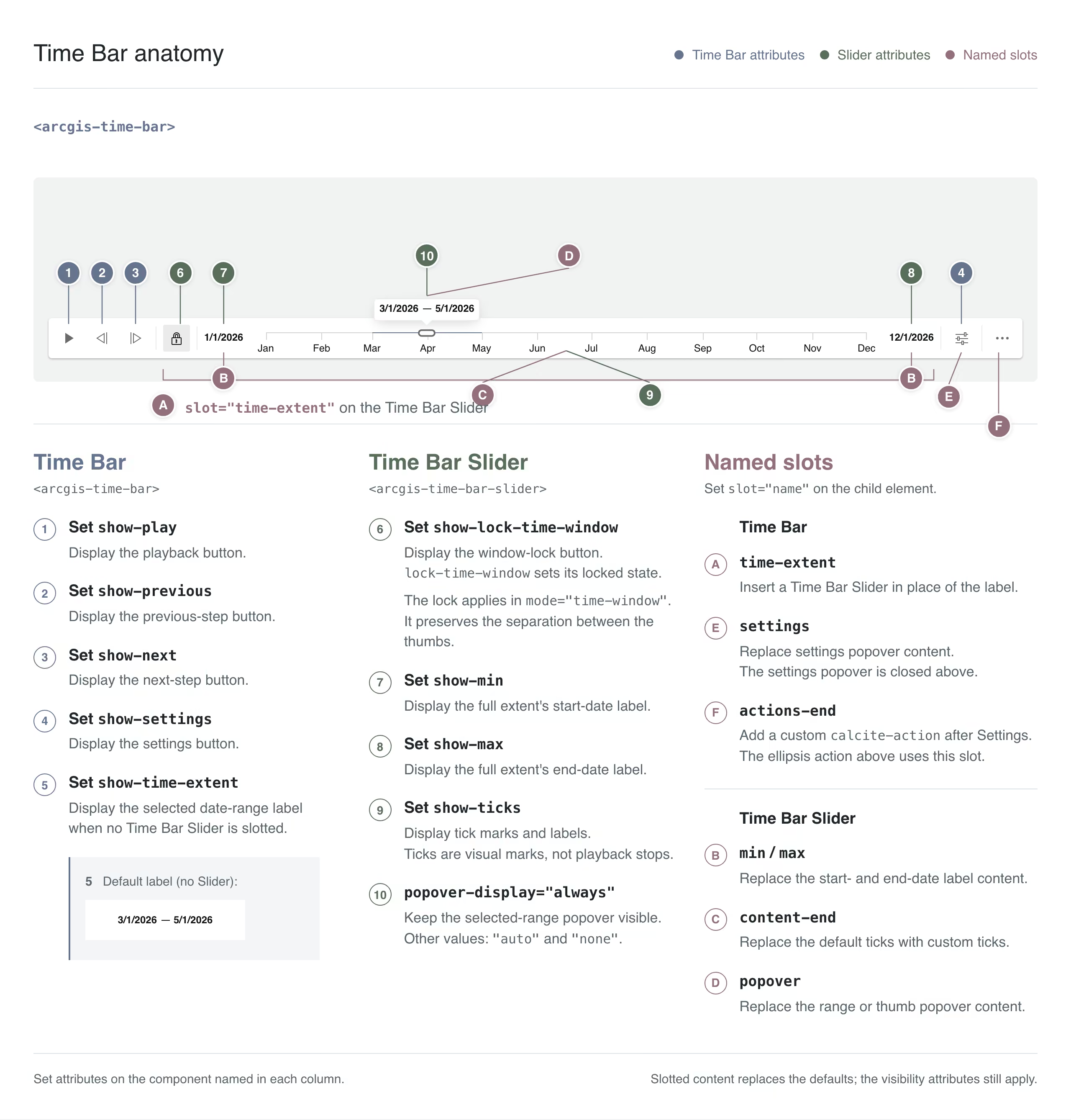
Time Bar UI Configuration
The Time Bar is highly configurable. You can tailor how users navigate time, starting with a single play button or combining it with next and previous buttons, a time extent label, an interactive Time Bar Slider with customized ticks, and more.
Check out SDK samples to see the Time Bar in action.
Read More
Minimal Time Bar
For a minimal UI, you can add any combination of the play, next, and previous buttons and time extent label to the Time Bar without adding a Time Bar Slider.
<!-- Show the play, next, and previous buttons and the current time extent label. --><arcgis-time-bar show-play show-next show-previous show-time-extent></arcgis-time-bar>
Time Bar with Time Bar Slider
You can add a Time Bar Slider to the Time Bar's time-extent slot
to provide draggable thumbs for selecting a time instant or range.
You can also display ticks by adding the show-ticks attribute in HTML
or setting showTicks to true in JavaScript.
The time-extent slot, if used, must contain a single Time Bar Slider component.
Other elements or components are not supported.
<!-- Configure the Time Bar with a Time Bar Slider without ticks. --><arcgis-time-bar floating format="date" show-play show-time-extent time-zone="system"> <arcgis-time-bar-slider slot="time-extent" popover-display="always" show-max show-min> </arcgis-time-bar-slider></arcgis-time-bar>
Time Bar Slider with Custom Ticks
The Time Bar Slider displays tick marks and labels along the timeline when show-ticks is enabled.
You can add custom ticks by placing a Ticks component
in the Time Bar Slider's "content-end" slot with show-ticks enabled.
The Ticks component's values and
labelFormatter
properties let you choose where ticks appear and how their labels are displayed.
The following example shows a Time Bar Slider with custom ticks.
<!-- Initialize the Time Bar with ticks and a locked time window --><arcgis-time-bar show-play show-next show-previous show-time-extent> <arcgis-time-bar-slider slot="time-extent" show-min show-max show-ticks popover-display="always"> <arcgis-ticks slot="content-end" mode="value" show-labels></arcgis-ticks> </arcgis-time-bar-slider></arcgis-time-bar>// Match the tick range to the Time Bar's full time extentconst timeBarSlider = timeBar.querySelector("arcgis-time-bar-slider");const ticks = timeBarSlider.querySelector("arcgis-ticks");ticks.min = timeBar.fullTimeExtent.start.getTime();ticks.max = timeBar.fullTimeExtent.end.getTime();const tickValues = [];
// Add a tick every three daysfor (const date = new Date(ticks.min); date.getTime() <= ticks.max; date.setDate(date.getDate() + 3)) { tickValues.push(date.getTime());}ticks.values = tickValues;
const tickDateFormatter = new Intl.DateTimeFormat(undefined, { month: "numeric", day: "numeric" });ticks.labelFormatter = (value) => tickDateFormatter.format(new Date(value));
Time Bar Behavior Configuration
The fullTimeExtent property defines the entire time period within which you can visualize your time-aware data using the Time Bar component. You can visualize temporal data up to a point in time, from a point in time, at an instant in time, or from data that falls within a time range by setting the mode property. A stop is a valid date for the start or end of a time extent, such as the first of every month. The stops property specifies how stops are defined for the Time Bar. It can be defined as:
- an array of dates (e.g., dates of earthquakes in 2027)
- regular interval (e.g., Christmas every year between 2000 and 2020)
- evenly spaced (e.g., every quarter in 2027)
Read More
Update the View's TimeExtent
The Time Bar automatically synchronizes its timeExtent with the Map
or Scene component's timeExtent when nested inside that component
or connected to it using referenceElement.
This lets the view's timeExtent filter time-aware layers without additional filtering code.
For a Map or Scene component's timeExtent to filter layer features, the layer must be time-aware, requiring either a defined timeInfo
or visibilityTimeExtent property.
The layer's timeInfo can be defined on the service or configured in your application. It filters features based on designated date
fields, ensuring only features within the current timeExtent are displayed.
For feature-based layers, such as FeatureLayer,
you can define or override the layer's timeInfo property to reference date fields in the data. See Set time properties on data (ArcGIS Pro) and
Configure time settings on a layer (ArcGIS Online)
to learn how to enable time on your service.
Alternatively, a layer's visibilityTimeExtent property controls the visibility of the entire layer based on time, rather than filtering individual features.
For layers that support useViewTime, setting this property to false excludes their features from the view's time filtering.
Respond to Time Bar's timeExtent Changes
Listen to the arcgisPropertyChange event to apply custom logic when the Time Bar's
timeExtent changes. This approach is useful when you need full control over filtering based on the selected time extent.
For example, you can filter layers with date fields that are not time-enabled, update a layer's renderer, or change its definitionExpression.
You can also update a layer view's feature effect
to emphasize features within the selected time range while keeping features outside it visible.
The following example updates a layer's definitionExpression when the selected time extent changes.
It assumes the layer has a date field named event_date and the processing time zone is set to the system time zone.
timeBar.addEventListener("arcgisPropertyChange", (event) => {  // Check if the timeExtent property has changed  if (event.detail.name === "timeExtent") {    const fieldName = sqlName("event_date");    const endDate = sqlLiteral(      timeBar.timeExtent.end,      { type: "date" },      { type: "date", timeZone: "system" },    );
    // Update the layer's definition expression based on the new timeExtent    layer.definitionExpression = `${fieldName} <= ${endDate}`;  }});
Set Time Bar from a WebMap
The Time Bar settings are automatically configured based on the TimeSlider settings in the WebMap or WebScene.
To adjust time settings saved in your WebMap or WebScene, retrieve the settings by calling getTimeSliderSettingsFromWebDocument, modify them as needed, and apply them to the Time Bar using applyTimeSettings.
await webMap.load();
// Retrieve the time slider settings from the web mapconst timeSliderSettings = await timeUtils.getTimeSliderSettingsFromWebDocument(webMap);// Change the play rate of the time slider settingstimeSliderSettings.playRate = 2000;
const timeBar = document.querySelector("arcgis-time-bar");await timeBar.componentOnReady();// Apply the time slider settings to the Time Barawait timeBar.applyTimeSettings(timeSliderSettings);
By default, the <arcgis-time-bar> component will attempt to load persisted time slider settings from a web map or web scene.
If this behavior is intended and time slider settings are expected, then it is advisable to refrain from initializing the component's
fullTimeExtent,
loop,
mode,
playRate,
stops, and
timeExtent properties.
These properties will be overwritten when the saved settings are loaded.
To disable automatic loading of stored settings, set the loadPersistedSettingsDisabled
property to true.
- See also
Demos
- Examples
The following example demonstrates how to use the Time Bar component with the play, next, and previous buttons and the fallback label displayed in the
time-extentslot.<arcgis-map basemap="satellite" zoom="6" center="-2,54"><arcgis-time-barshow-playshow-nextshow-previousshow-time-extentslot="top-right"></arcgis-time-bar></arcgis-map><script type="module">const TimeExtent = await $arcgis.import("@arcgis/core/time/TimeExtent.js");const viewElement = document.querySelector("arcgis-map");await viewElement.viewOnReady();const timeBar = document.querySelector("arcgis-time-bar");await timeBar.componentOnReady();timeBar.fullTimeExtent = new TimeExtent({start: new Date(2020, 0, 1),end: new Date(2021, 0, 1),});</script>An alternative to the default label is to use a Time Bar Slider component in the
time-extentslot.<arcgis-map basemap="satellite" zoom="6" center="-2,54"><arcgis-time-barshow-playshow-nextshow-previousshow-time-extentslot="top-right"><arcgis-time-bar-sliderslot="time-extent"></arcgis-time-bar-slider></arcgis-time-bar></arcgis-map><script type="module">const TimeExtent = await $arcgis.import("@arcgis/core/time/TimeExtent.js");const viewElement = document.querySelector("arcgis-map");await viewElement.viewOnReady();const timeBar = document.querySelector("arcgis-time-bar");timeBar.fullTimeExtent = new TimeExtent({start: new Date(2020, 0, 1),end: new Date(2021, 0, 1),});</script>
Properties
| Property | Attribute | Type |
|---|---|---|
| auto-destroy-disabled | ||
| disabled | ||
| readonly | | |
| reflected | floating | |
| format | ||
| | ||
| icon | ||
| label | ||
| load-persisted-settings-disabled | ||
| loop | ||
| | ||
| mode | ||
| play-rate | ||
| reference-element | ||
| reverse-animation | ||
| save-persisted-settings-disabled | ||
| show-next | ||
| show-play | ||
| show-previous | ||
| show-settings | ||
| show-time-extent | ||
| readonly | | |
| | ||
| | ||
| time-zone | ||
| |
autoDestroyDisabled
- Type
- boolean
If true, the component will not be destroyed automatically when it is disconnected from the document. This is useful when you want to move the component to a different place on the page, or temporarily hide it. If this is set, make sure to call the destroy() method when you are done to prevent memory leaks.
- Attribute
- auto-destroy-disabled
- Default value
- false
- Example
- <arcgis-time-bar auto-destroy-disabled></arcgis-time-bar>timeBarElement.autoDestroyDisabled = true;
disabled
- Type
- boolean
When true, the component is visually de-emphasized and does not accept user interaction.
- Attribute
- disabled
- Default value
- false
effectiveStops
The stops property specifies how stops are defined, for example, the first of every month. This property computes the exact dates based on that definition.
- See also
floating
- Type
- boolean
Controls the appearance of the Time Bar component.
When floating is true, the component will appear with rounded corners and a drop shadow.
When floating is false, the default, the component will appear without rounded corners or a drop shadow.
- Attribute
- floating
- Default value
- false
format
- Type
- Format
Determines the format of the date displayed in the minimum,
maximum, time extent, and popover labels.
If "date" is specified, only the localized day, month, and year components will be displayed, for example, "6/21/2026" in the "en-US" locale.
If "date-time" is specified, the localized day, month, year, hour, minute, and second components will be displayed, for example,
"6/21/2026, 3:30:00 PM" in the "en-US" locale.
- Attribute
- format
- Default value
- "date"
- Example
- <arcgis-map basemap="satellite" zoom="6" center="-2,54"><arcgis-time-bar show-time-extent slot="top-right" format="date-time"><arcgis-time-bar-slider slot="time-extent" show-min show-max></arcgis-time-bar-slider></arcgis-time-bar></arcgis-map>
fullTimeExtent
- Type
- TimeExtent | undefined
The valid or available time extent for the Time Bar component. When a Time Bar Slider is used, this property defines the range of dates that the slider's handles can be moved to.
- Examples
- // Set the full time extent of the Time Barconst timeBar = document.querySelector("arcgis-time-bar");timeBar.fullTimeExtent = new TimeExtent({start: new Date(2020, 0, 1),end: new Date(2021, 0, 1),});// Set the time extent from the layer's time infoawait layer.load();const timeBar = document.querySelector("arcgis-time-bar");timeBar.fullTimeExtent = layer.timeInfo.fullTimeExtent;
loadPersistedSettingsDisabled
- Type
- boolean
When true, the Time Bar component will not attempt to load persisted time slider settings from a web map or web scene.
- Attribute
- load-persisted-settings-disabled
- Default value
- false
- Example
Disable loading persisted settings from the associated view's web document.
<arcgis-map item-id="3542f60d24484cb0af84f1a346607722"><arcgis-time-bar slot="top-right" load-persisted-settings-disabled></arcgis-time-bar></arcgis-map>
loop
- Type
- boolean
When true, the Time Bar component will restart from the beginning when it reaches the end of the full time extent during playback.
- Attribute
- loop
- Default value
- false
- Example
Set the Time Bar to loop continuously while playing.
<arcgis-map basemap="satellite" zoom="6" center="-2,54"><arcgis-time-bar slot="top-right" loop></arcgis-time-bar></arcgis-map>
mode
- Type
- Mode
Determines whether the time extent represents a single instant, a time window, or a cumulative range. See the following table for possible values.
| Possible Values | Description | Example |
|---|---|---|
| instant | The Time Bar will show temporal data at a single instant in time. Set the timeExtent property's start and end dates to the same date: {start: sameDate, end: sameDate} | Display discrete point-in-time events, such as viewing hourly satellite images, individual earthquake occurrences, or daily weather snapshots. |
| time-window | The Time Bar will show temporal data that falls within a given time range. This is the default. Set the timeExtent property's start and end dates to the desired dates. | Display events within a specific timeframe, such as traffic collisions over a 7-day period or active severe weather warnings within a 2-hour window. |
| cumulative-from-start | Similar to time-window, but the start time is always pinned to the start of the fullTimeExtent. The Time Bar will show temporal data cumulatively from the start. Set the timeExtent property's start date to null and its end date to a desired date: {start: null, end: date} | Track expanding or accumulating phenomena over time, such as the expanding footprint of a wildfire from the start to present or tracking total seasonal rainfall accumulation across a watershed. |
| cumulative-from-end | Similar to time-window, but the end time is always pinned to the end of the fullTimeExtent. The Time Bar will show temporal data cumulatively from the end. Set the timeExtent property's start date to a desired date and its end date to null: {start: date, end: null} | Visualize phenomena accumulating from the end of the full time extent, such as visualizing all parcels or blocks rezoned and developed, accumulating earlier developments as playback moves backward. |
- Attribute
- mode
- Default value
- "time-window"
- Example
Set the mode to "instant" to show temporal data at a single instant in time.
<arcgis-map basemap="satellite" zoom="6" center="-2,54"><arcgis-time-bar slot="top-right" mode="instant"></arcgis-time-bar></arcgis-map>
playRate
- Type
- number
When the Time Bar is playing, the play rate determines the interval (in milliseconds) between animation steps.
When the Time Bar is associated with a Map or Scene component, the actual playback rate may differ. Specifically, the current time extent will only advance after the designated play rate interval and after the view has finished updating. This means that if the view takes longer to update than the specified play rate, the effective play rate will be slower than expected.
- Attribute
- play-rate
- Default value
- 1000
- Example
Set the play rate to 500 milliseconds (half a second).
<arcgis-map basemap="satellite" zoom="6" center="-2,54"><arcgis-time-bar slot="top-right" play-rate="500"></arcgis-time-bar></arcgis-map>
referenceElement
- Type
- ArcgisReferenceElement | string | undefined
By assigning the id attribute of the Map or Scene component to this property, you can position a child component anywhere in the DOM while still maintaining a connection to the Map or Scene.
- Attribute
- reference-element
reverseAnimation
- Type
- boolean
Determines whether the animation plays in reverse during playback.
- Attribute
- reverse-animation
- Default value
- false
- Example
Set the animation to play in reverse.
<arcgis-map basemap="satellite" zoom="6" center="-2,54"><arcgis-time-bar slot="top-right" reverse-animation></arcgis-time-bar></arcgis-map>
savePersistedSettingsDisabled
- Type
- boolean
When true, the Time Bar's settings will not be included in the parent web document when saved.
- Attribute
- save-persisted-settings-disabled
- Default value
- false
- Example
Disable saving persisted settings to the associated view's web document.
<arcgis-map item-id="3542f60d24484cb0af84f1a346607722"><arcgis-time-bar slot="top-right" save-persisted-settings-disabled></arcgis-time-bar></arcgis-map>
showNext
- Type
- boolean
When true, the Time Bar will display a next button.
The next button, when clicked, will advance the Time Bar's timeExtent to the
next set of stops in the effectiveStops array.
Clicking the next button is equivalent to calling the next() method.
- See also
- Attribute
- show-next
- Default value
- false
- Example
Add a Time Bar to a map with the next button displayed.
<arcgis-map item-id="3542f60d24484cb0af84f1a346607722"><arcgis-time-bar slot="top-right" show-next></arcgis-time-bar></arcgis-map>
showPlay
- Type
- boolean
When true, the Time Bar will display a play button.
The play button, when clicked, will advance the Time Bar's timeExtent every playRate milliseconds.
Clicking the play button is equivalent to calling the play() method.
- See also
- Attribute
- show-play
- Default value
- false
- Example
Add a Time Bar to a map with the play button displayed.
<arcgis-map item-id="3542f60d24484cb0af84f1a346607722"><arcgis-time-bar slot="top-right" show-play></arcgis-time-bar></arcgis-map>
showPrevious
- Type
- boolean
When true, the Time Bar will display a previous button.
The previous button, when clicked, will move the Time Bar's timeExtent to the
previous set of stops in the effectiveStops array.
Clicking the previous button is equivalent to calling the previous() method.
- Attribute
- show-previous
- Default value
- false
- Example
Add a Time Bar to a map with the previous button displayed.
<arcgis-map item-id="3542f60d24484cb0af84f1a346607722"><arcgis-time-bar slot="top-right" show-previous></arcgis-time-bar></arcgis-map>
showSettings
- Type
- boolean
When true, the Time Bar will display a settings button.
The settings button, when clicked, will display a window that allows the user to configure the Time Bar.
To customize the content of the settings window, use the settings slot.
- See also
- Attribute
- show-settings
- Default value
- false
- Example
Add a Time Bar to a map with the settings button displayed.
<arcgis-map item-id="3542f60d24484cb0af84f1a346607722"><arcgis-time-bar slot="top-right" show-settings></arcgis-time-bar></arcgis-map>
showTimeExtent
- Type
- boolean
When true, the Time Bar will display the time extent.
To customize the display of the time extent, use the time-extent slot with the Time Bar Slider component.
- See also
- Attribute
- show-time-extent
- Default value
- false
- Example
Add a Time Bar to a map with the time extent displayed.
<arcgis-map item-id="3542f60d24484cb0af84f1a346607722"><arcgis-time-bar slot="top-right" show-time-extent></arcgis-time-bar></arcgis-map>
state
- Type
- State
The current state of the component.
- Example
The following snippet will log the Time Bar's state to the console whenever it changes.
const timeBar = document.querySelector("arcgis-time-bar");timeBar.fullTimeExtent = new TimeExtent({start: new Date(2026, 3, 6),end: new Date(2026, 3, 10),});timeBar.addEventListener("arcgisPropertyChange", (event) => {if (event.detail.name === "state") {console.log("State changed:", timeBar.state);}});
stops
Defines the dates used as playback steps and by the next and previous methods. When a Time Bar Slider is present, these dates also define the selectable thumb positions.
- Default value
- { count : 10 }
- Examples
To create evenly spaced stops, assign an object with a
countproperty as shown below. By default, ten stops are evenly spaced across the full time extent.timeBar.stops = {count: 10,};To remove stops, set
stopstonull. This disables playback and step navigation. When a Time Bar Slider is present, users can select dates continuously within the full time extent.const timeBar = document.querySelector("arcgis-time-bar");await timeBar.componentOnReady();timeBar.stops = null;To define stops at specific dates, assign an array of dates to the
datesproperty.const timeBar = document.querySelector("arcgis-time-bar");await timeBar.componentOnReady();timeBar.stops = {dates: [new Date(2000, 0, 1), new Date(2001, 3, 8), new Date(2002, 0, 10),new Date(2003, 11, 8), new Date(2004, 2, 19), new Date(2005, 7, 5),new Date(2006, 9, 11), new Date(2007, 11, 21), new Date(2008, 1, 10)],};To define stops at a regular interval, such as daily, monthly, or yearly, assign a
TimeIntervalobject to theintervalproperty.const timeBar = document.querySelector("arcgis-time-bar");await timeBar.componentOnReady();timeBar.stops = {interval: new TimeInterval({value: 1,unit: "years"}),};Both interval and count stop definitions can optionally use a
timeExtentproperty to limit the stops to a specific range. For example, the following defines a Time Bar with a full time extent spanning the year 2026, but with daily stops only in April.const timeBar = document.querySelector("arcgis-time-bar");await timeBar.componentOnReady();// The Time Bar will span the entire year of 2026.timeBar.fullTimeExtent = new TimeExtent({start: new Date(2026, 0, 1),end: new Date(2027, 0, 1),});// Define daily stops only within the month of April.timeBar.stops = {interval: new TimeInterval({value: 1,unit: "days"}),timeExtent: new TimeExtent({start: new Date(2026, 3, 1),end: new Date(2026, 4, 1),}),};
timeExtent
- Type
- TimeExtent | undefined
The current time extent of the Time Bar. When the Time Bar is associated with a Map or Scene component, the Time Bar's time extent will synchronize with the Map or Scene component's time extent. This means that any changes to one time extent property will be mirrored in the other.
It is important to note that the time extent returned by this property will conform to the format in the table
below based on the current mode of the Time Bar. Similarly, this format should be followed when assigning
a new time extent to ensure proper behavior of the component and synchronization with the time extent of an associated
Map or Scene component.
| Mode | Description | Example |
|---|---|---|
time-window | Non-null start and end dates | { start: new Date(2019, 2, 1), end: new Date(2019, 2, 28) } |
instant | Identical start and end dates | { start: new Date(2019, 2, 1), end: new Date(2019, 2, 1) } |
cumulative-from-start | null start date | { start: null, end: new Date(2019, 2, 28) } |
cumulative-from-end | null end date | { start: new Date(2019, 2, 1), end: null } |
- Example
The Time Bar may be used independently of a Map or Scene component. In the following example, the Time Bar does not reference a Map component and is used to update a single layer's filter.
<arcgis-map basemap="dark-gray-vector" zoom="13" center="-117, 34"></arcgis-map><arcgis-time-bar mode="time-window" play-rate="50"></arcgis-time-bar>const layer = new GeoJSONLayer({portalItem: {id: "0433d83530334b46b87c940dfc810589",},timeInfo: {startField: "time",interval: new TimeInterval({unit: "days",value: 1}),},});viewElement.map.add(layer);const timeBar = document.querySelector("arcgis-time-bar");await timeBar.componentOnReady();const layerView = await viewElement.whenLayerView(layer);timeBar.fullTimeExtent = layer.timeInfo.fullTimeExtent.expandTo("hours");timeBar.stops = {interval: new TimeInterval({value: 1,unit: "hours",}),};// Whenever the Time Bar's time extent changes, update the layer view's feature effect to highlight// features that fall within the current time extent and dim features that fall outside of it.timeBar.addEventListener("arcgisPropertyChange", (event) => {if (event.detail.name === "timeExtent") {const timeExtent = timeBar.timeExtent;layerView.featureEffect = {filter: { timeExtent },excludedEffect: "grayscale(20%) opacity(12%)",};}});
timeZone
The Time Bar component will display dates and times in the time zone specified by this property.
By default, the time zone is inherited from an associated Map or Scene
component's timeZone. If there is no associated Map or Scene component, the time zone will default to "system", the device's time zone.
When the resolved time zone is "unknown", the Time Bar's controls are disabled.
- Attribute
- time-zone
- Example
To specify a particular time zone, set the
time-zoneattribute to a valid IANA time zone string as shown below.<arcgis-map basemap="satellite" zoom="6" center="-2,54"><arcgis-time-bar slot="top-left" time-zone="Pacific/Auckland"></arcgis-time-bar></arcgis-map>
view
The view associated with the component.
Note: The recommended approach is to fully migrate applications to use map and scene components and avoid using MapView and SceneView directly. However, if you are migrating a large application from widgets to components, you might prefer a more gradual transition. To support this use case, the SDK includes this
viewproperty which connects a component to a MapView or SceneView. Ultimately, once migration is complete, the arcgis-time-bar component will be associated with a map or scene component rather than using theviewproperty.
Methods
| Method | Signature |
|---|---|
| applyTimeSettings(settings: Pick<ArcgisTimeBar, "fullTimeExtent" | "loop" | "mode" | "playRate" | "stops" | "timeExtent">): Promise<void> | |
| inherited | componentOnReady(): Promise<this> |
| destroy(): Promise<void> | |
| next(): Promise<void> | |
| play(): Promise<void> | |
| previous(): Promise<void> | |
| stop(): Promise<void> | |
| updateWebDocument(document: WebMap | WebScene): Promise<void> |
applyTimeSettings
- Signature
-
applyTimeSettings (settings: Pick<ArcgisTimeBar, "fullTimeExtent" | "loop" | "mode" | "playRate" | "stops" | "timeExtent">): Promise<void>
Applies the supplied time settings to the Time Bar component. For example, to reuse settings saved in another WebMap or WebScene, retrieve them with getTimeSliderSettingsFromWebDocument(), then pass the returned object to this method.
You can also retrieve settings from your current WebMap or WebScene, modify individual values such as playRate, and apply the updated settings to
the Time Bar.
Parameters
| Parameter | Type | Description | Required |
|---|---|---|---|
| settings | Pick<ArcgisTimeBar, "fullTimeExtent" | "loop" | "mode" | "playRate" | "stops" | "timeExtent"> | The Time Bar settings to apply to the component. These settings should use the format returned by | |
- Example
The following example demonstrates how to use
getTimeSliderSettingsFromWebDocumentandapplyTimeSettingstogether to extract time slider settings from a web map and apply them to the Time Bar component.<arcgis-map basemap="satellite" zoom="6" center="-2,54"><arcgis-time-bar slot="top-left"></arcgis-time-bar></arcgis-map>const webMap = new WebMap({portalItem: {id: "your-webmap-id",}});await webMap.load();const timeSliderSettings = await timeUtils.getTimeSliderSettingsFromWebDocument(webMap);const timeBar = document.querySelector("arcgis-time-bar");await timeBar.componentOnReady();timeBar.applyTimeSettings(timeSliderSettings);
componentOnReady
- Signature
-
componentOnReady (): Promise<this>
Creates a promise that resolves once the component is fully loaded.
- Returns
- Promise<this>
- Example
- const arcgisTimeBar = document.createElement("arcgis-time-bar");document.body.append(arcgisTimeBar);await arcgisTimeBar.componentOnReady();console.log("arcgis-time-bar is ready to go!");
next
- Signature
-
next (): Promise<void>
Incrementally moves the Time Bar's timeExtent forward one stop.
- Example
The following example demonstrates how to use the
nextmethod to move the Time Bar's time extent forward one stop when a button is clicked.<arcgis-map basemap="satellite" zoom="6" center="-2,54"><arcgis-time-bar slot="top-left" mode="instant"></arcgis-time-bar></arcgis-map><button id="next-button">Next</button>const timeBar = document.querySelector("arcgis-time-bar");await timeBar.componentOnReady();document.getElementById("next-button").addEventListener("click", () => {timeBar.next();});
play
- Signature
-
play (): Promise<void>
Initiates playback of the Time Bar, causing the timeExtent to incrementally move forward based on the defined playRate and stops.
Note that when loop is true, the Time Bar will restart from the
beginning when it reaches the end of the full time extent during playback.
- Example
The following example demonstrates how to use the
playmethod to start playback of the Time Bar when a button is clicked.<arcgis-map basemap="satellite" zoom="6" center="-2,54"><arcgis-time-bar slot="top-left" mode="instant"></arcgis-time-bar></arcgis-map><button id="play-button">Play</button>const timeBar = document.querySelector("arcgis-time-bar");await timeBar.componentOnReady();document.getElementById("play-button").addEventListener("click", () => {timeBar.play();});
previous
- Signature
-
previous (): Promise<void>
Incrementally moves the Time Bar's timeExtent backward one stop.
- Example
The following example demonstrates how to use the
previousmethod to move the Time Bar's time extent backward one stop when a button is clicked.<arcgis-map basemap="satellite" zoom="6" center="-2,54"><arcgis-time-bar slot="top-left" mode="instant"></arcgis-time-bar></arcgis-map><button id="previous-button">Previous</button>const timeBar = document.querySelector("arcgis-time-bar");await timeBar.componentOnReady();document.getElementById("previous-button").addEventListener("click", () => {timeBar.previous();});
stop
- Signature
-
stop (): Promise<void>
Stops Time Bar playback.
- Example
The following example demonstrates how to use the
stopmethod to stop the Time Bar's playback when a button is clicked.<arcgis-map basemap="satellite" zoom="6" center="-2,54"><arcgis-time-bar slot="top-left" mode="instant"></arcgis-time-bar></arcgis-map><button id="stop-button">Stop</button>const timeBar = document.querySelector("arcgis-time-bar");await timeBar.componentOnReady();document.getElementById("stop-button").addEventListener("click", () => {timeBar.stop();});
updateWebDocument
- Signature
-
updateWebDocument (document: WebMap | WebScene): Promise<void>
Updates the Time Bar definition in the parsed web document.
Parameters
- Example
The following example demonstrates how to use the
updateWebDocumentmethod to update the Time Bar's definition in a web document when a button is clicked.<arcgis-map item-id="acea555a4b6f412dae98994bcfdbc002"><arcgis-time-bar slot="top-left"></arcgis-time-bar></arcgis-map><button id="save-button">Save</button>const timeBar = document.querySelector("arcgis-time-bar");await timeBar.componentOnReady();document.getElementById("save-button").addEventListener("click", async () => {timeBar.updateWebDocument(viewElement.map);const portalItem = await viewElement.map.save();});
Events
| Name | Type |
|---|---|
| CustomEvent<{ name: "effectiveStops" | "fullTimeExtent" | "state" | "timeExtent"; }> | |
arcgisPropertyChange
arcgisPropertyChange: CustomEvent<{ name: "effectiveStops" | "fullTimeExtent" | "state" | "timeExtent"; }> Emitted when the value of a property is changed. Use this to listen to changes to properties.
arcgisReady
arcgisReady: CustomEvent<void> Emitted when the component associated with a map or scene view is ready for user interaction.
Slots
| Name | Description |
|---|---|
| A slot for adding | |
| A slot for adding custom content to the settings popover when the | |
| A slot for optionally inserting a Time Bar Slider component. |
actions-end
A slot for adding calcite-action elements that appear at the end of the component.
- See also
- Example
The following example demonstrates how to use the
actions-endslot to add a menu of actions at the end of the Time Bar.<arcgis-time-bar show-play show-next show-previous show-time-extent floating><calcite-action-menu slot="actions-end" label="Month shortcuts"><calcite-action text="Go to Beginning" icon="beginning" text-enabled></calcite-action><calcite-action text="Go to Center" icon="center-horizontal" text-enabled></calcite-action><calcite-action text="Go to End" icon="end" text-enabled></calcite-action></calcite-action-menu></arcgis-time-bar>
settings
A slot for adding custom content to the settings popover when the showSettings property is true and the settings button is clicked. If no content is provided,
the default settings component will be rendered.
- See also
- Example
The following example demonstrates how to use the
settingsslot to add custom content to the settings popover.<arcgis-time-bar show-play show-next show-previous show-settings><arcgis-time-bar-slider slot="time-extent"show-max show-min show-ticks popover-display="auto"></arcgis-time-bar-slider><div slot="settings"><calcite-label><span>Decade</span><calcite-radio-button-group name="decade" layout="vertical"><calcite-label layout="inline"><calcite-radio-button value="80" checked></calcite-radio-button>80's</calcite-label><calcite-label layout="inline"><calcite-radio-button value="90"></calcite-radio-button>90's</calcite-label><calcite-label layout="inline"><calcite-radio-button value="00"></calcite-radio-button>00's</calcite-label></calcite-radio-button-group></calcite-label></div></arcgis-time-bar>radioGroup.addEventListener("calciteRadioButtonGroupChange", (event) => {switch (event.target.selectedItem.value) {case "80":timeBar.timeExtent = new TimeExtent({start: new Date(1980, 0, 1),end: new Date(1990, 0, 1),});break;case "90":timeBar.timeExtent = new TimeExtent({start: new Date(1990, 0, 1),end: new Date(2000, 0, 1),});break;case "00":timeBar.timeExtent = new TimeExtent({start: new Date(2000, 0, 1),end: new Date(2010, 0, 1),});break;}});
time-extent
A slot for optionally inserting a Time Bar Slider component.
- See also
- Example
The following example demonstrates how to use the
time-extentslot to add a Time Bar Slider.<arcgis-time-bar show-play show-next show-previous show-settings><arcgis-time-bar-slider slot="time-extent" show-max show-min show-tickspopover-display="always"></arcgis-time-bar-slider></arcgis-time-bar>