3D models can be used to symbolize points in a SceneView. For example, a dataset of tree locations can be visualized as realistic trees. Street furniture in a city, like benches or bus stops, can use realistic 3D models. Have a look at the Visualize features with realistic WebStyleSymbols sample to see such visualizations.
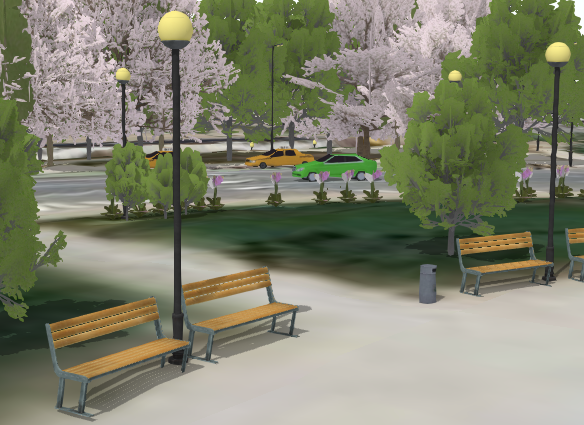
A 3D model can be loaded in the
Working with web styles
3D Symbols provided by Esri as web styles
You can add realistic and schematic 3D symbols to your scene using the WebStyleSymbol class. This class provides access to hundreds of symbols immediately available within the API. Simply reference the styleName and name of the symbol to create the desired visualization.
const symbol = new WebStyleSymbol({  styleName: "EsriRealisticTransportationStyle",  name: "Audi_A6"});
layer.renderer = new SimpleRenderer({  symbol: symbol});
See the Esri Web Style Symbols guide page for a full list of valid styleNames and their symbol names.
Changing WebStyleSymbol size and color
WebStyleSymbol doesn’t have typical symbol properties such as size and color. It can be thought of as a wrapper used to create a PointSymbol3D object with either an ObjectSymbol3DLayer or an IconSymbol3DLayer. To modify any symbol properties, you have to convert the WebStyleSymbol into a regular symbol first using WebStyleSymbol.fetchSymbol().
const symbol = new WebStyleSymbol({  styleName: "EsriRealisticTransportationStyle",  name: "Ambulance"});
symbol.fetchSymbol()  .then(function(ambulanceSymbol){    const objectSymbolLayer = ambulanceSymbol.symbolLayers.getItemAt(0);    objectSymbolLayer.material = { color: "red" };    objectSymbolLayer.height *= 2;    objectSymbolLayer.width *= 2;    objectSymbolLayer.depth *= 2;
    const renderer = layer.renderer.clone();    renderer.symbol = ambulanceSymbol;    layer.renderer = renderer;  });
The Visualize features with realistic WebStyleSymbols sample demonstrates this workflow.
WebStyleSymbols do not need to be converted to PointSymbol3D instances when visual variables are used. The Visualize features with realistic 3D symbols demonstrates how you can apply visual variables to renderers referencing WebStyleSymbols to scale the sizes of realistic symbols based on real-world measurements.
// scales the size of each symbol based on a real-world measurement
const renderer = new SimpleRenderer ({  symbol: new WebStyleSymbol ({    styleName: "EsriRealisticTreesStyle",    name: "Other"  }),  label: "generic tree",  visualVariables: [{    type: "size",    axis: "height",    field: "Height",    valueUnit: "feet"  }, {    type: "size",    axis: "width-and-depth",    field: "canopy_diameter",    valueUnit: "feet"  }]});
Publish a custom 3D model as a web style symbol
Starting with ArcGIS Pro 2.1 you can publish 3D models as web style symbols to ArcGIS Online and ArcGIS Enterprise 10.6. You can read the ArcGIS Pro documentation to see how to share a web style. Read this blog post to see how to publish web styles with 3D symbols.
Once your web style is published, you can load any of its symbols in your application using the WebStyleSymbol class:
const symbol = new WebStyleSymbol({  styleName: "My3DSymbolsStyle",  name: "MySymbolName"});
layer.renderer = new SimpleRenderer ({  symbol: symbol});
The pattern is the same as for the 3D web style symbols provided by Esri. For more information see the Working with web styles section.
Use a custom 3D model in glTF format
glTF is a JSON based, open standard for 3D models that is supported by many 3D modelling applications. A comprehensive list of software supporting glTF can be found in the official GitHub repository. In addition, there are websites where you can download ready-made glTF models, some of them free of charge.
Starting with version
- As a resource for symbolization using ObjectSymbol3DLayer
- Importing into a Mesh geometry instance
Using ObjectSymbol3DLayer
3D models in glTF format can be referenced as a source for the href property of the ObjectSymbol3DLayer.resource. Use this when you want to use a model as a symbol for points (for example trees, benches, airplanes etc.)
In the
const simpleRenderer = new SimpleRenderer ({ symbol: new PointSymbol3D({ symbolLayers: [ new ObjectSymbol3DLayer({ resource: { // the dependencies referenced in the gltf file will be requested as well href: "../3d-assets/model.gltf" }, height: 3, material: { color: "red" } }) ] })});Using Mesh geometry
Another way of loading a glTF model is to import it as a Mesh geometry using the createFromGLTF() method. Use this approach when the model represents a 3D geometry, for example a building or a geological model. You should specify the geographic location of the model on import. After import, the Mesh geometry can be used in a Graphic and added to a GraphicsLayer or view.graphics. You can use the methods offset(), rotate() and scale() to further modify the positioning of the model.
// geographic location where the origin of the model will be placedconst location = new Point({  x: 8.540446,  y: 47.377887,  z: 50});
Mesh.createFromGLTF(location, "../3d-model.gltf")  .then(function(geometry) {    // increase it a factor of 3    geometry.scale(3, {origin: location});    // rotate it by 90 degrees around the z axis    geometry.rotate(0, 0, -90);
    // add it to a graphic    const graphic = new Graphic({      geometry,      symbol: new MeshSymbol3D({        symbolLayers: [ new FillSymbol3DLayer ({          material: {            color: [255, 255, 255, 1],            colorMixMode: "tint"          }        })]      })    });
    view.graphics.add(graphic);  })  .catch(console.error);
glTF support in ArcGIS Maps SDK for JavaScript
- Only glTF version 2.0 is supported.
- The glTF file must contain a single scene.
- The scene can contain an arbitrary number of nodes, meshes and primitives of type
TRIANGLE,TRIANGLE_STRIPorTRIANGLE_FAN.POINTSandLINESare not supported. - Only materials of type Metallic-Roughness are supported.
- Animations, skinning and camera definitions are not supported.
- The following glTF extensions are supported:
- MSFT_lod for multiple levels of detail.
- KHR_texture_transform for texture space transformation of uv coordinates.
- KHR_texture_basisu to support textures with KTX V2 images and Basis Universal compression.
- KHR_draco_mesh_compression for loading Draco-compressed mesh geometry.