Use a custom dictionary style created from a web style or local style file (.stylx) to symbolize features using a variety of attribute values.
Use case
When symbolizing geoelements in your map, you may need to convey several pieces of information with a single symbol. You could try to symbolize such data using a unique value renderer, but as the number of fields and values increases, that approach becomes impractical. With a dictionary renderer you can build each symbol on-the-fly, driven by one or more attribute values, and handle a nearly infinite number of unique combinations.
How to use the sample
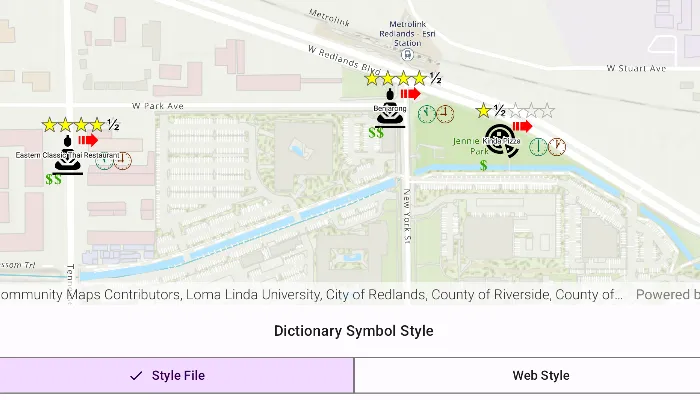
Use the radio buttons to toggle between the dictionary symbols from the web style and style file. Pan and zoom around the map to see the symbology from the chosen dictionary symbol style. The web style and style file are slightly different to each other to give a visual indication of the switch between the two.
How it works
- Create a
PortalItem, referring to aPortaland the item ID of the web style. - Based on the style selected:
- If the web style toggle has been selected, create a new
DictionarySymbolStylefrom the portal item usingDictionarySymbolStyle(portalItem), and load it - If the file style toggle has been selected, create a new
DictionarySymbolStyleusingDictionarySymbolStyle.createFromFile(stylxFile.getAbsolutePath())
- Create a new
DictionaryRenderer, providing the dictionary symbol style. - Apply the dictionary renderer to a feature layer using
featureLayer.renderer = dictionaryRenderer. - Add the feature layer to the map’s operational layers using
getOperationalLayers().add(featureLayer).
Relevant API
- DictionaryRenderer
- DictionarySymbolStyle
- Portal
- PortalItem
About the data
The data used in this sample is from a feature layer showing a subset of restaurants in Redlands, CA hosted as a feature service with attributes for rating, style, health score, and open hours.
The feature layer is symbolized using a dictionary renderer that displays a single symbol for all of these variables. The renderer uses symbols from a custom restaurant dictionary style created from a stylx file and a web style, available as items from ArcGIS Online, to show unique symbols based on several feature attributes. The symbols it contains were created using ArcGIS Pro. The logic used to apply the symbols comes from an Arcade script embedded in the stylx file (which is a SQLite database), along with a JSON string that defines expected attribute names and configuration properties.
Additional information
For information about creating your own custom dictionary style, see the open source dictionary renderer toolkit on GitHub.
Tags
dictionary, military, portal, portal item, renderer, style, stylx, unique value, visualization
Sample code
/* Copyright 2025 Esri * * Licensed under the Apache License, Version 2.0 (the "License"); * you may not use this file except in compliance with the License. * You may obtain a copy of the License at * *    http://www.apache.org/licenses/LICENSE-2.0 * * Unless required by applicable law or agreed to in writing, software * distributed under the License is distributed on an "AS IS" BASIS, * WITHOUT WARRANTIES OR CONDITIONS OF ANY KIND, either express or implied. * See the License for the specific language governing permissions and * limitations under the License. * */
package com.esri.arcgismaps.sample.stylefeatureswithcustomdictionary.components
import android.app.Applicationimport androidx.lifecycle.AndroidViewModelimport androidx.lifecycle.viewModelScopeimport com.arcgismaps.mapping.ArcGISMapimport com.arcgismaps.mapping.BasemapStyleimport com.arcgismaps.mapping.Viewpointimport com.arcgismaps.mapping.layers.FeatureLayerimport com.arcgismaps.mapping.symbology.DictionaryRendererimport com.arcgismaps.mapping.symbology.DictionarySymbolStyleimport com.arcgismaps.portal.Portalimport com.arcgismaps.mapping.PortalItemimport com.arcgismaps.data.ServiceFeatureTableimport com.esri.arcgismaps.sample.sampleslib.components.MessageDialogViewModelimport com.esri.arcgismaps.sample.stylefeatureswithcustomdictionary.Rimport kotlinx.coroutines.flow.MutableStateFlowimport kotlinx.coroutines.launchimport java.io.File
private const val RESTAURANTS_SERVICE_URL =    "https://services2.arcgis.com/ZQgQTuoyBrtmoGdP/arcgis/rest/services/Redlands_Restaurants/FeatureServer/0"private const val WEB_STYLE_ITEM_ID = "adee951477014ec68d7cf0ea0579c800"
class StyleFeaturesWithCustomDictionaryViewModel(app: Application) : AndroidViewModel(app) {
    // Feature layer showing restaurant data in Redlands, CA    private val restaurantFeatureLayer = FeatureLayer.createWithFeatureTable(        featureTable = ServiceFeatureTable(uri = RESTAURANTS_SERVICE_URL)    )    var arcGISMap = ArcGISMap(BasemapStyle.ArcGISTopographic).apply {        initialViewpoint = Viewpoint(            latitude = 34.0543,            longitude = -117.1963,            scale = 1e4        )    }    private var dictionaryRendererFromStyleFile: DictionaryRenderer? = null    private var dictionaryRendererFromWebStyle: DictionaryRenderer? = null
    private val _selectedStyle = MutableStateFlow(CustomDictionaryStyle.StyleFile)
    val messageDialogVM = MessageDialogViewModel()    private val provisionPath: String by lazy {        app.getExternalFilesDir(null)?.path.toString() + File.separator + app.getString(R.string.style_features_with_custom_dictionary_app_name)    }
    init {        viewModelScope.launch {            // Prepare the dictionary renderer from the style file            dictionaryRendererFromStyleFile = createDictionaryRendererFromStyleFile()            // Prepare the dictionary renderer from the web style            dictionaryRendererFromWebStyle = createDictionaryRendererFromWebStyle().getOrElse {                messageDialogVM.showMessageDialog(it)                return@launch            }
            // Apply the renderer for the initially selected style            applyRendererForSelectedStyle()
            // Add the restaurant layer to the map and load the map            arcGISMap.apply {                operationalLayers.add(restaurantFeatureLayer)            }.load().onFailure {                messageDialogVM.showMessageDialog(it)            }        }    }
    /**     * Update the current dictionary style selection and apply the renderer to the feature layer.     */    fun updateSelectedStyle(style: CustomDictionaryStyle) {        _selectedStyle.value = style        applyRendererForSelectedStyle()    }
    /**     * Apply the dictionary renderer to the restaurants layer.     */    private fun applyRendererForSelectedStyle() {        restaurantFeatureLayer.renderer = when (_selectedStyle.value) {            CustomDictionaryStyle.StyleFile -> dictionaryRendererFromStyleFile            CustomDictionaryStyle.WebStyle -> dictionaryRendererFromWebStyle        }    }
    /**     * Create a dictionary renderer from the style file included in the app's assets.     */    private fun createDictionaryRendererFromStyleFile(): DictionaryRenderer {        val restaurantsStyleFile = File(provisionPath, "Restaurant.stylx")        check(restaurantsStyleFile.exists()) {            "Style file not found. Expected at: ${restaurantsStyleFile.canonicalPath}"        }        val restaurantStyle = DictionarySymbolStyle.createFromFile(restaurantsStyleFile.path)
        return DictionaryRenderer(dictionarySymbolStyle = restaurantStyle)    }
    /**     * Create a dictionary renderer from the web style hosted as a Portal item.     * Maps the feature layer's field "healthgrade" to the dictionary style's expected field "Inspection".     */    private suspend fun createDictionaryRendererFromWebStyle(): Result<DictionaryRenderer> {        val portal = Portal(url = "https://www.arcgis.com")        val portalItem = PortalItem(portal = portal, itemId = WEB_STYLE_ITEM_ID)        val restaurantSymbolStyle = DictionarySymbolStyle(portalItem).apply {            load().getOrElse {                return Result.failure(it)            }        }
        return Result.success(            DictionaryRenderer(                dictionarySymbolStyle = restaurantSymbolStyle,                symbologyFieldOverrides = mapOf("healthgrade" to "Inspection")            )        )    }}
/** * Enum representing the two custom dictionary styles available in this sample. */enum class CustomDictionaryStyle {    StyleFile,    WebStyle}
/* Copyright 2025 Esri * * Licensed under the Apache License, Version 2.0 (the "License"); * you may not use this file except in compliance with the License. * You may obtain a copy of the License at * * http://www.apache.org/licenses/LICENSE-2.0 * * Unless required by applicable law or agreed to in writing, software * distributed under the License is distributed on an "AS IS" BASIS, * WITHOUT WARRANTIES OR CONDITIONS OF ANY KIND, either express or implied. * See the License for the specific language governing permissions and * limitations under the License. * */
package com.esri.arcgismaps.sample.stylefeatureswithcustomdictionary
import android.os.Bundleimport androidx.activity.ComponentActivityimport androidx.activity.enableEdgeToEdgeimport androidx.activity.compose.setContentimport androidx.compose.material3.MaterialThemeimport androidx.compose.material3.Surfaceimport androidx.compose.runtime.Composableimport com.esri.arcgismaps.sample.sampleslib.theme.SampleAppThemeimport com.esri.arcgismaps.sample.stylefeatureswithcustomdictionary.screens.StyleFeaturesWithCustomDictionaryScreen
class MainActivity : ComponentActivity() {
override fun onCreate(savedInstanceState: Bundle?) { super.onCreate(savedInstanceState)
enableEdgeToEdge() setContent { SampleAppTheme { StyleFeaturesWithCustomDictionaryApp() } } }
@Composable private fun StyleFeaturesWithCustomDictionaryApp() { Surface(color = MaterialTheme.colorScheme.background) { StyleFeaturesWithCustomDictionaryScreen( sampleName = getString(R.string.style_features_with_custom_dictionary_app_name) ) } }}/* Copyright 2025 Esri * * Licensed under the Apache License, Version 2.0 (the "License"); * you may not use this file except in compliance with the License. * You may obtain a copy of the License at * * http://www.apache.org/licenses/LICENSE-2.0 * * Unless required by applicable law or agreed to in writing, software * distributed under the License is distributed on an "AS IS" BASIS, * WITHOUT WARRANTIES OR CONDITIONS OF ANY KIND, either express or implied. * See the License for the specific language governing permissions and * limitations under the License. * */package com.esri.arcgismaps.sample.stylefeatureswithcustomdictionary
import android.content.Intentimport android.os.Bundleimport com.esri.arcgismaps.sample.sampleslib.DownloaderActivity
class DownloadActivity : DownloaderActivity() { override fun onCreate(savedInstanceState: Bundle?) { super.onCreate(savedInstanceState) downloadAndStartSample( Intent(this, MainActivity::class.java), getString(R.string.style_features_with_custom_dictionary_app_name), listOf( "https://www.arcgis.com/home/item.html?id=751138a2e0844e06853522d54103222a", ) ) }}/* Copyright 2025 Esri * * Licensed under the Apache License, Version 2.0 (the "License"); * you may not use this file except in compliance with the License. * You may obtain a copy of the License at * * http://www.apache.org/licenses/LICENSE-2.0 * * Unless required by applicable law or agreed to in writing, software * distributed under the License is distributed on an "AS IS" BASIS, * WITHOUT WARRANTIES OR CONDITIONS OF ANY KIND, either express or implied. * See the License for the specific language governing permissions and * limitations under the License. * */
package com.esri.arcgismaps.sample.stylefeatureswithcustomdictionary.screens
import androidx.compose.foundation.basicMarqueeimport androidx.compose.foundation.layout.Arrangementimport androidx.compose.foundation.layout.Columnimport androidx.compose.foundation.layout.fillMaxSizeimport androidx.compose.foundation.layout.fillMaxWidthimport androidx.compose.foundation.layout.paddingimport androidx.compose.material3.MaterialThemeimport androidx.compose.material3.Scaffoldimport androidx.compose.material3.SegmentedButtonimport androidx.compose.material3.SegmentedButtonDefaultsimport androidx.compose.material3.SingleChoiceSegmentedButtonRowimport androidx.compose.material3.Textimport androidx.compose.runtime.Composableimport androidx.compose.runtime.getValueimport androidx.compose.runtime.mutableIntStateOfimport androidx.compose.runtime.rememberimport androidx.compose.runtime.setValueimport androidx.compose.ui.Alignmentimport androidx.compose.ui.Modifierimport androidx.compose.ui.unit.dpimport androidx.lifecycle.viewmodel.compose.viewModelimport com.arcgismaps.toolkit.geoviewcompose.MapViewimport com.esri.arcgismaps.sample.sampleslib.components.MessageDialogimport com.esri.arcgismaps.sample.sampleslib.components.SampleTopAppBarimport com.esri.arcgismaps.sample.stylefeatureswithcustomdictionary.components.CustomDictionaryStyleimport com.esri.arcgismaps.sample.stylefeatureswithcustomdictionary.components.StyleFeaturesWithCustomDictionaryViewModel
/** * Main screen showcasing the dictionary renderer toggle between style file and web style. */@Composablefun StyleFeaturesWithCustomDictionaryScreen(sampleName: String) { val mapViewModel: StyleFeaturesWithCustomDictionaryViewModel = viewModel()
Scaffold( topBar = { SampleTopAppBar(title = sampleName) }, content = { paddingValues -> Column( modifier = Modifier .fillMaxSize() .padding(paddingValues) ) { MapView( modifier = Modifier .fillMaxSize() .weight(1f), arcGISMap = mapViewModel.arcGISMap )
DictionaryStyleToggle( modifier = Modifier .fillMaxWidth() .padding(16.dp), onStyleSelected = mapViewModel::updateSelectedStyle ) }
// Displays a dialog when sample encounters an error mapViewModel.messageDialogVM.apply { if (dialogStatus) { MessageDialog( title = messageTitle, description = messageDescription, onDismissRequest = ::dismissDialog ) } } } )}
/** * A segmented control to switch between Style File and Web Style dictionary renderers. */@Composableprivate fun DictionaryStyleToggle( modifier: Modifier = Modifier, onStyleSelected: (CustomDictionaryStyle) -> Unit) { var currentSelectionIndex by remember { mutableIntStateOf(0) }
Column( modifier = modifier, verticalArrangement = Arrangement.spacedBy(12.dp), horizontalAlignment = Alignment.CenterHorizontally ) { Text(text = "Dictionary Symbol Style", style = MaterialTheme.typography.titleMedium) SingleChoiceSegmentedButtonRow(modifier = Modifier.fillMaxWidth()) { val options = listOf("Style File", "Web Style") options.forEachIndexed { index, label -> SegmentedButton( shape = SegmentedButtonDefaults.itemShape(index = index, count = options.size), onClick = { currentSelectionIndex = index val newStyle = if (index == 0) CustomDictionaryStyle.StyleFile else CustomDictionaryStyle.WebStyle onStyleSelected(newStyle) }, selected = (index == currentSelectionIndex) ) { Text( modifier = Modifier.basicMarquee(), text = label, maxLines = 1 ) } } } }}