Learn how to create and display a map
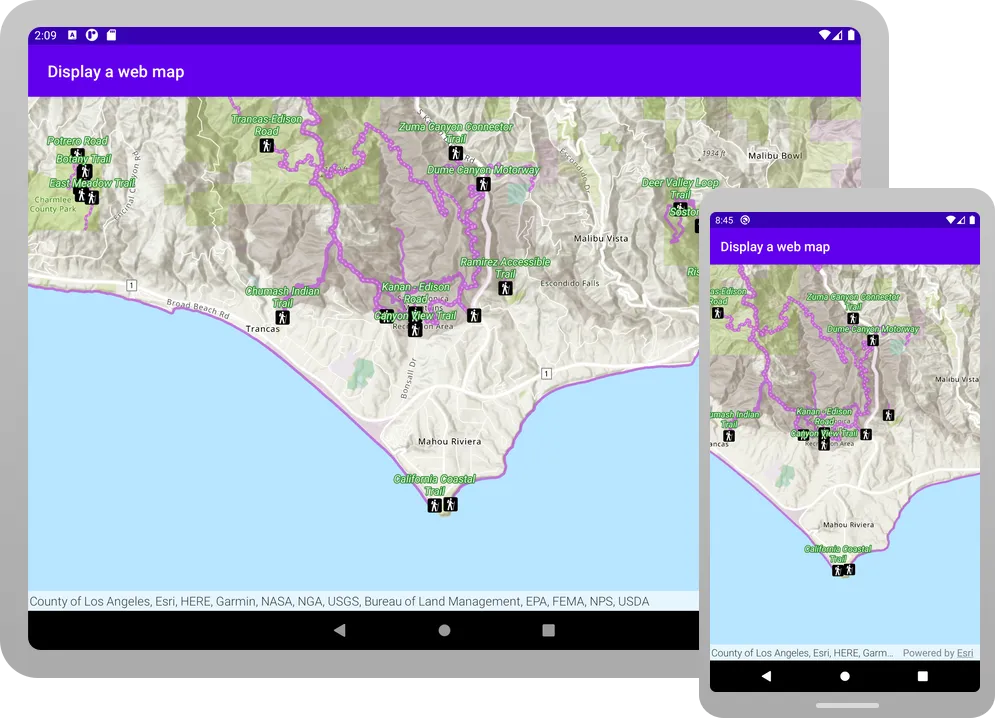
A web map
In this tutorial, you use a web map
Prerequisites
Before starting this tutorial, you need the following:
-
An ArcGIS Location Platform or ArcGIS Online account.
-
A development and deployment environment that meets the system requirements.
-
An IDE for Android development in Kotlin.
Develop or Download
You have two options for completing this tutorial:
Option 1: Develop the code
To start the tutorial, complete the Display a map tutorial. This creates a map to display the Santa Monica Mountains in California using the topographic basemap from the ArcGIS Basemap Styles service
Open an Android Studio project
-
Open the project you created by completing the Display a map tutorial.
-
Continue with the following instructions to display a map from a web map stored in ArcGIS.
-
Modify the old project for use in this new tutorial.
-
On your file system, delete the .idea folder, if present, at the top level of your project.
-
In the Android view, open app > res > values > strings.xml.
In the
<string name="app_name">element, change the text content to Display a web map.strings.xml<resources><string name="app_name">Display a web map</string></resources> -
In the Android view, open Gradle Scripts > settings.gradle.kts.
Change the value of
rootProject.nameto “Display a web map”.settings.gradle.kts14 collapsed linespluginManagement {repositories {google {content {includeGroupByRegex("com\\.android.*")includeGroupByRegex("com\\.google.*")includeGroupByRegex("androidx.*")}}mavenCentral()gradlePluginPortal()}}dependencyResolutionManagement {repositoriesMode.set(RepositoriesMode.FAIL_ON_PROJECT_REPOS)repositories {google()mavenCentral()maven { url = uri("https://esri.jfrog.io/artifactory/arcgis") }}}rootProject.name = "Display a web map"include(":app") -
Click File > Sync Project with Gradle files. Android Studio will recognize your changes and create a new .idea folder.
-
Get the web map item ID
You can use ArcGIS tools
- Go to the LA Trails and Parks web map
in the Map Viewer in ArcGIS Online
ArcGIS Online is a GIS mapping, analytics, data hosting, and content management software as a service (SaaS) product. It includes applications, tools, APIs, and location services for users and developers. It is subscription-based and requires an ArcGIS Online account. . This web map displays trails, trailheads and parks in the Santa Monica Mountains. - Make a note of the item ID at the end of the browser’s URL. The item ID should be
41281c51f9de45edaf1c8ed44bb10e30
Add import statements
Replace the import statements in MainScreen.kt with the imports needed for this tutorial.
@file:OptIn(ExperimentalMaterial3Api::class)
package com.example.app.screens
import androidx.compose.foundation.layout.fillMaxSizeimport androidx.compose.foundation.layout.paddingimport androidx.compose.material3.ExperimentalMaterial3Apiimport androidx.compose.material3.Scaffoldimport androidx.compose.material3.Textimport androidx.compose.material3.TopAppBarimport androidx.compose.runtime.Composableimport androidx.compose.runtime.rememberimport androidx.compose.ui.Modifierimport androidx.compose.ui.res.stringResourceimport com.arcgismaps.mapping.ArcGISMapimport com.arcgismaps.mapping.PortalItemimport com.arcgismaps.portal.Portalimport com.arcgismaps.toolkit.geoviewcompose.MapViewimport com.example.app.R
Display the web map
You can create a mapPortalItem class to access the web map, and the ArcGISMap class to create and display a map from it.
-
Open the app > kotlin+java > com.example.app > MainActivity.kt. Delete the code inside
createMap(). These lines come from the Display a map tutorial and do not apply here.MainScreen.ktfun createMap(): ArcGISMap {return ArcGISMap(BasemapStyle.ArcGISTopographic).apply {initialViewpoint = Viewpoint(latitude = 34.0270,longitude = -118.8050,scale = 72000.0)}} -
Inside the empty
createMap(), create a newPortalreferencing ArcGIS OnlineArcGIS Online is a GIS mapping, analytics, data hosting, and content management software as a service (SaaS) product. It includes applications, tools, APIs, and location services for users and developers. It is subscription-based and requires an ArcGIS Online account. as theurlparameter andPortal.Connection.Anonymousfor theconnectionparameter.MainScreen.ktfun createMap(): ArcGISMap {val portal = Portal(url = "https://www.arcgis.com",connection = Portal.Connection.Anonymous)} -
Next, create a
PortalItemfor the web mapA web map is a map stored as a JSON object that defines properties such as the basemap layer, data layers, layer styles, and pop-up styles. Its JSON structure is defined by the web map specification. , by passing theportaland the web map’s item IDAn item ID is a unique identifier representing a single item stored, managed, and accessed in a portal, such as a web map, hosted layer, or file. as parameters.MainScreen.ktfun createMap(): ArcGISMap {val portal = Portal(url = "https://www.arcgis.com",connection = Portal.Connection.Anonymous)val portalItem = PortalItem(portal = portal,itemId = "41281c51f9de45edaf1c8ed44bb10e30")} -
Last, create an
ArcGISMapusingportalItemas the constructor parameter.MainScreen.ktfun createMap(): ArcGISMap {val portal = Portal(url = "https://www.arcgis.com",connection = Portal.Connection.Anonymous)val portalItem = PortalItem(portal = portal,itemId = "41281c51f9de45edaf1c8ed44bb10e30")return ArcGISMap(portalItem)} -
Click Run > Run > app to run the app.
You should see a map of trails, trailheads and parks in the Santa Monica Mountains . Drag, swipe, or pinch on the map view to explore the map.
Alternatively, you can download the tutorial solution, as follows.
Option 2: Download the solution
-
Click the Download solution link in the right-hand side of this page.
-
Unzip the file to a location on your machine.
-
Run Android Studio.
-
Go to File > Open…. Navigate to the solution folder and click Open.
On Windows: If you are in the Welcome to Android Studio dialog, click Open and navigate to the solution folder. Then click Open.
Since the downloaded solution does not contain authentication credentials, you must first set up authentication to create credentials, and then add the developer credentials to the solution.
Set up authentication
To access the secure ArcGIS location services
You can implement API key authentication or user authentication in this tutorial. Compare the differences below:
API key authentication
- Users are not required to sign in.
- Requires creating an API key credential
API key credentials are an item that contains the parameters used to create and manage long-lived access tokens for API key authentication. They are a type of developer credential. with the correct privileges. - API keys
An API key is a long-lived access token created using API key credentials. They are valid for up to one year and are typically embedded directly into client applications. are long-lived access tokens. - Service usage is billed to the API key owner/developer.
- Simplest authentication method to implement.
- Recommended approach for new ArcGIS developers.
Learn more in API key authentication.
User authentication
- Users are required to sign in with an ArcGIS account
An ArcGIS account is an identity with a user type and set of privileges that can access specific ArcGIS products, tools, APIs, services, and resources. The main account types that can be used for development are an ArcGIS Location Platform account, ArcGIS Online account, and ArcGIS Enterprise account. ArcGIS Location Platform and ArcGIS Online accounts are also associated with a subscription. . - User accounts must have privilege
Privileges are a set of permissions assigned to ArcGIS accounts, developer credentials, and applications that grant access to secure resources and functionality in ArcGIS. to access the ArcGIS servicesA service, also known as an ArcGIS service, is software that supports an ArcGIS REST API and provides geospatial functionality or data. A service can be hosted by Esri or in ArcGIS Enterprise. used in application. - Requires creating OAuth credentials
OAuth credentials are an item that contains parameters required to implement user authentication or app authentication, including a .client_id,client_secret, and redirect URIs. They are a type of developer credential. - Application uses a redirect URL and client ID.
- Service usage is billed to the organization of the user signed into the application.
Learn more in User authentication.
To complete this tutorial, click on the tab in the switcher below for your authentication type of choice, either API key authentication or User authentication.
Create a new API key access token
-
Complete the Create an API key tutorial and create an API key with the following privilege(s)
Privileges are a set of permissions assigned to ArcGIS accounts, developer credentials, and applications that grant access to secure resources and functionality in ArcGIS. :- Privileges
- Location services > Basemaps
- Privileges
-
Copy and paste the API key access token into a safe location. It will be used in a later step.
Create new OAuth credentials to access the secure resources used in this tutorial.
-
Complete the Create OAuth credentials for user authentication tutorial to obtain a Client ID and Redirect URL.
A
Client IDuniquely identifies your app on the authenticating server. If the server cannot find an app with the provided Client ID, it will not proceed with authentication.The
Redirect URL(also referred to as a callback url) is used to identify a response from the authenticating server when the system returns control back to your app after an OAuth login. Since it does not necessarily represent a valid endpoint that a user could navigate to, the redirect URL can use a custom scheme, such asmy-app://auth. It is important to make sure the redirect URL used in your app’s code matches a redirect URL configured on the authenticating server. -
Copy and paste the Client ID and Redirect URL into a safe location. They will be used in a later step.
All users that access this application need account privileges
Set developer credentials in the solution
To allow your app users to access ArcGIS location services
-
In the Android view of Android Studio, open app > kotlin+java > com.example.app > MainActivity. Set the
AuthenticationModeto.API_KEY.MainActivity.kt14 collapsed linespackage com.example.appimport android.os.Bundleimport androidx.activity.ComponentActivityimport androidx.activity.compose.setContentimport androidx.activity.enableEdgeToEdgeimport com.arcgismaps.ApiKeyimport com.arcgismaps.ArcGISEnvironmentimport com.arcgismaps.httpcore.authentication.OAuthUserConfigurationimport com.arcgismaps.toolkit.authentication.AuthenticatorStateimport com.arcgismaps.toolkit.authentication.DialogAuthenticatorimport com.example.app.screens.MainScreenimport com.example.app.ui.theme.TutorialThemeclass MainActivity : ComponentActivity() {private enum class AuthenticationMode { API_KEY, USER_AUTH }private val authenticationMode = AuthenticationMode.API_KEY42 collapsed linesprivate val authenticatorState = AuthenticatorState()override fun onCreate(savedInstanceState: Bundle?) {super.onCreate(savedInstanceState)when (authenticationMode) {AuthenticationMode.API_KEY -> {ArcGISEnvironment.apiKey = ApiKey.create("YOUR_ACCESS_TOKEN")}AuthenticationMode.USER_AUTH -> {authenticatorState.oAuthUserConfigurations = listOf(OAuthUserConfiguration(portalUrl = "https://www.arcgis.com",clientId = "YOUR_CLIENT_ID",redirectUrl = "YOUR_REDIRECT_URL"))}}enableEdgeToEdge()setContent {TutorialTheme {MainScreen()if (authenticationMode == AuthenticationMode.USER_AUTH) {DialogAuthenticator(authenticatorState)}}}}} -
Set the
apiKeyproperty with your API key access token.MainActivity.kt22 collapsed linespackage com.example.appimport android.os.Bundleimport androidx.activity.ComponentActivityimport androidx.activity.compose.setContentimport androidx.activity.enableEdgeToEdgeimport com.arcgismaps.ApiKeyimport com.arcgismaps.ArcGISEnvironmentimport com.arcgismaps.httpcore.authentication.OAuthUserConfigurationimport com.arcgismaps.toolkit.authentication.AuthenticatorStateimport com.arcgismaps.toolkit.authentication.DialogAuthenticatorimport com.example.app.screens.MainScreenimport com.example.app.ui.theme.TutorialThemeclass MainActivity : ComponentActivity() {private enum class AuthenticationMode { API_KEY, USER_AUTH }private val authenticationMode = AuthenticationMode.API_KEYprivate val authenticatorState = AuthenticatorState()override fun onCreate(savedInstanceState: Bundle?) {super.onCreate(savedInstanceState)when (authenticationMode) {AuthenticationMode.API_KEY -> {ArcGISEnvironment.apiKey = ApiKey.create("YOUR_ACCESS_TOKEN")}30 collapsed linesAuthenticationMode.USER_AUTH -> {authenticatorState.oAuthUserConfigurations = listOf(OAuthUserConfiguration(portalUrl = "https://www.arcgis.com",clientId = "YOUR_CLIENT_ID",redirectUrl = "YOUR_REDIRECT_URL"))}}enableEdgeToEdge()setContent {TutorialTheme {MainScreen()if (authenticationMode == AuthenticationMode.USER_AUTH) {DialogAuthenticator(authenticatorState)}}}}}
Best Practice: The access token is stored directly in the code as a convenience for this tutorial. Do not store credentials directly in source code in a production environment.
-
In the Android view of Android Studio, open app > kotlin+java > com.example.app > MainActivity. Set the
AuthenticationModeto.USER_AUTH.MainActivity.ktclass MainActivity : ComponentActivity() {private enum class AuthenticationMode { API_KEY, USER_AUTH }private val authenticationMode = AuthenticationMode.USER_AUTH -
Set your
clientIDandredirectURLvalues. You must use the RedirectURL that you supplied for your app in theuser authenticationpart of the Set up authentication step.MainActivity.ktAuthenticationMode.USER_AUTH -> {authenticatorState.oAuthUserConfigurations = listOf(OAuthUserConfiguration(portalUrl = "https://www.arcgis.com",clientId = "YOUR_CLIENT_ID",redirectUrl = "YOUR_REDIRECT_URL")) -
Open app > manifests > AndroidManifest.xml.
-
Set the
android:schemeandandroid:hostusing the scheme and host from your RedirectURL.A redirectURL is composed of a scheme and a host component. The format for the redirect url is
scheme://host. For example, if the redirect url ismyscheme://myhostthen the scheme ismyschemeand the host ismyhost.AndroidManifest.xml41 collapsed lines<?xml version="1.0" encoding="utf-8"?><manifest xmlns:android="http://schemas.android.com/apk/res/android"xmlns:tools="http://schemas.android.com/tools"><uses-permission android:name="android.permission.INTERNET" /><applicationandroid:allowBackup="true"android:dataExtractionRules="@xml/data_extraction_rules"android:fullBackupContent="@xml/backup_rules"android:icon="@mipmap/ic_launcher"android:label="@string/app_name"android:roundIcon="@mipmap/ic_launcher_round"android:supportsRtl="true"android:theme="@style/Theme.Tutorial"tools:targetApi="31"><activityandroid:name=".MainActivity"android:exported="true"android:label="@string/app_name"android:theme="@style/Theme.Tutorial"><intent-filter><action android:name="android.intent.action.MAIN" /><category android:name="android.intent.category.LAUNCHER" /></intent-filter></activity><activityandroid:name="com.arcgismaps.toolkit.authentication.AuthenticationActivity"android:configChanges="keyboard|keyboardHidden|orientation|screenSize"android:exported="true"android:launchMode="singleTop" ><intent-filter><action android:name="android.intent.action.VIEW" /><category android:name="android.intent.category.DEFAULT" /><category android:name="android.intent.category.BROWSABLE" /><dataandroid:scheme="your_redirect_url_scheme"android:host="your_redirect_url_host" />6 collapsed lines</intent-filter></activity></application></manifest>
Best Practice: The OAuth credentials are stored directly in the code as a convenience for this tutorial. Do not store credentials directly in source code in a production environment.
Run the app
Click Run > Run > app to run the app.
You should see a map of trails, trailheads and parks in the Santa Monica Mountains . Drag, swipe, or pinch on the map view to explore the map.
What’s next?
Learn how to use additional API features, ArcGIS location services, and ArcGIS tools in these tutorials: