Learn how to manage API key credentials with ArcGIS Location Platform to generate API keys and manage their privileges and item access.

API key credentials are a type of developer credentials used in API key authentication. You can manage the settings of your API keys from the item page of your API key credentials.
This tutorial shows how to manage API key credentials in your portal to complete the following tasks:
-
Edit privileges to enable access to the geocoding service.
-
Edit item access to enable access to a private feature layer.
-
Regenerate an API key to apply the new privileges and item access rights.
-
Generate a secondary API key with a new expiration date.
Prerequisites
-
You need an ArcGIS Location Platform account.
-
You need to complete the Create an API key tutorial. Create API key credentials with the following privileges:
- Privileges: Location services > Basemaps > Basemap styles service
-
You need to complete the full Import data to create a feature layer tutorial to create private data layers hosted in your portal.
Steps
Sign in to your portal
You use your portal to create and manage items, including API key credentials.
- In your web browser, go to https://location.arcgis.com, and sign in with your ArcGIS Location Platform account. In the dashboard, click My portal to go to your portal.
Find your API key credentials
Developer credentials are stored as an item in your portal. Go to the item page of your credentials to manage their settings.
-
Go to Content > My content.
-
Search for the developer credentials you created in the prerequisites step.
-
Click on the developer credentials to go to its item page.
Edit item access
The items your API key credentials are authorized to access are managed through the settings of their item page. Edit the item access of your API key credentials to enable access to a feature layer in your application.
-
Go to Settings on the item page of your API key credentials.
-
Under Application > Credentials, click the Edit button. In the warning that appears, click Continue.
-
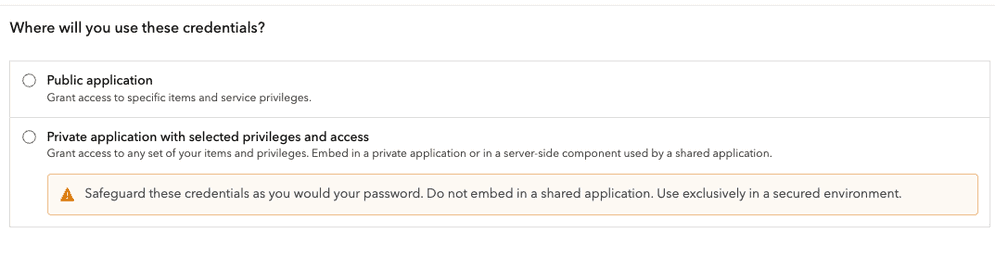
Select a type of application that your key will be used in. The application type used in this scenario is Public application.
-
In the Item access window, select Grant access to specific items.
-
Select the feature layers you created in the Prerequisites:
- Trailheads
- Trails
- Parks and Open Space
This will grant your API key credentials access to the layers.
-
Click Next.
Edit privileges
The privileges of API key credentials are managed through the settings on their item page. Add privileges to your credentials to enable access to the geocoding service.
-
Select new privileges for your API keys using the Privileges window. The privileges used in this scenario are:
- Privileges: Location services > Geocoding > Geocode (not stored)
To view a list of all privileges available to API keys, go to Privileges.
-
Click Save to close the window.
-
Click the Save button under Application to update your API key credential.
Generate a new API key
Editing privileges and item access will invalidate all existing API keys associated with the credentials. You must generate a new API keys to use it in your application.
-
Go to Settings on the item page of your API key credentials.
-
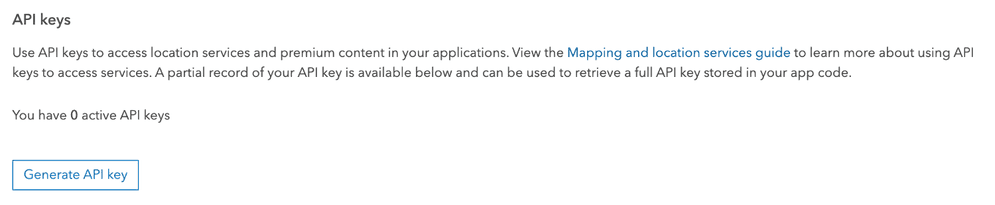
Under Application > API keys, click Generate API key.
-
Copy the API key from the window that appears and store it in a safe location. You will not be able to see it again.

You can also generate a secondary API key using the same API key credentials. This secondary key has identical privileges and item access to the first key with a new expiration date.
What's next?
Your API key now has the correct privileges to access the geocoding service as well as your private feature layers. Use the key to complete one of the following tutorials:

Search with autosuggest
Search for an address with autosuggest using the geocoding service.
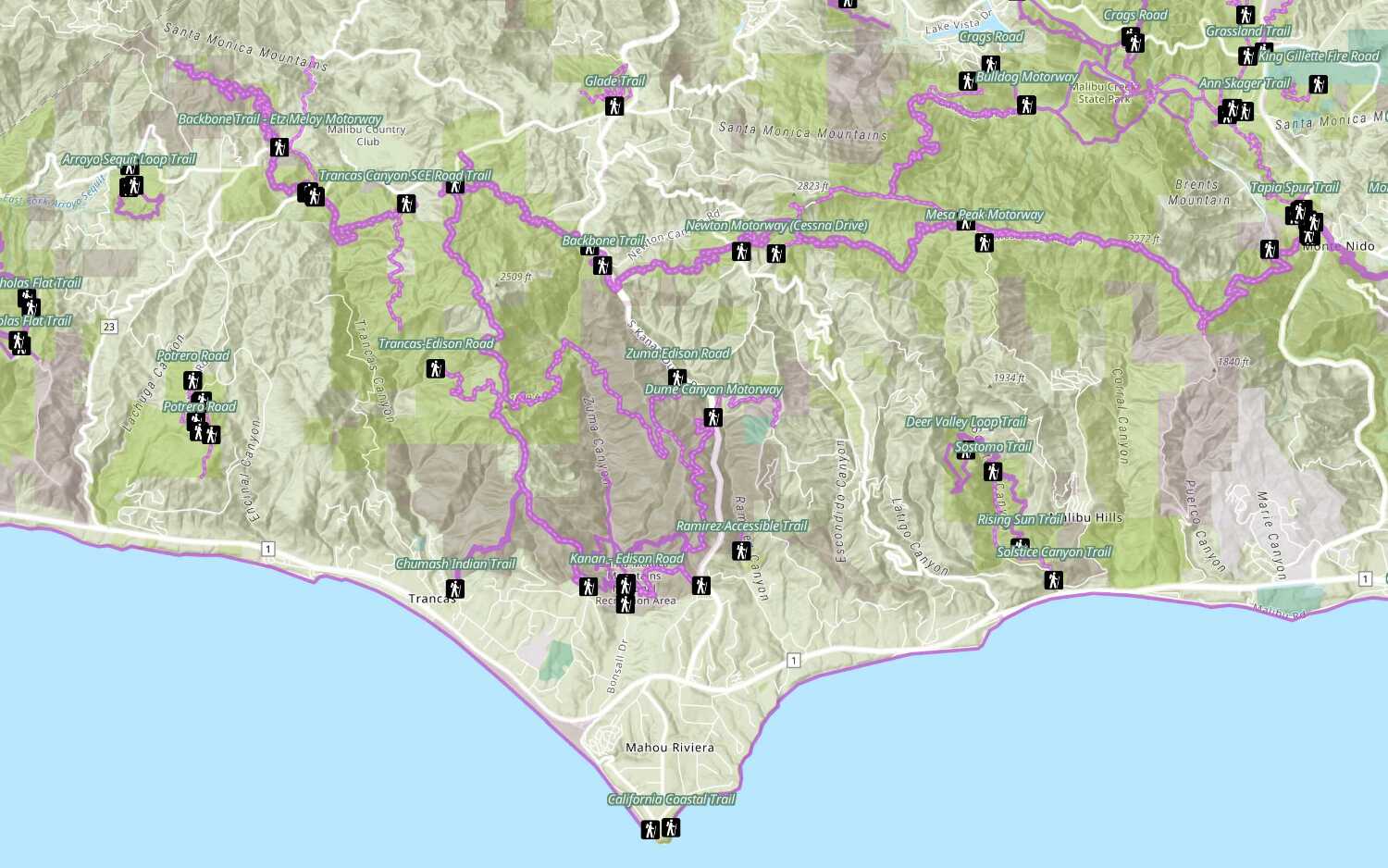
Add a feature layer
Access and display point, line, and polygon features from a feature service.