Learn how to import data to create a feature layer in a feature service.
Importing data is the process of using data management tools
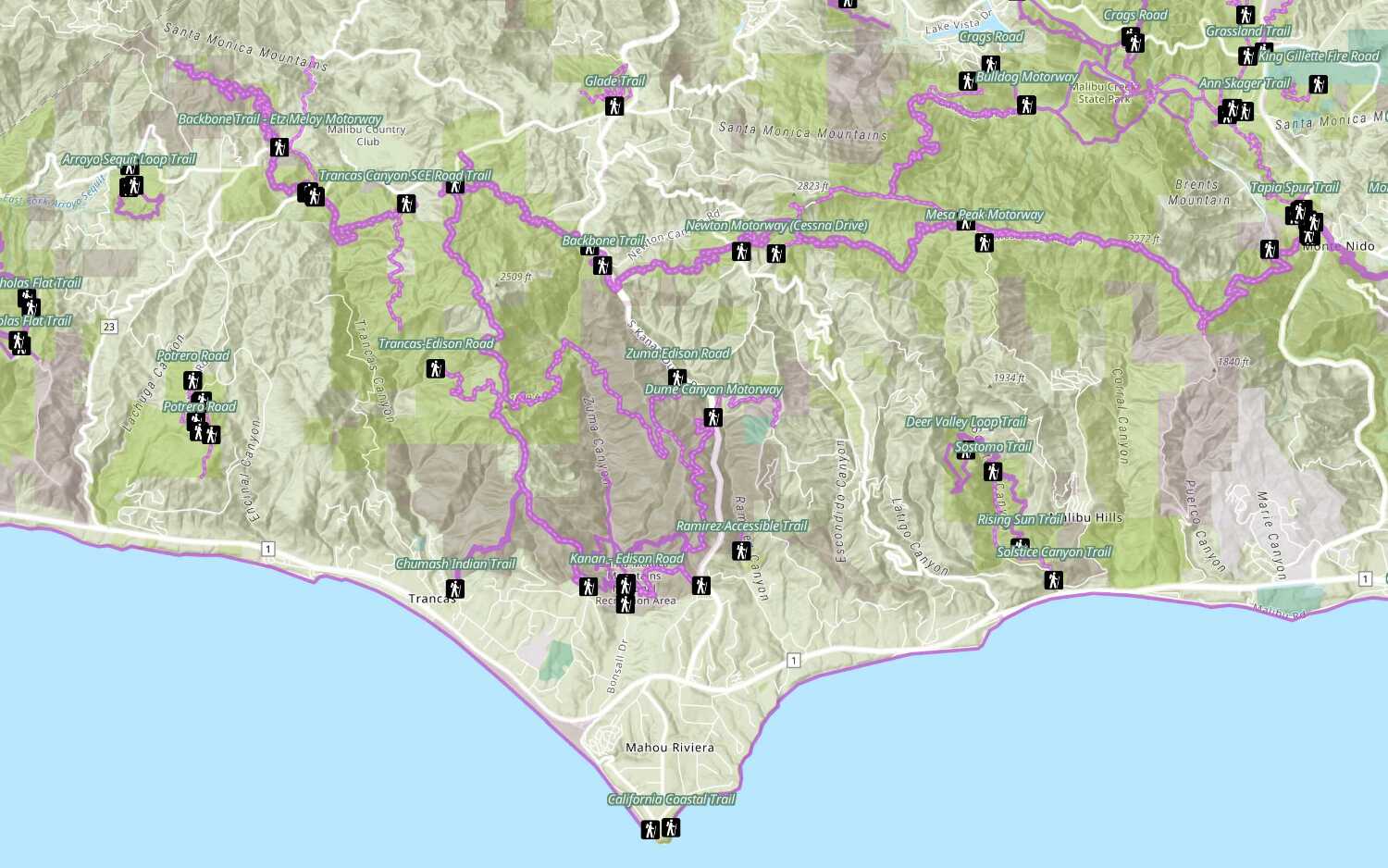
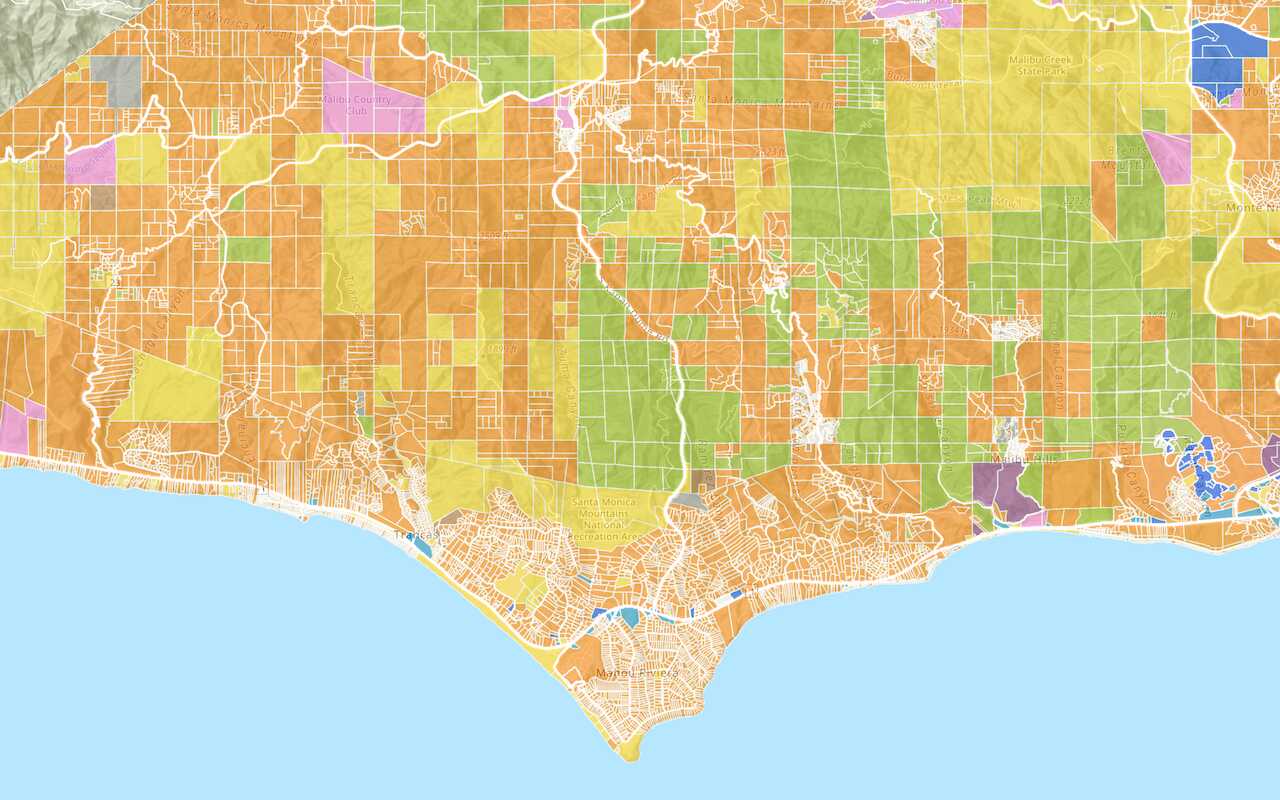
In this tutorial, you use data management tools and scripting APIs to import Trailheads (CSV), Trails (GeoJSON), and Parks and Open Space (Shapefile) files and publish them as feature layers
Prerequisites
- You need an account
An ArcGIS account is an identity with a user type and set of privileges that can access specific ArcGIS products, tools, APIs, services, and resources. The main account types that can be used for development are an ArcGIS Location Platform account, ArcGIS Online account, and ArcGIS Enterprise account. ArcGIS Location Platform and ArcGIS Online accounts are also associated with a subscription. for ArcGIS Location PlatformArcGIS Location Platform, formerly known as ArcGIS Platform, is a Platform as a Service (PaaS) product that gives developers access to location services, APIs, and tools to build mapping and spatial analysis applications. It is subscription-based and requires an ArcGIS Location Platform account. , ArcGIS OnlineArcGIS Online is a GIS mapping, analytics, data hosting, and content management software as a service (SaaS) product. It includes applications, tools, APIs, and location services for users and developers. It is subscription-based and requires an ArcGIS Online account. , or ArcGIS EnterpriseArcGIS Enterprise is a GIS mapping, analytics, data hosting, and content management product that can be hosted on-premise or in a cloud infrastructure. It includes software, applications, tools, APIs, and services for users and developers. to create hosted data services. If you need an account, go to Get started.
- The Scripting APIs sections of this tutorial requires you to implement authentication. To learn more about the different types of authentication, go to Security and authentication.
Steps
Download the data
-
Download the LA_Hub_Datsets zip file from ArcGIS Online. The zip file contains the following:
- Trailheads.csv
- Trails.geojson
- Parks_and_Open_Space.zip (Shapefile)
-
Navigate to and unzip the file.
Import the Trailheads CSV file
The Trailheads CSV file contains point
Follow the steps below to use Data management tools or Scripting APIs:
In your web browser, go to https://location.arcgis.com, and sign in with your ArcGIS Location Platform account
-
In the top navigation bar, click My dashboard
-
In the top navigation bar of your dashboard, click Layers and data services.
-
Click Import data.
-
In the New item window, to upload the Trailheads.csv file, you can either:
- Drag and drop the file.
- Or, click Your device and navigate to the file path.
-
Select
Add Trailheads.csv and create a hosted feature layerto publish the file as a hosted feature layerA hosted feature layer is a hosted layer (item) in a portal that is used to manage the properties and settings of a spatially-enabled feature layer in a feature service. . -
In Fields, leave all fields at their default settings and click Next.
-
In Location settings, leave the default settings and click Next.
-
Set the following information in the item details pane:
- Title:
Trailheads - Tags:
Los AngelesTrailheads. - Summary:
Trailheads in the Santa Monica Mountains.
- Title:
-
Click Save to create the new Trailheads feature layer
A feature layer (client-side) is a data layer that can access and display features from a feature service that has the same type of geometry and attribute fields. and feature serviceA feature service is a data service that provides access to spatial and non-spatial data in feature layers, feature layer views, and tables. .
In the item page
- Layer ID: 883cedb8c9fe4524b64d47666ed234a7
- Point Layer URL:
https://services3.arcgis.com/ G Vgb Jbqm8h XASV Yi/arcgis/rest/services/ Trailheads/ Feature Server/
- Import the required libraries.
- Implement authentication.
- Create and publish a portal item.
- Handle the results.
# local path to csv file
input_file_path = str(Path(__file__).parent / "data/Trailheads.csv")
root_folder = portal.content.folders.get() # root portal folder
csv_item_props = ItemProperties(
title="Trailheads",
description="Trailheads imported from CSV file in Mahou Riviera",
tags=["LA", "Trailheads"],
item_type=ItemTypeEnum.CSV
)
# add the csv file as an item to portal
csv_item = root_folder.add(item_properties=csv_item_props, file=input_file_path)
if not csv_item.done():
print("add item job processing...")
else:
csv_item = csv_item.result()
# publish the item to create a hosted featurelayer
csv_service = csv_item.publish(None)
print(f"New item id : {csv_service.id}, url: {csv_service.layers[0].url}")
Import the Trails GeoJSON file
The Trails GeoJSON file contains line
Follow the steps below to use Data management tools or Scripting APIs:
In your portal, click Content > New item to upload your next file.
-
Upload the Trails.geojson file. Either:
- Drag and drop the file into the Drag and drop your file area.
- Or, click Your device and navigate to the file path.
-
Select Add Trails.geojson and create a hosted feature layer to publish the file as a hosted feature layer
A hosted feature layer is a hosted layer (item) in a portal that is used to manage the properties and settings of a spatially-enabled feature layer in a feature service. . -
Set the following information in the item details pane:
- Title:
Trails - Tags:
Los AngelesTrails. - Summary:
Trails in the Santa Monica Mountains.
- Title:
-
Click Save to create the new Trails feature layer
A feature layer (client-side) is a data layer that can access and display features from a feature service that has the same type of geometry and attribute fields. and feature serviceA feature service is a data service that provides access to spatial and non-spatial data in feature layers, feature layer views, and tables. .
To access a hosted feature layer from an application, you need to be able to identify ID
-
In the item page, scroll down to the bottom of the page to find the URL. For example:
- URL:
https://services3.arcgis.com/ G Vgb Jbqm8h XASV Yi/arcgis/rest/services/ Trails/ Feature Server
- URL:
-
Click View to access the feature service. Locate the Service ItemId, which will look something like this:
- Service ItemID: 69e12682738e467eb509d8b54dc73cbd
- Import the required libraries.
- Implement authentication.
- Create and publish a portal item.
- Handle the results.
# local path to geojson file
input_file_path = str(Path(__file__).parent / "data/Trails.geojson")
geojson_item_props = ItemProperties(
title="Trails",
description="Trails imported from GeoJSON file in Mahou Riviera",
tags=["LA", "Trails"],
item_type=ItemTypeEnum.GEOJSON
)
# add the geojson file as an item to portal
geojson_item = root_folder.add(item_properties=geojson_item_props, file=input_file_path
)
if not geojson_item.done():
print("add item job processing...")
else:
geojson_item = geojson_item.result()
# publish the item to create a hosted featurelayer
geojson_service = geojson_item.publish(None)
print(
f"New item : \n\t id : {geojson_service.id} \n\t url: {geojson_service.layers[0].url}"
)
Import the Parks and Open Spaces Shapefile
The Parks and Open Spaces Shapefile contains polygon
Follow the steps below to use Data management tools or Scripting APIs:
In your portal, click Content > New item to upload your next file.
-
Upload the Parks and Open Space.zip file. Either:
- Drag and drop the file into the Drag and drop your file area.
- Or, click Your device to browse to the file path.
-
Set the file type to Shapefile. Select Add Parks_and_Open_Space.zip and create a hosted feature layer to publish the file as a hosted feature layer
A hosted feature layer is a hosted layer (item) in a portal that is used to manage the properties and settings of a spatially-enabled feature layer in a feature service. . -
Set the following information in the item details pane:
- Title:
Parks and Open Space - Tags:
Los AngelesParks. - Summary:
Parks and open spaces in the Santa Monica Mountains.
- Title:
-
Click Save to create the new Parks and Open Space feature layer
A feature layer (client-side) is a data layer that can access and display features from a feature service that has the same type of geometry and attribute fields. and feature serviceA feature service is a data service that provides access to spatial and non-spatial data in feature layers, feature layer views, and tables. .
To access a hosted feature layer from an application, you need to be able to identify ID
-
In the item page, scroll down to the bottom of the page to find the URL. For example:
- URL:
https://services3.arcgis.com/ G Vgb Jbqm8h XASV Yi/arcgis/rest/services/ Parks _and _Open _Space/ Feature Server
- URL:
-
Click View to access the feature service. Locate the Service ItemId, which will look something like this:
- Service ItemID: f2ea5d874dad427294641d2d45097c0e
- Import the required libraries.
- Implement authentication.
- Create and publish a portal item.
- Handle the results.
# local path to shapefile zip file
input_file_path = str(Path(__file__).parent / "data/Parks_and_Open_Space.zip")
shp_item_props = ItemProperties(
title="Parks and Open Space",
description="Parks and open spaces in Mahou Riviera.",
tags=["LA", "Parks"],
item_type=ItemTypeEnum.SHAPEFILE
)
# add the zip file as an item to portal
shp_item = root_folder.add(item_properties=shp_item_props, file=input_file_path)
if not shp_item.done():
print("add item job processing...")
else:
shp_item = shp_item.result()
# publish the item to create a hosted featurelayer
shp_service = shp_item.publish(None)
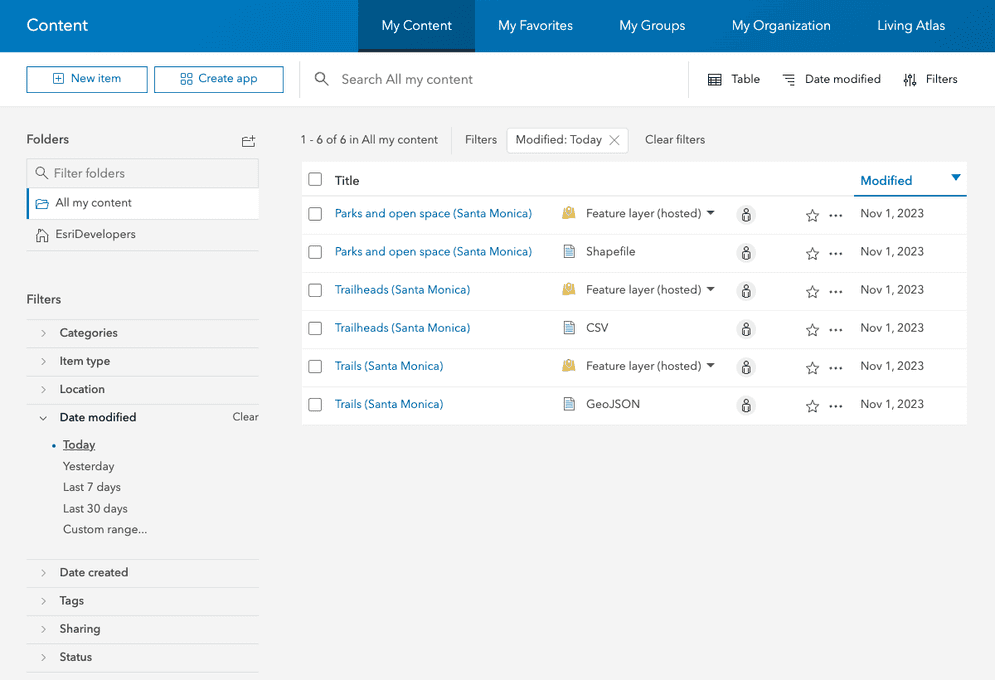
print(f"New item id : {shp_service.id, }, url: {shp_service.layers[0].url}")You now have three hosted feature layers
What's next?
Learn how to use additional tools, APIs, and location services in these tutorials:

Define a new feature layer
Use data management tools to define and create a new empty feature layer in a feature service.

Manage a feature layer
Use a hosted feature layer item to set the properties and settings of a feature layer in a feature service.

Create a vector tile service
Use data management tools to create a new vector tile service from a feature service.