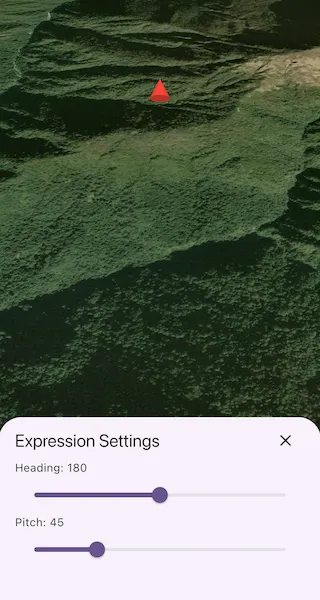
Update the orientation of a graphic using expressions based on its attributes.
Use case
Instead of reading the attribute and changing the rotation on the symbol for a single graphic (a manual CPU operation), you can bind the rotation to an expression that applies to the whole overlay (an automatic GPU operation). This usually results in a noticeable performance boost (smooth rotations).
How to use the sample
Adjust the heading and pitch sliders to rotate the cone.
How it works
- Create a graphics overlay.
- Create a simple renderer and configure its scene property expressions.
- Set the heading expression to
[HEADING]and the pitch expression to[PITCH]. - Apply the renderer to the graphics overlay.
- Create a graphic with
HEADINGandPITCHattributes and add it to the overlay. - Display the graphics overlay in a scene view.
- To update the graphic’s rotation, modify the
HEADINGorPITCHattribute using the controls in the Settings panel.
Relevant API
- Graphic.attributes
- GraphicsOverlay
- SceneProperties
- SceneProperties.headingExpression
- SceneProperties.pitchExpression
- SimpleRenderer
- SimpleRenderer.sceneProperties
Tags
3D, expression, graphics, heading, pitch, rotation, scene, symbology
Sample code
apply_scene_property_expressions.dart
// Copyright 2026 Esri//// Licensed under the Apache License, Version 2.0 (the "License");// you may not use this file except in compliance with the License.// You may obtain a copy of the License at////   https://www.apache.org/licenses/LICENSE-2.0//// Unless required by applicable law or agreed to in writing, software// distributed under the License is distributed on an "AS IS" BASIS,// WITHOUT WARRANTIES OR CONDITIONS OF ANY KIND, either express or implied.// See the License for the specific language governing permissions and// limitations under the License.//
import 'package:arcgis_maps/arcgis_maps.dart';import 'package:arcgis_maps_sdk_flutter_samples/common/common.dart';import 'package:flutter/material.dart';
class ApplyScenePropertyExpressions extends StatefulWidget {  const ApplyScenePropertyExpressions({super.key});
  @override  State<ApplyScenePropertyExpressions> createState() =>      _ApplyScenePropertyExpressionsState();}
class _ApplyScenePropertyExpressionsState    extends State<ApplyScenePropertyExpressions>    with SampleStateSupport {  // Create a controller for the scene view.  final _sceneViewController = ArcGISSceneView.createController();
  // A flag for when the scene view is ready and controls can be used.  var _ready = false;
  // The cone graphic whose heading and pitch are controlled by expressions.  Graphic? _coneGraphic;
  // The heading of the cone.  var _heading = 180.0;
  // The pitch of the cone.  var _pitch = 45.0;
  // A value indicating whether the settings bottom sheet is visible.  var _settingsVisible = false;
  @override  Widget build(BuildContext context) {    return Scaffold(      body: SafeArea(        top: false,        left: false,        right: false,        child: Stack(          children: [            Column(              children: [                Expanded(                  // Add a scene view to the widget tree and set a controller.                  child: ArcGISSceneView(                    controllerProvider: () => _sceneViewController,                    onSceneViewReady: onSceneViewReady,                  ),                ),                // Add a centered settings button to the widget tree.                Center(                  child: ElevatedButton(                    onPressed: _ready                        ? () => setState(() => _settingsVisible = true)                        : null,                    child: const Text('Settings'),                  ),                ),              ],            ),            // Display a progress indicator and prevent interaction until state is ready.            LoadingIndicator(visible: !_ready),          ],        ),      ),      // Show the settings bottom sheet when requested.      bottomSheet: _settingsVisible ? _buildSettingsSheet(context) : null,    );  }
  void onSceneViewReady() {    // Create the scene with an imagery basemap.    final scene = ArcGISScene.withBasemapStyle(      BasemapStyle.arcGISImageryStandard,    );
    // Create a graphic overlay to hold the cone graphic.    final graphicsOverlay = GraphicsOverlay()      ..sceneProperties.surfacePlacement = SurfacePlacement.relative;
    // Create a renderer and configure heading and pitch expressions.    final renderer = SimpleRenderer();    renderer.sceneProperties.headingExpression = '[HEADING]';    renderer.sceneProperties.pitchExpression = '[PITCH]';
    // Apply the renderer to the graphics overlay    graphicsOverlay.renderer = renderer;
    // Create a cone symbol.    final symbol = SimpleMarkerSceneSymbol(      style: SimpleMarkerSceneSymbolStyle.cone,      color: Colors.red,    );
    // Create a graphic with initial heading and pitch attributes.    _coneGraphic = Graphic(      geometry: ArcGISPoint(        x: 83.9,        y: 28.42,        z: 200,        spatialReference: SpatialReference.wgs84,      ),      symbol: symbol,      attributes: {'HEADING': _heading, 'PITCH': _pitch},    );
    // Add the graphic to the overlay.    graphicsOverlay.graphics.add(_coneGraphic!);
    // Display the scene and graphics overlay.    _sceneViewController.arcGISScene = scene;    _sceneViewController.graphicsOverlays.add(graphicsOverlay);
    // Set the initial viewpoint to look toward the cone graphic from a fixed distance.    final lookAtPoint = ArcGISPoint(      x: 83.9,      y: 28.4,      z: 1000,      spatialReference: SpatialReference.wgs84,    );    final camera = Camera.withLookAtPoint(      lookAtPoint: lookAtPoint,      distance: 1000,      heading: 0,      pitch: 50,      roll: 0,    );    _sceneViewController.setViewpoint(      Viewpoint.withPointScaleCamera(        center: lookAtPoint,        scale: 1,        camera: camera,      ),    );
    // Set the ready state variable to true to enable the sample UI.    setState(() => _ready = true);  }
  // Builds a bottom sheet with controls for adjusting the cone's heading and pitch.  Widget _buildSettingsSheet(BuildContext context) {    return BottomSheetSettings(      title: 'Expression Settings',      // Hide the bottom sheet when the close button is tapped.      onCloseIconPressed: () => setState(() => _settingsVisible = false),      settingsWidgets: (context) => [        // Display the current heading and allow it to be adjusted.        Text('Heading: ${_heading.round()}'),        Slider(          value: _heading,          max: 360,          onChanged: (value) {            setState(() => _heading = value);            // Update the graphic's heading attribute.            _coneGraphic?.attributes['HEADING'] = value;          },        ),        // Display the current pitch and allow it to be adjusted.        Text('Pitch: ${_pitch.round()}'),        Slider(          value: _pitch,          max: 180,          onChanged: (value) {            setState(() => _pitch = value);            // Update the graphic's pitch attribute.            _coneGraphic?.attributes['PITCH'] = value;          },        ),      ],    );  }}