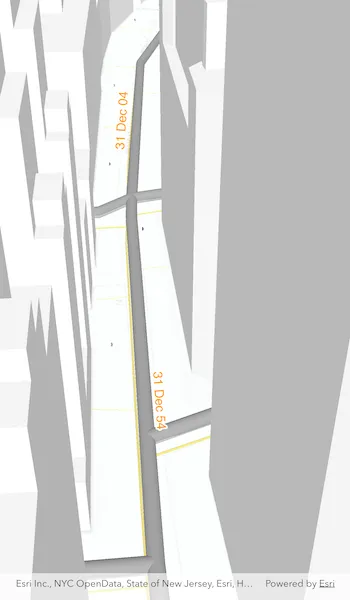
Display custom labels in a 3D scene.
Use case
Labeling features is useful to visually display information or attributes on a scene. For example, city officials or maintenance crews may want to show installation dates of features of a gas network.
How to use the sample
Pan and zoom to explore the scene. Notice the labels showing installation dates of features in the 3D gas network.
How it works
- Create an
ArcGISScenefrom aPortalItem. - Add the scene to an
ArcGISSceneViewand load it. - After loading is complete, obtain the
FeatureLayerfrom one of theLayers in the scene’soperationalLayers. - Set the feature layer’s
labelsEnabledproperty totrue. - Create a
TextSymbolto use for displaying the label text. - Create a
LabelDefinitionusing anArcadeLabelExpression. - Add the definition to the feature layer’s
labelDefinitionsarray.
Relevant API
- ArcadeLabelExpression
- ArcGISScene
- ArcGISSceneView
- FeatureLayer
- LabelDefinition
- TextSymbol
About the data
This sample shows a New York City infrastructure scene hosted on ArcGIS Online.
Tags
3D, arcade, attribute, buildings, label, model, scene, symbol, text, URL, visualization
Sample code
show_labels_on_layer_in_3d.dart
// Copyright 2025 Esri//// Licensed under the Apache License, Version 2.0 (the "License");// you may not use this file except in compliance with the License.// You may obtain a copy of the License at////   https://www.apache.org/licenses/LICENSE-2.0//// Unless required by applicable law or agreed to in writing, software// distributed under the License is distributed on an "AS IS" BASIS,// WITHOUT WARRANTIES OR CONDITIONS OF ANY KIND, either express or implied.// See the License for the specific language governing permissions and// limitations under the License.//
import 'package:arcgis_maps/arcgis_maps.dart';import 'package:arcgis_maps_sdk_flutter_samples/common/common.dart';import 'package:flutter/material.dart';
class ShowLabelsOnLayerIn3d extends StatefulWidget {  const ShowLabelsOnLayerIn3d({super.key});
  @override  State<ShowLabelsOnLayerIn3d> createState() => _ShowLabelsOnLayerIn3dState();}
class _ShowLabelsOnLayerIn3dState extends State<ShowLabelsOnLayerIn3d>    with SampleStateSupport {  // Create a controller for the scene view.  final _sceneViewController = ArcGISSceneView.createController();  // A flag for when the map view is ready and controls can be used.  var _ready = false;
  @override  Widget build(BuildContext context) {    return Scaffold(      body: Stack(        children: [          // Add a scene view to the widget tree and set a controller.          ArcGISSceneView(            controllerProvider: () => _sceneViewController,            onSceneViewReady: onSceneViewReady,          ),          // Display a progress indicator and prevent interaction until state is ready.          LoadingIndicator(visible: !_ready),        ],      ),    );  }
  Future<void> onSceneViewReady() async {    // Create the portal item with the item ID for the web scene.    const itemId = '850dfee7d30f4d9da0ebca34a533c169';    final portalItem = PortalItem.withPortalAndItemId(      portal: Portal.arcGISOnline(),      itemId: itemId,    );    // Create the scene with the portal item.    final scene = ArcGISScene.withItem(portalItem);    // Set the scene to the scene view controller.    _sceneViewController.arcGISScene = scene;    // Load the scene.    await scene.load();
    // Find the gas layer, then the gas sublayer.    final gasLayer = scene.operationalLayers.firstWhere((l) => l.name == 'Gas');    // Obtain the 'Gas Main' feature sublayer.    final gasMainLayer = gasLayer.subLayerContents        .whereType<FeatureLayer>()        .firstWhere((l) => l.name == 'Gas Main');
    gasMainLayer.labelDefinitions.clear();    // Set the feature layer's labelsEnabled property to true.    gasMainLayer.labelsEnabled = true;
    // Create a text symbol for the label definition.    final textSymbol = TextSymbol(color: Colors.orange, size: 16)      ..haloColor = Colors.white      ..haloWidth = 2.0;
    // Create a label definition from an arcade label expression and the text symbol.    final labelDefinition = LabelDefinition(      labelExpression: ArcadeLabelExpression(        arcadeString: r'Text($feature.INSTALLATIONDATE, `DD MMM YY`)',      ),      textSymbol: textSymbol,    );
    // Add the label definition to the feature layer's label definitions.    gasMainLayer.labelDefinitions.add(labelDefinition);
    // Set the ready state variable to true to enable the sample UI.    setState(() => _ready = true);  }}