
What are military symbology styles?
Military symbology styles are a type of advanced symbology
While military symbology specifications are complex, the symbols themselves are instantly identifiable so that military commanders, planners and analysts can quickly understand the situation and act accordingly.
How military symbology styles work
Military symbology specifications are implemented as dictionary styles in ArcGIS. Military dictionary styles are SQLite databases that contain symbol components and instructions for piecing together components into a composite symbol
To visualize features
-
Access a feature layer with point, polyline, or polygon feature layer in your mapping application.
-
Access the dictionary style and apply the style.
Dictionary styles are available as both web styles and desktop styles. To use a web style, provide the URL that points to the dictionary style. To use a desktop style, point to a style file
A style file is a (.stylx)..stylxfile created in ArcGIS Pro that contains symbol primitives, such as the symbol frame, lines that make up inner icons.Both web styles and desktop style are supported in the ArcGIS Maps SDKs for Native Apps and ArcGIS Pro. The ArcGIS Maps SDK for JavaScript only supports web styles.
-
Map the fields expected by the dictionary style to the fields in your data. If the input field names match the dictionary style's expected fields for symbols and text, field mapping is not required.
Military symbology styles allow you to choose whether to assemble and render symbols based on a single attribute with a unique Symbol ID Code (SIC or SIDC) or based on a series of predefined attributes. If your data includes a field for SIDC values, then the SIDC field is the only symbol field that needs to be mapped.
Field mapping overrides are defined with two sets of key-value pairs: one for symbol fields and one for text fields. Each key identifies an expected field (defined in the dictionary's symbol and text properties) and the value identifies the corresponding mapped field (from the dataset). Field names are not case sensitive.
-
Apply and set the configuration property values for the symbol style.
Configuration properties are stored in a read-only list of symbol style configuration objects. You can access the desired configuration in the list and change its value. This step is only necessary if you want to change any of the default configuration settings.
Latest dictionary styles
The latest version of these military symbology styles are released with ArcGIS Pro
Dictionary styles are provided for the following United States and NATO military symbology standards:
- APP-6(B)
- APP-6(D)
- APP-6(E)
- MIL-STD-2525B with Change 2
- MIL-STD-2525C
- MIL-STD-2525D
- MIL-STD-2525D with Change 1
- MIL-STD-2525E
Change log
The latest dictionary styles contain the updates documented in the change log below. Select a military symbol standard to view the updates made to the standard's dictionary styles.
When working with the latest APP-6(B) dictionary styles, the minimum required versions of ArcGIS clients and SDKs are:
- ArcGIS Pro 3.2
- JavaScript Maps SDK 4.27
- Native Maps SDKs 200.2
Some updates to the styles have additional version requirements, noted in the change log. The log also captures the first version of ArcGIS Pro and ArcGIS Enterprise these updates are installed with.
| Update | Revision | Additional Version Requirements | Version Installed |
|---|---|---|---|
| Address ENH-000170090: Support attribute driven width for Air Corridors | 102 | ArcGIS Pro 3.7, JavaScript Maps SDK 5.1, Native Maps SDKs 300.1 | ArcGIS Pro 3.7 |
| Apply color override to icons when fill is off | 102 | ArcGIS Pro 3.7 | |
| Dictionary style revision number added | 100 | ArcGIS Pro 3.6, ArcGIS Enterprise 12.0 | |
| Address ENH-000164839: Proper drawing of Minimum Safe Distance Zone symbols | --- | ArcGIS Pro 3.4, JavaScript Maps SDK 4.31, Native Maps SDKs 200.6 | ArcGIS Pro 3.4, ArcGIS Enterprise 11.5 |
| Address BUG-000165133: Proper drawing of Trip Wire symbol | --- | ArcGIS Pro 3.3, JavaScript Maps SDK 4.30, Native Maps SDKs 200.5 | ArcGIS Pro 3.3, ArcGIS Enterprise 11.5 |
| Address BUG-000165132: Proper drawing of Counterattack by Fire symbol | --- | ArcGIS Pro 3.3, JavaScript Maps SDK 4.30, Native Maps SDKs 200.5 | ArcGIS Pro 3.3, ArcGIS Enterprise 11.5 |
| Version 4.0.0 styles released introducing support for native field types | --- | ArcGIS Pro 3.2, ArcGIS Enterprise 11.5 |
Older dictionary styles
Dictionary styles that support older versions of ArcGIS Pro, the ArcGIS Runtime SDKs, and the ArcGIS API for JavaScript are available in ArcGIS Online for the following military symbol standards:
- APP-6(B)
- APP-6(D)
- MIL-STD-2525B with Change 2
- MIL-STD-2525C
- MIL-STD-2525D
Select a military symbol standard below and use the table to access the appropriate dictionary style.
Product and minimum version support for APP-6(B) dictionary styles:
| Version | ArcGIS Pro | ArcGIS Runtime SDKs | JavaScript API |
|---|---|---|---|
| Final version 3.0.0 styles | 2.9 | 100.13 | 4.22 |
| Earlier version 3.0.0 style | 2.5 | 100.7 | 4.16 |
| Final version 2.0.0 style | 2.4 | 100.6 | Not supported |
| Runtime 100.x - 100.5 style | 1.2 | 100.1 | Not supported |
| Runtime 10.2.x style | 1.1 | 10.2.6 | Not supported |
Samples

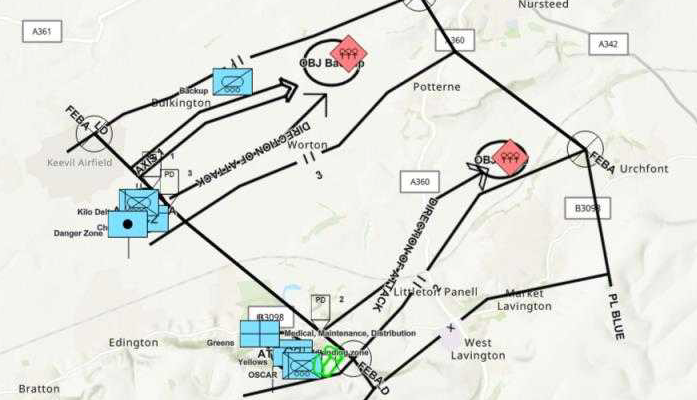
Apply military symbols to a feature layer
Convert features into graphics to show them with MIL-STD-2525D symbols using the dictionary renderer.
Apply military symbols to a graphics overlay
Create graphics from an XML file and display military symbols using a MIL-STD-2525D web style.
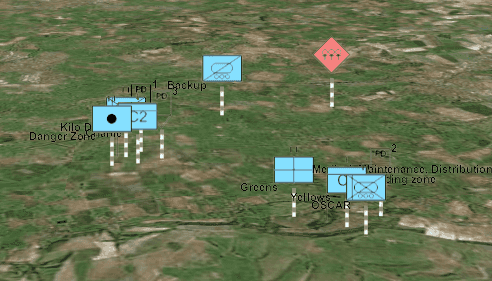
Apply military symbols to a graphics overlay in a 3D scene

Visualize dictionary symbols
Visualize data with a custom dictionary style using a dictionary renderer.