1. Choose a style
The first step is to determine which type of style to use. If you want to display a single symbol
Simple styles are a single set of visual properties applied to all features in a feature layer
| Style | Description | Example |
|---|---|---|
| 2D symbols | To style point, line, and polygon geometries in a map. |

|
| 3D symbols | To style point, line, and polygon geometries in a scene. |

|


2. Define the symbols and renderer
The next step is to define one or more symbols
The steps to define the style are:
- Create and define symbols
A symbol defines the properties used to display a geometry or text. . - Create the renderer
A renderer is a collection of rules and symbols used to display the data in a layer. . - Set the symbols to the renderer.
This example illustrates how to create 2D point symbols and define a simple renderer using ArcGIS Maps SDKs.
const renderer = new SimpleRenderer({
symbol: new SimpleMarkerSymbol({
size: 4,
color: [0, 255, 255],
outline: null,
}),
});
3. Display the style
The last step is to use an ArcGIS Maps SDK
The steps to display the style are:
- Reference the feature layer by using a service URL or its item ID
An item ID is a unique identifier representing a single item stored, managed, and accessed in a portal, such as a web map, hosted layer, or file. . - Set the renderer property of the layer.
- Add the layer to the map.
//Set the renderer on the layer
const citiesLayer = new FeatureLayer({
url: "https://services3.arcgis.com/GVgbJbqm8hXASVYi/arcgis/rest/services/USA_Major_Cities_/FeatureServer/0",
renderer: new SimpleRenderer({
symbol: new SimpleMarkerSymbol({
size: 2,
color: [0, 255, 255],
outline: null,
}),
}),
});
Additional resources
Tutorials
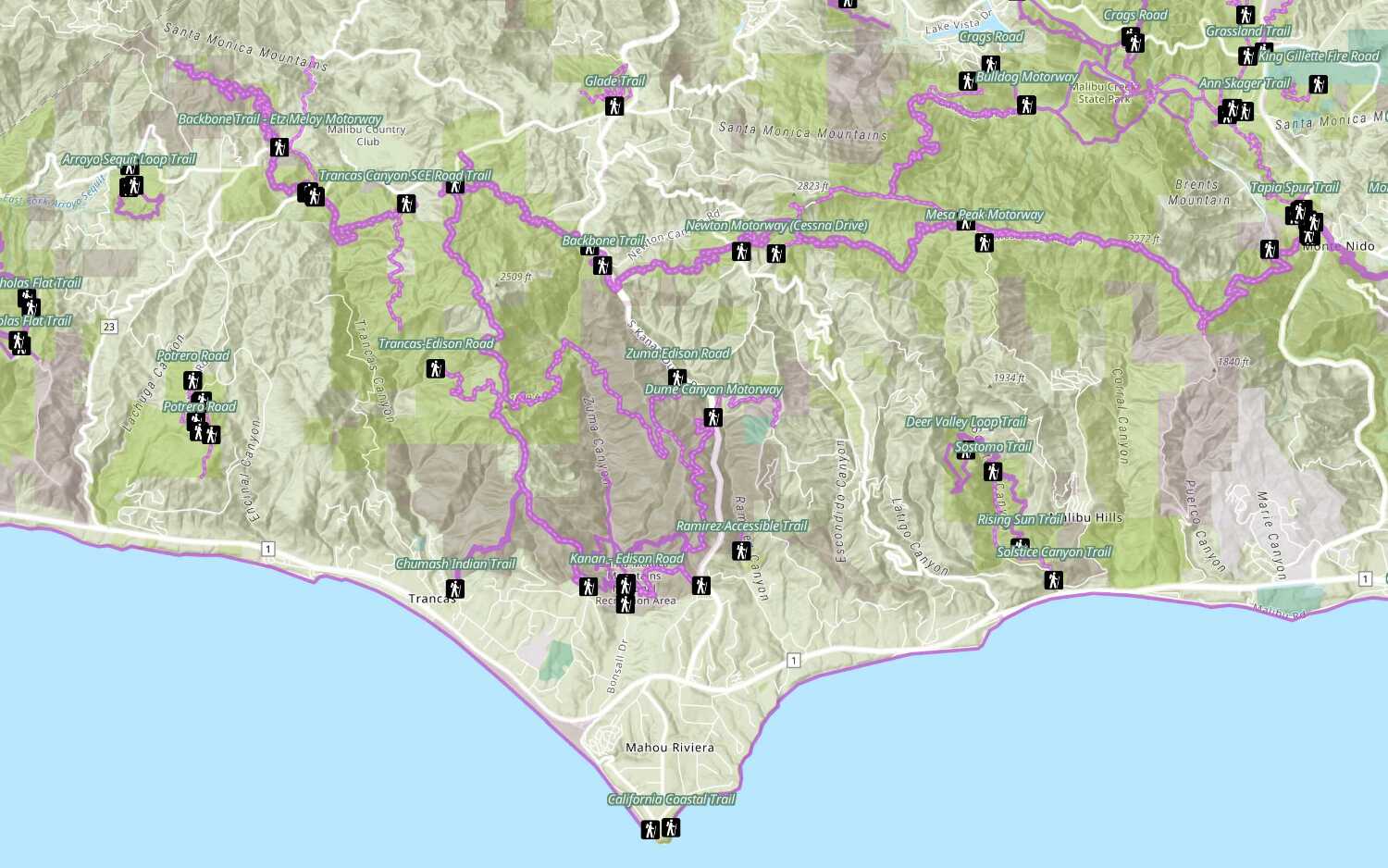
Style a feature layer
Use symbols and renderers to style feature layers.


