What is a web scene?
A web scene
You use a web scene when you want to:
- Create a scene
A scene is a collection of layers that are displayed in 3D. It is typically composed of a basemap layer, data layers, and 3D data. that you can share with other users and applications. - Interactively design and style layers in a scene
A scene is a collection of layers that are displayed in 3D. It is typically composed of a basemap layer, data layers, and 3D data. . - Configure popups for data layers in a scene
A scene is a collection of layers that are displayed in 3D. It is typically composed of a basemap layer, data layers, and 3D data. . - Display a map in an application built with ArcGIS Maps SDKs
ArcGIS Maps SDKs are developer products for building mapping and spatial analysis applications for web browsers, native devices, and game engines. . - Display a map using low-code/no-code app builders.
- Securely store and access a scene
A scene is a collection of layers that are displayed in 3D. It is typically composed of a basemap layer, data layers, and 3D data. in a portalArcGIS portal, also known as a portal, is a website with applications and tools that can be used to create, manage, access, and share geospatial content and data. It supports security and authentication, developer credentials, content and data service management, user and group management, and site administration. A portal can be hosted in Esri's infrastructure or your own infrastructure. . - Remotely configure a scene
A scene is a collection of layers that are displayed in 3D. It is typically composed of a basemap layer, data layers, and 3D data. at any time to change your application.
How to use a web scene
The general workflow to use a web scene in a custom application is:
1. Create
To create a new web scene
Some of the key types of configurations you can make include following:
- Initial extent: Set the starting location and zoom level for the scene.
- Basemap: Set the basemap style such as streets, navigation, light gray, or satellite imagery.
- Data layers: Add hosted layers
A hosted layer is an item in a portal that contains the properties and settings for a hosted data service or a layer in a hosted data service. to display features on the basemap. - Style data layers: Set the symbol color and renderers used to style hosted layers
A hosted layer is an item in a portal that contains the properties and settings for a hosted data service or a layer in a hosted data service. . - Style popups: Set the presentation of the data and information when users click on data layers in the scene.
To access Scene Viewer
2. Manage
After configuring a web scene, you use Scene Viewer
3. Access
After you create and save a web scene, you can access the itemURL and itemid for the web scene. With these, you can access the web scene's preconfigured settings and display the scene. The web scene defines the initial state of the scene when an application starts. If you need to remotely update the scene in your application, you can use Scene Viewer
Example code to access a web scene:
const webscene = new WebScene({
portalItem: {
portal: {
url: "www.arcgis.com" // Portal
},
id: "60c97b287c5c42a68a11fbbf87e07e2c" // Web scene item ID
}
});Code examples
Display a web scene
This example shows you how to create a web scene with Scene Viewer
Create a web scene
- Sign in to your portal and click Scene.
- In Scene Viewer, click New Scene in the modal.
- Click New Scene.
- In the left toolbar, click + > Browse layers > ArcGIS Online.
- In the search box, type
Navigation (for Developers)> Add. - In the search box, type
Open> Add.Street Map 3 D Buildings
- In the search box, type
- In the right toolbar, click the Basemap > No basemap.
- In the right toolbar, click the search icon and type
New York City. - In the left toolbar, use the tools to drag, zoom, and pan the scene. The web scene should look like New York (web scene).
Manage a web scene
- In Scene Viewer, Save the web scene.
- Share the web scene with the appropriate sharing level
Sharing level is the security setting assigned to an item in a portal that controls which users can access the resource. The sharing levels are Owner, Organization, Groups, and Everyone. .
Access a web scene
- Find the web scene item ID or use
443d5d8c520c416e8d6d948b55f679d6. - Write code to create a scene
A scene is a collection of layers that are displayed in 3D. It is typically composed of a basemap layer, data layers, and 3D data. . - Load and display the web scene.
When the web scene is loaded by the application, it should look the same as the web scene created with Scene Viewer.
const webscene = new WebScene({
portalItem: {
id: "443d5d8c520c416e8d6d948b55f679d6",
},
});
Display a web scene with a data layer
This example shows you how to create a web scene with Scene Viewer
Create a web scene
- Sign in to your portal and click Scene.
- In Scene Viewer, click New Scene in the modal.
- In the left toolbar, click + > Browse layers > ArcGIS Online.
- In the search box, type
Navigation (for Developers)> Add.
- In the search box, type
- In the right toolbar, click the Basemap > No basemap.
- In the right toolbar, click the search icon and type
New York City - Use Add > Browse layers > Living Atlas > "Alternative fuel stations" and add the layer to the scene.
- Click the layer icon to adjust the drawing style to display features as either 2D markers or 3D objects.
- In the left toolbar, use the tools to drag, zoom, and pan the scene.
The web scene should look like Web scene (alternative fuel stations)
Manage a web scene
- In Scene Viewer, Save the web scene.
- Share the web scene with the appropriate sharing level
Sharing level is the security setting assigned to an item in a portal that controls which users can access the resource. The sharing levels are Owner, Organization, Groups, and Everyone. .
Access a web scene
- Find the web scene item ID or use
9769ed8d91b240caa36c46ea0ddbac72. - Write code to create a scene
A scene is a collection of layers that are displayed in 3D. It is typically composed of a basemap layer, data layers, and 3D data. . - Load and display the web scene.
When the web scene is loaded by the application, it should look the same as the web scene created with Scene Viewer.
esriConfig.apiKey = "YOUR_ACCESS_TOKEN"
const webscene = new WebScene({
portalItem: {
id: "9769ed8d91b240caa36c46ea0ddbac72",
},
})
const view = new SceneView({
container: "viewDiv",
map: webscene,
})
Tutorials

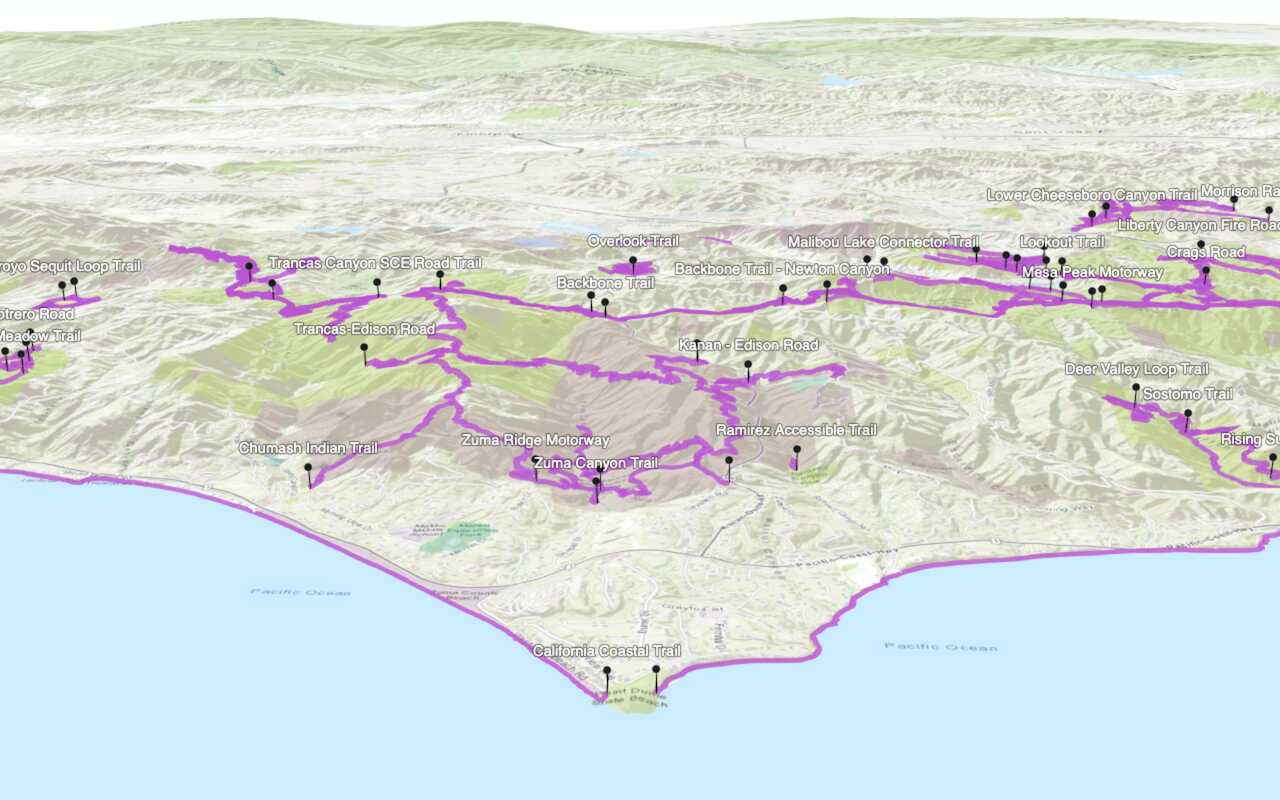
Display a web scene
Create and display a scene from a web scene.