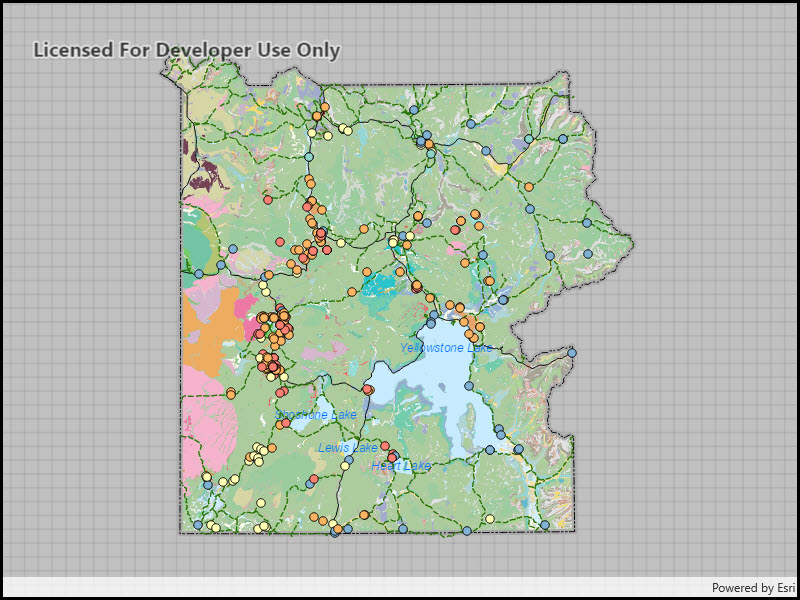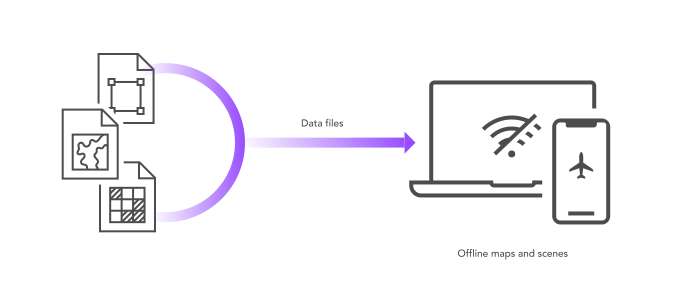
What is a data file?
A data file is a local file stored on a device that contains data that can be displayed by a layer in a map or scene. Some data files also support editing, querying, and analyzing data. Data files can be created using a number of tools or scripts, or downloaded from the internet.
You use data files to create offline applications that:
- Display maps or scenes without a network connection.
- Can access, display, and analyze data sideloaded
Sideloading is the process of deploying a file or package to a device without using a network. onto a device. - Include data with an application install.
- Collect data on devices that never have access to a network connection.
- Share datasets between applications using peer-to-peer technology.
Types of data files
The following types of data files are supported directly by the ArcGIS Maps SDKs for Native Apps
| Data file type | Data access API | Layer API | Can query? | Can edit? | License level |
|---|---|---|---|---|---|
| Vector tile package | Vector Tile Cache | ArcGI | No | No | Lite |
| Map tile package | Tile Cache | Map Tile Layer | No | No | Lite |
| Mobile geodatabase | Mobile Geodatabase | Feature Layer | Yes | Yes | Lite |
| Scene Layer Package | Access a Scene Layer Package (.slpk) file directly from the ArcGIS Scene Layer | ArcGI | No | No | Lite |
| Shapefile | Shapefile Feature Table | Feature Layer | Yes | Yes | Standard |
| Local raster file The following raster formats are supported: ASRP/USRP, CIB, CADRG/ECRG, DTED, GeoPackage Raster, GeoTIFF/TIFF, HFA, HRE, IMG, JPEG, JPEG2000, Mosaic Dataset in SQLite, NITF, PNG, RPF, SRTM, CRF, and MrSID. | Raster | Raster Layer | No | No | Standard |
| OGC GeoPackage | Geo | Feature Layer | Yes | Yes | Standard |
| OGC GeoPackage | Geo | Raster Layer | No | No | Standard |
| OGC KML file | KM | KM | No | Yes | Standard |
| Electronic Nautical Chart (S-57) For display in maps only. Not supported in scenes. | EN | EN | No | No | Standard |
| Other (e.g. GeoJSON) | Feature Collection | Feature Collection Layer | Yes | Yes | Lite |
How to work with data files
The general workflow to work with a data file in an offline application is:
1. Create
To begin working with a data file, you need to have one of the supported data files. You can either create your own data files using ArcGIS Pro, tools, and scripts, or download public data files from the internet.
When choosing a data file to host in your offline app, make sure that its type is also supported by your license level. A license is needed for when you want to deploy your app to production. Some data files such as vector tile package, image tile package, and mobile geodatabase are supported by the Lite license, which is the lowest level license. Meanwhile, to use shapefiles, OGC GeoPackage, KML files, or local raster files, you need a Basic license.
The typical steps to create a data file are:
- Determine the data file you will need in your offline app from the list of supported data files.
- Use tools in ArcGIS Pro or the portal to import dataset.
- Export into the desired data file format.
2. Manage
Once you have your data file, you sideload or download it onto a device. You can then access it directly from local storage. Optionally, you can also include the data file in your application build folder and reference the folder path in your offline app.
The typical steps to manage a data file are:
- Transfer the data file onto your device through sideloading or including it in the application build folder.
- Keep note of the location path of the data file, since you will need to reference it in the application code.
3. Access
To display a data file in your offline app, you typically start with a layer that references the shapefile (either in your device or included in the application build), and add the layer to a map or scene.
Once you have your data file displayed in your offline app, you can perform additional capabilities as supported by your file type. Some types of data file support editing, such as mobile geodatabases and shapefiles, while others are read-only. Shapefiles and mobile geodatabases also allow you to perform SQL queries on them. Additionally, you can apply a renderer to define symbols for features in the layer. Shapefiles, GeoPackages, and mobile geodatabase tables only have a default renderer with black solid symbols when first applied to a layer.
The typical steps to access a data file (in this case, a shapefile) are:
-
Set up your project using one of the ArcGIS Maps SDKs for Native Apps
ArcGIS Maps SDKs for Native Apps, previously known as ArcGIS Runtime SDKs, are developer products for building mapping and spatial analysis applications for native devices. for your platform of choice within your preferred IDE. - Create a
Shapefilereferencing the shapefile in local storage.Feature Table - Create a
Featurewith theLayer Shapefile.Feature Table - Add the
Featureto aLayer Mapdisplayed in aMap.View
Code examples
Display a shapefile
var shapefileTable = new ShapefileFeatureTable("\\path\\to\\shapefile.shp");
var shapefileLayer = new FeatureLayer(shapefileTable);
MainMapView.Map.OperationalLayers.Add(shapefileLayer);Display features from an OGC GeoPackage
Steps
-
Set up your project using one of the ArcGIS Maps SDKs for Native Apps
ArcGIS Maps SDKs for Native Apps, previously known as ArcGIS Runtime SDKs, are developer products for building mapping and spatial analysis applications for native devices. for your platform of choice within your preferred IDE. - Create a
Georeferencing the GeoPackagePackage A geopackage is an OGC spatial data storage format that can contain multiple datasets of geographic features, non-spatial tabular data, and raster data. file in local storage. - Load the
Geoto read its contents.Package - Get a
Geofrom thePackage Feature Table Geocollection in thePackage Feature Tables Geo.Package - Create a
Featurewith theLayer Geo.Package Feature Table - Add the
Featureto aLayer Mapdisplayed in aMap.View
try
{
var geoPackage = await GeoPackage.OpenAsync("\\path\\to\\geopackage.gpkg");
await geoPackage.LoadAsync();
foreach (var table in geoPackage.GeoPackageFeatureTables)
{
var featureLayer = new FeatureLayer(table);
MainMapView.Map.OperationalLayers.Add(featureLayer);
}
}
catch(Exception ex)
{
// Handle error
}Query features in a shapefile (SQL)
Steps
- Create a
Shapefilereferencing the shapefile in local storage.Feature Table - Create a
Queryobject and set aParameters where.Clause - Call
Queryon theFeatures With Parameters Shapefile.Feature Table
try
{
var shapefileTable = await ShapefileFeatureTable.OpenAsync("\\path\\to\\shapefile");
var queryParameters = new QueryParameters { WhereClause = "Shape__Length > 150" };
var queryResult = await shapefileTable.QueryFeaturesAsync(queryParameters);
foreach(var feature in queryResult)
{
double shapeLength = (double)feature.Attributes["Shape__Length"];
// do something with shapeLength value
}
}
catch (Exception ex)
{
// Handle error
}