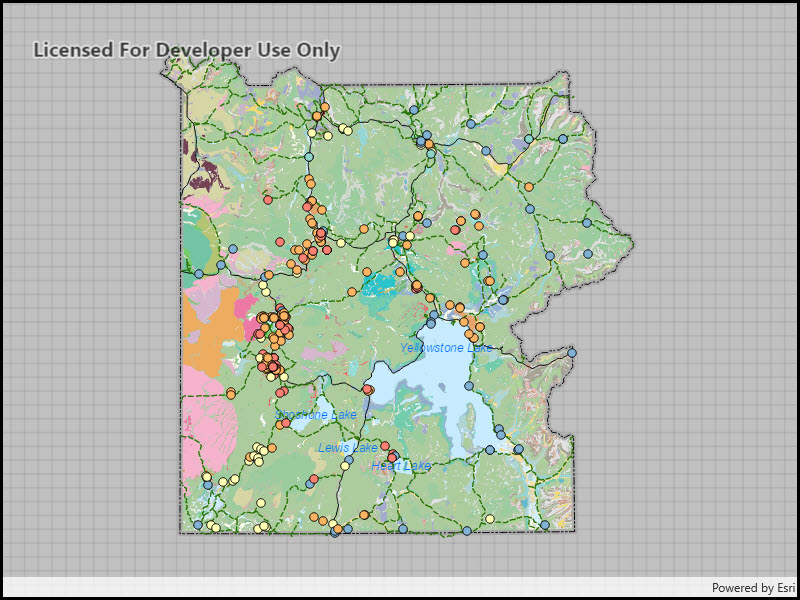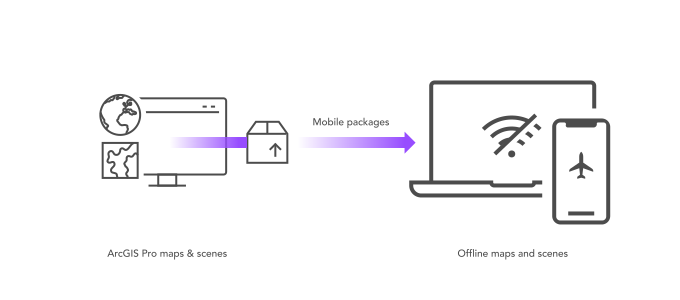
What is a mobile package?
A mobile package is a file created from an ArcGIS Pro project that contains one or more maps or scenes. It also contains data content that is referenced by layers in the maps or scenes. Mobile packages are used to display maps and scenes, geocode
You use mobile packages to create offline applications that:
- Display interactive maps or scenes without a network connection.
- Distribute multiple maps or scenes to mobile workers.
- Geocode addresses and find places offline.
- Get nearby addresses (reverse geocode).
- Calculate turn-by-turn directions offline.
- Include maps and scenes with an application install.
- Distribute maps and scenes that cannot be used after a specific date and time.
Types of mobile packages
There are two types of mobile package:
- Mobile map package (MMPK)
A mobile map package (MMPK) is a standalone file that contains one or more map definitions, including the basemap layers, data layers, layer styles, and pop-up styles for use in offline applications built with ArcGIS Maps SDKs for Native Apps. : This type of package contains maps. - Mobile scene package (MSPK)
A mobile scene package (MSPK) is a standalone file that contains one or more scene definitions, including the basemap layers, elevation layers, data layers, layer styles, and pop-up styles for use in offline applications built with ArcGIS Maps SDKs for Native Apps. : This type of package contains scenes.
How to work with mobile packages
The general workflow to work with a mobile package in an offline application is:
1. Create
To begin working with a mobile package, you need to have ArcGIS Pro installed in your development machine. You will use ArcGIS Pro.mmpk) file or a mobile scene package (.mspk) file.
Each map or scene contained in a mobile package can include basemap layers, data layers, and non-spatial tables. With ArcGIS Pro 2.6 (or later), you can also reference online layers and tables in your map, such as traffic information or weather conditions. However, these online layers are not included in the package. If your user's device has network connectivity, they can take advantage of these referenced online layers and tables. If network connection is unavailable, users can continue to work with the maps and data that are stored locally in the mobile map package.
The typical steps to create a mobile map package or a mobile scene package are:
- Launch ArcGIS Pro
ArcGIS Pro is a professional desktop GIS application that can explore, visualize, analyze, and manage 2D and 3D data. . - Start a new Map project.
- Set a basemap and add data into the map project. Optionally, you can add more than one map into your project.
- In the Map tab, click Locate to focus the map on an area to package offline.
2. Manage
After adding maps or scenes, layers, and other data content into your ArcGIS Pro project, you will use the Share Mobile Map Package or the Create Mobile Map Package tool to create a mobile map package (.mmpk) file, or a Create Mobile Scene Package tool to create a mobile scene package (.mspk) file.
Mobile packages support geocoding, routing, and finding places offline. If you want to include these capabilities in your offline app, your mobile package needs to include a locator and a transportation network dataset.
Mobile packages also support an expiry date and time. This is available with ArcGIS Pro 2.4 (or later) with the ArcGIS Publisher extension license. This can be a hard expiry, after which ArcGIS Maps SDKs for Native Apps will not open the mobile package, or a soft expiry after which the SDKs will issue a warning that your offline app can display to its user.
The typical steps to manage a mobile map package or a mobile scene package are:
- In the main ribbon of ArcGIS Pro, click the Share tab and then Mobile Map.
- Set download location, file name, summary, and tags for your mobile map package.
- Check Current Display Extent.
- Click Package to create the mobile map package.
For more advanced configuration settings or packaging more than one map, go to Share a mobile map package.
3. Access
Once you have a mobile map package (.mmpk) or a mobile scene package (.mspk), you can sideload
If you have a locator or a network dataset included in your mobile package, you can also perform geocoding or routing offline.
The typical steps to access a mobile map package or a mobile scene package in your offline app are:
-
Set up your project using one of the ArcGIS Maps SDKs for Native Apps
ArcGIS Maps SDKs for Native Apps, previously known as ArcGIS Runtime SDKs, are developer products for building mapping and spatial analysis applications for native devices. for your platform of choice within your preferred IDE. - Create a
Mobilereferencing aMap Package .mmpkfile on disk. - Load the
Mobileto read its contents.Map Package - Use one of the maps included in the mobile map package.
Code examples
Display a map from a mobile map package
private async Task SetupMap()
{
// Define the path to the mobile map package.
string pathToMobileMapPackage = System.IO.Path.Combine(Environment.CurrentDirectory, @"SantaMonicaParcels.mmpk");
// Instantiate a new mobile map package.
MobileMapPackage santaMonicaParcels_MobileMapPackage = new MobileMapPackage(pathToMobileMapPackage);
// Load the mobile map package.
await santaMonicaParcels_MobileMapPackage.LoadAsync();
// Show the first map in the mobile map package.
this.Map = santaMonicaParcels_MobileMapPackage.Maps.FirstOrDefault();
}
Display a scene from a mobile scene package
try
{
var mobileScenePackage = await MobileScenePackage.OpenAsync(path: "path\\to\\file.mspk");
await mobileScenePackage.LoadAsync();
MainSceneView.Scene = mobileScenePackage.Scenes.First();
}
catch(Exception ex)
{
// Handle error.
}Find an address using a mobile map package
You can perform geocoding.loc) file to perform this functionality.
Steps
- Create a
Mobilereferencing aMap Package .mmpkfile on disk. - Load the
Mobileto read its contents.Map Package - Access the
Locatorprovided by theTask Mobileto perform a geocode.Map Package
try
{
var mobileMapPackage = await MobileMapPackage.OpenAsync(path: "\\path\\to\\file.mmpk");
await mobileMapPackage.LoadAsync();
var locatorTask = mobileMapPackage.LocatorTask;
var geocodeResult = await locatorTask.GeocodeAsync("123 Fake Street, Springfield");
if (geocodeResult.FirstOrDefault()?.DisplayLocation is MapPoint resultLocation)
{
await MainMapView.SetViewpointCenterAsync(resultLocation);
}
}
catch (Exception ex)
{
// Handle error
}Find a route and directions using a mobile map package
You can perform routing offline. Your mobile map package must include a network dataset to perform this functionality.
Steps
- Create a
Mobilereferencing aMap Package .mmpkfile on disk. - Load the
Mobileto read its contents.Map Package - Access and load a map which includes a
Transportation, and create aNetwork Dataset Route.Task - Access the
Routeto find a route between two points and return turn-by-turn directions.Task
try
{
var mobileMapPackage = await MobileMapPackage.OpenAsync(path: "\\path\\to\\file.mmpk");
await mobileMapPackage.LoadAsync();
if (mobileMapPackage.Maps.FirstOrDefault() is Map map)
{
await map.LoadAsync();
if (map.TransportationNetworks.FirstOrDefault() is TransportationNetworkDataset networkDataset)
{
var routeTask = await RouteTask.CreateAsync(networkDataset);
var startStop = new Stop(point: fromPoint);
var destinationStop = new Stop(point: toPoint);
var routeParams = await routeTask.CreateDefaultParametersAsync();
routeParams.SetStops(new[] { startStop, destinationStop });
routeParams.ReturnDirections = true;
var routeResult = await routeTask.SolveRouteAsync(routeParams);
// Display the route results in a GraphicsOverlay
}
}
}
catch (Exception ex)
{
// Handle the error
}