1. Select a type of offline app
There are two types of offline apps you can build with ArcGIS Maps SDKs for Native Apps
- Partially offline apps
A partially offline app is a type of offline app built with ArcGIS Maps SDKs for Native Apps that is designed to work where network connectivity is unreliable. are suitable if you will have periods of disconnectivity and connectivity or if you want to use online services in the offline app. - Fully offline apps
A fully offline app is a type of offline app built with ArcGIS Maps SDKs for Native Apps that is designed to work where network connectivity is entirely absent. are suitable if you will be disconnected at all times or if your data is too large and impractical to transfer over the network.
2. Prepare a mobile data source
Mobile data sources
Partially offline apps support a wider selection of mobile data sources. This type of offline app has network access to download data, such as offline-enabled
Fully offline apps have more limited options for mobile data sources. These apps rely primarily on locally stored data, such as mobile packages authored in ArcGIS Pro or data files then sideloaded onto the device.
Refer to the chart below to prepare the correct mobile data source for your offline app.
You can build a partially offline app using offline maps, offline data, mobile packages, or data files. See the chart below to determine which mobile data source fits your app requirements best.
| Offline maps | Offline data | Mobile packages | Data files | |
|---|---|---|---|---|
| 2D maps | 1 | 1 | ||
| 3D scenes | 2 | 2 | ||
| Edit data while offline | 3 | |||
| Synchronize offline edits | 4 | |||
| Fully disconnected apps/devices | 4 | 4 | ||
| Offline geocoding | 5 | |||
| Offline routing | 6 | |||
| Offline analysis | ||||
| Set expiration date for data access |
- 1. Map constructed in code
- 2. Scene constructed in code
- 3. Shapefiles, GeoPackages, and KML
- 4. Custom sideloading workflows required
- 5. Locator exported from ArcGIS Pro
- 6. Network Analysis dataset exported from ArcGIS Pro
The general steps to prepare a mobile data source are:
- Select a type of mobile data source for your offline app.
- Prepare the data using tools such as ArcGIS Pro, Map Viewer, or the portal.
- For data hosted in the portal, such as a web map or a feature service, enable it for offline use in the item page
An item page is a web page in ArcGIS Online or the developer dashboard used to access and manage the properties for an item and the content it references such as a web map, hosted layer, or file. . - Get the item ID to download the data to your device, or export the data to sideload it onto your device.
3. Build the app
After preparing a mobile data source, the next step is to create an application with ArcGIS Maps SDKs for Native Apps for your preferred platform. Your application will access the mobile data source you have prepared, and can then be expanded with additional functionalities, such as geocoding or routing.
The following examples show how to access different mobile data sources in partially offline and fully offline apps.
You can use offline maps in a partially offline app only.
var portal = await ArcGISPortal.CreateAsync();
var portalItem = await PortalItem.CreateAsync(portal, "YOUR_ITEM_ID"); // Replace with your web map ID
var map = new Map(portalItem);
OfflineMapTask offlineTask = await OfflineMapTask.CreateAsync(map);
GenerateOfflineMapParameters generateParameters =
await offlineTask.CreateDefaultGenerateOfflineMapParametersAsync(areaOfInterest);
GenerateOfflineMapJob job = offlineTask.GenerateOfflineMap(generateParameters, "path\\to\\map\\directory");
GenerateOfflineMapResult result = await job.GetResultAsync();
if (result.OfflineMap is Map offlineMap)
{
MainMapView.Map = offlineMap;
}Tutorials

Create an offline-enabled web map
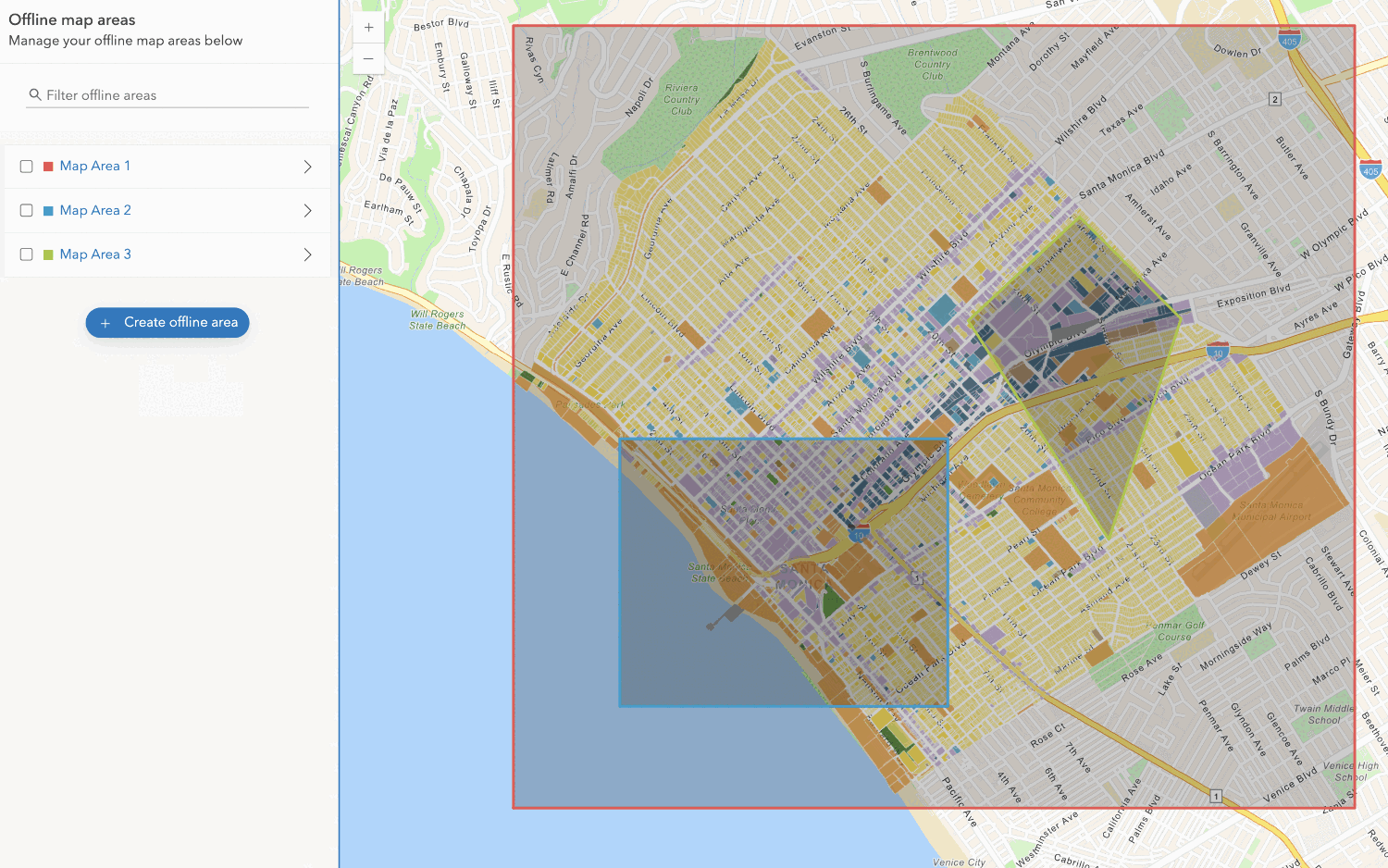
Create an offline map area
Use your portal to create an offline map area from an offline-enabled web map.




