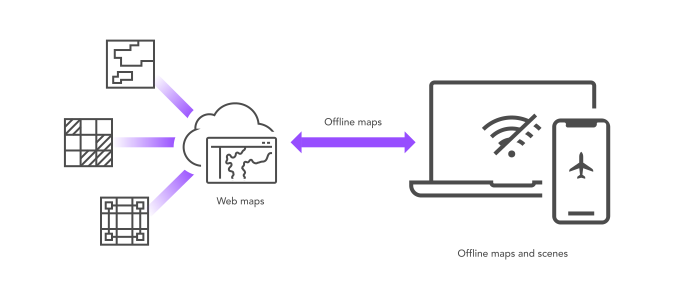
What is an offline map?
An offline map is a map downloaded from a web map
You use offline maps to create offline apps that:
- Provide detailed, editable, interactive maps to large mobile workforces.
- View, collect and edit data in remote areas where network connectivity is unpredictable or unavailable.
- Support disaster recovery operations when infrastructure has been damaged.
- Keep map data up to date with the latest edits from mobile workers.
- Keep mobile workers updated with the latest data and maps.
How to work with offline maps
The general workflow to work with an offline map in an offline application is:
1. Create
To begin working with an offline map, create a web map and enable it for offline use. To create a new web map, you can use Map Viewer
Once your web map is saved, go to the item page
- The basemap styles service
The ArcGIS Basemap Styles service, also referred to as the Basemap Styles service, is a location service that provides basemap styles and data for the world. It returns styles as Mapbox styles and web maps, and data as vector tiles and/or map tiles. It supports all of the styles in the ArcGIS Basemap style and Open Basemap style family. An ArcGIS Location Platform or ArcGIS Online account is required to use the service. (including default basemap styles and custom basemap styles created using the ArcGIS Vector Tile Style EditorThe ArcGIS Vector Tile Style Editor is a web-based application used to create, edit, and save a custom style for vector tile basemap layer. ). - A feature service
A feature service is a data service that provides access to spatial and non-spatial data in feature layers, feature layer views, and tables. that has been offline enabled. This includes features, non-spatial data, related records, and attachments. - A vector tile service
A vector tile service is a data service that provides access to vector tile data and a style definition. that has been offline enabled. - A map tile service
A map tile service, formerly known as image tile service, is a data service that provides access to static, pre-rendered map tiles. The tiles are typically retrieved in PNG format by specifying a specific level, row, and column value. that has been offline enabled.
Other layers can be included in an offline map but continue to reference the online data source. These layers can be used whenever the offline app has a network connection. In addition to data layers, an offline map can include tables of non-spatial data. A non-spatial table typically contains rows of data related to features in the source web map's data layers.
2. Manage
After configuring a web map and enabling it for offline use, there are two ways to manage and define map areas inside the web map to take offline.
Ahead-of-time workflow (predefined areas)
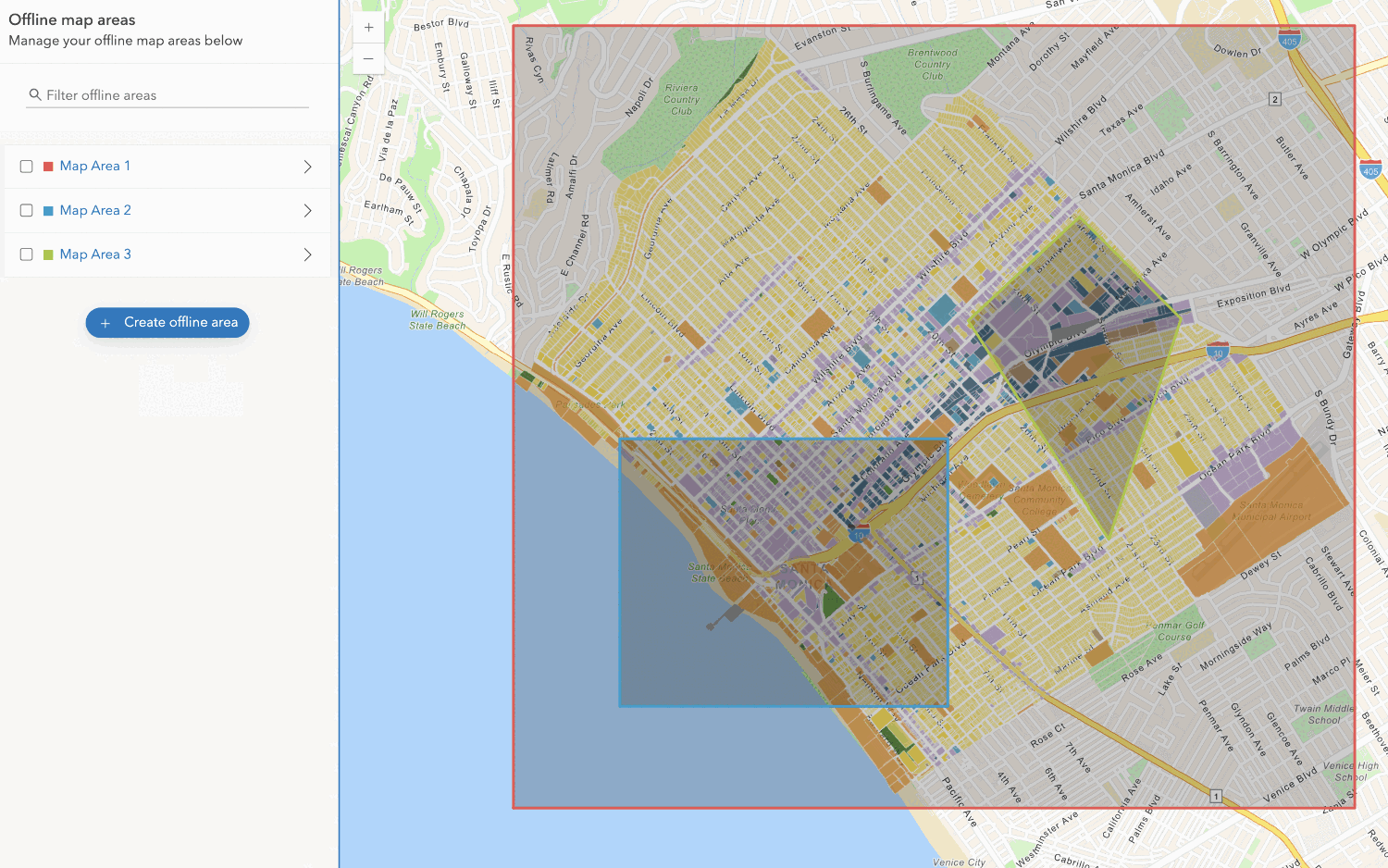
The ahead-of-time workflow
If you choose this workflow, you will have to define your offline map areas in the web map's item page in the portal. A web map can have up to 16 offline map areas defined. You can also configure settings such as packaging schedule of your offline map area and level of detail for the downloaded raster or vector tile layer. Offline map areas remain available for download until the owner of the web map removes the offline map area from the web map. They can also be downloaded multiple times by different offline applications.
Offline map areas are quick to download and ready to be used because they are generated and stored in the portal before they are requested by the offline app. They are hosted alongside the web map, ready for download, so the user experience is similar to downloading any other file or resource. These maps also support updating packages, which can be useful for applications that cover large areas, are updated frequently, or support many mobile workers.
Update packages
Update packages optimize updating the data contents of a downloaded offline map
When you synchronize to update the offline map with the latest edits in the web map
The number and size of update files that are downloaded depends on when the offline map was downloaded or last synchronized, the frequency of the packaging schedule, and whether any data updates have occurred. If the size of the combined update files required to make the offline map current is greater than the latest offline map available for download, then that latest offline map is downloaded instead and replaces the offline map already on your device.
Update files are maintained for 10 days by default. If the last sync was more than 10 days ago, there may not be enough update files to download and apply to the offline map to bring it up to date. In that case, the latest offline map is downloaded to replace the offline map already on your device.
On-demand workflow (user-defined areas)
The on-demand workflow
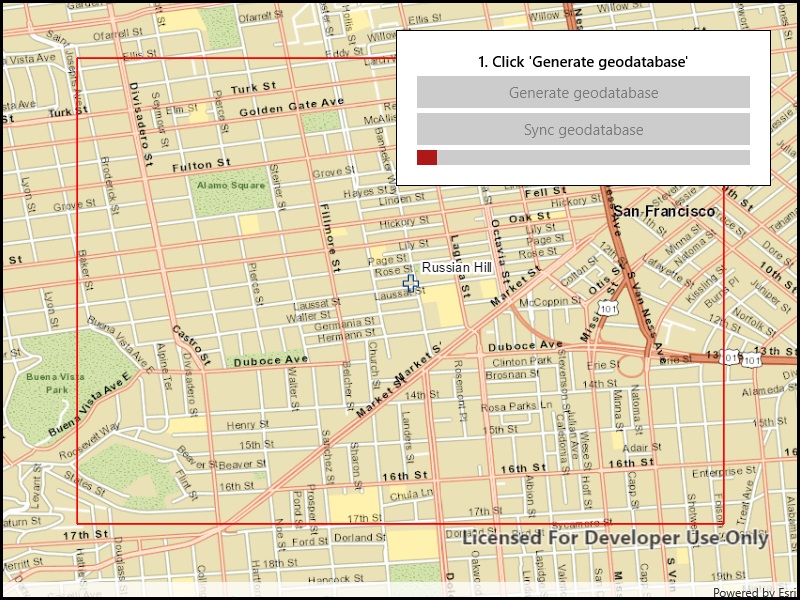
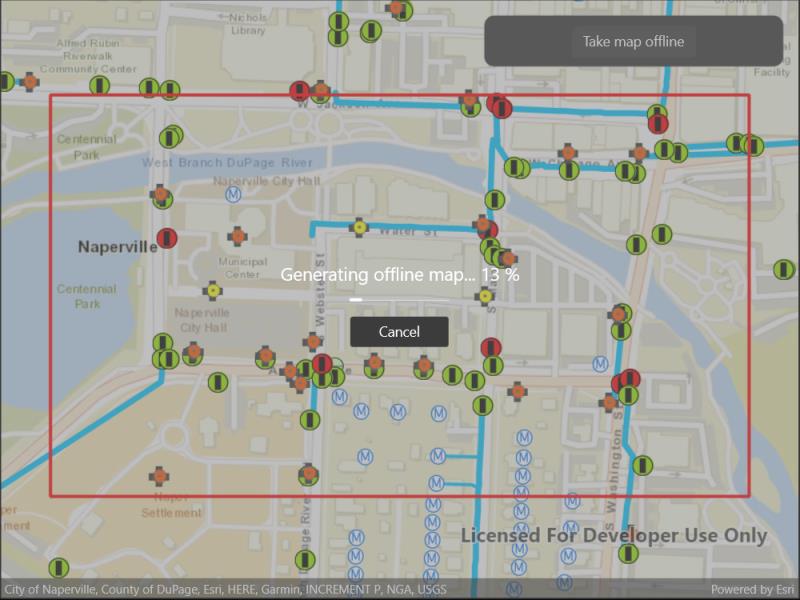
If you choose this workflow, you will define an area in your application code (generally using the Polygon class) that represents an area within the web map you want to download as an offline map. The offline map can only be downloaded once by the offline application that requested it. It is not hosted for later download. If another offline application needs to download the same map area, it must make a new request.
While this workflow gives the app users more flexibility to choose their own desired map area to download, each offline map must be generated at the time it is requested. This introduces a delay before the offline map can be downloaded, which impacts the offline application's user experience. To mitigate this delay, there are ways you can optimize downloading your on-demand offline maps.
Optimize offline map downloads
You can optimize working with an offline map by specifying various parameters:
- Whether to download the basemap
A basemap is the foundational layer and data that provides the overall visual and geographic context for a map or scene. It typically includes geographic features and labels for land, water, roads, buildings, cities, places, and administrative boundaries, but can also include raster data such as satellite and areal images. or use a vector tile packageA vector tile package, also known as a VTPK, is a read-only data file containing static tiles of vector data. or image tile packageAn map tile package, formerly known as image tile package, is a read-only data file containing static, pre-rendered map tiles. that is already on the device. - Map options such as whether to support synchronization.
- Per-layer overrides such as which layers are included, and whether to filter their content by SQL expression or geographic area.
These parameters can help reduce the size of an offline map and the time needed to generate it, download it, and later synchronize it.
3. Access
After you create an offline-enabled web map and manage the offline map, you can download and display the offline map with an offline app built with ArcGIS Maps SDKs for Native Apps. The code will differ based on whether you use the ahead-of-time or on-demand workflow to download the offline map.
There are two steps to access an offline map:
- When you download and display it for the first time. This requires a network connection.
ArcGIS Maps SDK for .NET ArcGIS Maps SDK for .NET ArcGIS Maps SDK for Kotlin ArcGIS Maps SDK for Swift ArcGIS Maps SDK for Java ArcGIS Maps SDK for Qt ArcGIS Maps SDK for Flutter Use dark colors for code blocks Copy private async Task GetOfflinePreplannedMap() { var portal = await ArcGISPortal.CreateAsync(); var portalItem = await PortalItem.CreateAsync(portal, "YOUR_ITEM_ID"); // Replace with your web map ID var map = new Map(portalItem); OfflineMapTask offlineMapTask = await OfflineMapTask.CreateAsync(map); IReadOnlyList<PreplannedMapArea> availableAreas = await offlineMapTask.GetPreplannedMapAreasAsync(); if (availableAreas?.FirstOrDefault() is PreplannedMapArea area) { DownloadPreplannedOfflineMapParameters downloadParameters = await offlineMapTask.CreateDefaultDownloadPreplannedOfflineMapParametersAsync(area); string documentsFolder = Environment.GetFolderPath(Environment.SpecialFolder.MyDocuments); _downloadLocation = System.IO.Path.Combine(documentsFolder, "OfflineMap"); DownloadPreplannedOfflineMapJob job = offlineMapTask.DownloadPreplannedOfflineMap(downloadParameters, _downloadLocation); DownloadPreplannedOfflineMapResult result = await job.GetResultAsync(); if (result?.OfflineMap is Map offlineMap) { this.Map = offlineMap; } } } - When you display a previously downloaded offline map from your local storage. This does not require a network connection.
ArcGIS Maps SDK for .NET ArcGIS Maps SDK for .NET ArcGIS Maps SDK for Kotlin ArcGIS Maps SDK for Swift ArcGIS Maps SDK for Java ArcGIS Maps SDK for Qt ArcGIS Maps SDK for Flutter Use dark colors for code blocks Copy var mobileMapPackage = await MobileMapPackage.OpenAsync(_downloadLocation); await mobileMapPackage.LoadAsync(); this.Map = mobileMapPackage.Maps.First();
When your offline application no longer needs an offline map, it is recommended that you unregister any feature data contained in the offline map. However, you do not need to unregister if the offline map is read-only. This process is also known as geodatabase unregistration.
Geodatabase unregistration
Geodatabase unregistration is the process of removing the association between a local geodatabase containing offline data and the corresponding feature service
To unregister geodatabase from an offline map.geodatabase files that the offline map references. Each of these represents offline data from a single feature service. You can then unregister each .geodatabase file from its source feature service.
Code examples
Display an offline map (ahead of time)
Create an offline-enabled web map
- Sign in to your portal and click Map.
- In the left panel, click + > Browse layers > ArcGIS Online.
- In the search box, type
World Street Map (for Developers). - Click on the resulting Tile Layer from Esri Vector Maps, then click Use as basemap.
- In the search box, type
- Move the map and zoom to Santa Monica, California. The web map should look like Santa Monica Web Map.
- In Map Viewer, Save the web map.
- Share the web map with your desired audience.
Manage offline map
- In the web map's item page, go to Settings > Offline.
- Toggle on the Enable offline mode switch.
- Click Manage Offline Areas.
- Click + Create offline area.
- Using the Sketch tool, draw a region of the web map to take offline.
- Click Save and wait for the offline map to be generated.
Access offline map
- Find the web map item ID or use 8ab76e9c5352400d87ca3315db9ba08e.
- Create an
Offlinereferencing the web map item ID.Map Task - Request a list of available offline maps and select one of the offline maps to download.
- Create a
Download.Preplanned Offline Map Job - Start the job and wait for it to complete.
- Set the map view's map to the offline map.
private async Task GetOfflinePreplannedMap()
{
var portal = await ArcGISPortal.CreateAsync();
var portalItem = await PortalItem.CreateAsync(portal, "YOUR_ITEM_ID"); // Replace with your web map ID
var map = new Map(portalItem);
OfflineMapTask offlineMapTask = await OfflineMapTask.CreateAsync(map);
IReadOnlyList<PreplannedMapArea> availableAreas = await offlineMapTask.GetPreplannedMapAreasAsync();
if (availableAreas?.FirstOrDefault() is PreplannedMapArea area)
{
DownloadPreplannedOfflineMapParameters downloadParameters = await offlineMapTask.CreateDefaultDownloadPreplannedOfflineMapParametersAsync(area);
string documentsFolder = Environment.GetFolderPath(Environment.SpecialFolder.MyDocuments);
_downloadLocation = System.IO.Path.Combine(documentsFolder, "OfflineMap");
DownloadPreplannedOfflineMapJob job = offlineMapTask.DownloadPreplannedOfflineMap(downloadParameters, _downloadLocation);
DownloadPreplannedOfflineMapResult result = await job.GetResultAsync();
if (result?.OfflineMap is Map offlineMap)
{
this.Map = offlineMap;
}
}
}
Display an offline map (on-demand)
Create an offline-enabled web map
- Sign in to your portal and click Map.
- In the left panel, click + > Browse layers > ArcGIS Online.
- In the search box, type
World Street Map (for Developers). - Click on the resulting Tile Layer from Esri Vector Maps, then click Use as basemap.
- In the search box, type
- Move the map and zoom to Santa Monica, California. The web map should look like Santa Monica Web Map.
- In Map Viewer, Save the web map.
- Share the web map with your desired audience.
Manage offline map
- In the web map's item page, go to Settings > Offline.
- Toggle on the Enable offline mode switch.
Access offline map
- Find the web map item ID or use 8ab76e9c5352400d87ca3315db9ba08e.
- Create an
Offlinereferencing the web map item ID.Map Task - Specify a geographic area to download.
- Create a
Generate.Offline Map Job - Start the job and wait for it to complete.
- Set the map view's map to the offline map.
private async Task SetupMap()
{
// Create a portal pointing to ArcGIS Online.
ArcGISPortal portal = await ArcGISPortal.CreateAsync();
// Create a portal item for a specific web map id.
string webMapId = "YOUR_ITEM_ID"; // Replace with your web map ID
PortalItem mapItem = await PortalItem.CreateAsync(portal, webMapId);
// Create the map from the item.
Map map = new Map(mapItem);
// Set the view model "Map" property.
this.Map = map;
// Define area of interest (envelope) to take offline.
EnvelopeBuilder envelopeBldr = new EnvelopeBuilder(SpatialReferences.Wgs84)
{
XMin = -118.5064,
XMax = -118.4800,
YMin = 34.0094,
YMax = 34.0259
};
Envelope offlineArea = envelopeBldr.ToGeometry();
// Create an offline map task using the current map.
OfflineMapTask offlineMapTask = await OfflineMapTask.CreateAsync(map);
// Create a default set of parameters for generating the offline map from the area of interest.
GenerateOfflineMapParameters parameters = await offlineMapTask.CreateDefaultGenerateOfflineMapParametersAsync(offlineArea);
parameters.UpdateMode = GenerateOfflineMapUpdateMode.NoUpdates;
// Build a folder path named with today's date/time in the "My Documents" folder.
string documentsFolder = Environment.GetFolderPath(Environment.SpecialFolder.MyDocuments);
string downloadDirectory = System.IO.Path.Combine(documentsFolder, "OfflineMap_" + DateTime.Now.ToFileTime().ToString());
GenerateOfflineMapJob generateJob = offlineMapTask.GenerateOfflineMap(parameters, downloadDirectory);
generateJob.ProgressChanged += GenerateJob_ProgressChanged;
generateJob.Start();
}
private async void GenerateJob_ProgressChanged(object? sender, EventArgs e)
{
try
{
var generateJob = sender as GenerateOfflineMapJob;
if(generateJob == null) { return; }
// If the job succeeds, show the offline map in the map view.
if (generateJob.Status == Esri.ArcGISRuntime.Tasks.JobStatus.Succeeded)
{
var result = await generateJob.GetResultAsync();
this.Map = result.OfflineMap;
Debug.WriteLine("Generate offline map: Complete");
}
// If the job fails, notify the user.
else if (generateJob.Status == Esri.ArcGISRuntime.Tasks.JobStatus.Failed)
{
MessageBox.Show($"Unable to generate a map for that area: {generateJob?.Error?.Message}");
}
else
{
int percentComplete = generateJob.Progress;
Debug.WriteLine($"Generate offline map: {percentComplete}%");
}
}
catch (Exception ex)
{
MessageBox.Show($"Error generating offline map: {ex.Message}");
}
}