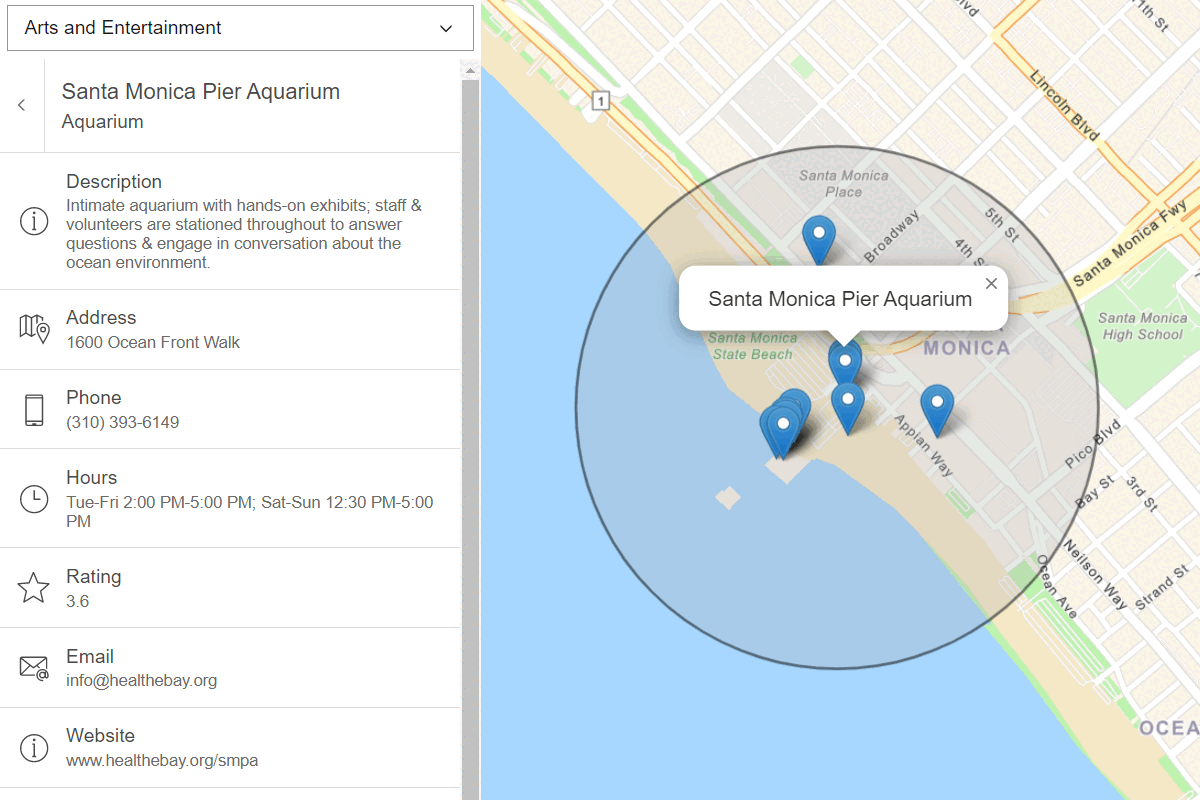
Learn how to search for coffee shops, gas stations, restaurants and other nearby places with the geocoding service
The ArcGIS Geocoding service
In this tutorial, use the MapLibre ArcGIS plugin to display a map and ArcGIS REST JS to access the Geocoding service and find places by place
Prerequisites
You need an ArcGIS Location Platform or ArcGIS Online account.
Steps
Get the starter app
Select a type of authentication and follow the steps to create a new app.
Choose API key authentication if you:
- Want the easiest way to get started.
- Want to build public applications
A public application is an application that allows anonymous access without requiring users to sign in with an ArcGIS account. It supports API key or app authentication. that access ArcGIS Location ServicesArcGIS Location Services, also referred to as Location Services, are services hosted by Esri that provide geospatial functionality for developing mapping applications. They include the ArcGIS Basemap Styles service, ArcGIS Static Basemap Tiles service, ArcGIS Static Maps service, ArcGIS Places service, ArcGIS Geocoding service, ArcGIS Routing service, ArcGIS GeoEnrichment service, and ArcGIS Elevation service. An ArcGIS Location Platform or ArcGIS Online account is required to use the services. and secure itemsAn item, also known as a content item, is a resource stored in a portal such as a web map, hosted layer, style, script tool, file, or notebook. . - Have an ArcGIS Location Platform or ArcGIS Online account.
Choose user authentication if you:
- Want to build private applications.
- Require application users to sign in with their own ArcGIS account
An ArcGIS account is an identity with a user type and set of privileges that can access specific ArcGIS products, tools, APIs, services, and resources. The main account types that can be used for development are an ArcGIS Location Platform account, ArcGIS Online account, and ArcGIS Enterprise account. ArcGIS Location Platform and ArcGIS Online accounts are also associated with a subscription. and access resources their behalf. - Have an ArcGIS Online account.
To learn more about both types of authentication, go to Authentication.
Set up authentication
Set developer credentials
Use the API key or OAuth developer credentials
Add API references
This tutorial uses ArcGIS REST JS for place finding.
-
In the
<headelement, add references to the ArcGIS REST JS library.> Use dark colors for code blocks <head> <title>MapLibre ArcGIS tutorial: Find place addresses</title> <meta charset="utf-8"> <meta name="viewport" content="initial-scale=1,maximum-scale=1,user-scalable=no"> <!-- Load MapLibre GL JS and MapLibre ArcGIS from CDN --> <script type="importmap"> { "imports": { "maplibre-gl": "https://unpkg.com/maplibre-gl@6.14.0/dist/maplibre-gl.mjs", "@esri/maplibre-arcgis": "https://unpkg.com/@esri/maplibre-arcgis@1.3.1/dist/esm/maplibre-arcgis.min.js" } } </script> <link href="https://unpkg.com/maplibre-gl@6.14.0/dist/maplibre-gl.css" rel="stylesheet"> <script src="https://unpkg.com/@esri/arcgis-rest-request@4/dist/bundled/request.umd.js"></script> <script src="https://unpkg.com/@esri/arcgis-rest-geocoding@4/dist/bundled/geocoding.umd.js"></script> <style> html, body, #map { padding: 0; margin: 0; height: 100%; width: 100%; font-family: Arial, Helvetica, sans-serif; font-size: 14px; color: #323232; } .places { position: absolute; top: 20px; left: 20px; } </style> </head>
Update the map
An arcgis/navigation basemap style
-
Update the basemap and the map initialization to center on location
[-122.4194,37.7749], San Francisco.Use dark colors for code blocks Copy <script type="module"> import * as maplibregl from "maplibre-gl"; import * as maplibreArcGIS from "@esri/maplibre-arcgis"; /* Use for API key authentication */ const accessToken = "YOUR_ACCESS_TOKEN"; // or /* Use for user authentication */ // const session = await arcgisRest.ArcGISIdentityManager.beginOAuth2({ // clientId: "YOUR_CLIENT_ID", // Your client ID from OAuth credentials // redirectUri: "YOUR_REDIRECT_URI", // The redirect URL registered in your OAuth credentials // portal: "YOUR_PORTAL_URL" // Your portal URL // }) // const accessToken = session.token; const map = new maplibregl.Map({ container: "map", zoom: 13, center: [-122.4194, 37.7749] // San Francisco }); const basemapStyle = maplibreArcGIS.BasemapStyle.applyStyle(map, { style: "arcgis/navigation", token: accessToken });
Add controls
Use a select element to create the drop-down element. Each category is an option element inside it. The select element needs to have absolute positioning in order to appear in front of the map element.
-
Add a select control, with options for "Coffee shop", "Gas station", "Food", "Hotel", "Parks and outdoors". Use inline styling to position the control.
The option values have special meaning to the geocoding service
A geocoding service is a service that can search for addresses, place addresses, businesses, reverse geocode coordinates to addresses, provide suggestions for places, and perform bulk geocoding. It is hosted by Esri as the ArcGIS Geocoding service and can also be hosted in ArcGIS Enterprise. so ensure the spelling is correct. To learn more, go to Category filtering in the ArcGIS services reference.Use dark colors for code blocks <body> <div id="map"></div> <select id="places-select" style="left: 20px; top: 20px; position: absolute; font-size: 16px; padding: 4px 8px"> <option value="">Choose a category...</option> <option value="Coffee shop">Coffee shops</option> <option value="Gas station">Gas stations</option> <option value="Food">Food</option> <option value="Hotel">Hotels</option> <option value="Parks and Outdoors">Parks and Outdoors</option> </select> -
At the top right, click Run to verify that the
selectcontrol is created and contains the different categories.
Add a load event handler
You need to wait for the map to be completely loaded before adding any layers.
-
Add an event handler to the map
loadevent.Use dark colors for code blocks <script type="module"> import * as maplibregl from "maplibre-gl"; import * as maplibreArcGIS from "@esri/maplibre-arcgis"; /* Use for API key authentication */ const accessToken = "YOUR_ACCESS_TOKEN"; // or /* Use for user authentication */ // const session = await arcgisRest.ArcGISIdentityManager.beginOAuth2({ // clientId: "YOUR_CLIENT_ID", // Your client ID from OAuth credentials // redirectUri: "YOUR_REDIRECT_URI", // The redirect URL registered in your OAuth credentials // portal: "YOUR_PORTAL_URL" // Your portal URL // }) // const accessToken = session.token; const map = new maplibregl.Map({ container: "map", zoom: 13, center: [-122.4194, 37.7749] // San Francisco }); const basemapStyle = maplibreArcGIS.BasemapStyle.applyStyle(map, { style: "arcgis/navigation", token: accessToken }); map.once("load", () => { }); </script>
Add a map layer
To display data on the map, there must be a source
-
Add a
geojsonsource that will contain the returned results. Set itsdataattribute to be an empty GeoJSONFeature.Collection Use dark colors for code blocks map.once("load", () => { map.addSource("places", { type: "geojson", data: { type: "FeatureCollection", features: [] } }); }); -
Add a
circlelayer that will display the source.The
geojsonsource must have data provided. You can give it aFeaturethat does not contain any features. You will provide data later.Collection Use dark colors for code blocks map.once("load", () => { map.addSource("places", { type: "geojson", data: { type: "FeatureCollection", features: [] } }); map.addLayer({ id: "places-circle", source: "places", type: "circle", paint: { "circle-color": "hsla(200, 80%, 80%, 0.7)", "circle-stroke-color": "hsl(200, 80%, 40%)", "circle-stroke-width": 1, "circle-radius": 3 } }); });
Call the geocoding service
You can use the geocode function to retrieve places near a locationmap.get to obtain the center of the viewport in longitude and latitude.
You will also pass the category selected by the user. Use document.get to get the control, then use its value property.
-
Create a function called
show. Inside, create a newPlaces arcgisto access the geocoding serviceRest. Api Key Manager A geocoding service is a service that can search for addresses, place addresses, businesses, reverse geocode coordinates to addresses, provide suggestions for places, and perform bulk geocoding. It is hosted by Esri as the ArcGIS Geocoding service and can also be hosted in ArcGIS Enterprise. . Callgeocode()to set the API key and to call the service endpoint. AlocationwithPlaceand_addr Placeinformation will be returned based on theName categoryselected. A maximum of 25 locations will display nearest to the center of the map.Use dark colors for code blocks paint: { "circle-color": "hsla(200, 80%, 80%, 0.7)", "circle-stroke-color": "hsl(200, 80%, 40%)", "circle-stroke-width": 1, "circle-radius": 3 } }); }); function showPlaces() { const authentication = arcgisRest.ApiKeyManager.fromKey(accessToken); const category = document.getElementById("places-select").value; if (!category) { return; } arcgisRest .geocode({ authentication, outFields: "Place_addr,PlaceName", params: { category, location: map.getCenter().toArray().join(","), maxLocations: 25 } }) }
Display results
The geo property of the response object contains a GeoJSONplaces source
-
Add a response handler. Inside, use the map's
setmethod to set the returned value as GeoJSON.Data Use dark colors for code blocks params: { category, location: map.getCenter().toArray().join(","), maxLocations: 25 } }) .then((response) => { map.getSource("places").setData(response.geoJson); })
Handle errors
It is good practice to handle situations where there is a problem accessing the service. This could happen due to network disruption or a problem with your API key, for instance.
-
If there is an exception accessing the geocoding service
A geocoding service is a service that can search for addresses, place addresses, businesses, reverse geocode coordinates to addresses, provide suggestions for places, and perform bulk geocoding. It is hosted by Esri as the ArcGIS Geocoding service and can also be hosted in ArcGIS Enterprise. , alert the user and log the error.Use dark colors for code blocks .then((response) => { map.getSource("places").setData(response.geoJson); }) .catch((error) => { alert("There was a problem using the geocoder. See the console for details."); console.error(error); }); }
Add a change event handler
To update the map when the user chooses a category, you must add an event handler for the change event on the <select control.
-
Update the load event handler to call the
showfunction.Places() Use dark colors for code blocks map.addLayer({ id: "places-text", source: "places", type: "symbol", layout: { "text-field": ["get", "PlaceName"], "text-font": ["Arial Bold"], "text-variable-anchor": ["left", "right"], "text-justify": "left", "text-radial-offset": 0.5 }, paint: { "text-color": "hsl(200, 80%,40%)", "text-halo-color": "white", "text-halo-width": 2 } }); showPlaces(); -
After the map initialization code, make the
<selectcontrol control call> showwhen the user chooses an option.Places() Use dark colors for code blocks .catch((error) => { alert("There was a problem using the geocoder. See the console for details."); console.error(error); }); } document.getElementById("places-select").addEventListener("change", showPlaces); -
At the top right, click Run. When you choose a place category, circles should be shown for places.
Display place labels
You can show the name of each location by using a symbol layer
-
In the load handler, add a
symbollayer.It is important to use a font whose glyphs are present within the map style. This style contains several variants of
Arial, which makes that a safe choice.By default, MapLibre GL JS centers text labels over their center point. Since there is a circle showing already, it is better to treat the point as the
leftanchor, and also set atext-justifyof `left.When labels are close together, not all will be shown. You could change the default settings of
text-allow-overlapif you want to alter this behavior.For more information about available style properties, see the MapLibre GL JS documentation.
Use dark colors for code blocks map.addLayer({ id: "places-circle", source: "places", type: "circle", paint: { "circle-color": "hsla(200, 80%, 80%, 0.7)", "circle-stroke-color": "hsl(200, 80%, 40%)", "circle-stroke-width": 1, "circle-radius": 3 } }); map.addLayer({ id: "places-text", source: "places", type: "symbol", layout: { "text-field": ["get", "PlaceName"], "text-font": ["Arial Bold"], "text-variable-anchor": ["left", "right"], "text-justify": "left", "text-radial-offset": 0.5 }, paint: { "text-color": "hsl(200, 80%,40%)", "text-halo-color": "white", "text-halo-width": 2 } }); showPlaces();
Run the app
Run the app.
When you choose a place category, you should see the name of each place shown as a label, next to a white circle with a blue outline.What's next?
Learn how to use additional location services in these tutorials: