Apply basemap style parameters customization for a basemap, such as displaying all labels in a specific language or displaying every label in their corresponding local language.
Use case
When creating an application that’s used in multiple countries, basemaps can reflect the languages and cultures of the users’ location. For example, if an application user is in Greece, displaying the labels on a basemap in Greek reflects the local language. Customizing the language setting on the basemap can be controlled by an application user (such as by setting preferences), or implicitly managed within the application logic (by querying the locale of the platform running the application).
How to use the sample
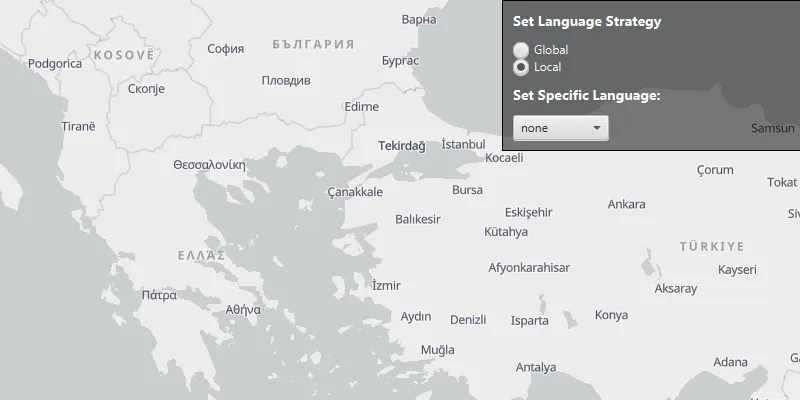
This sample showcases the workflow of configuring basemap style parameters by displaying a basemap with labels in different languages and launches with a Viewpoint set over Bulgaria, Greece and Turkey, as they use three different alphabets: Cyrillic, Greek, and Latin, respectively. By default, the BasemapStyleLanguageStrategy is set to LOCAL which displays all labels in their corresponding local language. This can be changed to GLOBAL, which displays all labels in English. The SpecificLanguage setting sets all labels to a selected language and overrides the BasemapStyleLanguageStrategy settings.
Pan and zoom to navigate the map and see how different labels are displayed in these countries depending on the selected BasemapStyleLanguageStrategy and SpecificLanguage: all English, all Greek, all Bulgarian, all Turkish, or each their own.
How it works
- Create a
BasemapStyleParametersobject. - Configure customization preferences on the
BasemapStyleParametersobject, for instance:- setting the
LanguageStrategytoBasemapStyleLanguageStrategy.LOCALor setSpecificLanguage("el")changes the label language to Greek.
- setting the
- The
SpecificLanguagealways overrides theLanguageStrategy, which means the specific language needs to be set to an empty string in order to use the language strategy. - Create a basemap using a
BasemapStyleand theBasemapStyleParameters. - Assign the configured basemap to the
Map’sbasemapproperty. - To modify the basemap style, for example if you want to change your preferences, repeat the above steps.
Relevant API
- Basemap
- BasemapStyleLanguageStrategy
- BasemapStyleParameters
- Map
- MapView
About the data
The main data for this sample is the BasemapStyle which include basemaps that support both language localization and global language setting. The supported languages, along with their language code, can be found in the API’s documentation.
Tags
basemap style, language, language strategy, map, point, viewpoint
Sample code
/* * Copyright 2024 Esri. * * Licensed under the Apache License, Version 2.0 (the "License"); you may not * use this file except in compliance with the License. You may obtain a copy of * the License at * * http://www.apache.org/licenses/LICENSE-2.0 * * Unless required by applicable law or agreed to in writing, software * distributed under the License is distributed on an "AS IS" BASIS, WITHOUT * WARRANTIES OR CONDITIONS OF ANY KIND, either express or implied. See the * License for the specific language governing permissions and limitations under * the License. */
package com.esri.samples.configure_basemap_style_parameters;
import com.esri.arcgisruntime.ArcGISRuntimeEnvironment;import com.esri.arcgisruntime.geometry.Point;import com.esri.arcgisruntime.loadable.LoadStatus;import com.esri.arcgisruntime.mapping.ArcGISMap;import com.esri.arcgisruntime.mapping.Basemap;import com.esri.arcgisruntime.mapping.BasemapStyle;import com.esri.arcgisruntime.mapping.BasemapStyleLanguageStrategy;import com.esri.arcgisruntime.mapping.BasemapStyleParameters;import com.esri.arcgisruntime.mapping.view.MapView;import com.esri.arcgisruntime.mapping.Viewpoint;import javafx.application.Application;import javafx.geometry.Insets;import javafx.geometry.Pos;import javafx.scene.Scene;import javafx.scene.control.Alert;import javafx.scene.control.ComboBox;import javafx.scene.control.Label;import javafx.scene.control.RadioButton;import javafx.scene.control.ToggleGroup;import javafx.scene.layout.Background;import javafx.scene.layout.BackgroundFill;import javafx.scene.layout.Border;import javafx.scene.layout.BorderStroke;import javafx.scene.layout.BorderStrokeStyle;import javafx.scene.layout.BorderWidths;import javafx.scene.layout.CornerRadii;import javafx.scene.layout.StackPane;import javafx.scene.layout.VBox;import javafx.scene.paint.Color;import javafx.scene.paint.Paint;import javafx.scene.text.Font;import javafx.stage.Stage;
public class ConfigureBasemapStyleParametersSample extends Application {  private MapView mapView;  private ArcGISMap map;  private BasemapStyleParameters basemapStyleParameters;  private VBox languageStrategyBox;  private RadioButton localRadioButton;  private ComboBox<String> specificLanguageComboBox;  private ToggleGroup languageStrategyGroup;
  @Override  public void start(Stage stage) {
    try {      // create stack pane and application scene      StackPane stackPane = new StackPane();      Scene scene = new Scene(stackPane);
      // set title, size, and add scene to stage      stage.setTitle("Configure Basemap Style Parameters Sample");      stage.setWidth(800);      stage.setHeight(700);      stage.setScene(scene);      stage.show();
      // authentication with an API key or named user is required to access basemaps and other location services      String yourAPIKey = System.getProperty("apiKey");      ArcGISRuntimeEnvironment.setApiKey(yourAPIKey);
      languageStrategyGroup = new ToggleGroup();      languageStrategyBox = new VBox();      var languageStrategyLabel = setupLabel("Set Language Strategy:");
      RadioButton globalRadioButton = createRadioButton("Global", false);      localRadioButton = createRadioButton("Local", true);
      Label specificLanguageLabel = setupLabel("Set Specific Language:");
      specificLanguageComboBox = new ComboBox<>();      specificLanguageComboBox.getItems().addAll("Bulgarian", "Greek", "Turkish", "none");      specificLanguageComboBox.getSelectionModel().select("none");      specificLanguageComboBox.getSelectionModel().selectedItemProperty().addListener((options, oldValue, newValue) -> {        setNewBasemap();      });
      languageStrategyBox.getChildren().addAll(globalRadioButton, localRadioButton);
      VBox controlsVBox = new VBox(10);      controlsVBox.setBackground(new Background(new BackgroundFill(Paint.valueOf("rgba(0,0,0,0.5)"),          CornerRadii.EMPTY,          Insets.EMPTY)));      controlsVBox.setPadding(new Insets(10.0));      controlsVBox.setMaxSize(300, 100);      controlsVBox.getStyleClass().add("panel-region");      controlsVBox.setBorder(new Border(new BorderStroke(Color.BLACK, BorderStrokeStyle.SOLID, CornerRadii.EMPTY, new BorderWidths(1))));      controlsVBox.getChildren().addAll(languageStrategyLabel, languageStrategyBox, specificLanguageLabel, specificLanguageComboBox);
      map = new ArcGISMap();      mapView = new MapView();
      map.addDoneLoadingListener(() -> {        if (map.getLoadStatus() == LoadStatus.LOADED) {          // add the map view and control panel to the stack pane          stackPane.getChildren().addAll(mapView, controlsVBox);          StackPane.setAlignment(controlsVBox, Pos.TOP_RIGHT);        } else if (map.getLoadStatus() == LoadStatus.FAILED_TO_LOAD) {          new Alert(Alert.AlertType.ERROR, "Map failed to load: " + map.getLoadError().getMessage()).show();        }      });
      mapView.setMap(map);      setNewBasemap();      //  Focus the viewpoint on an area where the different languages are best showcased: Bulgaria / Greece / Turkey      //  as they use three different alphabets: Cyrillic, Greek, and Latin, respectively.      //  Thus, showcasing the different functionalities in the most obvious way:      //  all English, all Greek, all Bulgarian, all Turkish, or each their own.      mapView.setViewpoint(new Viewpoint(new Point(3144804, 4904598), 10000000));    } catch (Exception e) {      // on any error, display the stack trace.      e.printStackTrace();    }  }
  /**   * Basemap is immutable so need to create a new one to set new parameters. Uses an OpenStreetMap basemap style,   * as they support localization.   */  private void setNewBasemap() {    if (basemapStyleParameters == null) {      basemapStyleParameters = new BasemapStyleParameters();    }
    basemapStyleParameters.setLanguageStrategy(localRadioButton.isSelected() ?        BasemapStyleLanguageStrategy.LOCAL : BasemapStyleLanguageStrategy.GLOBAL);
    var newValue = specificLanguageComboBox.getValue();
    switch (newValue) {      // A SpecificLanguage setting overrides the BasemapStyleLanguageStrategy settings when      // the BasemapStyleParameters.specificLanguageProperty() is a non-empty string.      // Setting the specific language back to an empty string allows the strategy to be used.      case "none" -> basemapStyleParameters.setSpecificLanguage("");      case "Bulgarian" -> basemapStyleParameters.setSpecificLanguage("bg");      case "Greek" -> basemapStyleParameters.setSpecificLanguage("el");      case "Turkish" -> basemapStyleParameters.setSpecificLanguage("tr");
    }    languageStrategyBox.setDisable(!newValue.equals("none"));    Basemap basemap = new Basemap(BasemapStyle.OSM_LIGHT_GRAY, basemapStyleParameters);    map.setBasemap(basemap);  }
  /**   * Creates a new radio button for the control box.   *   * @param text The text displayed by the radio button.   * @param selected Whether the radio button is selected.   * @return the created radio button.   */  private RadioButton createRadioButton(String text, boolean selected) {    var radioButton = new RadioButton(text);    radioButton.setToggleGroup(languageStrategyGroup);    radioButton.setTextFill(Color.WHITE);    radioButton.setSelected(selected);    radioButton.setOnAction(e -> setNewBasemap());    return radioButton;  }
  /**   * Creates a label for the control box.   *   * @param title The text displayed by the label.   * @return the created label.   */  private Label setupLabel(String title) {    var languageStrategyLabel = new Label(title);    languageStrategyLabel.setStyle("-fx-font-weight: bold; -fx-text-color: black;");    languageStrategyLabel.setFont(new Font(14));    languageStrategyLabel.setTextFill(Color.WHITE);    return languageStrategyLabel;  }
  /**   * Stops and releases all resources used in application.   */  @Override  public void stop() {
    if (mapView != null) {      mapView.dispose();    }  }
  /**   * Opens and runs application.   *   * @param args arguments passed to this application   */  public static void main(String[] args) {
    Application.launch(args);  }}