Take a web map offline with additional options for each layer.
Use case
When taking a web map offline, you may adjust the data (such as layers or tiles) that are downloaded by using custom parameter overrides. This can be used to reduce the extent of the map or the download size of the offline map, or to highlight specific data by removing irrelevant data. Additionally, this workflow allows you to take features offline that don’t have a geometry; for example, features whose attributes have been populated in the office, but still need a site survey for their geometry.
How to use the sample
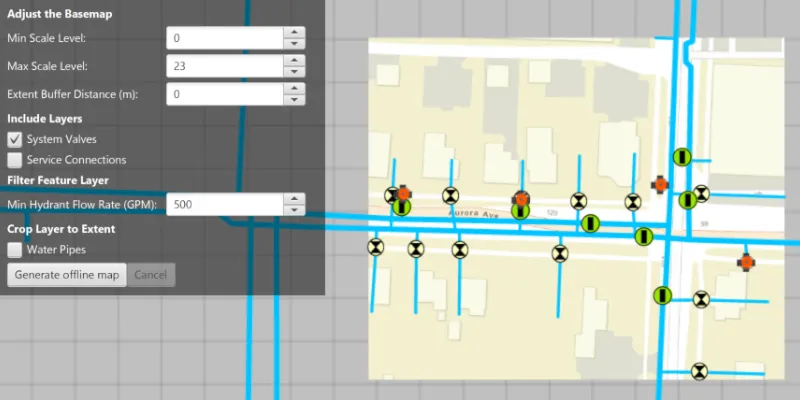
Modify the overrides parameters:
- Use the min/max scale input fields to adjust the level IDs to be taken offline for the streets basemap.
- Use the “Extent Buffer Distance” input field to set the buffer radius for the streets basemap.
- Check the checkboxes for the feature operational layers you want to include in the offline map.
- Use the “Min Hydrant Flow Rate” input field to only download features with a flow rate higher than this value.
- Select the “Water Pipes” checkbox if you want to crop the water pipe features to the extent of the map.
Set up the overrides to your liking, click the “Generate offline map” button to start the download. A progress bar will display. Click the “Cancel” button if you want to stop the download. When the download is complete, the view will display the offline map. Pan around to see that the map is cropped to the download area’s extent.
How it works
- Load a web map from a
PortalItem. Authenticate with the portal if required. - Create an
OfflineMapTaskwith the map. - Generate default task parameters using the extent area you want to download with
offlineMapTask.createDefaultGenerateOfflineMapParametersAsync(extent). - Generate additional “override” parameters using the default parameters with
offlineMapTask.createGenerateOfflineMapParameterOverridesAsync(parameters). - For the basemap:
- Get the parameters
OfflineMapParametersKeyfor the basemap layer. - Get the
ExportTileCacheParametersfor the basemap layer withoverrides.getExportTileCacheParameters().get(basemapParamKey). - Set the level IDs you want to download with
exportTileCacheParameters.getLevelIDs().add(levelID). - To buffer the extent, use
exportTileCacheParameters.setAreaOfInterest(bufferedGeometry)where bufferedGeometry can be calculated with theGeometryEngine.
- Get the parameters
- To remove operational layers from the download:
- Create a
OfflineParametersKeywith the operational layer. - Get the generate geodatabase layer options using the key with
List<GenerateLayerOption> layerOptions = overrides.getGenerateGeodatabaseParameters().get(key).getLayerOptions(); - Loop through each
GenerateLayerOptionin the the list, and remove it if the layer option’s ID matches the layer’s ID.
- Create a
- To filter the features downloaded in an operational layer:
- Get the layer options for the operational layer using the directions in step 6.
- Loop through the layer options. If the option layerID matches the layer’s ID, set the filter clause with
layerOption.setWhereClause(sqlQueryString)and set the query option withlayerOption.setQueryOption(GenerateLayerOption.QueryOption.USE_FILTER).
- To not crop a layer’s features to the extent of the offline map (default is true):
- Set
layerOption.setUseGeometry(false).
- Set
- Create a
GenerateOfflineMapJobwithofflineMapTask.generateOfflineMap(parameters, downloadPath, overrides). Start the job withjob.start(). - When the job is done, get a reference to the offline map with
job.getResult.getOfflineMap().
Relevant API
- ExportTileCacheParameters
- GenerateGeodatabaseParameters
- GenerateLayerOption
- GenerateOfflineMapJob
- GenerateOfflineMapParameterOverrides
- GenerateOfflineMapParameters
- GenerateOfflineMapResult
- OfflineMapParametersKey
- OfflineMapTask
Additional information
For applications where you just need to take all layers offline, use the standard workflow (using only GenerateOfflineMapParameters). For a simple example of how you take a map offline, please consult the “Generate offline map” sample.
Tags
adjust, download, extent, filter, LOD, offline, override, parameters, reduce, scale range, setting
Sample code
/* * Copyright 2018 Esri. * * Licensed under the Apache License, Version 2.0 (the "License"); you may not * use this file except in compliance with the License. You may obtain a copy of * the License at * * http://www.apache.org/licenses/LICENSE-2.0 * * Unless required by applicable law or agreed to in writing, software * distributed under the License is distributed on an "AS IS" BASIS, WITHOUT * WARRANTIES OR CONDITIONS OF ANY KIND, either express or implied. See the * License for the specific language governing permissions and limitations under * the License. */
package com.esri.samples.generate_offline_map_overrides;
import java.io.IOException;import java.nio.file.Files;import java.nio.file.Path;import java.util.Iterator;import java.util.List;
import com.esri.arcgisruntime.ArcGISRuntimeEnvironment;import com.esri.arcgisruntime.data.ServiceFeatureTable;import com.esri.arcgisruntime.geometry.Envelope;import com.esri.arcgisruntime.geometry.GeometryEngine;import com.esri.arcgisruntime.geometry.Point;import com.esri.arcgisruntime.layers.FeatureLayer;import com.esri.arcgisruntime.loadable.LoadStatus;import com.esri.arcgisruntime.mapping.ArcGISMap;import com.esri.arcgisruntime.mapping.view.Graphic;import com.esri.arcgisruntime.mapping.view.GraphicsOverlay;import com.esri.arcgisruntime.mapping.view.MapView;import com.esri.arcgisruntime.portal.Portal;import com.esri.arcgisruntime.portal.PortalItem;import com.esri.arcgisruntime.symbology.SimpleLineSymbol;import com.esri.arcgisruntime.tasks.geodatabase.GenerateGeodatabaseParameters;import com.esri.arcgisruntime.tasks.geodatabase.GenerateLayerOption;import com.esri.arcgisruntime.tasks.offlinemap.GenerateOfflineMapJob;import com.esri.arcgisruntime.tasks.offlinemap.GenerateOfflineMapResult;import com.esri.arcgisruntime.tasks.offlinemap.OfflineMapParametersKey;import com.esri.arcgisruntime.tasks.offlinemap.OfflineMapTask;import com.esri.arcgisruntime.tasks.tilecache.ExportTileCacheParameters;
import javafx.application.Platform;import javafx.fxml.FXML;import javafx.geometry.Point2D;import javafx.scene.control.Alert;import javafx.scene.control.Button;import javafx.scene.control.CheckBox;import javafx.scene.control.ProgressBar;import javafx.scene.control.Spinner;import javafx.scene.paint.Color;
public class GenerateOfflineMapOverridesController {
  @FXML private MapView mapView;  @FXML private Spinner<Integer> minScaleLevelSpinner;  @FXML private Spinner<Integer> maxScaleLevelSpinner;  @FXML private Spinner<Integer> extentBufferDistanceSpinner;  @FXML private Spinner<Integer> minHydrantFlowRateSpinner;  @FXML private CheckBox systemValvesCheckBox;  @FXML private CheckBox serviceConnectionsCheckBox;  @FXML private CheckBox waterPipesCheckBox;  @FXML private Button generateOfflineMapButton;  @FXML private Button cancelJobButton;  @FXML private ProgressBar progressBar;
  private ArcGISMap map;  private GraphicsOverlay graphicsOverlay;  private Graphic downloadArea;  private GenerateOfflineMapJob job;
  @FXML  private void initialize() {
    // authentication with an API key or named user is required to access basemaps and other location services    String yourAPIKey = System.getProperty("apiKey");    ArcGISRuntimeEnvironment.setApiKey(yourAPIKey);
    // create a portal item with the itemId of the web map    var portal = new Portal("https://www.arcgis.com");    var portalItem = new PortalItem(portal, "acc027394bc84c2fb04d1ed317aac674");
    // create a map with the portal item    map = new ArcGISMap(portalItem);    // display the generate offline map area as a red box on the map    updateDownloadArea();    map.addDoneLoadingListener(() -> {      // enable the generate offline map button when the map is loaded      if (map.getLoadStatus() == LoadStatus.LOADED) {        generateOfflineMapButton.setDisable(false);
        // create a graphics overlay for displaying the download area        graphicsOverlay = new GraphicsOverlay();        mapView.getGraphicsOverlays().add(graphicsOverlay);
        // show a red border around the download area        downloadArea = new Graphic();        graphicsOverlay.getGraphics().add(downloadArea);        var simpleLineSymbol = new SimpleLineSymbol(SimpleLineSymbol.Style.SOLID, Color.RED, 2);        downloadArea.setSymbol(simpleLineSymbol);
      }    });
    // update the download area whenever the viewpoint changes    mapView.addViewpointChangedListener(viewpointChangedEvent -> updateDownloadArea());
    // set the map to the map view    mapView.setMap(map);  }
  /**   * Called when the Generate offline map button is clicked. Builds parameters for the offline map task from the UI   * inputs and executes the task.   */  @FXML  private void generateOfflineMap() {    // show the progress bar    progressBar.setVisible(true);
    // create an offline map task with the map    var offlineMapTask = new OfflineMapTask(map);
    // get default offline map parameters for this task given the download area    offlineMapTask.createDefaultGenerateOfflineMapParametersAsync(downloadArea.getGeometry())      .toCompletableFuture().whenComplete((parameters, exception) -> {        if (exception == null) {          // get additional offline parameters (overrides) for this task          offlineMapTask.createGenerateOfflineMapParameterOverridesAsync(parameters).toCompletableFuture()            .whenComplete((overrides, throwable) -> {              if (throwable == null) {                try {                  // get the export tile cache parameters for the base layer                  var basemapParamKey = new OfflineMapParametersKey(                    mapView.getMap().getBasemap().getBaseLayers().get(0));                  ExportTileCacheParameters exportTileCacheParameters =                    overrides.getExportTileCacheParameters().get(basemapParamKey);
                  // create a new sublist of level IDs in the range requested by the user                  exportTileCacheParameters.getLevelIDs().clear();                  for (int i = minScaleLevelSpinner.getValue(); i < maxScaleLevelSpinner.getValue(); i++) {                    exportTileCacheParameters.getLevelIDs().add(i);                  }                  // set the area of interest to the original download area plus a buffer                  exportTileCacheParameters.setAreaOfInterest(GeometryEngine.buffer(downloadArea.getGeometry(),                    extentBufferDistanceSpinner.getValue()));
                  // configure layer option parameters for each layer depending on the options selected in the UI                  map.getOperationalLayers().stream()                    .filter(layer -> layer instanceof FeatureLayer)                    .map(featureLayer -> (FeatureLayer) featureLayer)                    .forEach(featureLayer -> {                      ServiceFeatureTable featureTable = (ServiceFeatureTable) featureLayer.getFeatureTable();                      long layerId = featureTable.getLayerInfo().getServiceLayerId();                      // get the layer option parameters specifically for this layer                      var offlineMapParametersKey = new OfflineMapParametersKey(featureLayer);                      GenerateGeodatabaseParameters generateGeodatabaseParameters = overrides.getGenerateGeodatabaseParameters()                        .get(offlineMapParametersKey);                      List<GenerateLayerOption> layerOptions = generateGeodatabaseParameters.getLayerOptions();                      // use an iterator so we can remove layer options while looping over them                      Iterator<GenerateLayerOption> layerOptionsIterator = layerOptions.iterator();                      if (!layerOptions.isEmpty()) {                        while (layerOptionsIterator.hasNext()) {                          GenerateLayerOption layerOption = layerOptionsIterator.next();                          if (layerOption.getLayerId() == layerId) {                            switch (featureLayer.getName()) {                              // remove the System Valve layer from the layer options if it should not be included                              case "System Valve":                                if (!systemValvesCheckBox.isSelected()) {                                  layerOptionsIterator.remove();                                }                                break;                              // remove the Service Connection layer from the layer options if it should not be included                              case "Service Connection":                                if (!serviceConnectionsCheckBox.isSelected()) {                                  layerOptionsIterator.remove();                                }                                break;                              // only download hydrant features if their flow is above the minimum specified in the UI                              case "Hydrant":                                layerOption.setWhereClause("FLOW >= " + minHydrantFlowRateSpinner.getValue());                                layerOption.setQueryOption(GenerateLayerOption.QueryOption.USE_FILTER);                                break;                              // clip water main feature geometries to the extent if the checkbox is selected                              case "Main":                                layerOption.setUseGeometry(waterPipesCheckBox.isSelected());                            }                          }                        }                      }                    });
                  // create an offline map job with the download directory path and parameters and start the job                  Path tempDirectory = Files.createTempDirectory("offline_map");                  job = offlineMapTask.generateOfflineMap(parameters, tempDirectory.toAbsolutePath().toString(), overrides);                  job.start();                  generateOfflineMapButton.setDisable(true);                  cancelJobButton.setDisable(false);                  job.addJobDoneListener(() -> {                    if (job.getStatus() == GenerateOfflineMapJob.Status.SUCCEEDED) {                      // replace the current map with the result offline map when the job finishes                      GenerateOfflineMapResult result = job.getResult();                      mapView.setMap(result.getOfflineMap());                      graphicsOverlay.getGraphics().clear();                      // disable button since the offline map is already generated                      generateOfflineMapButton.setDisable(true);                    } else {                      new Alert(Alert.AlertType.WARNING, job.getError().getMessage()).show();                      generateOfflineMapButton.setDisable(false);                    }                    Platform.runLater(() -> progressBar.setVisible(false));                    cancelJobButton.setDisable(true);                  });                  // show the job's progress with the progress bar                  job.addProgressChangedListener(() -> progressBar.setProgress(job.getProgress() / 100.0));                } catch (IOException e){                  new Alert(Alert.AlertType.ERROR, "Error configuring the offline map task").show();                }              } else {                // if the generation of offline map parameter overrides completed exceptionally, display an error                new Alert(Alert.AlertType.ERROR, "Error creating override parameters").show();              }            });        } else {          // if the generation of default offline map parameters completed exceptionally, display an error          new Alert(Alert.AlertType.ERROR, "Error creating offline map task default parameters").show();        }      });  }
  /**   * Updates the download area graphic to show a red border around the current view extent that will be downloaded if   * taken offline.   */  private void updateDownloadArea() {    if (map.getLoadStatus() == LoadStatus.LOADED) {      // upper left corner of the area to take offline      Point2D minScreenPoint = new Point2D(50, 50);      // lower right corner of the downloaded area      Point2D maxScreenPoint = new Point2D(mapView.getWidth() - 50, mapView.getHeight() - 50);      // convert screen points to map points      Point minPoint = mapView.screenToLocation(minScreenPoint);      Point maxPoint = mapView.screenToLocation(maxScreenPoint);      // use the points to define and return an envelope      if (minPoint != null && maxPoint != null) {        var envelope = new Envelope(minPoint, maxPoint);        downloadArea.setGeometry(envelope);      }    }  }
  /**   * Cancels the current offline map job.   */  @FXML  private void cancelJob() {    if (job != null) {      job.cancelAsync();    }  }
  /**   * Stops and releases all resources used in the application.   */  void terminate() {
    if (mapView != null) {      mapView.dispose();    }  }
}
/* * Copyright 2018 Esri. * * Licensed under the Apache License, Version 2.0 (the "License"); you may not * use this file except in compliance with the License. You may obtain a copy of * the License at * * http://www.apache.org/licenses/LICENSE-2.0 * * Unless required by applicable law or agreed to in writing, software * distributed under the License is distributed on an "AS IS" BASIS, WITHOUT * WARRANTIES OR CONDITIONS OF ANY KIND, either express or implied. See the * License for the specific language governing permissions and limitations under * the License. */
package com.esri.samples.generate_offline_map_overrides;
import java.io.IOException;
import javafx.application.Application;import javafx.fxml.FXMLLoader;import javafx.scene.Parent;import javafx.scene.Scene;import javafx.stage.Stage;
public class GenerateOfflineMapOverridesSample extends Application {
private static GenerateOfflineMapOverridesController controller;
@Override public void start(Stage stage) throws IOException { // set up the scene FXMLLoader loader = new FXMLLoader(getClass().getResource("/generate_offline_map_overrides/main.fxml")); Parent root = loader.load(); controller = loader.getController(); Scene scene = new Scene(root);
// set up the stage stage.setTitle("Generate Offline Map Overrides Sample"); stage.setWidth(800); stage.setHeight(700); stage.setScene(scene); stage.show(); }
/** * Stops and releases all resources used in application. */ @Override public void stop() { controller.terminate(); }
/** * Opens and runs application. * * @param args arguments passed to this application */ public static void main(String[] args) {
Application.launch(args); }}