Limit the view of a map to a particular area.
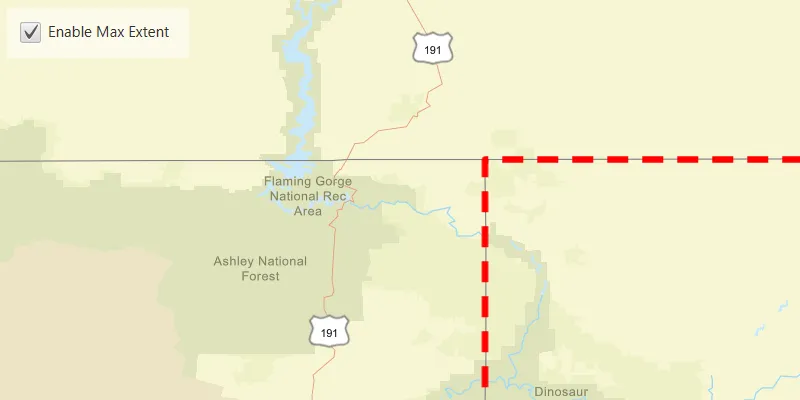
Use case
When showing map information relevant to only a certain area, you may wish to constrain the user’s ability to pan or zoom away.
How to use the sample
The application loads with a map whose maximum extent has been set to the borders of Colorado. Note that you won’t be able to pan far from the Colorado border or zoom out beyond the minimum scale set by the max extent. Click the “Enable Max Extent” checkbox to disable the max extent to freely pan/zoom around the map.
How it works
- Create an
ArcGISMap. - Create a new envelope
Envelope(Point(x, y), Point(x, y))with the required max extent. - Wait for the map to load, then set the maximum extent of the map with
map.setMaxExtent(envelope). - Create a new
MapViewand set the map to it. - Set
map.setMaxExtent(null)to disable the maximum extent of the map.
Relevant API
- ArcGISMap
- Envelope
Tags
extent, limit panning, map, mapview, max extent, zoom
Sample code
SetMaxExtentSample.java
/* * Copyright 2022 Esri. * * Licensed under the Apache License, Version 2.0 (the "License"); you may not * use this file except in compliance with the License. You may obtain a copy of * the License at * * http://www.apache.org/licenses/LICENSE-2.0 * * Unless required by applicable law or agreed to in writing, software * distributed under the License is distributed on an "AS IS" BASIS, WITHOUT * WARRANTIES OR CONDITIONS OF ANY KIND, either express or implied. See the * License for the specific language governing permissions and limitations under * the License. */
package com.esri.samples.set_max_extent;
import com.esri.arcgisruntime.ArcGISRuntimeEnvironment;import com.esri.arcgisruntime.geometry.Envelope;import com.esri.arcgisruntime.geometry.Point;import com.esri.arcgisruntime.loadable.LoadStatus;import com.esri.arcgisruntime.mapping.ArcGISMap;import com.esri.arcgisruntime.mapping.BasemapStyle;import com.esri.arcgisruntime.mapping.Viewpoint;import com.esri.arcgisruntime.mapping.view.Graphic;import com.esri.arcgisruntime.mapping.view.GraphicsOverlay;import com.esri.arcgisruntime.mapping.view.MapView;import com.esri.arcgisruntime.symbology.SimpleLineSymbol;import com.esri.arcgisruntime.symbology.SimpleRenderer;import javafx.application.Application;import javafx.geometry.Insets;import javafx.geometry.Pos;import javafx.scene.Scene;import javafx.scene.control.Alert;import javafx.scene.control.CheckBox;import javafx.scene.layout.Background;import javafx.scene.layout.BackgroundFill;import javafx.scene.layout.CornerRadii;import javafx.scene.layout.StackPane;import javafx.scene.layout.VBox;import javafx.scene.paint.Color;import javafx.scene.paint.Paint;import javafx.stage.Stage;
public class SetMaxExtentSample extends Application {
  private MapView mapView;
  @Override  public void start(Stage stage) {
    try {      // create stack pane and application scene      var stackPane = new StackPane();      var scene = new Scene(stackPane);
      // set title, size, and add scene to stage      stage.setTitle("Set Max Extent Sample");      stage.setWidth(800);      stage.setHeight(700);      stage.setScene(scene);      stage.show();
      // authentication with an API key or named user is required to access basemaps and other location services      String yourAPIKey = System.getProperty("apiKey");      ArcGISRuntimeEnvironment.setApiKey(yourAPIKey);
      // create a map with the streets basemap style      ArcGISMap map = new ArcGISMap(BasemapStyle.ARCGIS_STREETS);
      // create a map view and set the map to it      mapView = new MapView();      mapView.setMap(map);
      // create an envelope with an extent covering the state of Colorado      Point coloradoNorthWestPoint = new Point(-12139393.2109, 5012444.0468);      Point coloradoSouthEastPoint = new Point(-11359277.5124, 4438148.7816);      var envelope = new Envelope(coloradoNorthWestPoint, coloradoSouthEastPoint);
      // create a new graphics overlay and add a new graphic to it that shows the Colorado border as a red dashed line      var graphicsOverlay = new GraphicsOverlay();      graphicsOverlay.getGraphics().add(new Graphic(envelope));      var simpleRenderer = new SimpleRenderer(        new SimpleLineSymbol(SimpleLineSymbol.Style.DASH, Color.RED, 5));      graphicsOverlay.setRenderer(simpleRenderer);
      // add the graphics overlay to the map view      mapView.getGraphicsOverlays().add(graphicsOverlay);
      // create a checkbox for toggling max extent      var checkbox = new CheckBox("Enable Max Extent");      checkbox.setTextFill(Color.WHITE);      checkbox.setSelected(true);      checkbox.setOnMouseClicked(e -> {        if (checkbox.isSelected()) {          map.setMaxExtent(envelope);        } else {          map.setMaxExtent(null);        }      });
      // create a control panel      var controlsVBox = new VBox(6);      controlsVBox.setBackground(new Background(new BackgroundFill(Paint.valueOf("rgba(0,0,0,0.5)"),        CornerRadii.EMPTY, Insets.EMPTY)));      controlsVBox.setPadding(new Insets(10.0));      controlsVBox.setMaxSize(160, 40);      controlsVBox.setDisable(true);
      // add the checkbox to the control panel      controlsVBox.getChildren().add(checkbox);
      // listen for the map to finish loading, and check it has loaded      map.addDoneLoadingListener(() -> {        if (map.getLoadStatus() == LoadStatus.LOADED) {          // constrain the display of the map to the borders of Colorado by setting the map's max extent to the envelope          map.setMaxExtent(envelope);          // set the map view's viewpoint with the envelope          mapView.setViewpoint(new Viewpoint(envelope));          // enable the UI now that the map has loaded          controlsVBox.setDisable(false);        } else if (map.getLoadStatus() == LoadStatus.FAILED_TO_LOAD) {          new Alert(Alert.AlertType.ERROR, "Map failed to load").show();        }      });
      // add the map view and the control panel to the stack pane      stackPane.getChildren().addAll(mapView, controlsVBox);      StackPane.setAlignment(controlsVBox, Pos.TOP_LEFT);      StackPane.setMargin(controlsVBox, new Insets(10, 0, 0, 10));    } catch (Exception e) {      // on any error, display the stack trace.      e.printStackTrace();    }  }
  /**   * Stops and releases all resources used in application.   */  @Override  public void stop() {
    if (mapView != null) {      mapView.dispose();    }  }
  /**   * Opens and runs application.   *   * @param args arguments passed to this application   */  public static void main(String[] args) {
    Application.launch(args);  }
}