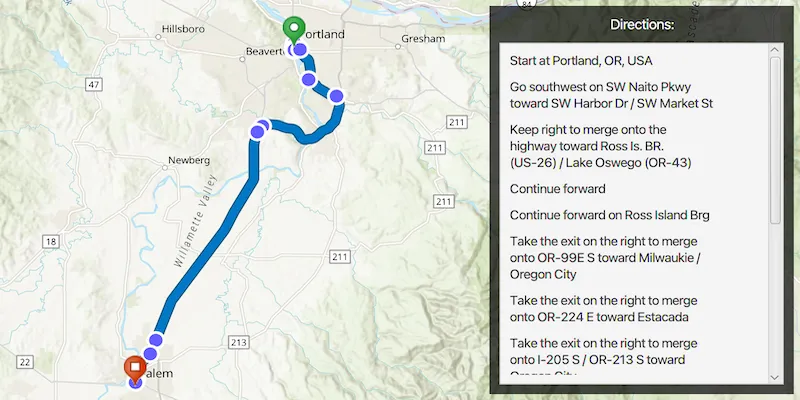
Display a route layer and its directions using a feature collection.
Use case
Routes can be stored as feature collection layers. These layers can store useful information such as directions, estimated trip time, and more.
You can create a route layer in ArcGIS Pro and store a route layer as a portal item, making it easy to access, share, or display.
How to use the sample
Pan and zoom to view the route displayed by the feature collection layer. The list of directions are displayed in the UI.
How it works
- Create a
PortalItemwith the item ID. - Create and load a
FeatureCollectionwith the item. - After loading, get the specified ‘FeatureCollectionTable’ by name.
- Create an array of
Features. - Get the direction text from the attributes of each feature.
- Create a
FeatureCollectionLayerwith the feature collection and set it to the map’s operationalLayers.
Relevant API
- FeatureCollection
- FeatureCollectionLayer
- FeatureCollectionTable
Tags
directions, feature collection, route layer
Sample code
DisplayRouteLayerSample.java
/* * Copyright 2023 Esri. * * Licensed under the Apache License, Version 2.0 (the "License"); you may not * use this file except in compliance with the License. You may obtain a copy of * the License at * * http://www.apache.org/licenses/LICENSE-2.0 * * Unless required by applicable law or agreed to in writing, software * distributed under the License is distributed on an "AS IS" BASIS, WITHOUT * WARRANTIES OR CONDITIONS OF ANY KIND, either express or implied. See the * License for the specific language governing permissions and limitations under * the License. */
package com.esri.samples.display_route_layer;
import com.esri.arcgisruntime.ArcGISRuntimeEnvironment;import com.esri.arcgisruntime.data.Feature;import com.esri.arcgisruntime.data.FeatureCollection;import com.esri.arcgisruntime.data.FeatureCollectionTable;import com.esri.arcgisruntime.layers.FeatureCollectionLayer;import com.esri.arcgisruntime.loadable.LoadStatus;import com.esri.arcgisruntime.mapping.ArcGISMap;import com.esri.arcgisruntime.mapping.BasemapStyle;import com.esri.arcgisruntime.mapping.Viewpoint;import com.esri.arcgisruntime.mapping.view.MapView;import com.esri.arcgisruntime.portal.Portal;import com.esri.arcgisruntime.portal.PortalItem;
import javafx.application.Application;import javafx.application.Platform;import javafx.geometry.Insets;import javafx.geometry.Pos;import javafx.scene.Scene;import javafx.scene.control.Label;import javafx.scene.control.ScrollPane;import javafx.scene.layout.Background;import javafx.scene.layout.BackgroundFill;import javafx.scene.layout.CornerRadii;import javafx.scene.layout.StackPane;import javafx.scene.layout.VBox;import javafx.scene.paint.Paint;import javafx.stage.Stage;
public class DisplayRouteLayerSample extends Application {
  private MapView mapView;  private PortalItem portalItem; // keep loadable in scope to avoid garbage collection  private FeatureCollection featureCollection;  // keep loadable in scope to avoid garbage collection
  @Override  public void start(Stage stage) {    try {      // create stack pane and application scene      StackPane stackPane = new StackPane();      Scene scene = new Scene(stackPane);
      // set title, size, and add scene to stage      stage.setTitle("Display Route Layer Sample");      stage.setWidth(800);      stage.setHeight(700);      stage.setScene(scene);      stage.show();
      // authentication with an API key or named user is required to access basemap and other location services      String yourAPIKey = System.getProperty("apiKey");      ArcGISRuntimeEnvironment.setApiKey(yourAPIKey);
      // create a map with the topographical basemap style      ArcGISMap map = new ArcGISMap(BasemapStyle.ARCGIS_TOPOGRAPHIC);
      // create a map view and set the map to it      mapView = new MapView();      mapView.setMap(map);
      // set a viewpoint on the map view      mapView.setViewpoint(new Viewpoint(45.2281, -122.8309 + 0.2, 57e4));
      // create a VBox to contain all the UI controls      var vBox = new VBox();      vBox.setMaxSize(300, 400);      vBox.setPadding(new Insets(10.0));      vBox.setAlignment(Pos.TOP_CENTER);      vBox.setSpacing(10);      vBox.setBackground(new Background(new BackgroundFill(Paint.valueOf("rgba(0, 0, 0 , 0.7)"), CornerRadii.EMPTY, Insets.EMPTY)));
      //create a scrollPane to enable scrolling through the directions      var scrollPane = new ScrollPane();      scrollPane.setMaxSize(300, 400);      scrollPane.setPadding(new Insets(10.0));
      // create a VBox to contain the directions      var directionsVBox = new VBox();      directionsVBox.setSpacing(10);      scrollPane.setContent(directionsVBox);      var headingLabel = new Label("Directions:");      headingLabel.setStyle("-fx-font-weight:bold; -fx-text-fill: white; -fx-font-size: 14;");      vBox.getChildren().addAll(headingLabel, scrollPane);
      // create a portal and portal item, using the portal and item ID      var portal = new Portal("https://www.arcgis.com/");      portalItem = new PortalItem(portal, "0e3c8e86b4544274b45ecb61c9f41336");
      // load the portal item      portalItem.loadAsync();      portalItem.addDoneLoadingListener(() -> {        if (portalItem.getLoadStatus() == LoadStatus.LOADED) {          featureCollection = new FeatureCollection(portalItem);
          // load the feature collection and access its tables          featureCollection.loadAsync();          featureCollection.addDoneLoadingListener(() -> {            if (featureCollection.getLoadStatus() == LoadStatus.LOADED) {              for (FeatureCollectionTable table : featureCollection.getTables()) {                // use the table called "DirectionPoints"                if (table.getTitle().equals("DirectionPoints")) {                  for (Feature feature : table) {                    // for each feature in the table, get the "DisplayText" attribute and create a label containing the text                    String text = (String) feature.getAttributes().get("DisplayText");                    var label = new Label(text);
                    // wrap the label text                    label.setWrapText(true);                    label.setMaxWidth(200);
                    // add the label to the directions VBox on the UI thread                    Platform.runLater(() -> directionsVBox.getChildren().add(label));                  }                }              }              // create a feature collection layer using the feature collection.              var featureCollectionLayer = new FeatureCollectionLayer(featureCollection);
              // add the feature collection layer to the map's operational layers              mapView.getMap().getOperationalLayers().add(featureCollectionLayer);            }          });        }      });
      // add the map view to the stack pane      stackPane.getChildren().addAll(mapView, vBox);      StackPane.setAlignment(vBox, Pos.TOP_RIGHT);      StackPane.setMargin(vBox, new Insets(10, 10, 10, 0));
    } catch (Exception e) {      // on any error, display the stack trace.      e.printStackTrace();    }  }
  /**   * Stops and releases all resources used in application.   */  @Override  public void stop() {    if (mapView != null) {      mapView.dispose();    }  }
  /**   * Opens and runs application.   *   * @param args arguments passed to this application   */  public static void main(String[] args) {    Application.launch(args);  }}