What is binning?
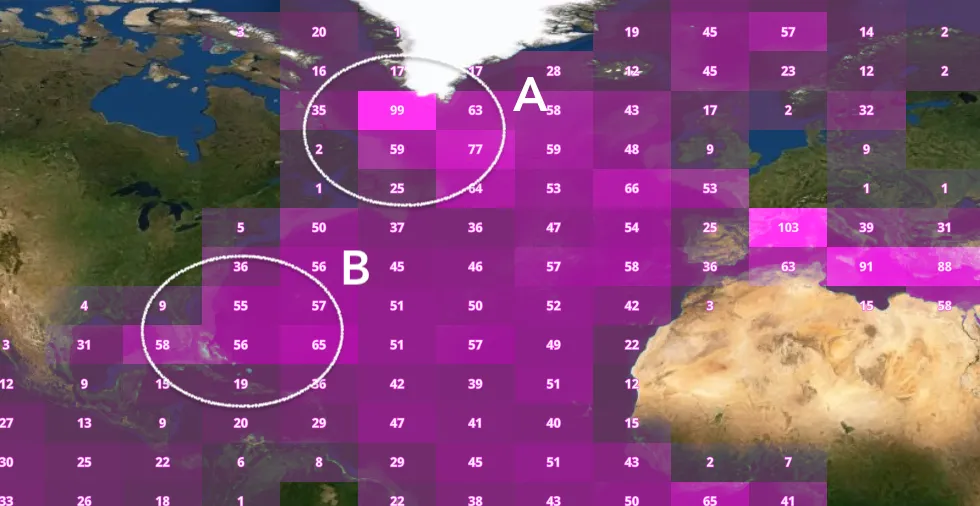
Binning aggregates data to predefined cells, effectively representing feature data as a gridded polygon layer. Typically, bins are styled with a continuous color ramp and labeled with the count of features contained by the bin. The JS API uses the public domain geohash geocoding system to create the bins.
This is an effective way to show the density of features. Unlike clustering, binning shows feature density in geographic space, not screen space.
Why is binning useful?
Large layers can be deceptive. What appears to be just a few points can in reality be several thousand. Binning allows you to visually represent the density of features in a geographic grid of cells.
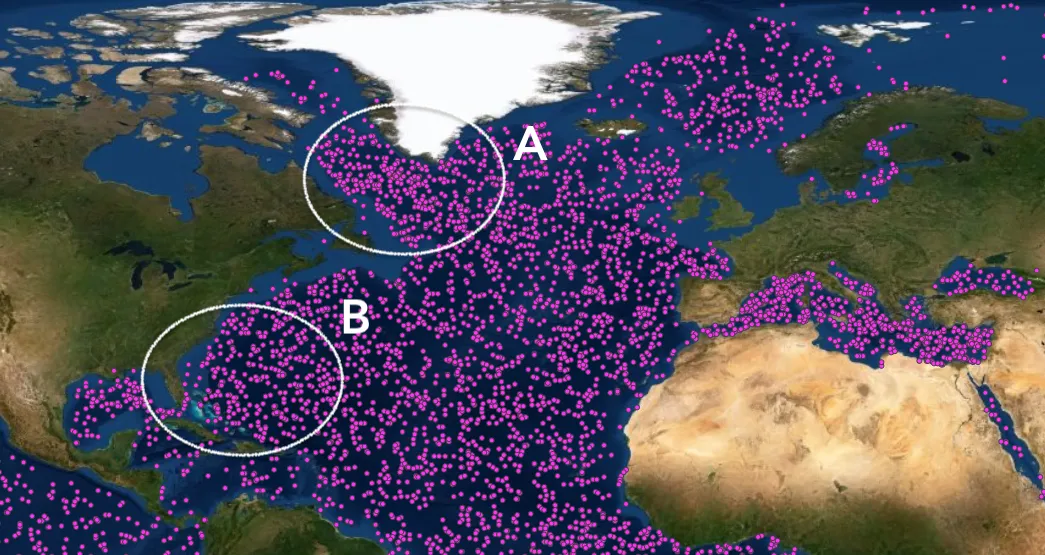
For example, the following map shows the locations of thousands of Argo floats (similar to a buoy). Regions A and B both have a high density of features, making them impossible to compare without additional help.
However, when binning is enabled, the user can now clearly compare the density of both regions.
How binning works
Binning is configured on the featureReduction property of the layer. You can enable binning with minimal code by setting the featureReduction type to binning.
layer.featureReduction = { type: "binning"};Since binning does not have a default renderer, you won’t be able to see the bins without explicitly defining a renderer. The featureReduction property gives you control over many other binning properties, including the following:
- fixedBinLevel - Determines the resolution of the grid (only accepts values 1-9). Larger numbers result in a higher resolution. Low numbers result in a coarse resolution.
- fields - Defines how to aggregate the layer’s fields based on a statistic type.
- renderer - Defines the style of the bins.
- popupTemplate - Allows you to summarize data in the bin when the user clicks it.
- labels - Typically used to label each bin with the number of features it contains.
Binning polylines and polygons
Binning is typically used to visualize large point layers, but may be used with any geometry type (since version 4.31). In the case of binning polyline or polygon features, the centroid of the line or polygon is used to determine the bin in which it is placed. This may lead to some features being placed in (or excluded from) unexpected bins. Because of this, special considerations should be taken when binning lines and polygons.
See the Binning polylines for a good example of a binned polyline layer.
Examples
Basic binning
The following example demonstrates how to enable binning and configure the renderer, labels, and a popup for displaying the feature count inside each bin. You must select a fixedBinLevel between 1-9 when enabling binning. Choose a bin level based on the data extent. The following table describes suggested bin levels given your data extent.
| Fixed bin level | Suggested data extent |
|---|---|
| 1-3 | Global extents. |
| 3-5 | Regional extents (e.g. countries and states). |
| 5-7 | Local communities (e.g. counties and cities). |
| 7-9 | Hyper local areas (e.g. neighborhoods and buildings). |
You must also define aggregate fields to make the binning visualization meaningful. An aggregate field determines how to represent data from the underlying layer in its aggregate form (i.e. the bin). For example, to create an aggregate field for feature count inside the bin, use the count statistic type.
layer.featureReduction = { type: "binning", fixedBinLevel: 2, fields: [{ name: "aggregateCount", statisticType: "count" }]};This can now be used in the renderer, labels, and popup for each bin. These properties are configured just as they would be on any other layer type, except they must refer to aggregate fields defined in FeatureReductionBinning.fields instead of the underlying layer’s fields. Typically, bins are styled with a continuous color visual variable as demonstrated in this example.
31 collapsed lines
<html> <head> <meta charset="utf-8" /> <meta name="viewport" content="width=device-width, initial-scale=1, shrink-to-fit=no" /> <title>Binning - Argo float locations - level 2</title>
<style> html, body, #viewDiv { height: 100%; margin: 0; } </style>
<link rel="stylesheet" href="https://js.arcgis.com/5.0/esri/themes/light/main.css" /> <!-- Load the ArcGIS Maps SDK for JavaScript from CDN --> <script type="module" src="https://js.arcgis.com/5.0/"></script>
<script type="module"> const [WebMap, FeatureLayer, MapView, Legend, Expand] = await $arcgis.import([ "@arcgis/core/WebMap.js", "@arcgis/core/layers/FeatureLayer.js", "@arcgis/core/views/MapView.js", "@arcgis/core/widgets/Legend.js", "@arcgis/core/widgets/Expand.js", ]);
const colors = ["#4d394d", "#6c2f68", "#901f8a", "#c700bb", "#ff33f3"];
const featureReduction = { type: "binning", fixedBinLevel: 2, fields: [ { name: "aggregateCount", alias: "Total count", statisticType: "count", }, ], renderer: { type: "simple", symbol: { type: "simple-fill", color: [0, 255, 71, 1], outline: null, outline: { color: colors[0], width: 0, }, }, visualVariables: [ { type: "color", field: "aggregateCount", legendOptions: { title: "Number of floats", }, stops: [ { value: 0, color: colors[0] }, { value: 25, color: colors[1] }, { value: 50, color: colors[2] }, { value: 75, color: colors[3] }, { value: 100, color: colors[4] }, ], }, ], },78 collapsed lines
labelsVisible: true, labelingInfo: [ { minScale: 120000000, maxScale: 0, deconflictionStrategy: "none", symbol: { type: "text", color: "white", font: { family: "Noto Sans", size: 10, weight: "bold", }, haloColor: colors[4], haloSize: 0.5, }, labelExpressionInfo: { expression: "Text($feature.aggregateCount, '#,###')", }, }, ], popupEnabled: true, popupTemplate: { title: "Aggregated floats", content: "{aggregateCount} Argo floats in this area.", }, };
const layer = new FeatureLayer({ blendMode: "lighten", title: "Argo floats", url: "https://www.ocean-ops.org/arcgis/rest/services/Argo/ARGOLocations/FeatureServer/1", featureReduction, });
const map = new WebMap({ basemap: { portalItem: { id: "38189d7d668c490895ed15fddcfdc7c7", }, }, layers: [layer], });
const view = new MapView({ container: "viewDiv", map: map, popup: { dockEnabled: true, dockOptions: { breakpoint: false, }, }, constraints: { snapToZoom: false, }, scale: 140_000_000, }); view.highlights.items[0].fillOpacity = 0.25; view.highlights.items[0].color = "#ff642e"; view.highlights.items[0].haloOpacity = 1;
const legendExpand = new Expand({ view, content: new Legend({ view, }), }); view.ui.add(legendExpand, "top-left"); </script> </head>
<body> <div id="viewDiv"></div> </body></html>Alternate binning styles
Bins can be styled with any renderer suitable for a polygon layer. This example demonstrates how to visualize bins based on two aggregate fields. The aggregate count is visualized with a size visual variable, and the average number of people injured in each crash is visualized using a color visual variable.
const featureReduction = { type: "binning", fixedBinLevel: 6, fields: [
new AggregateField({ name: "aggregateCount", statisticType: "count", }), new AggregateField({ name: "AVG_MOTORIST_INJURED", alias: "Ratio of motorist injuries to crashes", onStatisticField: "NUMBER_OF_MOTORIST_INJURED", statisticType: "avg", }),
], renderer: { type: "simple", symbol: { type: "simple-marker", color: [0, 255, 71, 1], outline: null, outline: { color: "rgba(153, 31, 23, 0.3)", width: 0.3, }, },
visualVariables: [ { type: "size", field: "aggregateCount", legendOptions: { title: "Total crashes", }, minSize: { type: "size", valueExpression: "$view.scale", stops: [ { value: 18055, size: 18 }, { value: 36111, size: 12 }, { value: 72223, size: 8 }, { value: 144447, size: 4 }, { value: 288895, size: 2 }, { value: 577790, size: 1 }, ], }, maxSize: { type: "size", valueExpression: "$view.scale", stops: [ { value: 18055, size: 48 }, { value: 36111, size: 32 }, { value: 72223, size: 24 }, { value: 144447, size: 18 }, { value: 288895, size: 12 }, { value: 577790, size: 6 }, ], }, minDataValue: 10, maxDataValue: 300, }, { type: "color", field: "AVG_MOTORIST_INJURED", legendOptions: { title: "% of motorists injured per crash", }, stops: [ { value: 0, color: colors[0], label: "No injuries" }, { value: 0.1, color: colors[1] }, { value: 0.3, color: colors[2], label: "30%" }, { value: 0.5, color: colors[3] }, { value: 0.75, color: colors[4], label: ">75%" }, ], }, ],
}, };Related samples and resources
Intro to binning
Binning polylines
Binning with aggregate fields
Binning - Filter by category
Summarize binned data using Arcade
FeatureReductionBinning
AggregateField
Binning now available in the ArcGIS API for JavaScript
API support
The following table describes the geometry and view types that are suited well for each visualization technique.
| 2D | 3D | Points | Lines | Polygons | Mesh | Client-side | Server-side | |
|---|---|---|---|---|---|---|---|---|
| | | | | | | | | |
| | | | | | | | | |
| | | | | | | | | |
| | | | | | | | | |
| | | | | | | | | |
| | | | | | | | | |
| 1 | | | 1 | 1 | | 2 | 3 | |
| | | | | | | | |
- Feature reduction selection not supported
- Only by feature reduction selection
- Only by scale-driven filter