
An item
Each item in a portal is associated with metadata, including a title, description, tags, and sharing settings. Items can be created, accessed, shared, and managed within an organization through the item page
You use the portal service
Code examples
Below are example on how to create items in a portal.
Create a web map
Create a new web map item.
from arcgis.gis import GIS
gis = GIS(username="USERNAME", password="PASSWORD")
item = {
"title": "Word geography",
"description": "This is a map of the world",
"tags": ["map", "world", "geography"],
"type": "Web Map"
}
results = gis.content.add(item)
print(results)REST API
curl https://www.arcgis.com/sharing/rest/content/users/<USER_NAME>/addItem \
-d 'f=pjson' \
-d 'title=World geography' \
-d 'description=This is the map of the world' \
-d 'type=Web Map' \
-d 'tags=map, world, geography' \
-d 'token=<ACCESS_TOKEN>'Import a CSV file
Create an item in a portal by importing a CSV file.
from arcgis.gis import GIS
import getpass
gis = GIS(
url="https://www.arcgis.com",
username="username",
password=getpass.getpass("Enter password:")
)
trailhead_properties = {
"title": "Trailheads",
"description": "Trailheads imported from CSV file",
"tags": "LA Trailheads"
}
csv_file = './data/LA_Hub_datasets/LA_Hub_datasets/Trailheads.csv'
csv_item = gis.content.add(trailhead_properties, csv_file)
trailhead_service = csv_item.publish()
trailhead_serviceTutorials
Use tools to create different types of content

Import data to create a feature layer
Use data management tools to import files and create a feature layer in a feature service.

Manage a feature layer
Use a hosted feature layer item to set the properties and settings of a feature layer in a feature service.
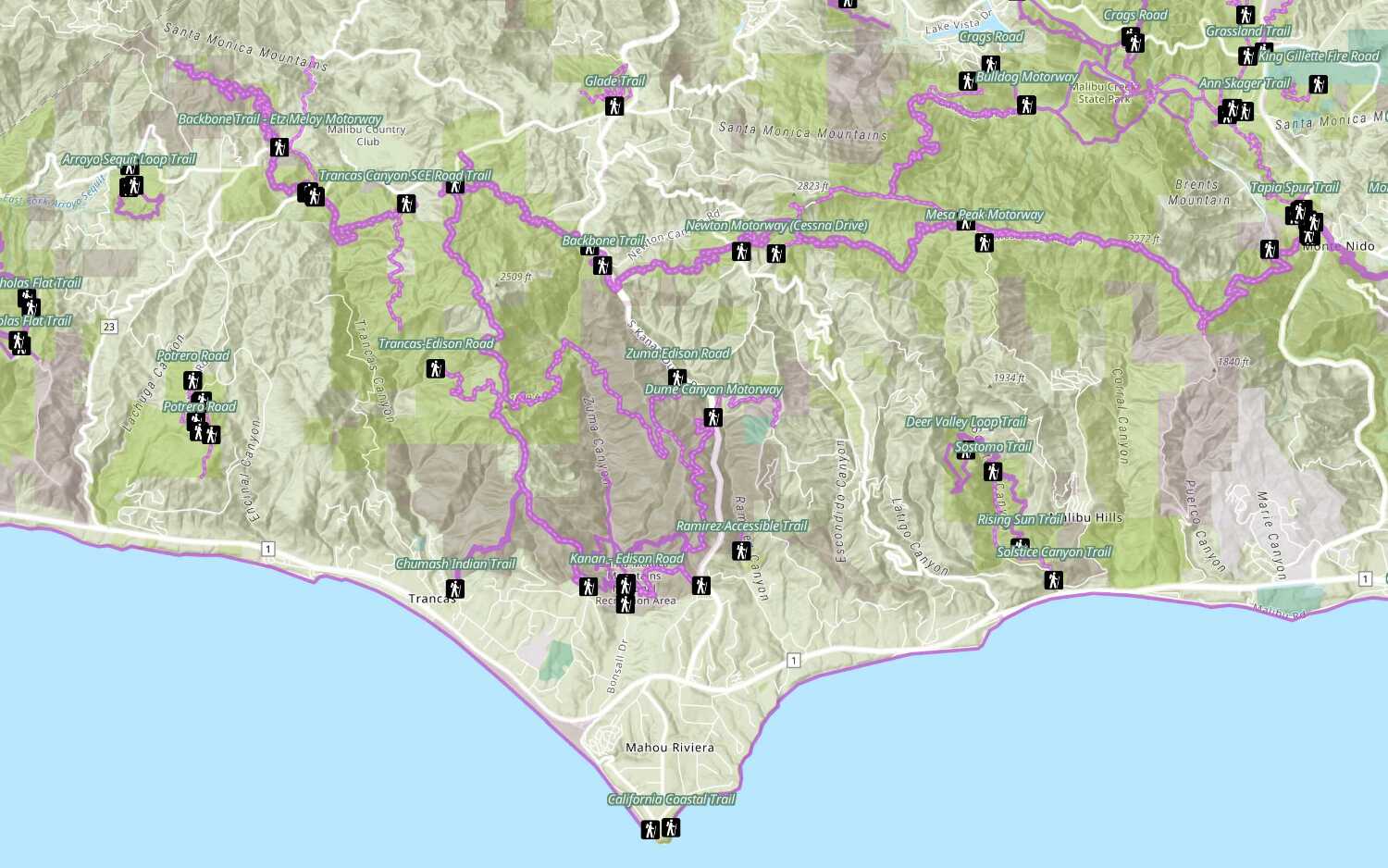
Add a feature layer
Access and display point, line, and polygon features from a feature service.
Services
API support
- 1. Limited operations, use HTTP requests.
- 2. Access via ArcGIS REST JS.
Tools
Use tools to access the portal and create and manage content for applications.