import type { BlendLayer } from "@arcgis/core/layers/mixins/BlendLayer.js";- Subclasses:
- BaseDynamicLayer, BaseTileLayer, CSVLayer, CatalogLayer, FeatureLayer, GeoJSONLayer, GeoRSSLayer, GraphicsLayer, GroupLayer, ImageryLayer, ImageryTileLayer, KMLLayer, KnowledgeGraphLayer, LinkChartLayer, MapImageLayer, MapNotesLayer, MediaLayer, OGCFeatureLayer, WebTileLayer, ParquetLayer, RouteLayer, StreamLayer, SubtypeGroupLayer, TileLayer, VectorTileLayer, VideoLayer, WCSLayer, WFSLayer, WMSLayer, WMTSLayer, CatalogDynamicGroupLayer, CatalogFootprintLayer, KnowledgeGraphSublayer
- Since
- ArcGIS Maps SDK for JavaScript 4.17
BlendLayer is a mixin that adds blendMode and effect properties to a layer.
Properties
blendMode
- Type
- BlendMode
Blend modes are used to blend layers together to create an interesting effect in a layer, or even to produce what seems like a new layer. Unlike the method of using transparency which can result in a washed-out top layer, blend modes can create a variety of very vibrant and intriguing results by blending a layer with the layer(s) below it.
When blending layers, a top layer is a layer that has a blend mode applied. All layers underneath the top layer are background layers.
The default blending mode is normal where the top layer is simply displayed over the background layer. While this default behavior is perfectly acceptable,
the use of blend modes on layers open up a world of endless possibilities to generate creative maps.
The layers in a GroupLayer are blended together in isolation from the rest of the map.
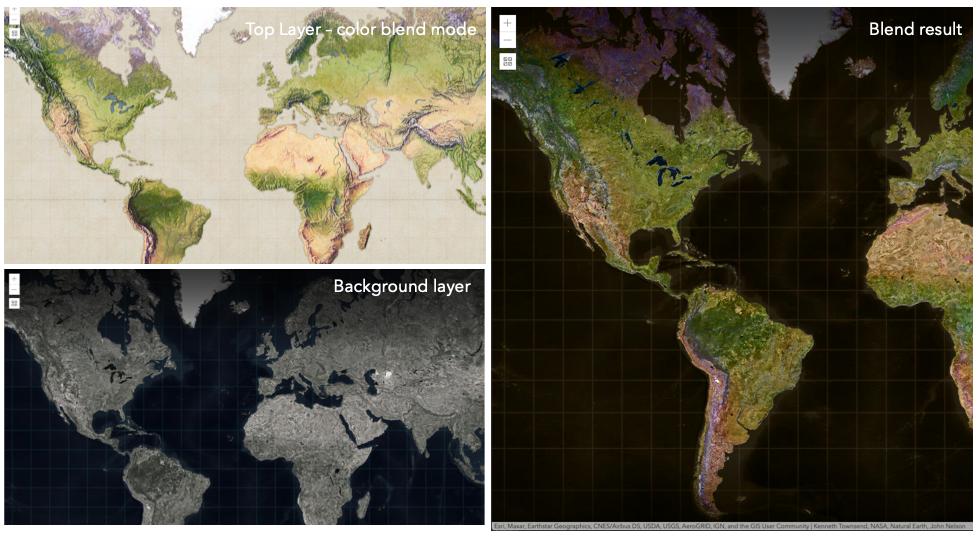
In the following screenshots, the vintage shaded relief
layer is displayed over a firefly world imagery layer. The color blend mode
is applied to the vintage shaded relief and the result looks like a new layer.
Known Limitations
- In 3D SceneViews, the blendMode is supported on BaseTileLayer, ImageryTileLayer, OpenStreetMapLayer, TileLayer, VectorTileLayer, WCSLayer, WebTileLayer, WMTSLayer and GroupLayer.
- When working with GroupLayers in a 3D SceneView, the blendMode is only applied to the sublayers that support it.
- The blendMode is not supported in the Legend.
- See print for known printing limitations.
The following factors will affect the blend result:
- Order of all layers
- Layer opacity
- Opacity of features in layers
- Visibility of layers
- By default, the very bottom layer in a map is drawn on a transparent background. You can change the MapView's background color.
Read More
| Blend mode | Description |
|---|---|
| normal | The top layer is displayed over the background layer. The data of the top layer block the data of background layer where they overlap. |
| average | Takes the mathematical average of top and background layers. Result of average blend mode is often similar to the effect of setting the layer's opacity to 50%. |
Lighten blend modes:
The following blend modes create lighter results than all layers. In lighten blend modes, pure black colors in the top layer become transparent allowing the background layer to show through. White in the top layer will stay unchanged. Any color that is lighter than pure black is going to lighten colors in the top layer to varying degrees all way to pure white.
Lighten blend modes can be useful when lightening dark colors of the top layer or removing black colors from the result.
The plus, lighten and screen modes can be used to brighten layers that have faded or dark colors on a dark background.
| Blend mode | Description |
|---|---|
| lighten | Compares top and background layers and retains the lighter color. Colors in the top layer become transparent if they are darker than the overlapping colors in the background layer allowing the background layer to show through completely. Can be thought of as the opposite of darken blend mode. |
| lighter | Colors in top and background layers are multiplied by their alphas (layer opacity and layer's data opacity. Then the resulting colors are added together. All overlapping midrange colors are lightened in the top layer. The opacity of layer and layer's data will affect the blend result. |
| plus | Colors in top and background layers are added together. All overlapping midrange colors are lightened in the top layer. This mode is also known as add or linear-dodge. |
| screen | Multiplies inverted colors in top and background layers then inverts the colors again. The resulting colors will be lighter than the original color with less contrast. Screen can produce many different levels of brightening depending on the luminosity values of the top layer. Can be thought of as the opposite of the multiply mode. |
| color-dodge | Divides colors in background layer by the inverted top layer. This lightens the background layer depending on the value of the top layer. The brighter the top layer, the more its color affects the background layer. Decreases the contrast between top and background layers resulting in saturated mid-tones and blown highlights. |
Darken blend modes:
The following blend modes create darker results than all layers. In darken blend modes, pure white in the top layer will become transparent allowing the background layer to show through. Black in the top layer will stay unchanged. Any color that is darker than pure white is going to darken a top layer to varying degrees all the way to pure black.
The multiply blend mode is often used to highlight shadows, show contrast, or accentuate an aspect of a map. For example, you can use multiply blend mode on a topographic map
displayed over hillshade when you want to have your elevation show through the topographic layer. See the intro to layer blending sample.
The multiply and darken modes can be used to have dark labels of the basemap to show through top layers. See the darken blending sample.
The color-burn mode works well with colorful top and background layers since it increases saturation in mid-tones. It increases the contrast by tinting pixels in overlapping areas in
top and bottom layers more towards the top layer color. Use this blend mode, when you want an effect with more contrast than multiply or darken.
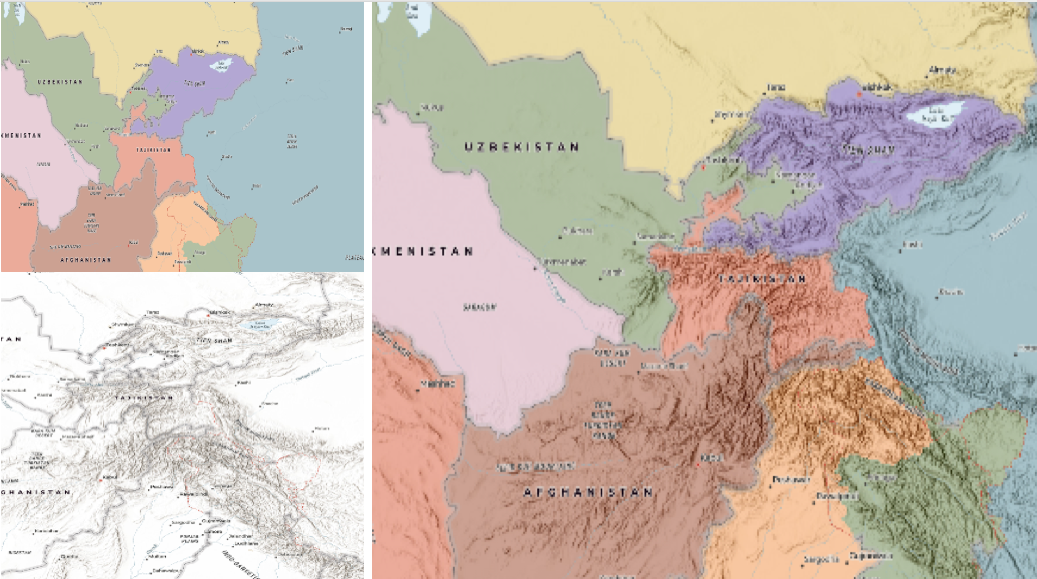
The following screenshots show how the multiply blend mode used for creating a physical map of the world that shows both boundaries and elevation.
| Blend mode | Description |
|---|---|
| darken | Emphasizes the darkest parts of overlapping layers. Colors in the top layer become transparent if they are lighter than the overlapping colors in the background layer, allowing the background layer to show through completely. |
| multiply | Emphasizes the darkest parts of overlapping layers by multiplying colors of the top layer and the background layer. Midrange colors from top and background layers are mixed together more evenly. |
| color-burn | Intensifies the dark areas in all layers. It increases the contrast between top and background layers, by tinting colors in overlapping area towards the top color. To do this it inverts colors of the background layer, divides the result by colors of the top layer, then inverts the results. |
Contrast blend modes:
The following blend modes create contrast by both lightening the lighter areas and darkening the darker areas in the top layer by using lightening or darkening blend modes to create the blend.
The contrast blend modes will lighten the colors lighter than 50% gray ([128,128,128]), and darken the colors darker than 50% gray. 50% gray will be transparent in the top layer.
Each mode can create a variety of results depending on the colors of top and background layers being blended together.
The overlay blend mode makes its calculations based on the brightness of the colors in the background layer while all of the other contrast blend modes make their calculations based on the brightness of the top layer.
Some of these modes are designed to simulate the effect of shining a light through the top layer, effectively projecting upon the layers beneath it.
Contrast blend modes can be used to increase the contrast and saturation to have more vibrant colors and give a punch to your layers.
For example, you can duplicate a layer and set overlay blend mode on the top layer to increase the contrast and tones of your layer.
You can also add a polygon layer with a white fill symbol over a dark imagery layer and apply soft-light blend mode to increase the brightness in the imagery layer.
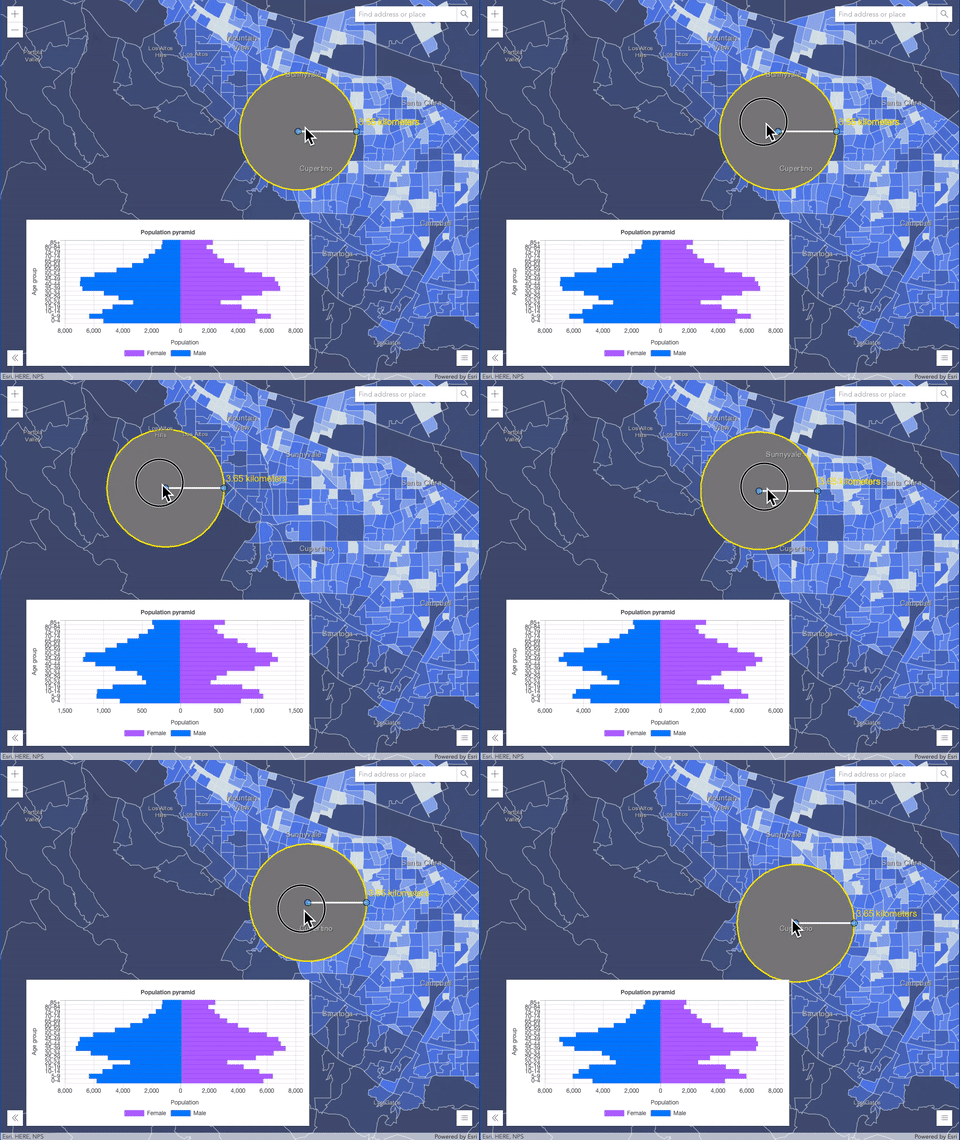
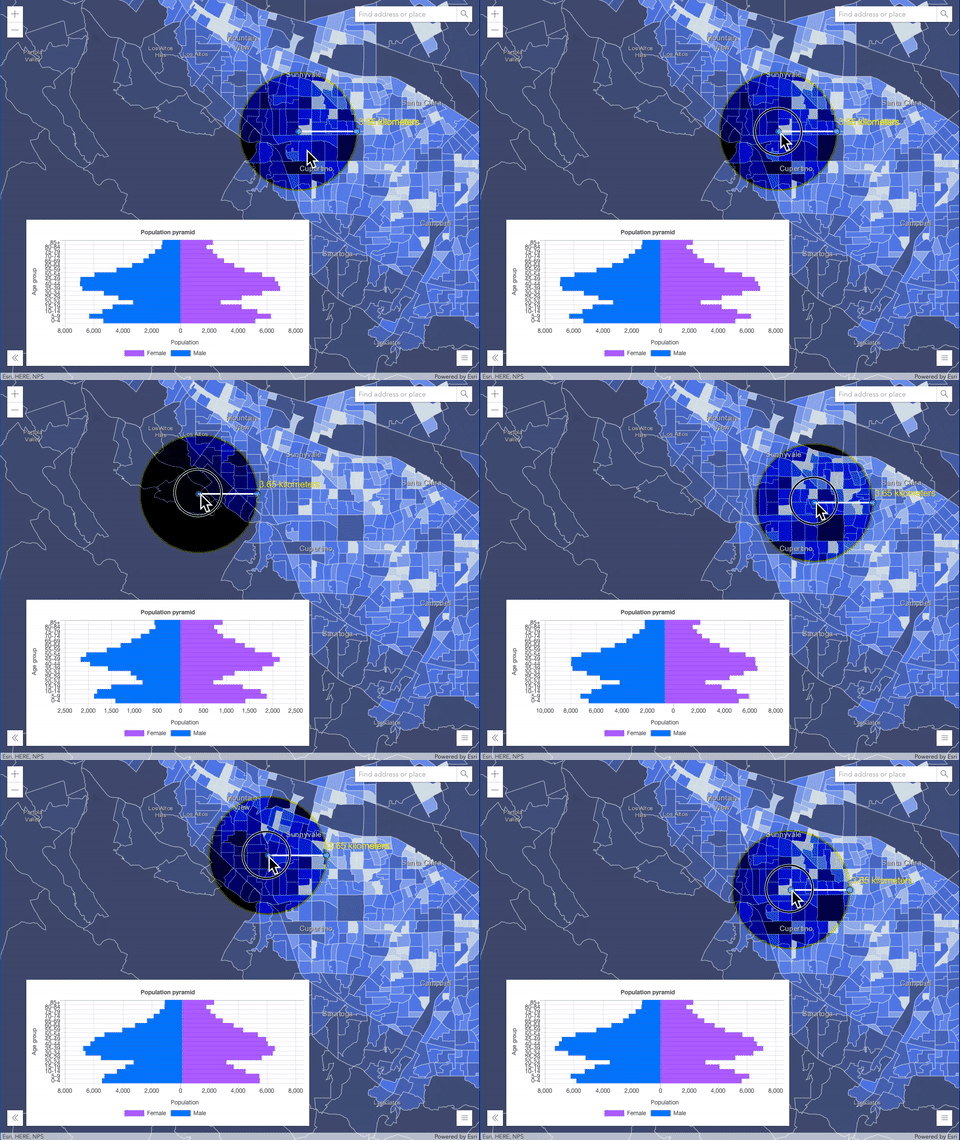
The following screenshots show an effect of the overlay blend mode on a GraphicsLayer. The left image shows when the buffer graphics layer has the normal blend mode.
As you can see, the gray color for the buffer polygon is blocking the intersecting census tracts. The right image shows when the overlay blend mode is applied to the buffer graphics layer.
The overlay blend mode darkens or lightens the gray buffer polygon depending on the colors of the background layer while the census tracts layer is shining through.
See this in action.
| Normal blend mode | Overlay blend mode |
|---|---|
 |  |
| Blend mode | Description |
|---|---|
| overlay | Uses a combination of multiply and screen modes to darken and lighten colors in the top layer with the background layer always shining through. The result is darker color values in the background layer intensify the top layer, while lighter colors in the background layer wash out overlapping areas in the top layer. |
| soft-light | Applies a half strength screen mode to lighter areas and half strength multiply mode to darken areas of the top layer. You can think of the soft-light as a softer version of the overlay mode. |
| hard-light | Multiplies or screens the colors, depending on colors of the top layer. The effect is similar to shining a harsh spotlight on the top layer. |
| vivid-light | Uses a combination of color-burn or color-dodge by increasing or decreasing the contrast, depending on colors in the top layer. |
Component blend modes:
The following blend modes use primary color components, which are hue, saturation and luminosity to blend top and background layers.
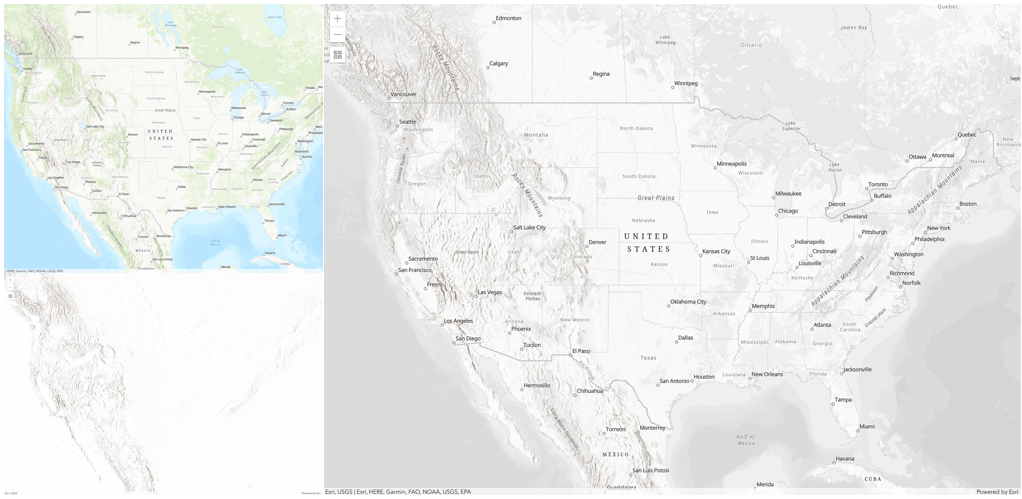
You can add a feature layer with a simple renderer over any layer and set hue, saturation, color or luminosity blend mode on this layer. With this technique, you create a brand new looking map.
The following screenshots show where the topo layer is blended with
world hillshade layer with luminosity blend mode.
The result is a drastically different looking map which preserves the brightness of the topo layer while adapting the hue and saturation of the hillshade layer.
| Blend mode | Description |
|---|---|
| hue | Creates an effect with the hue of the top layer and the luminosity and saturation of the background layer. |
| saturation | Creates an effect with the saturation of the top layer and the hue and luminosity of the background layer. 50% gray with no saturation in the background layer will not produce any change. |
| luminosity | Creates effect with the luminosity of the top layer and the hue and saturation of the background layer. Can be thought of as the opposite of color blend mode. |
| color | Creates an effect with the hue and saturation of the top layer and the luminosity of the background layer. Can be thought of as the opposite of luminosity blend mode. |
Composite blend modes:
The following blend modes can be used to mask the contents of top, background or both layers.
Destinationmodes are used to mask the data of the top layer with the data of the background layer.Sourcemodes are used to mask the data of the background layer with the data of the top layer.
The destination-in blend mode can be used to show areas of focus such as earthquakes, animal migration, or point-source pollution by revealing the underlying map,
providing a bird's eye view of the phenomenon. Check out multiple blending and groupLayer blending
samples to see composite blend modes in action.
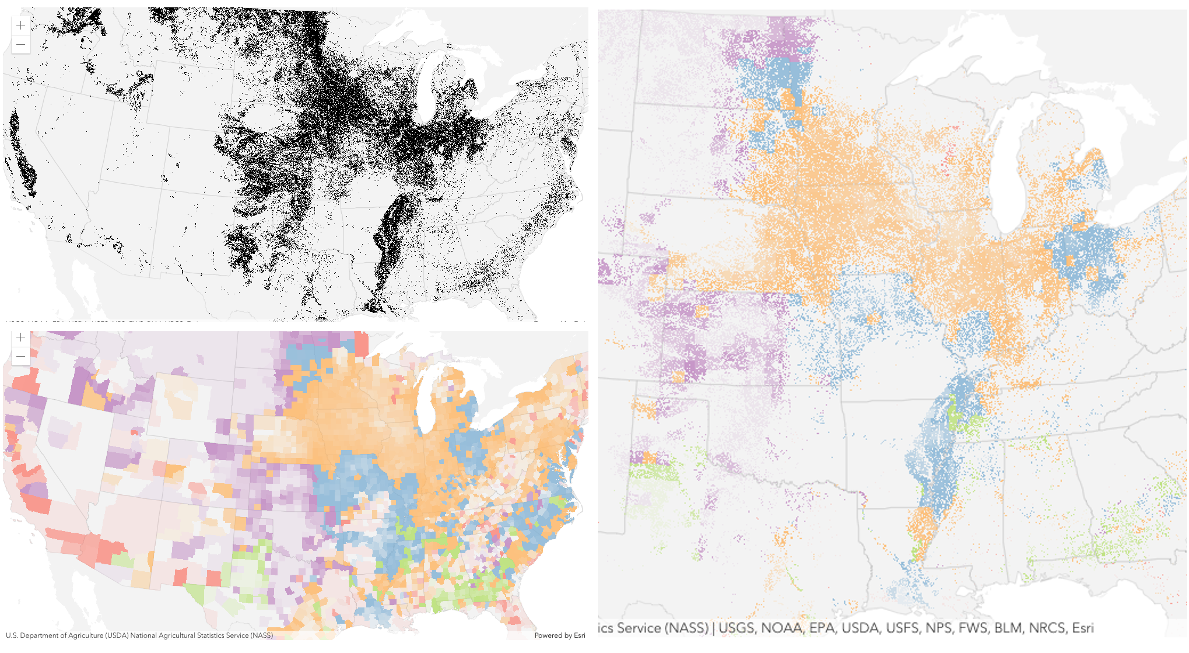
The following screenshots show feature and imagery layers on the left side on their own in the order they are drawn in the view. The imagery layer that contains land cover classification rasters.
The feature layer contains 2007 county crops data. The right image shows the result of layer blending where destination-in blendMode is set on the imagery layer. As you can see, the effect is
very different from the original layers. The blended result shows areas of cultivated crops only (where both imagery and feature layers overlap).
| Blend mode | Description |
|---|---|
| destination-over | Destination/background layer covers the top layer. The top layer is drawn underneath the destination layer. You'll see the top layer peek through wherever the background layer is transparent or has no data. |
| destination-atop | Destination/background layer is drawn only where it overlaps the top layer. The top layer is drawn underneath the background layer. You'll see the top layer peek through wherever the background layer is transparent or has no data. |
| destination-in | Destination/background layer is drawn only where it overlaps with the top layer. Everything else is made transparent. |
| destination-out | Destination/background layer is drawn where it doesn't overlap the top layer. Everything else is made transparent. |
| source-atop | Source/top layer is drawn only where it overlaps the background layer. You will see the background layer peek through where the source layer is transparent or has no data. |
| source-in | Source/top layer is drawn only where it overlaps with the background layer. Everything else is made transparent. |
| source-out | Source/top layer is drawn where it doesn't overlap the background layer. Everything else is made transparent. |
| xor | Top and background layers are made transparent where they overlap. Both layers are drawn normal everywhere else. |
Invert blend modes:
The following blend modes either invert or cancel out colors depending on colors of the background layer.
These blend modes look for variations between top and background layers.
For example, you can use difference or exclusion blend modes on two imagery layers of forest covers to visualize how forest covers changed from one year to another.
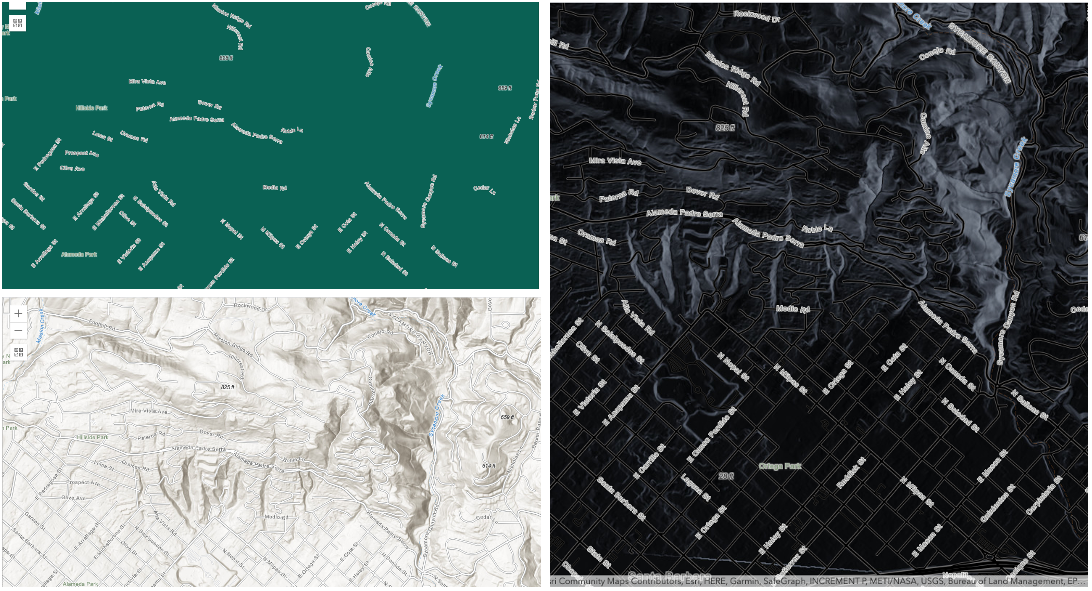
The invert blend mode can be used to turn any light basemap into a dark basemap to accommodate those who work in low-light conditions. The following screenshots show
how setting the invert blend mode set on a feature layer with a simple renderer turns the world Hillshade
into a dark themed basemap in no time.
| Blend mode | Description |
|---|---|
| difference | Subtracts the darker of the overlapping colors from the lighter color. When two pixels with the same value are subtracted, the result is black. Blending with black produces no change. Blending with white inverts the colors. This blending mode is useful for aligning layers with similar content. |
| exclusion | Similar to the difference blend mode, except that the resulting image is lighter overall. Overlapping areas with lighter color values are lightened, while darker overlapping color values become transparent. |
| minus | Subtracts colors of the top layer from colors of the background layer making the blend result darker. In the case of negative values, black is displayed. |
| invert | Inverts the background colors wherever the top and background layers overlap. The invert blend mode inverts the layer similar to a photographic negative. |
| reflect | This blend mode creates effects as if you added shiny objects or areas of light in the layer. Black pixels in the background layer are ignored as if they were transparent. |
- See also
- Default value
- "normal"
effect
- Since
- ArcGIS Maps SDK for JavaScript 4.18
Effect provides various filter functions that can be performed on the layer to achieve different visual effects similar to
how image filters work. This powerful capability allows you to apply css filter-like
functions to layers to create custom visual effects to enhance the cartographic quality of your maps. This is done by applying the desired
effect to the layer's effect property as a string or an array of objects to set scale dependent effects.
Notes
Set featureEffect property on a layer if different effects need to be applied features that meet or fail a specified filter. If all of the following four properties are applied, then they will be applied in this order: featureEffect, effect, opacity and blendMode.
Known Limitations
- The effect is not supported in 3D SceneViews.
- The effect cannot be applied to a layer with a heatmap renderer.
- The effect is not supported in layers with FeatureLayer.featureReduction of type
clusterenabled. - See print for known printing limitations.
Examples
// the following effect will be applied to the layer at all scales// brightness will be applied first, then hue-rotate followed by contrast// changing order of the effects will change the final resultlayer.effect = "brightness(5) hue-rotate(270deg) contrast(200%)";// set a scale dependent bloom effect on the layerlayer.effect = [ { scale: 36978595, value: "drop-shadow(3px, 3px, 4px)" }, { scale: 18489297, value: "drop-shadow(2px, 2px, 3px)" }, { scale: 4622324, value: "drop-shadow(1px, 1px, 2px)" }];