import HistogramRangeSlider from "@arcgis/core/widgets/HistogramRangeSlider.js";const HistogramRangeSlider = await $arcgis.import("@arcgis/core/widgets/HistogramRangeSlider.js");- Since
- ArcGIS Maps SDK for JavaScript 4.12
A slider widget that can be used for filtering data or gathering numeric input from a user for a range of data. When bins are provided, a histogram will render on the slider showing where data is distributed along the range. Use the rangeType property to indicate how the histogram should be styled as the user interacts with slider handles.
See the image below for a summary of the configurable options available on this slider.
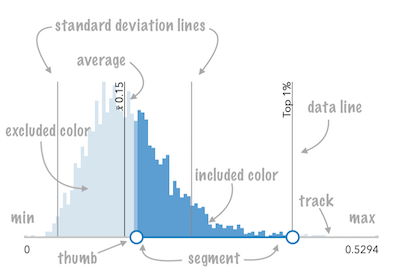
At a minimum, the slider's container or parent container must have a width set in css for it to render.
Constructors
Constructor
Parameters
| Parameter | Type | Description | Required |
|---|---|---|---|
| properties | | |
Example
// Typical usageconst slider = new HistogramRangeSlider({ container: "sliderDiv", min: 0, max: 100, values: [ 50, 150 ]});Properties
| Property | Type | Class |
|---|---|---|
| | ||
| | ||
HistogramBin[] | null | undefined | | |
container inherited | HTMLElement | null | undefined | |
| | ||
DataLineInfos[] | null | undefined | | |
declaredClass readonly inherited | ||
destroyed readonly inherited | ||
| | ||
Icon["icon"] | | |
id inherited | ||
| | ||
| | ||
| | ||
| | ||
| | ||
| | ||
| | ||
| | ||
| | ||
| | ||
| | ||
visible inherited |
average
The statistical average of the data in the histogram. You would typically
get this value from the avg property of
SummaryStatisticsResult,
which is the result of the
summaryStatistics function.
When set, this value will render on the histogram with a line and an average symbol.
Examples
// sets result returned from a smart mapping method// to the histogramslider.average = response.statistics.avg;slider.average = 34.5; barCreatedFunction
- Type
- BarCreatedFunction | null | undefined
Function for styling bars representing histogram bins. This can be used to color bins with the same color of features in the view that fall into bins representing the same range of data.
Example
slider.barCreatedFunction = function(index, element){ const bin = slider.bins[index]; element.addEventListener("focus", function(){ layerView.filter = { where: `POPULATION >= ${bin.minValue} AND POPULATION < ${bin.maxValue}` }; }); element.addEventListener("blur", function(){ layerView.filter = null; });}; bins
- Type
- HistogramBin[] | null | undefined
An array of objects representing each bin in the histogram. This information is typically returned from the histogram function.
Examples
// sets the bins of the histogram from the bins in the histogram() resulthistogram.bins = histogramResult.bins;// Creates a histogram with 7 bins.histogram.bins = [ { minValue: 0, maxValue: 10, count: 4 }, { minValue: 10.1, maxValue: 20, count: 14 }, { minValue: 20.1, maxValue: 30, count: 9 }, { minValue: 30.1, maxValue: 40, count: 34 }, { minValue: 40.1, maxValue: 50, count: 351 }, { minValue: 50.1, maxValue: 60, count: 100 }, { minValue: 60.1, maxValue: 70, count: 1 }]; container
- Type
- HTMLElement | null | undefined
The ID or node representing the DOM element containing the widget. This property can only be set once. The following examples are all valid use case when working with widgets.
Examples
// Create the HTML div element programmatically at runtime and set to the widget's containerconst basemapGallery = new BasemapGallery({  view: view,  container: document.createElement("div")});
// Add the widget to the top-right corner of the viewview.ui.add(basemapGallery, {  position: "top-right"});
// Specify an already-defined HTML div element in the widget's container
const basemapGallery = new BasemapGallery({ view: view, container: basemapGalleryDiv});
// Add the widget to the top-right corner of the viewview.ui.add(basemapGallery, { position: "top-right"});
// HTML markup<body> <div id="viewDiv"></div> <div id="basemapGalleryDiv"></div></body>// Specify the widget while adding to the view's UIconst basemapGallery = new BasemapGallery({ view: view});
// Add the widget to the top-right corner of the viewview.ui.add(basemapGallery, { position: "top-right"}); dataLineCreatedFunction
- Type
- DataLineCreatedFunction | null | undefined
Function that fires each time a data line is created. You can use this to style individual dataLines on the data axis.
Example
histogram.dataLineCreatedFunction = function (lineElement, labelElement) { lineElement.setAttribute("y2", "25%"); lineElement.classList.add("line-style");}; dataLines
- Type
- DataLineInfos[] | null | undefined
When set, renders lines on the histogram that indicate important or meaningful values to the end user.
Examples
// will render lines at the 25th, 50th, 75th, and 99th percentileshistogram.dataLines = [{ value: 30, label: "25 pctl"}, { value: 45, label: "50 pctl"}, { value: 65, label: "75 pctl"}, { value: 89, label: "99 pctl"}];// calculate standard deviations from mean using stats// returned from smart mapping statistic methodsconst stddevs = smartMappingUtils.getDeviationValues(stats.stddev, stats.avg, 2);histogram.dataLines = stddevs.map(function(stddev){ return { value: stddev };}); excludedBarColor
- Type
- Color
Sets the color of the histogram bars that are excluded based on the specified
rangeType. For example, when a rangeType of between is used,
all bars not between the slider thumbs will be rendered with the color set here.
To change the style of histogram bars representing included data based on the rangeType, use the includedBarColor property.
- See also
- Default value
- "#d7e5f0"
Example
slider.excludedBarColor = "black"; icon
- Type
- Icon["icon"]
- Since
- ArcGIS Maps SDK for JavaScript 4.27
Icon displayed in the widget's button.
- Default value
- "arrow-double-horizontal"
includedBarColor
- Type
- Color
Sets the color of the histogram bars that are included in the specified
rangeType. For example, when a rangeType of between is used,
all bars between the slider thumbs will be rendered with the color set here.
To change the style of histogram bars representing excluded data based on the rangeType, use the excludedBarColor property.
- See also
- Default value
- "#599dd4"
Example
slider.includedBarColor = "green"; labelFormatFunction
- Type
- LabelFormatFunction
A function used to format labels. Overrides the default label formatter.
By default labels are formatted in the following way:
- When the data range is less than
10((max - min) < 10), labels are rounded based on the value set in the precision property. - When the data range is larger than
10, HistogramRangeSliderViewModel.labels display with a precision of no more than two decimal places, though actual slider thumb values will maintain the precision specified in precision.
Use this property to override the behavior defined above.
Examples
// For thumb values, rounds each label to whole numbers.// Note the actual value of the thumb continues to be stored// based on the indicated data `precision` despite this formattingslider.labelFormatFunction = function(value, type) { return (type === "value") ? value.toFixed(0) : value;}// Format thumb values as datesslider.labelFormatFunction = function(value, type) { return new Date(value).toLocaleDateString();} precision
- Type
- number
Defines how slider thumb values should be rounded. This number indicates the number of decimal places slider thumb values should round to when they have been moved.
This value also indicates the precision of thumb HistogramRangeSliderViewModel.labels when the data range
(max - min) is less than 10.
When the data range is larger than 10, HistogramRangeSliderViewModel.labels display with a precision of
no more than two decimal places, though actual slider thumb values will maintain the
precision specified in this property.
For example, given the default precision of 4, and the following slider configuration,
The label of the thumb will display two decimal places, but the precision of the actual
thumb value will not be lost even when the user slides or moves the thumb.
const slider = new HistogramRangeSliderViewModel({ min: 20, max: 100, // data range of 80 values: [50.4331], // thumb label will display 50.43 // thumb value will maintain precision, so // value will remain at 50.4331});If the user manually enters a value that has a higher precision than what's indicated by this property, the precision of that thumb value will be maintained until the thumb is moved by the user. At that point, the value will be rounded according to the indicated precision.
Keep in mind this property rounds thumb values and shouldn't be used exclusively
for formatting purposes. To format thumb labels, use the labelFormatFunction
property.
- Default value
- 4
Example
histogramRangeSlider.precision = 7; rangeType
- Type
- RangeType
Indicates how the histogram bins should be rendered as the user slides the thumbs. By default, blue bars indicate data bins included in the range. Gray bars indicate data bins excluded from the range. These colors can be customized with the includedBarColor and excludedBarColor properties.
This property also determines the SQL where clause generated in generateWhereClause() for filtering purposes. The value set here determines the number of values allowed on the slider.
See the table below for a description and requirements of all possible values. value1 refers to
the value of the first thumb position. value2 refers to the value of the final thumb position, if applicable.
| Possible Value | Number of values | Where clause |
|---|---|---|
| equal | 1 | ${field} = ${value1} |
| not-equal | 1 | ${field} <> ${value1} |
| less-than | 1 | ${field} < ${value1} |
| greater-than | 1 | ${field} > ${value1} |
| at-most | 1 | ${field} <= ${value1} |
| at-least | 1 | ${field} >= ${value1} |
| between | 2 | ${field} BETWEEN ${value1} AND ${value2} |
| not-between | 2 | ${field} NOT BETWEEN ${value1} AND ${value2} |
- See also
Example
// renders the histogram so that all bins between// the two handles are shaded with a blue colorslider.rangeType = "between";
// filters the layer view based on the configuration// of the sliderlayerView.filter = {  where: slider.generateWhereClause("POPULATION")}
standardDeviation
Indicates the standard deviation of the dataset.
When set, computed dataLines will render on the histogram
at the location of the given standard deviation
above and below the average.
Example
// stddev returned from summaryStatisticsslider.standardDeviation = stats.stddev; standardDeviationCount
- Type
- number
Indicates the number of standard deviation lines to render on the histogram from the [average].
- Default value
- 1
Example
slider.standardDeviationCount = 2; values
An array of either one or two numbers representing thumb positions on the slider. The number of values that should be indicated here depends on the associated rangeType.
- See also
Example
const slider = new HistogramRangeSlider({ min: 20, max: 100, // data range of 80 values: [50.4331], rangeType: "at-least" container: "sliderDiv"}); viewModel
The view model for the widget. This is a class that contains all the logic (properties and methods) that controls this widget's behavior. See the HistogramRangeSliderViewModel class to access all properties and methods on the Slider widget.
visible
- Type
- boolean
Indicates whether the widget is visible.
If false, the widget will no longer be rendered in the web document. This may affect the layout of other elements or widgets in the document. For example, if this widget is
the first of three widgets associated to the upper right hand corner of the DefaultUI, then the other widgets will reposition when this widget is made invisible.
For more information, refer to the css display value of "none".
- Default value
- true
Example
// Hides the widget in the viewwidget.visible = false;Methods
| Method | Signature | Class |
|---|---|---|
classes inherited | classes(...classNames: ((string | null | undefined) | ((string[] | Record<string, boolean>) | null | undefined) | false | null | undefined)[]): string | |
destroy inherited | destroy(): void | |
emit inherited | emit<Type extends EventNames<this>>(type: Type, event?: this["@eventTypes"][Type]): boolean | |
generateWhereClause(field: string): string | null | undefined | | |
hasEventListener inherited | hasEventListener<Type extends EventNames<this>>(type: Type): boolean | |
isFulfilled inherited | isFulfilled(): boolean | |
isRejected inherited | isRejected(): boolean | |
isResolved inherited | isResolved(): boolean | |
on inherited | on<Type extends EventNames<this>>(type: Type, listener: EventedCallback<this["@eventTypes"][Type]>): ResourceHandle | |
postInitialize inherited | postInitialize(): void | |
render inherited | render(): any | null | |
renderNow inherited | renderNow(): void | |
scheduleRender inherited | scheduleRender(): void | |
when inherited | when<TResult1 = this, TResult2 = never>(onFulfilled?: OnFulfilledCallback<this, TResult1> | null | undefined, onRejected?: OnRejectedCallback<TResult2> | null | undefined): Promise<TResult1 | TResult2> |
classes
- Signature
-
classes (...classNames: ((string | null | undefined) | ((string[] | Record<string, boolean>) | null | undefined) | false | null | undefined)[]): string
A utility method used for building the value for a widget's class property.
This aids in simplifying css class setup.
Parameters
- Returns
- string
The computed class name.
Example
// .tsx syntax showing how to set css classes while rendering the widget
render() {  const dynamicClasses = {    [css.flip]: this.flip,    [css.primary]: this.primary  };
return ( <div class={classes(css.root, css.mixin, dynamicClasses)} /> );} emit
- Signature
-
emit <Type extends EventNames<this>>(type: Type, event?: this["@eventTypes"][Type]): boolean
- Type parameters
- <Type extends EventNames<this>>
Emits an event on the instance. This method should only be used when creating subclasses of this class.
generateWhereClause
- Signature
-
generateWhereClause (field: string): string | null | undefined
Generates a SQL where clause based on a given field and the slider's rangeType. This is a convenience function for data filtering or data queries.
Parameters
| Parameter | Type | Description | Required |
|---|---|---|---|
| field | Name of the field used in the where clause. This field should correspond to the data used to generate the histogram associated with the slider. | |
Example
// renders the histogram so that all bins between// the two handles are shaded with a blue color by defaultslider.rangeType = "between";
// filters the layerview based on the configuration// of the sliderlayerView.filter = {  where: slider.generateWhereClause("POPULATION")}
hasEventListener
- Signature
-
hasEventListener <Type extends EventNames<this>>(type: Type): boolean
- Type parameters
- <Type extends EventNames<this>>
Indicates whether there is an event listener on the instance that matches the provided event name.
Parameters
| Parameter | Type | Description | Required |
|---|---|---|---|
| type | Type | The name of the event. | |
- Returns
- boolean
Returns true if the class supports the input event.
isFulfilled
- Signature
-
isFulfilled (): boolean
isFulfilled() may be used to verify if creating an instance of the class is fulfilled (either resolved or rejected).
If it is fulfilled, true will be returned.
- Returns
- boolean
Indicates whether creating an instance of the class has been fulfilled (either resolved or rejected).
isRejected
- Signature
-
isRejected (): boolean
isRejected() may be used to verify if creating an instance of the class is rejected.
If it is rejected, true will be returned.
- Returns
- boolean
Indicates whether creating an instance of the class has been rejected.
isResolved
- Signature
-
isResolved (): boolean
isResolved() may be used to verify if creating an instance of the class is resolved.
If it is resolved, true will be returned.
- Returns
- boolean
Indicates whether creating an instance of the class has been resolved.
on
- Signature
-
on <Type extends EventNames<this>>(type: Type, listener: EventedCallback<this["@eventTypes"][Type]>): ResourceHandle
- Type parameters
- <Type extends EventNames<this>>
Registers an event handler on the instance. Call this method to hook an event with a listener.
Parameters
| Parameter | Type | Description | Required |
|---|---|---|---|
| type | Type | An event or an array of events to listen for. | |
| listener | EventedCallback<this["@eventTypes"][Type]> | The function to call when the event fires. | |
- Returns
- ResourceHandle
Returns an event handler with a
remove()method that should be called to stop listening for the event(s).Property Type Description remove Function When called, removes the listener from the event.
Example
view.on("click", function(event){ // event is the event handle returned after the event fires. console.log(event.mapPoint);}); when
- Signature
-
when <TResult1 = this, TResult2 = never>(onFulfilled?: OnFulfilledCallback<this, TResult1> | null | undefined, onRejected?: OnRejectedCallback<TResult2> | null | undefined): Promise<TResult1 | TResult2>
when() may be leveraged once an instance of the class is created. This method takes two input parameters: an onFulfilled function and an onRejected function.
The onFulfilled executes when the instance of the class loads. The
onRejected executes if the instance of the class fails to load.
Parameters
| Parameter | Type | Description | Required |
|---|---|---|---|
| onFulfilled | OnFulfilledCallback<this, TResult1> | null | undefined | The function to call when the promise resolves. | |
| onRejected | The function to execute when the promise fails. | |
- Returns
- Promise<TResult1 | TResult2>
Returns a new promise for the result of
onFulfilledthat may be used to chain additional functions.
Example
// Although this example uses MapView, any class instance that is a promise may use when() in the same waylet view = new MapView();view.when(function(){ // This function will execute once the promise is resolved}, function(error){ // This function will execute if the promise is rejected due to an error});Events
| Name | Type |
|---|---|
max-change inherited | |
min-change inherited | |
segment-drag inherited | |
thumb-change inherited | |
thumb-drag inherited |
max-change
max-change: CustomEvent<MaxChangeEvent> Fires when a user changes the max of the slider.
Example
slider.on("max-change", function() { const renderer = layer.renderer.clone(); const visualVariable = renderer.visualVariables[0].clone(); colorVariable.stops = slider.stops; renderer.visualVariables = [ visualVariable ]; layer.renderer = renderer;}); min-change
min-change: CustomEvent<MinChangeEvent> Fires when a user changes the min of the slider.
Example
slider.on("min-change", function() { const renderer = layer.renderer.clone(); const visualVariable = renderer.visualVariables[0].clone(); colorVariable.stops = slider.stops; renderer.visualVariables = [ visualVariable ]; layer.renderer = renderer;}); segment-drag
segment-drag: CustomEvent<SegmentDragEvent> - Since
- ArcGIS Maps SDK for JavaScript 4.20
Fires when a user drags a segment of the slider. A segment is the portion of the track that lies between two thumbs. Therefore, this only applies when two or more thumbs are set on the slider.
Example
slider.on("segment-drag", () => { const renderer = layer.renderer.clone(); const visualVariable = renderer.visualVariables[0].clone(); colorVariable.stops = slider.stops; renderer.visualVariables = [ visualVariable ]; layer.renderer = renderer;}); thumb-change
thumb-change: CustomEvent<ThumbChangeEvent> Fires when a user changes the value of a thumb via the arrow keys or by keyboard editing of the label on the slider.
Examples
slider.on("thumb-change", function() { const renderer = layer.renderer.clone(); const visualVariable = renderer.visualVariables[0].clone(); colorVariable.stops = slider.stops; renderer.visualVariables = [ visualVariable ]; layer.renderer = renderer;});slider.on("thumb-change", function() { const renderer = layer.renderer.clone(); renderer.colorStops = slider.stops; layer.renderer = renderer;}); thumb-drag
thumb-drag: CustomEvent<ThumbDragEvent> Fires when a user drags a thumb on the widget.
Examples
slider.on("thumb-drag", function() { const renderer = layer.renderer.clone(); const visualVariable = renderer.visualVariables[0].clone(); colorVariable.stops = slider.stops; renderer.visualVariables = [ visualVariable ]; layer.renderer = renderer;});slider.on("thumb-drag", function() { const renderer = layer.renderer.clone(); renderer.colorStops = slider.stops; layer.renderer = renderer;});