import Slider from "@arcgis/core/widgets/Slider.js";const Slider = await $arcgis.import("@arcgis/core/widgets/Slider.js");- Inheritance:
- Slider→
Widget<SliderProperties>→ Accessor
- Since
- ArcGIS Maps SDK for JavaScript 4.12
A slider widget that can be used for filtering data, or gathering numeric input from a user. The slider can have multiple thumbs, and provides you with the ability to format labels and control user input.
See the image below for a summary of the configurable options available on this slider.
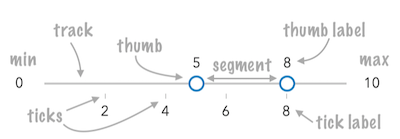
At a minimum, the slider's container or parent container must have a width set in CSS for it to render.
- See also
Example
const slider = new Slider({ container: "sliderDiv", min: 0, max: 100, values: [ 50 ], snapOnClickEnabled: false, visibleElements: { labels: true, rangeLabels: true }});Constructors
Constructor
Parameters
| Parameter | Type | Description | Required |
|---|---|---|---|
| properties | | |
Example
// Typical usageconst slider = new Slider({ container: "sliderDiv", min: 0, max: 100, values: [ 50 ]});Properties
| Property | Type | Class |
|---|---|---|
container inherited | HTMLElement | null | undefined | |
declaredClass readonly inherited | ||
destroyed readonly inherited | ||
| | ||
| | ||
| | ||
| | ||
effectiveSegmentElements readonly | | |
Icon["icon"] | | |
id inherited | ||
| | ||
| | ||
| | ||
| | ||
labelElements readonly | | |
| | ||
| | ||
labels readonly | | |
| | ||
| | ||
maxLabelElement readonly | HTMLElement | null | undefined | |
| | ||
minLabelElement readonly | HTMLElement | null | undefined | |
| | ||
| | ||
segmentElements readonly | | |
| | ||
state readonly | | |
| | ||
| | ||
| | ||
thumbElements readonly | | |
| | ||
| | ||
tickElements readonly | | |
trackElement readonly | HTMLElement | null | undefined | |
| | ||
| | ||
visible inherited | ||
| |
container
- Type
- HTMLElement | null | undefined
The ID or node representing the DOM element containing the widget. This property can only be set once. The following examples are all valid use case when working with widgets.
Examples
// Create the HTML div element programmatically at runtime and set to the widget's containerconst basemapGallery = new BasemapGallery({  view: view,  container: document.createElement("div")});
// Add the widget to the top-right corner of the viewview.ui.add(basemapGallery, {  position: "top-right"});
// Specify an already-defined HTML div element in the widget's container
const basemapGallery = new BasemapGallery({ view: view, container: basemapGalleryDiv});
// Add the widget to the top-right corner of the viewview.ui.add(basemapGallery, { position: "top-right"});
// HTML markup<body> <div id="viewDiv"></div> <div id="basemapGalleryDiv"></div></body>// Specify the widget while adding to the view's UIconst basemapGallery = new BasemapGallery({ view: view});
// Add the widget to the top-right corner of the viewview.ui.add(basemapGallery, { position: "top-right"}); disabled
- Type
- boolean
When true, sets the slider to a disabled state so the user cannot interact
with it.
- Default value
- false
draggableSegmentsEnabled
- Type
- boolean
Indicates if the user can drag the segment between thumbs to update thumb positions.
- Default value
- true
Example
// disables draggable segmentsslider.draggableSegmentsEnabled = false; effectiveMax
- Since
- ArcGIS Maps SDK for JavaScript 4.23
When set, the user is restricted from moving slider thumbs to positions higher than
this value. This value should be less than the slider max.
The effectiveMax and effectiveMin allow you to represent ranges of values in a dataset that cannot
be filtered or selected with the slider. This can be useful when using the slider to
represent datasets with outliers, or scale ranges not suitable for a layer.
Example
// slider.max = 100slider.effectiveMax = 60;// now the user cannot slide thumbs above// 60 even though the slider track displays// values up to 100. effectiveMin
- Since
- ArcGIS Maps SDK for JavaScript 4.23
When set, the user is restricted from moving slider thumbs to positions less than
this value. This value should be greater than the slider min.
The effectiveMin and effectiveMax allow you to represent ranges of values in a dataset that cannot
be filtered or selected with the slider. This can be useful when using the slider to
represent datasets with outliers, or scale ranges not suitable for a layer.
Example
// slider.min = 0slider.effectiveMin = 4;// now the user cannot slide thumbs below// 4 even though the slider track displays// values down to 0. effectiveSegmentElements
- Type
- Collection<HTMLElement>
- Since
- ArcGIS Maps SDK for JavaScript 4.23
The HTML Element nodes representing the slider segment between the min and effectiveMin, and the segment between the
effectiveMax and max. You can use this property to customize the style and attach event handlers to these segments.
This only applies to sliders where the effectiveMin and effectiveMax are specified.
Example
slider.effectiveSegmentElements.forEach( segmentElement => segmentElement.classList.add("redLine") ); icon
- Type
- Icon["icon"]
- Since
- ArcGIS Maps SDK for JavaScript 4.27
Icon displayed in the widget's button.
- Default value
- "caret-double-horizontal"
inputCreatedFunction
- Type
- InputCreatedFunction | null | undefined
A function that provides the developer with access to the input elements when
rangeLabelInputsEnabled and/or labelInputsEnabled are set to true.
This allows the developer to customize the input elements corresponding to slider min/max and thumb values
to validate user input. For example, you can access input elements and customize them with type and pattern attributes.
Example
// Sets the slider thumb inputs as number inputsslider.inputCreatedFunction = function(input, type, index){ input.setAttribute("type", "number"); input.setAttribute("pattern", "[0-9]*");}; inputFormatFunction
- Type
- InputFormatFunction | null | undefined
A function used to format user inputs. As opposed to labelFormatFunction, which formats
thumb labels, the inputFormatFunction formats thumb values in the input element when the user begins
to edit them.
The image below demonstrates how slider input values resemble corresponding slider values by default
and won't match the formatting set in labelFormatFunction.

If you want to format slider input values so they match thumb labels, you can pass the same function set in labelFormatFunction to
inputFormatFunction for consistent formatting.

However, if an inputFormatFunction is specified, you must also write a corresponding
inputParseFunction to parse user inputs to understandable slider values. In most cases, if
you specify an inputFormatFunction, you should set the labelFormatFunction to the same value
for consistency between labels and inputs.
This property overrides the default input formatter, which formats by calling toString() on the input value.
- See also
Example
// Formats the slider input to abbreviated numbers with units// e.g. a thumb at position 1500 will render with an input label of 1.5kslider.inputFormatFunction = function(value, type){ if(value >= 1000000){ return (value / 1000000).toPrecision(3) + "m" } if(value >= 100000){ return (value / 1000).toPrecision(3) + "k" } if(value >= 1000){ return (value / 1000).toPrecision(2) + "k" } return value.toFixed(0);} inputParseFunction
- Type
- InputParseFunction | null | undefined
Function used to parse slider inputs formatted by the inputFormatFunction.
This property must be set if an inputFormatFunction is set. Otherwise the slider values will
likely not update to their expected positions.
Overrides the default input parses, which is a parsed floating point number.
- See also
Example
// Parses the slider input (a string value) to a number value understandable to the slider// This assumes the slider was already configured with an inputFormatFunction// For example, if the input is 1.5k this function will parse// it to a value of 1500slider.inputParseFunction = function(value, type, index){  let charLength = value.length;  let valuePrefix = parseFloat(value.substring(0,charLength-1));  let finalChar = value.substring(charLength-1);
if(parseFloat(finalChar) >= 0){ return parseFloat(value); } if(finalChar === "k"){ return valuePrefix * 1000; } if(finalChar === "m"){ return valuePrefix * 1000000; } return value;} labelElements
- Type
- Collection<HTMLElement>
- Since
- ArcGIS Maps SDK for JavaScript 4.20
The HTML Element nodes representing labels attached to slider thumbs. You can use this property to customize the style of labels and attach event handlers to each element.
Example
slider.labelElements.forEach( labelElement => labelElement.classList.add("newStyle") ); labelFormatFunction
- Type
- LabelFormatFunction | null | undefined
A function used to format labels. Overrides the default label formatter.
By default labels are formatted in the following way:
- When the data range is less than
10((max - min) < 10), labels are rounded based on the value set in the precision property. - When the data range is larger than
10, labels display with a precision of no more than two decimal places, though actual slider thumb values will maintain the precision specified in precision.
Use this property to override the behavior defined above.
Example
// For thumb values, rounds each label to whole numbers.// Note the actual value of the thumb continues to be stored// based on the indicated data `precision` despite this formattingslider.labelFormatFunction = function(value, type) { return (type === "value") ? value.toFixed(0) : value;} labelInputsEnabled
- Type
- boolean
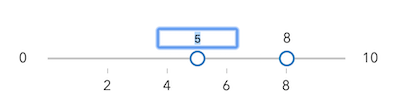
Indicates whether to enable editing input values via keyboard input when the user clicks a label. This allows the user to move the slider thumb to precise values without sliding the thumbs.
- Default value
- false
Example
// allows the slider input label to be used for keyboard inputslider.labelInputsEnabled = true; labels
- Type
- LabelInfos
An array of strings associated with 'values' generated using an internal label formatter or the values returned from labelFormatFunction.
layout
- Type
- SliderLayout
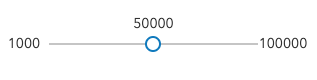
Determines the layout/orientation of the Slider widget. By default, the slider will render horizontally with the min value on the left side of the track. The possible values are described below.
horizontal
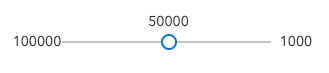
horizontal-reversed
When the slider is set to horizontal-reversed, the max value will render on the
left side and the min on the right.
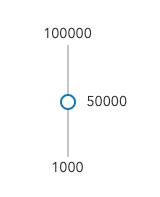
vertical
When the slider is set to vertical, the max value will render on the
top of the track and the min on the bottom.
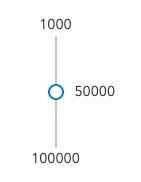
vertical-reversed
When the slider is set to vertical-reversed, the max value will render on the
bottom of the track and the min on the top.
- Default value
- "horizontal"
Example
slider.layout = "vertical"; max
The maximum possible data/thumb value of the slider. In the constructor, if one of the values
specified in values is greater than the max value specified
in this property, then the max will update to the highest value in values.
To display the max value's label on the slider, set visibleElements.rangeLabels to true.
To allow the end user to modify the max value, set
rangeLabelInputsEnabled to true.
Example
const slider = new Slider({ container: "sliderDiv", min: 0, max: 100, values: [ 50 ]}); maxLabelElement
- Type
- HTMLElement | null | undefined
- Since
- ArcGIS Maps SDK for JavaScript 4.20
The HTML Element node representing the max value label. You can use this property to customize the style and attach event handlers.
Examples
slider.maxLabelElement.classList.add('maxClass');slider.maxLabelElement.addEventListener('click', () => { slider.values = [ slider.max ];}); min
The minimum possible data/thumb value of the slider. In the constructor, if one of the values
specified in values is less than the min value specified
in this property, then the min will update to the lowest value in values.
To display the min value's label on the slider, set visibleElements.rangeLabels to true.
To allow the end user to modify the min value, set
rangeLabelInputsEnabled to true.
Example
const slider = new Slider({ container: "sliderDiv", min: 0, max: 100, values: [ 50 ]}); minLabelElement
- Type
- HTMLElement | null | undefined
- Since
- ArcGIS Maps SDK for JavaScript 4.20
The HTML Element node representing the min value label. You can use this property to customize the style and attach event handlers.
Examples
slider.minLabelElement.classList.add('minClass');slider.minLabelElement.addEventListener('click', () => { slider.values = [ slider.min ];}); precision
- Type
- number
Defines how slider thumb values should be rounded. This number indicates the number of decimal places slider thumb values should round to when they have been moved.
This value also indicates the precision of thumb labels when the data range
is less than 10 (i.e. (max - min) < 10).
When the data range is larger than 10, labels display with a precision of
no more than two decimal places, though actual slider thumb values will maintain the
precision specified in this property.
For example, given the default precision of 4, and the following slider configuration,
The labels of the thumbs will display two decimal places, but the precision of the actual
thumb values will not be lost even when the user slides or moves the thumb.
const slider = new Slider({ min: 20, max: 100, // data range of 80 values: [50.4331], // thumb label will display 50.43 // thumb value will maintain precision, so // value will remain at 50.4331 container: "sliderDiv"});If the user manually enters a value that has a higher precision than what's indicated by this property, the precision of that thumb value will be maintained until the thumb is moved by the user. At that point, the value will be rounded according to the indicated precision.
If thumb labels aren't visible, they must be enabled with labelInputsEnabled.
Keep in mind this property rounds thumb values and shouldn't be used exclusively
for formatting purposes. To format thumb labels, use the labelFormatFunction
property.
- Default value
- 4
Example
slider.precision = 7;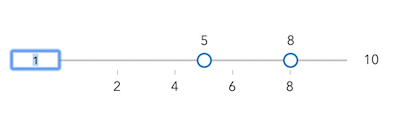
segmentElements
- Type
- Collection<HTMLElement>
- Since
- ArcGIS Maps SDK for JavaScript 4.20
The HTML Element nodes representing interactive slider segments. Segments are interactive when situated between two thumbs. You can use this property to customize the style and attach event handlers to segments.
Example
slider.segmentElements.forEach( segmentElement => segmentElement.classList.add("thickLine") ); snapOnClickEnabled
- Type
- boolean
Indicates if the closest thumb will snap to the clicked location on the track.
- Default value
- true
Example
// disables snapping thumb values by clickslider.snapOnClickEnabled = false; steps
Sets steps, or intervals, on the slider that restrict user input to specific values. If an array of numbers is passed to this property, the slider thumbs may only be moved to the positions specified in the array.
If a single number is set, then steps are set along the entire
slider range at an interval of the provided value. In this scenario,
the user may only slide the thumbs to values at the provided interval.
For example, if a value of 0.5 is set here, and the slider
min is 0 and the slider max is 10, then the user will
only be able to update the thumbs to values of 0, 0.5, 1.0, 1.5, 2.0, etc.
Examples
// set steps at an interval of 0.5. So the// slider thumb snaps at values of 0.5, 1.0, 1.5, etc.slider.steps = 0.5;// Set steps at specific slider positionsslider.steps = [ 5, 10, 15, 20, 25, 30, 35, 40 ]; syncedSegmentsEnabled
- Type
- boolean
- Since
- ArcGIS Maps SDK for JavaScript 4.20
When true, all segments will sync together in updating thumb values when the user drags any segment. This maintains the interval between all thumbs when any segment is dragged.
Only applicable when draggableSegmentsEnabled is true.
- Default value
- false
Example
slider.draggableSegmentsEnabled = true;slider.syncedSegmentsEnabled = true; thumbCreatedFunction
- Type
- ThumbCreatedFunction | null | undefined
Function that executes each time a thumb is created on the slider. This can be used to add custom styling to each thumb or hook event listeners to specific thumbs.
Example
slider.thumbCreatedFunction = function(index, value, thumbElement) { thumbElement.classList.add("change-color"); thumbElement.addEventListener("focus", function() { // add custom behavior here...tooltips, fire other actions, etc. });}); thumbElements
- Type
- Collection<HTMLElement>
- Since
- ArcGIS Maps SDK for JavaScript 4.20
The HTML Element nodes representing slider thumbs. You can use this property to customize the style of thumbs and attach event handlers to each thumb.
Example
slider.thumbElements.forEach( thumbElement => thumbElement.classList.add("greenThumb") ); thumbsConstrained
- Type
- boolean
When false, the user can freely move any slider thumb to any
position along the track. By default, a
thumb's position is constrained to the positions of neighboring thumbs so
you cannot move one thumb past another. Set this property to false to
disable this constraining behavior.
- Default value
- true
Example
// allows the user to freely move slider// thumbs to any position along the trackslider.thumbsConstrained = false; tickConfigs
- Type
- TickConfig[]
When set, renders ticks along the slider track. See the TickConfig documentation for more information on how to configure tick placement, style, and behavior.
Examples
// places 25 ticks on the slider track// evenly spaced from one anotherslider.tickConfigs = [{ mode: "count", values: 25}];// places ticks spanning the width of// the slider at 20% intervals from one another// this is the equivalent of setting mode to 'count'// and the values to 5.slider.tickConfigs = [{ mode: "percent", values: 20}];// Places three ticks on the slider: one positioned// 10% of the width from the start (or min value), another// directly in the middle (50% from the start), and// another 90% of the width from the start of the slider.// Because the values are %s the values are always relative// regardless of the range of the slider values.slider.tickConfigs = [{ mode: "percent", values: [ 10, 50, 90 ]}];// Places 5 ticks on the slider at the slider values// provided below. These are absolute positions.slider.tickConfigs = [{ mode: "position", values: [ 0, 5, 10, 15, 20 ]}];// Places a single tick at the location of the value of 5.slider.tickConfigs = [{ mode: "position", values: 5}];// Renders three groups of ticks. The first is a basic set// of 25 ticks. The second places 4 ticks and adds custom// CSS classes to modify their styling. The third adds// a click event handler to the tick labels.slider.tickConfigs = [{ mode: "count", values: 25}, { mode: "percent", values: [12.5, 37.5, 62.5, 87.5], labelsVisible: true, tickCreatedFunction: function(initialValue, tickElement, labelElement) { tickElement.classList.add("mediumTicks"); labelElement.classList.add("mediumLabels"); }}, { mode: "count", values: 5, labelsVisible: true, tickCreatedFunction: function(initialValue, tickElement, labelElement) { tickElement.classList.add("largeTicks"); labelElement.classList.add("largeLabels"); labelElement.onclick = function() { const newValue = labelElement["data-value"]; slider.values = [ newValue ]; }; }}]; tickElements
- Type
- Collection<Collection<TickElementGroup>>
- Since
- ArcGIS Maps SDK for JavaScript 4.20
The HTML Element nodes representing slider ticks and their associated labels. These elements are created in TickCreatedFunction and configured in tickConfigs.
Example
slider.tickElements.at(0).forEach((tickElementGroup) => { const { tickElement, labelElement } = tickElementGroup; const newValue = labelElement["data-value"]; const setValue = () => { slider.values = [ newValue ]; }; tickElement.addEventListener("click", setValue); tickElement.style.cursor = "pointer"; labelElement.addEventListener("click", setValue); labelElement.style.cursor = "pointer";}); trackElement
- Type
- HTMLElement | null | undefined
The HTML Element node representing the slider track. Use this property to attach event listeners to the track or to customize the track's CSS.
Example
// Add CSS class to the trackslider.trackElement.classList.add("thickTrack"); values
An array of numbers representing absolute thumb positions on the slider.
- See also
Example
const slider = new Slider({ min: 20, max: 100, // data range of 80 values: [50.4331], // thumb label will display 50.43 // thumb value will maintain precision, so // value will remain at 50.4331 container: "sliderDiv"}); viewModel
- Type
- SliderViewModel
The view model for the Slider widget. This is a class that contains all the logic (properties and methods) that controls this widget's behavior. See the SliderViewModel class to access all properties and methods on the Slider widget.
visible
- Type
- boolean
Indicates whether the widget is visible.
If false, the widget will no longer be rendered in the web document. This may affect the layout of other elements or widgets in the document. For example, if this widget is
the first of three widgets associated to the upper right hand corner of the DefaultUI, then the other widgets will reposition when this widget is made invisible.
For more information, refer to the css display value of "none".
- Default value
- true
Example
// Hides the widget in the viewwidget.visible = false; visibleElements
- Type
- VisibleElements
- Since
- ArcGIS Maps SDK for JavaScript 4.15
The visible elements that are displayed within the widget. This property provides the ability to turn individual elements of the widget's display on/off.
Example
slider.visibleElements = { labels: true, rangeLabels: true};Methods
| Method | Signature | Class |
|---|---|---|
classes inherited | classes(...classNames: ((string | null | undefined) | ((string[] | Record<string, boolean>) | null | undefined) | false | null | undefined)[]): string | |
destroy inherited | destroy(): void | |
emit inherited | emit<Type extends EventNames<this>>(type: Type, event?: this["@eventTypes"][Type]): boolean | |
hasEventListener inherited | hasEventListener<Type extends EventNames<this>>(type: Type): boolean | |
isFulfilled inherited | isFulfilled(): boolean | |
isRejected inherited | isRejected(): boolean | |
isResolved inherited | isResolved(): boolean | |
on inherited | on<Type extends EventNames<this>>(type: Type, listener: EventedCallback<this["@eventTypes"][Type]>): ResourceHandle | |
postInitialize inherited | postInitialize(): void | |
render inherited | render(): any | null | |
renderNow inherited | renderNow(): void | |
scheduleRender inherited | scheduleRender(): void | |
when inherited | when<TResult1 = this, TResult2 = never>(onFulfilled?: OnFulfilledCallback<this, TResult1> | null | undefined, onRejected?: OnRejectedCallback<TResult2> | null | undefined): Promise<TResult1 | TResult2> |
classes
- Signature
-
classes (...classNames: ((string | null | undefined) | ((string[] | Record<string, boolean>) | null | undefined) | false | null | undefined)[]): string
A utility method used for building the value for a widget's class property.
This aids in simplifying css class setup.
Parameters
- Returns
- string
The computed class name.
Example
// .tsx syntax showing how to set css classes while rendering the widget
render() {  const dynamicClasses = {    [css.flip]: this.flip,    [css.primary]: this.primary  };
return ( <div class={classes(css.root, css.mixin, dynamicClasses)} /> );} emit
- Signature
-
emit <Type extends EventNames<this>>(type: Type, event?: this["@eventTypes"][Type]): boolean
- Type parameters
- <Type extends EventNames<this>>
Emits an event on the instance. This method should only be used when creating subclasses of this class.
hasEventListener
- Signature
-
hasEventListener <Type extends EventNames<this>>(type: Type): boolean
- Type parameters
- <Type extends EventNames<this>>
Indicates whether there is an event listener on the instance that matches the provided event name.
Parameters
| Parameter | Type | Description | Required |
|---|---|---|---|
| type | Type | The name of the event. | |
- Returns
- boolean
Returns true if the class supports the input event.
isFulfilled
- Signature
-
isFulfilled (): boolean
isFulfilled() may be used to verify if creating an instance of the class is fulfilled (either resolved or rejected).
If it is fulfilled, true will be returned.
- Returns
- boolean
Indicates whether creating an instance of the class has been fulfilled (either resolved or rejected).
isRejected
- Signature
-
isRejected (): boolean
isRejected() may be used to verify if creating an instance of the class is rejected.
If it is rejected, true will be returned.
- Returns
- boolean
Indicates whether creating an instance of the class has been rejected.
isResolved
- Signature
-
isResolved (): boolean
isResolved() may be used to verify if creating an instance of the class is resolved.
If it is resolved, true will be returned.
- Returns
- boolean
Indicates whether creating an instance of the class has been resolved.
on
- Signature
-
on <Type extends EventNames<this>>(type: Type, listener: EventedCallback<this["@eventTypes"][Type]>): ResourceHandle
- Type parameters
- <Type extends EventNames<this>>
Registers an event handler on the instance. Call this method to hook an event with a listener.
Parameters
| Parameter | Type | Description | Required |
|---|---|---|---|
| type | Type | An event or an array of events to listen for. | |
| listener | EventedCallback<this["@eventTypes"][Type]> | The function to call when the event fires. | |
- Returns
- ResourceHandle
Returns an event handler with a
remove()method that should be called to stop listening for the event(s).Property Type Description remove Function When called, removes the listener from the event.
Example
view.on("click", function(event){ // event is the event handle returned after the event fires. console.log(event.mapPoint);}); when
- Signature
-
when <TResult1 = this, TResult2 = never>(onFulfilled?: OnFulfilledCallback<this, TResult1> | null | undefined, onRejected?: OnRejectedCallback<TResult2> | null | undefined): Promise<TResult1 | TResult2>
when() may be leveraged once an instance of the class is created. This method takes two input parameters: an onFulfilled function and an onRejected function.
The onFulfilled executes when the instance of the class loads. The
onRejected executes if the instance of the class fails to load.
Parameters
| Parameter | Type | Description | Required |
|---|---|---|---|
| onFulfilled | OnFulfilledCallback<this, TResult1> | null | undefined | The function to call when the promise resolves. | |
| onRejected | The function to execute when the promise fails. | |
- Returns
- Promise<TResult1 | TResult2>
Returns a new promise for the result of
onFulfilledthat may be used to chain additional functions.
Example
// Although this example uses MapView, any class instance that is a promise may use when() in the same waylet view = new MapView();view.when(function(){ // This function will execute once the promise is resolved}, function(error){ // This function will execute if the promise is rejected due to an error});Events
| Name | Type |
|---|---|
max-change inherited | |
min-change inherited | |
segment-drag inherited | |
thumb-change inherited | |
thumb-drag inherited | |
max-change
max-change: CustomEvent<MaxChangeEvent> Fires when a user changes the max of the slider.
Example
slider.on("max-change", function() { const renderer = layer.renderer.clone(); const visualVariable = renderer.visualVariables[0].clone(); colorVariable.stops = slider.stops; renderer.visualVariables = [ visualVariable ]; layer.renderer = renderer;}); max-click
max-click: CustomEvent<MaxClickEvent> - Since
- ArcGIS Maps SDK for JavaScript 4.20
Fires when a user clicks the max label element.
min-change
min-change: CustomEvent<MinChangeEvent> Fires when a user changes the min of the slider.
Example
slider.on("min-change", function() { const renderer = layer.renderer.clone(); const visualVariable = renderer.visualVariables[0].clone(); colorVariable.stops = slider.stops; renderer.visualVariables = [ visualVariable ]; layer.renderer = renderer;}); min-click
min-click: CustomEvent<MinClickEvent> - Since
- ArcGIS Maps SDK for JavaScript 4.20
Fires when a user clicks the min label element.
segment-click
segment-click: CustomEvent<SegmentClickEvent> - Since
- ArcGIS Maps SDK for JavaScript 4.20
Fires when a user clicks a segment element on the slider. A segment is a portion of the track that lies between two thumbs. This only applies when two or more thumbs are set on the slider.
segment-drag
segment-drag: CustomEvent<SegmentDragEvent> - Since
- ArcGIS Maps SDK for JavaScript 4.20
Fires when a user drags a segment of the slider. A segment is the portion of the track that lies between two thumbs. Therefore, this only applies when two or more thumbs are set on the slider.
Example
slider.on("segment-drag", () => { const renderer = layer.renderer.clone(); const visualVariable = renderer.visualVariables[0].clone(); colorVariable.stops = slider.stops; renderer.visualVariables = [ visualVariable ]; layer.renderer = renderer;}); thumb-change
thumb-change: CustomEvent<ThumbChangeEvent> Fires when a user changes the value of a thumb via the arrow keys or by keyboard editing of the label on the slider.
Examples
slider.on("thumb-change", function() { const renderer = layer.renderer.clone(); const visualVariable = renderer.visualVariables[0].clone(); colorVariable.stops = slider.stops; renderer.visualVariables = [ visualVariable ]; layer.renderer = renderer;});slider.on("thumb-change", function() { const renderer = layer.renderer.clone(); renderer.colorStops = slider.stops; layer.renderer = renderer;}); thumb-click
thumb-click: CustomEvent<ThumbClickEvent> - Since
- ArcGIS Maps SDK for JavaScript 4.20
Fires when a user clicks a thumb element.
thumb-drag
thumb-drag: CustomEvent<ThumbDragEvent> Fires when a user drags a thumb on the widget.
Examples
slider.on("thumb-drag", function() { const renderer = layer.renderer.clone(); const visualVariable = renderer.visualVariables[0].clone(); colorVariable.stops = slider.stops; renderer.visualVariables = [ visualVariable ]; layer.renderer = renderer;});slider.on("thumb-drag", function() { const renderer = layer.renderer.clone(); renderer.colorStops = slider.stops; layer.renderer = renderer;}); tick-click
tick-click: CustomEvent<TickClickEvent> - Since
- ArcGIS Maps SDK for JavaScript 4.20
Fires when a user clicks a tick or its associated label.
track-click
track-click: CustomEvent<TrackClickEvent> - Since
- ArcGIS Maps SDK for JavaScript 4.20
Fires when a user clicks the track element.
Type definitions
SliderLayout
- Type
- "vertical" | "vertical-reversed" | "horizontal" | "horizontal-reversed"
TickElementGroup
- Since
- ArcGIS Maps SDK for JavaScript 4.20
The HTML Element nodes representing a single slider tick and its associated label.
tickElement
- Type
- HTMLElement | null | undefined
The HTMLElement representing a tick. You can add or modify the style of a tick by adding CSS classes to this element. You can also attach event listeners to this element.
labelElement
- Type
- HTMLElement | null | undefined
The HTMLElement representing the label associated with the tick element. You can add or modify the style of a tick label by adding CSS classes to this element. You can also attach event listeners to this element.
CommonSliderEvents
The base interface for all slider events. Contains events that are not publicly documented in some slider types.
max-change
- Type
- MaxChangeEvent
Fires when a user changes the max of the slider.
Example
slider.on("max-change", function() { const renderer = layer.renderer.clone(); const visualVariable = renderer.visualVariables[0].clone(); colorVariable.stops = slider.stops; renderer.visualVariables = [ visualVariable ]; layer.renderer = renderer;}); min-change
- Type
- MinChangeEvent
Fires when a user changes the min of the slider.
Example
slider.on("min-change", function() { const renderer = layer.renderer.clone(); const visualVariable = renderer.visualVariables[0].clone(); colorVariable.stops = slider.stops; renderer.visualVariables = [ visualVariable ]; layer.renderer = renderer;}); segment-drag
- Type
- SegmentDragEvent
- Since
- ArcGIS Maps SDK for JavaScript 4.20
Fires when a user drags a segment of the slider. A segment is the portion of the track that lies between two thumbs. Therefore, this only applies when two or more thumbs are set on the slider.
Example
slider.on("segment-drag", () => { const renderer = layer.renderer.clone(); const visualVariable = renderer.visualVariables[0].clone(); colorVariable.stops = slider.stops; renderer.visualVariables = [ visualVariable ]; layer.renderer = renderer;}); thumb-change
- Type
- ThumbChangeEvent
Fires when a user changes the value of a thumb via the arrow keys or by keyboard editing of the label on the slider.
Examples
slider.on("thumb-change", function() { const renderer = layer.renderer.clone(); const visualVariable = renderer.visualVariables[0].clone(); colorVariable.stops = slider.stops; renderer.visualVariables = [ visualVariable ]; layer.renderer = renderer;});slider.on("thumb-change", function() { const renderer = layer.renderer.clone(); renderer.colorStops = slider.stops; layer.renderer = renderer;}); thumb-drag
- Type
- ThumbDragEvent
Fires when a user drags a thumb on the widget.
Examples
slider.on("thumb-drag", function() { const renderer = layer.renderer.clone(); const visualVariable = renderer.visualVariables[0].clone(); colorVariable.stops = slider.stops; renderer.visualVariables = [ visualVariable ]; layer.renderer = renderer;});slider.on("thumb-drag", function() { const renderer = layer.renderer.clone(); renderer.colorStops = slider.stops; layer.renderer = renderer;}); VisibleElements
The visible elements that are displayed within the widget.
This provides the ability to turn individual elements of the widget's display on/off.
Alternatively, developers may also use CSS (e.g. display: none) to show/hide elements, such as labels.
labels
Indicates whether to display labels for slider thumbs. By default, labels display input thumb values as floating point values with a precision of two digits. The format of labels can be customized via the labelFormatFunction.
- Default value
- false
rangeLabels
Indicates whether to display min or max range values on the slider. The format of labels can be customized via the labelFormatFunction.
- Default value
- false