import OpacitySliderViewModel from "@arcgis/core/widgets/smartMapping/OpacitySlider/OpacitySliderViewModel.js";const OpacitySliderViewModel = await $arcgis.import("@arcgis/core/widgets/smartMapping/OpacitySlider/OpacitySliderViewModel.js");- Inheritance:
- OpacitySliderViewModel→
SmartMappingSliderViewModel<OpacityStop>→ SliderViewModel→ Accessor
Constructors
Constructor
Parameters
| Parameter | Type | Description | Required |
|---|---|---|---|
| properties | | |
Properties
| Property | Type | Class |
|---|---|---|
declaredClass readonly inherited | ||
effectiveMax inherited | ||
effectiveMin inherited | ||
inputFormatFunction inherited | ||
inputParseFunction inherited | ||
labelFormatFunction inherited | ||
labels readonly inherited | ||
max inherited | ||
min inherited | ||
precision inherited | ||
state readonly inherited | ||
| | ||
thumbsConstrained inherited | ||
values readonly inherited | number[] | |
zoomingEnabled inherited | ||
zoomOptions inherited | ZoomOptions | null | undefined |
effectiveMax
- Since
- ArcGIS Maps SDK for JavaScript 4.23
When set, the user is restricted from moving slider thumbs to positions higher than
this value. This value should be less than the slider max.
The effectiveMax and effectiveMin allow you to represent ranges of values in a dataset that cannot
be filtered or selected with the slider. This can be useful when using the slider to
represent datasets with outliers, or scale ranges not suitable for a layer.
Example
// slider.viewModel.max = 100slider.viewModel.effectiveMax = 60;// now the user cannot slide thumbs above// 60 even though the slider track displays// values up to 100. effectiveMin
- Since
- ArcGIS Maps SDK for JavaScript 4.23
When set, the user is restricted from moving slider thumbs to positions less than
this value. This value should be greater than the slider min.
The effectiveMin and effectiveMax allow you to represent ranges of values in a dataset that cannot
be filtered or selected with the slider. This can be useful when using the slider to
represent datasets with outliers, or scale ranges not suitable for a layer.
Example
// slider.viewModel.min = 0slider.viewModel.effectiveMin = 4;// now the user cannot slide thumbs below// 4 even though the slider track displays// values down to 0. inputFormatFunction
- Type
- InputFormatFunction | null | undefined
A function used to format user inputs. As opposed to labelFormatFunction, which formats
thumb labels, the inputFormatFunction formats thumb values in the input element when the user begins
to edit them.
The image below demonstrates how slider input values resemble corresponding slider values by default
and won't match the formatting set in labelFormatFunction.

If you want to format slider input values so they match thumb labels, you can pass the same function set in labelFormatFunction to
inputFormatFunction for consistent formatting.

However, if an inputFormatFunction is specified, you must also write a corresponding
inputParseFunction to parse user inputs to understandable slider values. In most cases, if
you specify an inputFormatFunction, you should set the labelFormatFunction to the same value
for consistency between labels and inputs.
This property overrides the default input formatter, which formats by calling toString() on the input value.
Examples
// Formats the slider input to abbreviated numbers with units// e.g. a thumb at position 1500 will render with an input label of 1.5kslider.viewModel.inputFormatFunction = function(value, type){ if(value >= 1000000){ return (value / 1000000).toPrecision(3) + "m" } if(value >= 100000){ return (value / 1000).toPrecision(3) + "k" } if(value >= 1000){ return (value / 1000).toPrecision(2) + "k" } return value.toFixed(0);}// Formats the slider input to abbreviated numbers with units// e.g. a thumb at position 1500 will render with an input label of 1.5kslider.inputFormatFunction = function(value, type){ if(value >= 1000000){ return (value / 1000000).toPrecision(3) + "m" } if(value >= 100000){ return (value / 1000).toPrecision(3) + "k" } if(value >= 1000){ return (value / 1000).toPrecision(2) + "k" } return value.toFixed(0);} inputParseFunction
- Type
- InputParseFunction | null | undefined
Function used to parse slider inputs formatted by the inputFormatFunction.
This property must be set if an inputFormatFunction is set. Otherwise the slider values will
likely not update to their expected positions.
Overrides the default input parses, which is a parsed floating point number.
Examples
// Parses the slider input (a string value) to a number value understandable to the slider// This assumes the slider was already configured with an inputFormatFunction// For example, if the input is 1.5k this function will parse// it to a value of 1500slider.viewModel.inputParseFunction = function(value, type, index){  let charLength = value.length;  let valuePrefix = parseFloat(value.substring(0,charLength-1));  let finalChar = value.substring(charLength-1);
  if(parseFloat(finalChar) >= 0){    return parseFloat(value);  }  if(finalChar === "k"){    return valuePrefix * 1000;  }  if(finalChar === "m"){    return valuePrefix * 1000000;  }  return value;}
// Parses the slider input (a string value) to a number value understandable to the slider// This assumes the slider was already configured with an inputFormatFunction// For example, if the input is 1.5k this function will parse// it to a value of 1500slider.inputParseFunction = function(value, type, index){ let charLength = value.length; let valuePrefix = parseFloat(value.substring(0,charLength-1)); let finalChar = value.substring(charLength-1);
if(parseFloat(finalChar) >= 0){ return parseFloat(value); } if(finalChar === "k"){ return valuePrefix * 1000; } if(finalChar === "m"){ return valuePrefix * 1000000; } return value;} labelFormatFunction
- Type
- LabelFormatFunction | null | undefined
A modified version of SliderViewModel.labelFormatFunction, which is a custom function used to format labels on the thumbs, min, max, and average values. Overrides the default label formatter. This function also supports date formatting.
Examples
// For thumb values, rounds each label to whole numberssliderViewModel.labelFormatFunction = function(value, type) { return (type === "value") ? value.toFixed(0): value;}// For thumb values, rounds each label to whole numbers.// Note the actual value of the thumb continues to be stored// based on the indicated data `precision` despite this formattingsliderViewModel.labelFormatFunction = function(value, type) { return (type === "value") ? value.toFixed(0) : value;} labels
- Type
- LabelInfos
An array of strings associated with values generated using an internal label formatter or the values returned from labelFormatFunction.
max
The maximum possible data/thumb value of the slider. In the constructor, if one of the values
specified in values is greater than the max value specified
in this property, then the max will update to the highest value in values.
Example
sliderViewModel.max = 100; min
The minimum possible data/thumb value of the slider. In the constructor, if one of the values
specified in values is less than the min value specified
in this property, then the min will update to the lowest value in values.
Example
sliderViewModel.min = 0; precision
- Type
- number
Defines how slider values should be rounded. This number indicates the number of decimal places slider values should round to when they have been moved.
This value also indicates the precision of thumb labels when the data range
(max - min) is less than 10.
When the data range is larger than 10, labels display with a precision of
no more than two decimal places, though actual slider thumb values will maintain the
precision specified in this property.
For example, given the default precision of 4, and the following slider configuration,
The label of the thumb will display two decimal places, but the precision of the actual
thumb value will not be lost even when the user slides or moves the thumb.
const slider = new SliderVM({ min: 20, max: 100, // data range of 80 values: [50.4331], // thumb label will display 50.43 // thumb value will maintain precision, so // value will remain at 50.4331});If the user manually enters a value that has a higher precision than what's indicated by this property, the precision of that thumb value will be maintained until the thumb is moved by the user. At that point, the value will be rounded according to the indicated precision.
If thumb labels aren't visible, they must be enabled with Slider.labelInputsEnabled.
Keep in mind this property rounds thumb values and shouldn't be used exclusively
for formatting purposes. To format thumb labels, use the labelFormatFunction
property.
- Default value
- 4
Example
sliderViewModel.precision = 7; state
- Type
- ViewModelState
The state of the view model.
stops
- Type
- OpacityStop[]
The opacity stops from the OpacityVariable to link to the slider. The opacity values in these stops will be used to render the gradient on the slider. They should match the opacity rendered in the associated layer's opacity visual variable.
Example
opacityVariableCreator.createContinuousRenderer({ layer: featureLayer, field: "fieldName", basemap: "gray-vector"}).then(function(opacityResponse){ const slider = new OpacitySlider({ viewModel: new OpacitySliderVM({ stops: opacityResponse.visualVariable.stops }), container: "sliderDiv" });}); thumbsConstrained
- Type
- boolean
When false, the user can freely move any slider thumb to any
position along the track. By default, a
thumb's position is constrained to the positions of neighboring thumbs so
you cannot move one thumb past another. Set this property to false to
disable this constraining behavior.
- Default value
- true
Example
// allows the user to freely move slider// thumbs to any position along the trackslider.viewModel.thumbsConstrained = false; values
- Type
- number[]
The data values associated with the thumb locations of the slider. These are computed from the stops. Actual thumb locations depend on the number of stops provided.
- See also
Example
const slider = new SliderVM({ min: 20, max: 100, // data range of 80 values: [50.4331], // thumb label will display 50.43 // thumb value will maintain precision, so // value will remain at 50.4331}); zoomingEnabled
- Type
- boolean
Enables zooming on the slider. See zoomOptions for more information on zooming along the slider track.
- See also
- Default value
- true
Example
// disables zooming on the sliderslider.viewModel.zoomingEnabled = false; zoomOptions
- Type
- ZoomOptions | null | undefined
Zooms the slider track to the bounds provided in this property. When min and/or max zoom values are provided, the absolute min and max slider values are preserved and rendered at their typical positions on the slider. However, the slider track itself is zoomed so that thumbs cannot be moved above or below the provided min and max zoomed values.
When a slider is in a zoomed state, the zoomed
ends of the track will appear jagged. In the image below, notice how the
top thumb cannot be moved past the zoom max of 31 even though the slider
max is 200.
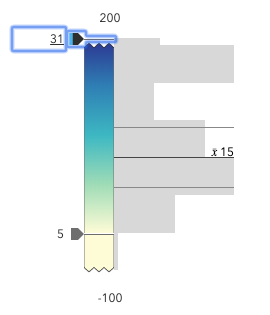
To exit a zoomed state, the user can click the
jagged line or the developer can set the zoomOptions to null. It
is up to the developer to provide a UI option for end users to
enable zooming on the slider.
Setting the zoomOptions is useful when the slider is tied to heavily skewed
datasets where the histogram renders only one or two bars because of outliers.
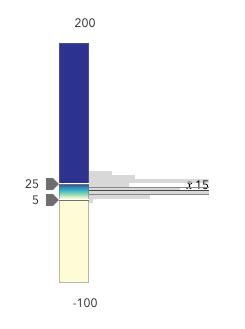
You can remove the influence of outliers by zooming the slider and regenerating a histogram based on the zoomed min and max. This will provide a better view of the data and make the slider more useful to the end user.
Examples
// zooms the slider to so thumbs can only be moved// to positions between the values of 10 and 25 while// maintaining the slider's absolute minimum and// maximum valuesslider.viewModel.zoomOptions = { min: 10, max: 25};// disables zooming on the sliderslider.viewModel.zoomOptions = null;// zooms the slider to so thumbs can only be moved// to positions above the value of 10, while maintaining// the slider's absolute minimum valueslider.viewModel.zoomOptions = { min: 10};// zooms the slider to so thumbs can only be moved// to positions below the value of 25, while maintaining// the slider's absolute maximum valueslider.viewModel.zoomOptions = { max: 25};// zooms the slider to the handle positions// with some paddingdocument.getElementById("zoomInButton").onclick = function() { const lowerThumb = slider.values[0]; const upperThumb = slider.values[1];
const range = upperThumb - lowerThumb; const padding = range * 0.3;
const zoomMin = (lowerThumb - padding) > slider.min ? (lowerThumb - padding) : slider.min; const zoomMax = (upperThumb + padding) < slider.max ? (upperThumb + padding) : slider.max;
slider.viewModel.set({ zoomOptions: { min: zoomMin, max: zoomMax } });};Methods
| Method | Signature | Class |
|---|---|---|
defaultInputFormatFunction inherited | defaultInputFormatFunction(value: number): string | |
defaultInputParseFunction inherited | defaultInputParseFunction(value: string): number | |
defaultLabelFormatFunction inherited | defaultLabelFormatFunction(value: number): string | |
getBounds inherited | getBounds(): Bounds | |
getBoundsForValueAtIndex inherited | getBoundsForValueAtIndex(index: number): Bounds | |
getLabelForValue inherited | getLabelForValue(value: number | null | undefined, type?: SliderFormatType, index?: number): string | null | undefined | |
getStopInfo(stopColor: Color | null | undefined): GradientStopInfo[] | | |
getUnzoomedMax inherited | getUnzoomedMax(): number | |
getUnzoomedMin inherited | getUnzoomedMin(): number | |
setValue inherited | setValue(index: number, value: number): void | |
toPrecision inherited | toPrecision(value: number): number |
defaultInputFormatFunction
- Signature
-
defaultInputFormatFunction (value: number): string
The default input format function available for use as a fallback in custom formatting implementations.
defaultInputParseFunction
- Signature
-
defaultInputParseFunction (value: string): number
The default input parsing function available for use as a fallback in custom parsing implementations.
defaultLabelFormatFunction
- Signature
-
defaultLabelFormatFunction (value: number): string
The default label format function, available for use as a fallback in custom formatting implementations.
getBounds
- Signature
-
getBounds (): Bounds
- Since
- ArcGIS Maps SDK for JavaScript 4.23
Returns the effective bounds of the slider. If effectiveMin and effectiveMax are set on the slider, then those values will be returned. If not, then the min and max are returned.
- Returns
- Bounds
The effective bounds of the slider.
getBoundsForValueAtIndex
- Signature
-
getBoundsForValueAtIndex (index: number): Bounds
Returns the min and max bounds for a 'value' at the provided index. Also used internally to provide accessibility information via HTMLElement properties
getLabelForValue
- Signature
-
getLabelForValue (value: number | null | undefined, type?: SliderFormatType, index?: number): string | null | undefined
Returns the formatted label for a provided value.
getStopInfo
- Signature
-
getStopInfo (stopColor: Color | null | undefined): GradientStopInfo[]
Generates the opacity ramp gradient rendered on the slider.
- Returns
- GradientStopInfo[]
getUnzoomedMax
- Signature
-
getUnzoomedMax (): number
Gets the max value of the slider. This is useful for when the user wants to change the slider max when it is not visible in the zoomed state.
- See also
- Returns
- number
getUnzoomedMin
- Signature
-
getUnzoomedMin (): number
Gets the min value of the slider. This is useful for when the user wants to change the slider min when it is not visible in the zoomed state.
- See also
- Returns
- number
setValue
- Signature
-
setValue (index: number, value: number): void
toPrecision
- Signature
-
toPrecision (value: number): number
- Since
- ArcGIS Maps SDK for JavaScript 4.14
Rounds the given value to the number of decimal places specified in the precision property set on the view model.
- See also