import PopupTemplate from "@arcgis/core/PopupTemplate.js";const PopupTemplate = await $arcgis.import("@arcgis/core/PopupTemplate.js");- Inheritance:
- PopupTemplate→
Accessor
- Since
- ArcGIS Maps SDK for JavaScript 4.0
A PopupTemplate formats and defines the content of a Popup for a specific Layer or Graphic. The user can also use the PopupTemplate to access values from feature attributes and values returned from Arcade expressions when a feature in the view is selected.
The PopupTemplate contains title and content properties
that act as a template used to transform a feature's
Graphic.attributes into an HTML representation.
The syntax {fieldName} or {expression/expressionName} performs parameter
substitution. The default behavior on a Graphic is to show the
view's Popup after a
click on the Graphic. A PopupTemplate is required for this
default behavior.
PopupTemplate also allows you to format the Number and Date field values and
override field aliases with
the fieldInfos property. actions may also be added
to the template to give users
the ability to perform actions related to the feature, such as zooming to it or performing a Query based on
the feature's location or attributes.
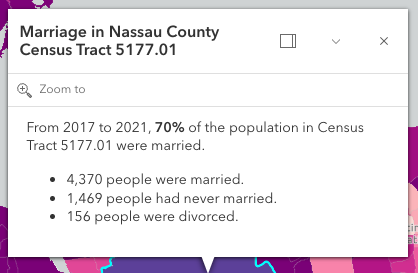
In the image above, the initial text Marriage in Nassau County Census Tract 5177.01 is set in the title
property of the PopupTemplate where CENSUS_TRACT is the name of the field containing census tract numbers.
popupTemplate.title = "Marriage in {COUNTY} County {CENSUS_TRACT}",The rest of the content is defined in the content property where
MARRIEDRATE, NEVMARR_CY, MARRIED_CY, and DIVORCD_CY are all field names that contain
values to be used in the popup.
popupTemplate.content = "<p>From 2017 to 2021, <b>{MARRIEDRATE}%</b> of the" +" population in {CENSUS_TRACT} were married.</p>" +"<ul><li>{MARRIED_CY} people were married.</li>" +"<li>{NEVMARR_CY} people had never married.</li>" +"<li>{DIVORCD_CY} people were divorced.</li><ul>";The above example demonstrates how to format the content directly with a custom
text string. This is one way to format the template, it is also possible to
add additional elements in the content such as fields, media, and attachments.
These elements can be added individually or combined. More information on working
with these various elements can be found in content.
PopupTemplates may also contain custom actions. When clicked, these actions execute custom code defined by the developer. See the actions property for more details.
Constructors
Constructor
Parameters
| Parameter | Type | Description | Required |
|---|---|---|---|
| properties | | |
Properties
| Property | Type | Class |
|---|---|---|
| | ||
| | ||
declaredClass readonly inherited | ||
ExpressionInfo[] | null | undefined | | |
| | ||
| | ||
| | ||
| | ||
| | ||
| | ||
| |
actions
- Type
- Collection<PopupAction> | null | undefined
A Collection of action or action toggle objects.
Each object represents an action or function that may be executed by clicking the icon
or image symbolizing them in the Popup. By default, every
Popup has a zoom-to action styled with a magnifying glass icon
 .
When this icon is clicked, the view zooms in four LODs and centers on the selected feature.
.
When this icon is clicked, the view zooms in four LODs and centers on the selected feature.
PopupTemplates do not have default actions. To override actions on the Popup using PopupTemplate see overwriteActions. Actions defined in a PopupTemplate will only appear in the Popup for features or layers that apply that particular PopupTemplate.
The order of each action in the popup is the same order in which they appear in the actions Collection.
The Popup.@trigger-action event in
Popup fires each time an action in the popup is clicked.
This event should be used to execute custom code for each action clicked. For example, if you would
like to add a zoom-out action to the PopupTemplate that zooms the view out several LODs, you would
define the zoom-out code in a separate function. Then you would call the custom zoom-out function
in the Popup.@trigger-action event handler. See the sample code
snippet below for more details on how this works.
Actions are defined with the properties listed in the ActionButton or ActionToggle class.
Example
// Defines an action to zoom out from the selected featurelet zoomOutAction = {  // This text is displayed as a tooltip  title: "Zoom out",  // The ID by which to reference the action in the event handler  id: "zoom-out",  // Sets the icon font used to style the action button  className: "esri-icon-zoom-out-magnifying-glass"};// Adds the custom action to the PopupTemplate.popupTemplate.actions.push(zoomOutAction);// Apply this PopupTemplate to a layer (or graphic)layer.popupTemplate = popupTemplate;// This action will only appear in the popup for features in that layer
// The function to execute when the zoom-out action is clickedfunction zoomOut() {  // In this case the view zooms out two LODs on each click  view.goTo({    center: view.center,    zoom: view.zoom - 2  });}
// This event fires for each click on any action// Notice this event is handled on the default popup of the View// NOT on an instance of PopupTemplateview.popup.on("trigger-action", function(event){  // If the zoom-out action is clicked, fire the zoomOut() function  if(event.action.id === "zoom-out"){    zoomOut();  }});
content
- Type
- PopupTemplateContent | null | undefined
The template for defining and formatting a popup's content.
- String - A popup's content can be a simple text or string value referencing field values or Arcade expressions. Expressions must be defined in the expressionInfos property.
- Popup elements - You can also display content as popup elements. There are various types of
elements which can be used individually or combined. The order in which they are set determines
how they display within the popup. See the items below describing each element.
- text - A text content element that provides descriptive text as content.
- media - A media content element that is used to display media such as charts/images.
- fields - A fields content element.
that contains the fields to display within the content. If this is not set
directly within the
contentproperty, the popup will display whatever is set in the fieldInfos property. - attachments - An attachments content element that contains attachments associated with the feature.
- expression - An expression content element that contains an Arcade expression evaluating to a dictionary representing a TextContent, FieldsContent, or a MediaContent popup element as defined in the Popup Element web map specification.
- relationship - A relationship content element associated with a feature.
- custom - A custom content element that contains custom content.
- promise - The PopupTemplate's content may also be defined with a promise that resolves to any of the above-mentioned elements. This is useful for cases when you call a method or execute a query and want to display the results in the popup. Simply pass the promise to the popupTemplate's content and ensure that it resolves to a string or other popup element.
- function - Content may be defined with a JavaScript function that returns any of the above-mentioned
elements. This is useful when your popup requires additional processing or functionality than what is
provided with the content types listed above. For example, assume that you would like to
display charts using third-party JavaScript libraries or categorize information into separate tabs.
In these cases, you can use a function that returns either a string, a reference to an
HTML element, a popup element, or a promise.
When the feature is clicked, the feature is passed as an argument to the function and provides
access to the feature's graphic and attributes. Set the outFields property to
specify any fields needed for rendering the popup and set the returnGeometry property
to
trueif needing access to the associated feature's geometry. The function then executes and returns a value to display in the popup template.
Note: Autocasting does not apply when creating content via a function or promise.
Examples
// Set a simple string to a popupTemplate's content// The string references a value from the POP_2015 attribute fieldlayer.popupTemplate = { content: "{POP_2015} people live in this census tract"};// Set a simple string to a popupTemplate's content// referencing the value returned from an Arcade expressionlayer.popupTemplate = { content: "{expression/per-total}% of people in this boundary have a college education.", expressionInfos: [{ name: "per-total", expression: "Round((($feature.bachelor + $feature.master + $feature.doctorate) / $feature.TOT_POP) * 100, 2)" }]};// Display a table in the popup's content referencing two values// one from a field, and another returned from an Arcade expressionlayer.popupTemplate = { title: "College Education in {NAME}", content: [ { type: "fields", // Autocasts as new FieldsContent() // Autocasts as new FieldInfo[] fieldInfos: [ { fieldName: "TOT_POP", label: "Total population (2023)", format: { digitSeparator: true } }, { fieldName: "expression/college" }] }], // autocasts to ExpressionInfo class expressionInfos: [{ name: "college", title: "Completed a college degree", expression: "$feature.bachelor + $feature.master + $feature.doctorate" }]};// The following snippet shows how to set various popup element types within the template's// content. This snippet also works with related tables.layer.popupTemplate.content = [{ type: "fields", // Autocast as new FieldsContent() // Autocast as new FieldInfo[] fieldInfos: [{ fieldName: "Point_Count", visible: false, label: "Count of Points", // Autocast as new FieldInfoFormat() format: { places: 0, digitSeparator: true } }, { fieldName: "relationships/0/Point_Count_COMMON", visible: true, label: "Sum of species tree count", format: { places: 0, digitSeparator: true }, statisticType: "sum" }]}, { // Autocasts as new TextContent() type: "text", text: "There are {Point_Count} trees within census block {BLOCKCE10}"}, {
// Autocasts as new MediaContent() type: "media", mediaInfos: [{ title: "<b>Count by type</b>", type: "pie-chart", // Autocasts as new PieChartMediaInfo() caption: "", // Autocasts as new ChartMediaInfoValue() value: { fields: [ "relationships/0/Point_Count_COMMON" ], normalizeField: null, tooltipField: "relationships/0/COMMON" } }, { title: "<b>Mexican Fan Palm</b>", type: "image", // Autocasts as new ImageMediaInfo() caption: "tree species", // Autocasts as new ImageMediaInfoValue() value: { sourceURL: "https://www.sunset.com/wp-content/uploads/96006df453533f4c982212b8cc7882f5-800x0-c-default.jpg" } }]}, { // if attachments are associated with feature, display it. // Autocasts as new AttachmentsContent() type: "attachments"}];// The following snippet shows how to set a popupTemplate// on the returned results (features) from identify
idResult.feature.popupTemplate = { title: "{NAME}", content: [{ // Pass in the fields to display type: "fields", fieldInfos: [{ fieldName: "NAME", label: "Name" }, { fieldName: "REGION", label: "Region" }] }]}; expressionInfos
- Type
- ExpressionInfo[] | null | undefined
- Since
- ArcGIS Maps SDK for JavaScript 4.4
An array of objects or ExpressionInfo[] that reference Arcade expressions following the specification defined by the Arcade Popup Profile.
Examples
// Displays two values returned from Arcade expressions// in a table within the popup when a feature is clickedlayer.popupTemplate = { content: [{ type: "fields", // Autocasts as new FieldsContent() // Autocasts as new FieldInfo[] fieldInfos: [{ fieldName: "expression/college" }, { fieldName: "expression/nocollege" }] }], // autocasts to ExpressionInfo class expressionInfos: [{ name: "college", title: "Completed a college degree", expression: "$feature.bachelor + $feature.master + $feature.doctorate" }, { name: "nocollege", title: "Did not complete a college degree", expression: "$feature.elementary + $feature.middle + $feature.highschool + $feature.somecollege" }]};// Displays a value returned from an Arcade expression within// a simple string defined in the popupTemplate's contentlayer.popupTemplate = { content: "{expression/per-total}% of people in this boundary have a college education.", expressionInfos: [{ name: "per-total", expression: "Round((($feature.bachelor + $feature.master + $feature.doctorate) / $feature.TOT_POP) * 100, 2)" }]}; fieldInfos
An array of FieldInfo that defines how fields in the dataset
or values from Arcade expressions participate
in a popup. If no FieldInfo are specified, nothing will display since
the popup will only display the fields that are defined by this array.
Each FieldInfo contains properties for a single field
or expression. This property can be set directly within the PopupTemplate or
within the fields content element.
If this is not set within the fields content element,
it will default to whatever is specified directly within the PopupTemplate.fieldInfos.
Use this fieldInfos property to display fields from related tables in chart or text elements.
FieldInfos set within the template's fields content element take precedence over the PopupTemplate.fieldInfos.
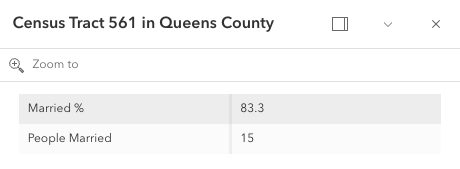
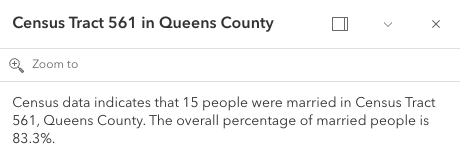
The image on the left is a result of using the first example snippet below, whereas the image on the right is a result of the second snippet.
| Content set using 'fields' type | Content referenced from fields set within fieldInfo |
|---|---|
 |  |
Examples
// This snippet demonstrates how to show only a subset of fields.// By setting the 'type: "fields"', and providing the fieldInfos,// only field data will display within this feature layer's popuptemplate.// If no fieldInfos is specified directly in the content, the popup defaults// to whatever is set in the popupTemplate.fieldInfos.let popupTemplate = new PopupTemplate({ // autocasts as new PopupTemplate() title: "{NAME} in {COUNTY}", outFields: ["*"], content: [{ // It is also possible to set the fieldInfos outside of the content // directly in the popupTemplate. If no fieldInfos is specifically set // in the content, it defaults to whatever may be set within the popupTemplate. type: "fields", fieldInfos: [{ fieldName: "B12001_calc_pctMarriedE", label: "Married %" },{ fieldName: "B12001_calc_numMarriedE", label: "People Married", format: { digitSeparator: true, places: 0 } }] }]});// This snippet demonstrates setting the popup's content by referencing// specific fields defined within the popupTemplate's fieldInfos.let popupTemplate = new PopupTemplate({ title: "{NAME} in {COUNTY}", outFields: ["*"], content: "Census data indicates that {B12001_calc_numMarriedE} people were married in {NAME}, {COUNTY}. The overall percentage of married people is {B12001_calc_pctMarriedE}%.", fieldInfos: [{ fieldName: "B12001_calc_pctMarriedE", },{ fieldName: 'B12001_calc_numMarriedE', format: { places: 0, digitSeparator: true } }]}); lastEditInfoEnabled
- Type
- boolean
- Since
- ArcGIS Maps SDK for JavaScript 4.10
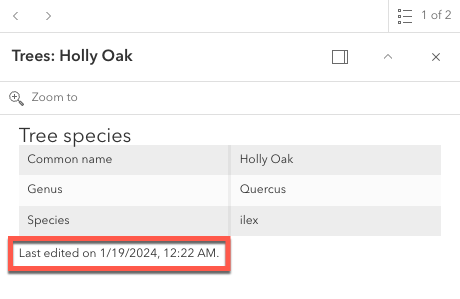
Indicates whether or not editor tracking should display.
- Default value
- true
layerOptions
- Type
- LayerOptions | null | undefined
- Since
- ArcGIS Maps SDK for JavaScript 4.5
Additional options that can be defined for the popup layer.
outFields
- Since
- ArcGIS Maps SDK for JavaScript 4.9
An array of field names used in the PopupTemplate. Use this property to indicate what fields are required to fully render the PopupTemplate. This is important if setting content via a function since any fields needed for successful rendering should be specified here.
Generally speaking, it is good practice to always set this property when instantiating a new popup template.
To fetch the values from all fields, use ["*"].
This will not fetch fields from related tables. If related features are needed, set this using FieldInfo.
- See also
Example
// Set the MapImageLayer with specified popupTemplate USALayer = new MapImageLayer({  url: "https://sampleserver6.arcgisonline.com/arcgis/rest/services/USA/MapServer",  id: "USA",  sublayers: [{    id: 2,    visible: true,    popupTemplate: {      title: "{state_name} Population",      content: getInfo,      outFields: ["*"]    }  }]})
// The function used for the PopupTemplatefunction getInfo(feature) {  let graphic, attributes, content;  graphic = feature.graphic;  attributes = graphic.attributes;  content =  "In year 2000:- " + attributes.pop2000 ;  return content;}
overwriteActions
- Type
- boolean
Indicates whether actions should replace existing popup actions.
- Default value
- false
Example
// The actions defined in the Popup will not display when the// PopupTemplate is used. The actions defined in the PopupTemplate will be used instead.popupTemplate.overwriteActions = true; returnGeometry
- Type
- boolean
- Since
- ArcGIS Maps SDK for JavaScript 4.18
Indicates whether to include the feature's geometry for use by the template. This
property should be set to true if needing to access the popup's selected feature's geometry.
Access the geometry via the returned graphic from the popup's
Popup.selectedFeatureWidget.
This is needed since the geometry is not automatically queried and returned in the popup's selected feature.
If the feature layer does not specify its
FeatureLayer.outFields and the
template's outFields isn't set, the returned popup's geometry is only returned if
returnGeometry is set to true.
This also applies when working with WebMaps.
- Default value
- false
Example
// Grab the layer and check if 'returnGeometry' is false,// if so, set to 'true' to access selected feature's geometry
view.when(function() {  webmap.when(function(response) {    returnedLayer = response.layers.find(function(layer) {      return layer.id === "<layer id>";    });
    if (returnedLayer.popupTemplate.returnGeometry === false) {      returnedLayer.popupTemplate.returnGeometry = true;      reactiveUtils.watch(() => popup?.viewModel?.active, function() {        console.log(view.popup.selectedFeatureWidget.graphic);      });    }  });});
title
- Type
- PopupTemplateTitle
The template for defining how to format the title used in a popup. You can format the title by specifying either a string value or a JavaScript function that returns a simple string or a promise (since 4.15) that resolves to a string.
If using a function, the defined content returns a string value. When the feature is clicked, the feature is passed as an argument to the function and provides access to the feature's graphic and attributes. The function then executes and returns a value to display in the popup template's title.
- Default value
- ""
Examples
// Within the popup template, placeholders are denoted by `{}`.// It specifies attributes to display.// In a service where a field named NAME contains the name of a county, the title// of the popup when the user clicks a feature representing Los Angeles County will say:// "Population in Los Angeles County"popupTemplate.title = "Population in {NAME} County";// In this example, the popup template's title is set via a function. The function name is// passed in for its property. Notice that the clicked feature is then passed in to the function.
let popupTemplate = { // autocasts as new PopupTemplate() title: countyName, outFields: ["*"] // Make sure to specify the outFields so that these are available in the function};
function countyName(feature) { // Return the layer title and individual county name return feature.graphic.layer.title + " : {NAME}";}// Executes a reverse geocode in the popupTemplate title// and returns the result as a promise. This will display the// address for the location of the point in the title
const locatorUrl = "https://geocode.arcgis.com/arcgis/rest/services/World/GeocodeServer";
const params = {location: event.mapPoint};
layer.popupTemplate = { outFields: ["*"], title: function(event) { return locator .locationToAddress(locatorUrl, params) .then(function(response) { // This value must be a string return response.address; }); }};Methods
fromJSON
- Signature
-
fromJSON (json: any): any
Creates a new instance of this class and initializes it with values from a JSON object
generated from an ArcGIS product. The object passed into the input json
parameter often comes from a response to a query operation in the REST API or a
toJSON()
method from another ArcGIS product. See the Using fromJSON()
topic in the Guide for details and examples of when and how to use this function.
Parameters
| Parameter | Type | Description | Required |
|---|---|---|---|
| json | A JSON representation of the instance in the ArcGIS format. See the ArcGIS REST API documentation for examples of the structure of various input JSON objects. | |
- Returns
- any
Returns a new instance of this class.
clone
- Signature
-
clone (): this
Creates a deep clone of this object. Any properties that store values by reference will be assigned copies of the referenced values on the cloned instance.
- Returns
- this
A deep clone of the class instance that invoked this method.
toJSON
- Signature
-
toJSON (): any
Converts an instance of this class to its ArcGIS portal JSON representation. See the Using fromJSON() guide topic for more information.
- Returns
- any
The ArcGIS portal JSON representation of an instance of this class.