import FeatureEffect from "@arcgis/core/layers/support/FeatureEffect.js";const FeatureEffect = await $arcgis.import("@arcgis/core/layers/support/FeatureEffect.js");- Inheritance:
- FeatureEffect→
Accessor
- Since
- ArcGIS Maps SDK for JavaScript 4.22
FeatureEffect allows you to emphasize or deemphasize features that
satisfy a filter in 2D MapView. The includedEffect and
excludedEffect properties allow you to apply CSS filters
to features that are either included or excluded from the filter. Typically, you use includedEffect to emphasize features that
are included in the filter and excludedEffect to deemphasize features excluded from the filter.
Known Limitations
FeatureEffect is not supported in the following scenarios:
- In 3D SceneViews
- When FeatureReductionCluster is enabled A FeatureEffect set on a layerView cannot persisted in a WebMap. See print for known printing limitations.
// apply a feature effect to features that do not// meet the filter requirementsconst featureFilter = new FeatureFilter({  geometry: filterGeometry,  spatialRelationship: "intersects",  distance: distance,  units: units});
// set effect on excluded features// make them gray and transparentlayer.featureEffect = new FeatureEffect({ filter: featureFilter, excludedEffect: "grayscale(100%) opacity(30%)"});Constructors
Constructor
Parameters
| Parameter | Type | Description | Required |
|---|---|---|---|
| properties | | |
Example
// Typical usageconst effect = new FeatureEffect({  filter: new FeatureFilter({    where: "magnitude >= 3"  }),  excludedEffect: "grayscale(100%) opacity(30%)"});
layer.featureEffect = effect;
Properties
| Property | Type | Class |
|---|---|---|
declaredClass readonly inherited | ||
| | ||
| | ||
| | ||
| |
excludedEffect
The Effect applied to features that do not meet the filter requirements. Effect allows you to apply css filter-like functions to layers and layerViews to create custom visual effects to enhance the cartographic quality of your maps.
Example
const excludedEffect = "grayscale(50%) opacity(30%)";
layer.featureEffect = new FeatureEffect({  filter: new FeatureFilter({    where: "POPULATION > 1000000"  }),  excludedEffect: excludedEffect});
excludedLabelsVisible
- Type
- boolean
Indicates if labels are visible for features that are excluded from the filter.
This property must be set to true in order to persist the FeatureEffect to a WebMap.
- Default value
- false
filter
- Type
- FeatureFilter | null | undefined
The filter that drives the effect.
Features that meet the requirements specified in the filter will have the includedEffect applied
while features that do not meet the filter requirements will have the excludedEffect applied.
A FeatureEffect can only be persisted to a WebMap if an
attribute filter is the only property set on FeatureFilter.
includedEffect
The Effect applied to features that meet the filter requirements. Effect allows you to apply css filter-like functions to layers and layerViews to create custom visual effects to enhance the cartographic quality of your maps.
Example
const includedEffect = "sepia(70%) saturate(150%) hue-rotate(320deg) opacity(60%)";layer.featureEffect = new FeatureEffect({ filter: new FeatureFilter({ where: "POPULATION > 1000000" }), includedEffect: includedEffect});Methods
fromJSON
- Signature
-
fromJSON (json: any): any
Creates a new instance of this class and initializes it with values from a JSON object
generated from an ArcGIS product. The object passed into the input json
parameter often comes from a response to a query operation in the REST API or a
toJSON()
method from another ArcGIS product. See the Using fromJSON()
topic in the Guide for details and examples of when and how to use this function.
Parameters
| Parameter | Type | Description | Required |
|---|---|---|---|
| json | A JSON representation of the instance in the ArcGIS format. See the ArcGIS REST API documentation for examples of the structure of various input JSON objects. | |
- Returns
- any
Returns a new instance of this class.
clone
- Signature
-
clone (): FeatureEffect
Creates a deep clone of FeatureEffect object.
- Returns
- FeatureEffect
A new instance of a FeatureEffect
toJSON
- Signature
-
toJSON (): any
Converts an instance of this class to its ArcGIS portal JSON representation. See the Using fromJSON() guide topic for more information.
- Returns
- any
The ArcGIS portal JSON representation of an instance of this class.
Type definitions
Effect
- Since
- ArcGIS Maps SDK for JavaScript 5.0
Effect provides various filter functions that can be performed on a layer or a layerView to achieve different visual effects similar to how image filters (photo apps) work. The CSS filters are supported as effects in the API with the following differences:
- No url() css filter support.
- Only absolute length units are allowed for the effects where lengths are accepted.
- Support for bloom effect in addition to css filters.
The following effects are supported: bloom, blur, brightness, contrast, drop-shadow, grayscale, hue-rotate, invert, opacity, saturate
and sepia. The effect can be set in two different ways. It can be set as a string or as an array of objects.
Known Limitations
The effect is not supported in 3D SceneViews.
The effect cannot be applied to a layer with a heatmap renderer.
The effect is not supported in layers with FeatureLayer.featureReduction of type cluster enabled.
See print for known printing limitations.
Setting effect as a string
Effects can be chained together separated by a space character. Effects are applied in the order they are set. When set as a string, the effect is applied at all scales.
// the following effect will be applied to the layer at all scales // brightness will be applied first, then hue-rotate followed by contrast // changing order of the effects will change the final result layer.effect = "brightness(5) hue-rotate(270deg) contrast(200%)";Setting effect as an array of objects
Some effects such as bloom and drop-shadow are sensitive to scale. Scale dependent effects should be used to fine tune or control parameters of your effects
at different scales so it produces desired effects. Scale dependent effects can be set as an array of objects where you specify the scale and the effect
value for that scale. When you set scale dependent effects,
the API will interpolate the effects in between scales. For example, if you set opacity(0%) at one scale and opacity(100%) at another, the API will
interpolate the opacity value between the scales. The type and order of effects should be consistent at all scales so that they can be interpolated.
If the type and order are not consistent, the effect will be set to null, and a warning will be shown in the console.
// This is a valid scale dependent effects// at scale 4622324, the brightness will not be applied// since it is dropped.layer.featureEffect = new FeatureEffect({ filter: featureFilter, includedEffect: [ { scale: 36978595, // small scale value: "drop-shadow(3px, 3px, 4px) brightness(400%)", }, { scale: 18489297, // large scale value: "drop-shadow(2px, 2px, 3px) brightness(200%)", }, { scale: 4622324, // larger scale value: "drop-shadow(1px, 1px, 2px)", } ], // applied at all scales excludedEffect: "brightness(80%)"});// This is an illegal scale dependent effect.// Scale dependent effects cannot be mixed like this.// No effects will be applied to the layer.// Invalid effect warning will be thrown in the console.layer.effect = [ { scale: 36978595, value: "opacity(50%)" }, { scale: 4622324, value: "brightness(500%)" }];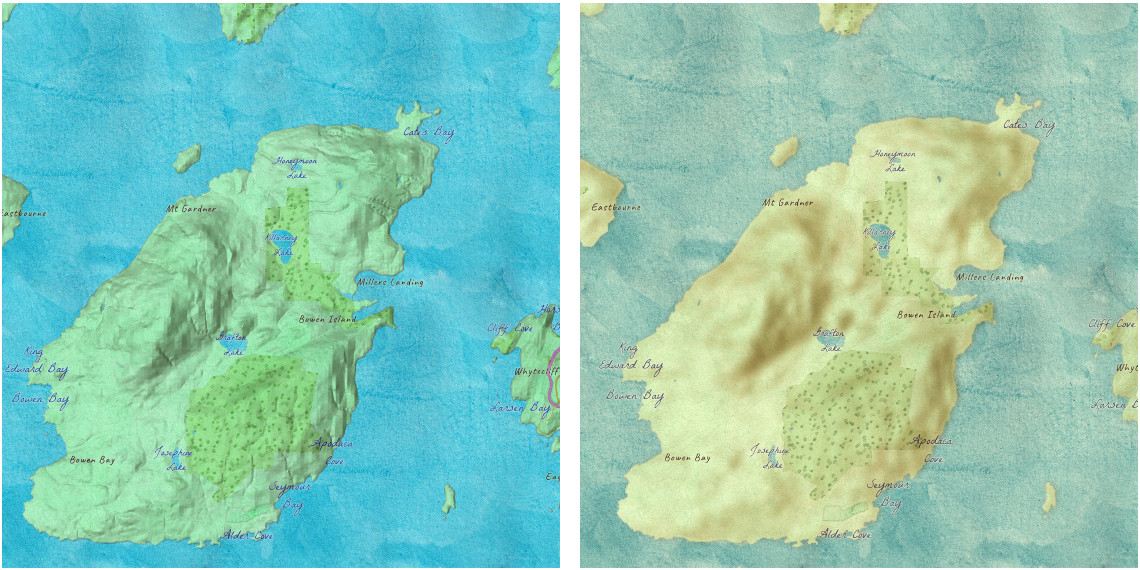
// hillshade layer is displayed under the water color layerhillShadeLayer.effect = "saturate(400%) contrast(100%) blur(10px)";waterColorLayer.effect = "sepia(50%) saturate(100%) contrast(100%)";If all of the following four properties are applied, then they will be applied in this order: featureEffect, effect, opacity and blendMode.
Read More
bloom(strength, radius, threshold) - The
bloom effect produces fringes of light extending from the borders of bright areas in a layer. It causes brighter colors than the specified threshold to glow. You can add glow to your layers when mapping fires,
volcanic eruptions and night lights.
| Parameter | Description |
|---|---|
| strength | The intensity of the bloom effect. This value can percent or number. Default is 1. The higher the value, the brighter the glow. Negative values are not allowed. |
| radius | Determines the radius of the blur in an absolute length. Default value is 0. Negative values are not allowed. Leaves the features inside the radius untouched. |
| threshold | Determines how bright a color must be before it blooms or glows. Accepted values are 0%-100% or 0-1. Default value is 0. |
layer.effect = "bloom(200%, 1px, 0.2)"; // same as the line abovelayer.effect = "bloom(2, 1px, 20%)";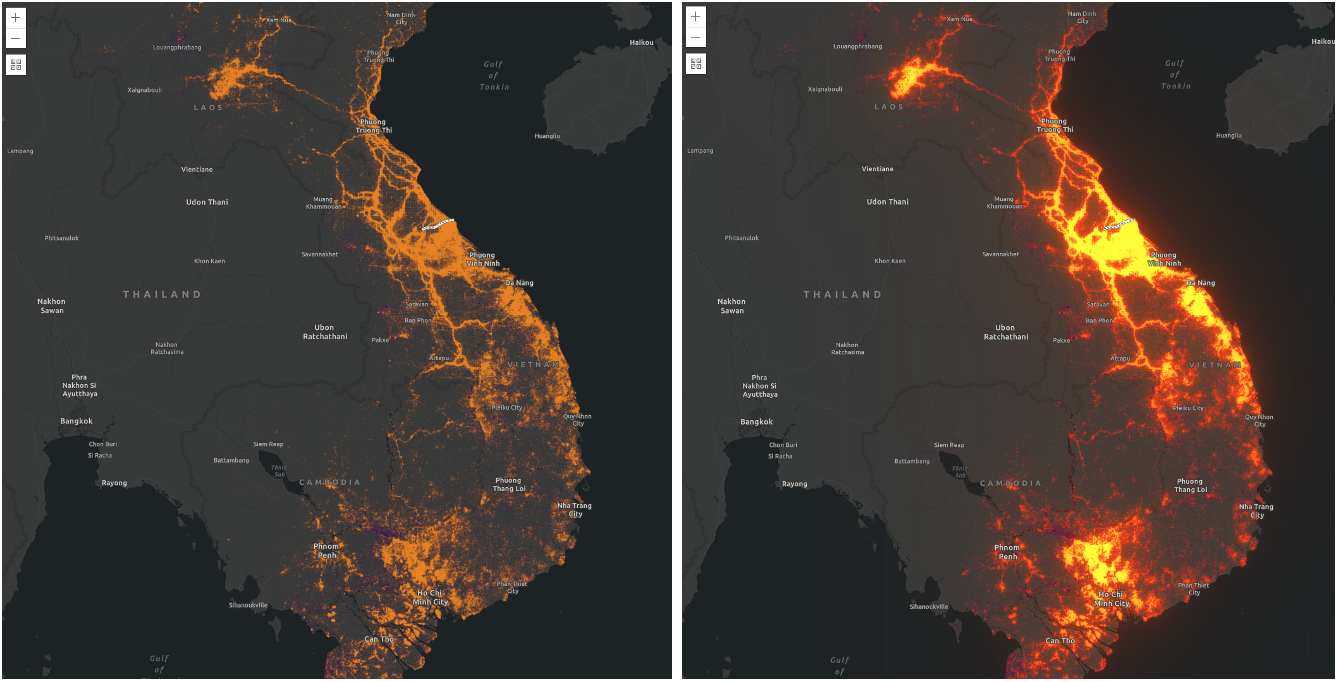
bloom effect is applied.// scale dependent bloom effect is applied to US missions layer// that is shown in the above screen shotlayer.effect = [ { value: "bloom(3, 1px, 0.4)", scale: 9244648.868618 }, { value: "bloom(1, 0.75px, 0.3)", scale: 4622324.434309 }, { value: "bloom(3, 0.5px, 0.2)", scale: 577790.5542885 }];blur(radius) - Applies a Gaussian blur
to a layer or a layerView. It makes look like you are viewing a layer through a translucent screen making it look out of focus or blurry. The radius parameter of the blur is
specified in a absolute length.
It defines how many pixels on the screen blend into each other. A larger value will create more blur. Negative values are not allowed.
The blur effect can be used to soften a layer underneath a reference layer, or other layers of importance, so above features can stand out more clearly.
For a layerView, it could be used to blur out excluded features from the filter so that the included features will stand out clearly.
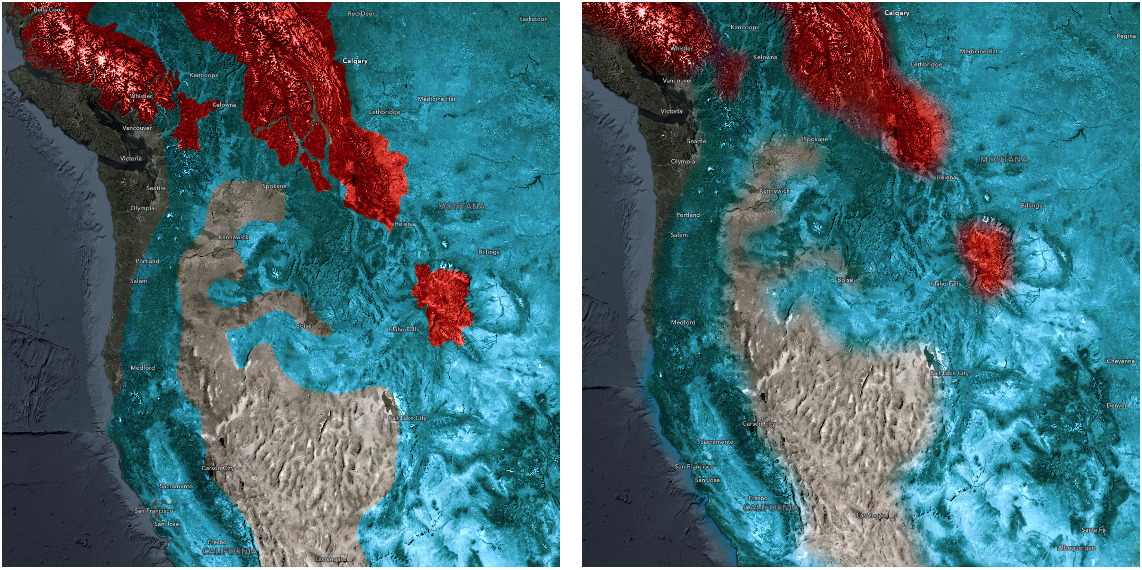
blur layer effect to indicate uncertainty or fuzziness to the boundaries.// apply effect to a layerlayer.effect = "blur(5px)";brightness(percent | number) - Applies a linear multiplier to a layer or a layerView, making it appear brighter or darker.
| Values | Effect |
|---|---|
| brightness(0%) or brightness(0) | Produces a completely black layer |
| brightness(100%) or brightness(1) | Unchanged layer |
| > 100% or > 1 | Brighter layer |
| < 100% or < 1 | Darker layer |
contrast(percent | number) – Adjusts the contrast of a layer or a layerView. Negative values are not allowed.
| Values | Effect |
|---|---|
| contrast(0%) or contrast(0) | Completely a gray layer |
| contrast(100%) or contrast(1) | Unchanged layer |
| > 100% or > 1 | More contrast in a layer |
| < 100% or < 1 | Less contrast in a layer |
drop-shadow(offsetX, offsetY, blurRadius?, color?) - Applies a drop shadow effect to a layer or a layerView that follows
the outline of the layer or the layerView. The drop-shadow effect is useful when you want some features to stand out from the rest of the features on a busy map. For example, you can apply this effect
to your labels (reference layer) to make them legible.
| Parameter | Description |
|---|---|
| offset-x | An absolute length value that determines the shadow offset in the horizontal distance. Negative values place the shadow to the left of the layer. If both x and y offsets are 0, the shadow is placed directly underneath the layer. |
| offset-y | An absolute length value that determines the shadow offset in the vertical distance. Negative values place the shadow above the layer. |
| blur-radius | An absolute length value that determines the blur radius. The larger the value, the larger and more blurred the shadow becomes. If unspecified, it defaults to 0, resulting in a sharp, unblurred edge. Negative values are not allowed. |
| color | The color of the shadow. If unspecified, it defaults to black color. |
const featureFilter = new FeatureFilter({ where: "BoroughEdge='true'"});layer.featureEffect = new FeatureEffect({ filter: featureFilter, includedEffect: "drop-shadow(3px, 3px, 3px, black)", excludedEffect: "blur(1px) brightness(65%)"});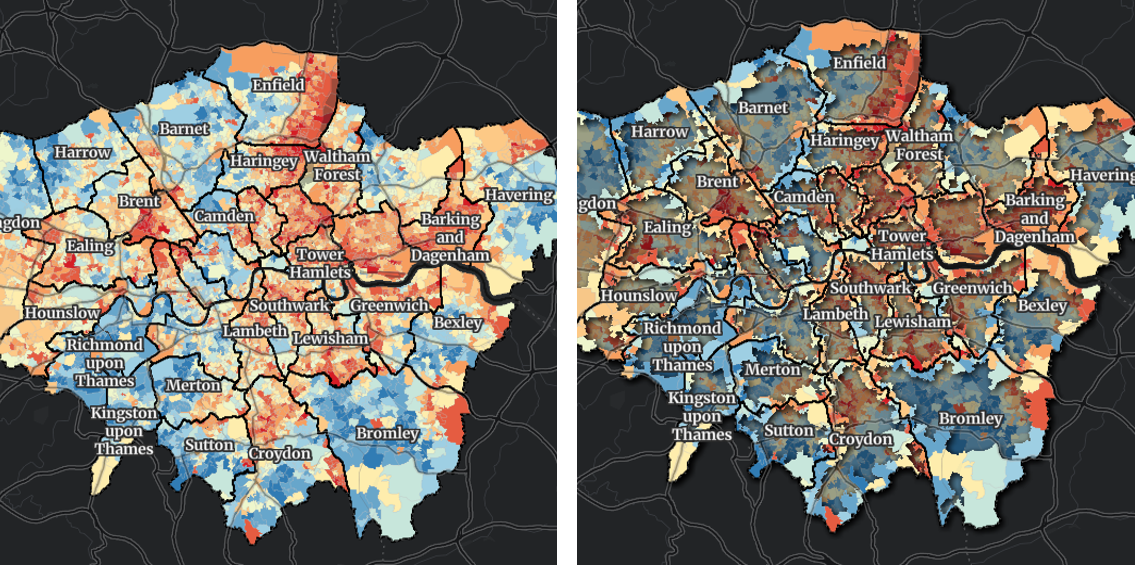
drop-shadow effect to features that
intersect boundaries of London boroughs while applying blur and brightness effects to features do not meet from the filter criteria.
grayscale(percent | number) - Converts a layer or a layerView to grayscale. The value of amount defines the proportion of the conversion. If the amount parameter is missing, a value of 100% is used. Negative values are not allowed.
| Values | Effect |
|---|---|
| grayscale(0%) or grayscale(0) | Unchanged layer |
| grayscale(100%) or grayscale(1) | Completely gray layer |
| < 100% or < 1 | Varying shades of gray |
| > 100% or > 1 | Same as 100% or 1 |
hue-rotate(angle) - Applies a hue rotation on a layer or a layerView. The value of angle defines the number of degrees
around the color wheel. The colors in the layer will be shifted to the colors at the specified angle.
A value of 0deg leaves the input unchanged. Maximum value is 360deg. A positive hue rotation shifts the hue clock-wise while a negative rotation shifts the hue counter clock-wise.
| Parameter | Description |
|---|---|
| angle | The relative change in hue of the input sample, specified as an angle such as deg, rad, grad and turn. |
invert(percent | number) - Inverts the samples in the layer. The value of amount defines the proportion of the conversion. Negative values are not allowed.
| Values | Effect |
|---|---|
| invert(0%) or invert(0) | Unchanged layer |
| invert(100%) or invert(1) | Completely inverted layer |
| < 100% or < 1 | Varying degrees of inversion |
| > 100% or > 1 | Same as 100% or 1 |
opacity(percent | number) - Applies transparency to a layer or a layerView. The value of amount defines the proportion of the conversion. Negative values are not allowed.
| Values | Effect |
|---|---|
| opacity(0%) or opacity(0) | Completely transparent layer |
| opacity(100%) or opacity(1) | Completely opaque layer |
| < 100% or < 1 | Varying degrees of opacity |
| > 100% or > 1 | Same as 100% or 1 |
saturate(percent | number) - Saturates or desaturates a layer or a layerView.
| Values | Effect |
|---|---|
| saturate(0%) or saturate(0) | Completely unsaturated layer |
| saturate(100%) or saturate(1) | Leaves the layer or layerView unchanged |
| < 100% or < 1 | Varying degrees of desaturation |
| > 100% or > 1 | Varying degrees of saturation |
sepia(percent | number) - Converts colors in a layer or a layerView to sepia, giving it a warmer, more yellow/brown appearance. Negative values are not allowed.
| Values | Effect |
|---|---|
| sepia(0%) or sepia(0) | Unchanged layer or layerView |
| sepia(100%) or sepia(1) | Completely sepia |
| < 100% or < 1 | Varying degrees of sepia |
| > 100% or > 1 | Same as 100% or 1 |
- See also
- Type
- null | undefined | string | EffectScaleStop[]
EffectScaleStop
- Since
- ArcGIS Maps SDK for JavaScript 5.0
Some effects such as bloom and drop-shadow are sensitive to scale. Scale dependent effects should be used to fine tune or control parameters of your effects
at different scales so it produces desired effects. Scale dependent effects can be set as an array of EffectScaleStop where you specify the scale and the effect
value for that scale. When you set scale dependent effects, the API will interpolate the effects in between scales. For example, if you set opacity(0%) at one scale and opacity(100%) at another, the API will
interpolate the opacity value between the scales. The type and order of effects should be consistent at all scales so that they can be interpolated.
If the type and order are not consistent, the effect will be set to null, and a warning will be shown in the console.
// This is a valid scale dependent effects// at scale 4622324, the brightness will not be applied// since it is dropped.layer.featureEffect = new FeatureEffect({ filter: featureFilter, includedEffect: [ { scale: 36978595, // small scale value: "drop-shadow(3px, 3px, 4px) brightness(400%)", }, { scale: 18489297, // large scale value: "drop-shadow(2px, 2px, 3px) brightness(200%)", }, { scale: 4622324, // larger scale value: "drop-shadow(1px, 1px, 2px)", } ], // applied at all scales excludedEffect: "brightness(80%)"}); scale
- Type
- number
- Since
- ArcGIS Maps SDK for JavaScript 5.0
The MapView.scale of the view for the effect to take place. Use only when setting a scale dependent effect.
value
- Type
- string
- Since
- ArcGIS Maps SDK for JavaScript 5.0
The effect to be applied to a layer or layerView at the corresponding MapView.scale. Use only when setting a scale dependent effect.