import FeatureTable from "@arcgis/core/widgets/FeatureTable.js";const FeatureTable = await $arcgis.import("@arcgis/core/widgets/FeatureTable.js");- Inheritance:
- FeatureTable→
Widget<FeatureTableProperties>→ Accessor
- Since
- ArcGIS Maps SDK for JavaScript 4.15
The FeatureTable's functionality is described in the following sections:
- Overview
- Selection and highlighting
- Filtering and sorting
- Editing within the FeatureTable
- Related records
- Configuring columns
- Custom columns
- Menu and menu items
Overview
The FeatureTable widget provides an interactive tabular view of each feature's attributes in a layer. In addition, it also works with standalone tables that are not associated with underlying geometries. The FeatureTable supports the following layer types:
- FeatureLayer
- GeoJSONLayer
- CSVLayer
- ImageryLayer - Take note that it must have a mosaic dataset. Currently,
MapandFeatureTableinteraction withImageryLayersare not supported. - WFSLayer
- SceneLayer (with an associated FeatureLayer)
- KnowledgeGraphSublayer
- CatalogFootprintLayer
- MapImageLayer.sublayers
The FeatureTable varies slightly from other widgets in that it can work independently of a map or scene view. This means that the FeatureTable can be used in a standalone application or in a view that does not contain a map or scene. However, if the FeatureTable is used in conjunction with a map or scene view, the view must be set on the FeatureTable in order for the selection and highlighting to work. Implementing the FeatureTable programmatically is also slightly different than other widgets in that it is designed to be added to an application via its container element, as opposed to being added via the default UI, ie. view.ui.add(). The following example demonstrates how to add the FeatureTable to an application:
const featureTable = new FeatureTable({ view: view,layer: featureLayer,container: "tableDiv"});The FeatureTable can be configured to display specific columns (including attachments), filter features, and sort columns. It provides the ability to edit feature attributes, select and highlight features within the table and its associated view. In addition, it can also display and edit related records. The latter beginning with version 4.30. The following sections provide more detail on how to configure and use the FeatureTable.
Selection and highlighting
The FeatureTable allows manual interaction or programmatic control over selecting and highlighting features within both the table and its associated view.
To enable manual-driven selection and highlighting, ensure the table's view and highlightEnabled properties are configured.
Once set, interacting with a table row will select and highlight the corresponding feature in the view.
Multiple selections within the table are turned on by default. To update this behavior, set the multipleSelectionEnabled property to false.

Read More
If you wish to independently wire up selection and highlighting, set the table's highlightIds. Modifying this collection by adding or removing feature object IDs will automatically update the selection status of the corresponding rows in the table. To deselect all features, simply clear the collection.
Highlighting rows within the table can be accomplished using rowHighlightIds. This property allows for the visual differentiation of rows based on criteria such as specific values or edits, without affecting their selection status. For example, you can use it to highlight rows that contain a specific value or rows that have been edited.
// This snippet highlights rows within the table that have been edited.featureTable.layer.on("edits", (event) => { event.updatedFeatures.forEach((feature) => { featureTable.rowHighlightIds.push(feature.getObjectId()); });});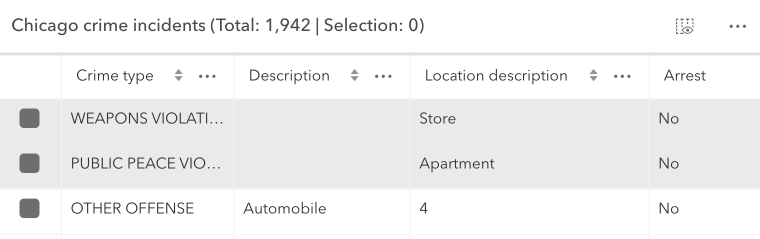
Additionally, selection and highlight behavior can be enhanced using the feature table's events. These events are designed to listen for cell interaction and include: @cell-click, @cell-keydown, @cell-pointerout, and @cell-pointerover. The latter two events are especially useful for tasks such as highlighting a feature in the view while hovering over a cell, all doing so without requiring the end-user to select the row. For example, these events can be used to display cell information in a tooltip that is attached to the mouse cursor.
In short, the highlightIds property is used to control and synchronize selections between the FeatureTable and other components of the SDK, whereas rowHighlightIds is for adding a highlight to some rows, based on some other interaction within the application. It allows the ability to select specific rows based on actions performed in the application, such as hovering over a feature on the map or applying a filter through another widget.
Filtering and sorting
The FeatureTable provides the ability to filter and sort features within the table. A few different approaches to filtering are outlined in the section below.
Read More
- Filtering by selection- By default, the table displays all rows, regardless of their selection status. However, if needing to display only selected rows, set the filterBySelectionEnabled property to
true. When set, the table will only display rows for selected features. This is useful for focusing on a specific subset of features. Setting the FeatureTable's objectIds performs similar functionality where only the set object IDs will display within the table. If the collection is empty, all features display. The difference between filterBySelectionEnabled and objectIds is the latter does not require a selection. Rather, it only displays features with a matching object ID, whereas setting filterBySelectionEnabled indicates to the table that it should only display features that are already selected. This selection is handled by passing in a collection of object IDs to the table's highlightIds. Setting this property selects the corresponding features within the table while highlighting them in the view. For an example of how to filter using these properties, see the sample FeatureTable with related records. - Filtering by geometry- This is done by setting the filterGeometry property to a geometry. When set, the table will only display rows for features that intersect the geometry. This is useful for focusing on a specific subset of features that intersect a geometry. See the samples, FeatureTable with a map, and FeatureTable with related records) for an example of how to filter features by geometry.
- Filtering by time- To achieve this, configure the timeExtent property to a time extent. Once configured, the table will exclusively show rows corresponding to features that are within the defined time extent. Filtering by selection and geometry- This is accomplished by setting both the objectIds and filterGeometry properties. When set, the table will only display rows for features that match the corresponding object ID and and intersect the geometry.
It is possible to control sort order individually per column or on multiple columns. The latter is accomplished by setting the multiSortEnabled property to true. When set, the table will allow sorting on multiple columns. The table's sortColumn() method is used to sort columns. This method takes the field name and sort order as parameters. The sort order can be set to either asc or desc. The priority of columns and their sort order can be set using FieldColumnTemplate.initialSortPriority. This property is used to set the initial sort priority for a column.
If the table is in its default sort mode with no initial sort order provided, the first field on the layer automatically sorts in ascending order.
Editing within the FeatureTable
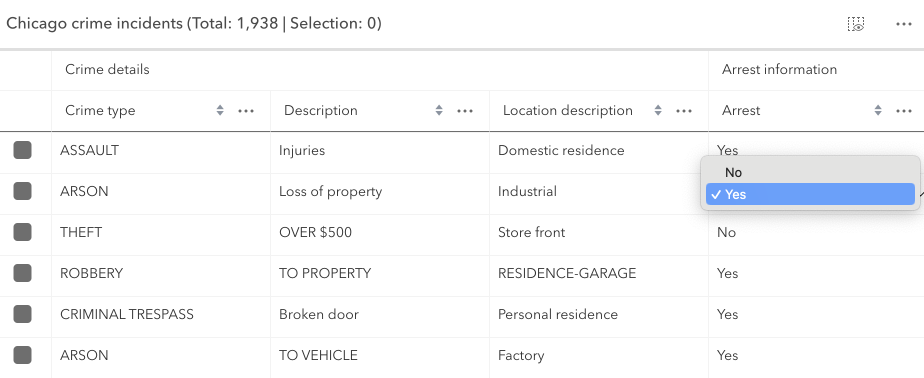
The FeatureTable provides the ability to edit feature attributes within the table. This is accomplished by setting the editingEnabled property to true. The editing experience is similar to that of a spreadsheet, where end-users can click into a cell to edit its value. The table automatically saves edits to the layer once navigating away from the cell or Enter is pressed. Press the Esc key to cancel an edit. The FeatureTable also provides the ability to delete selected records. This is done by selecting the rows to delete and clicking the Delete Selection menu item. The Delete Selection menu item is only available if the editingEnabled property is set to true and the feature service supports editing.
Read More
Editing permissions can be separated into the following levels of priority:
- FeatureLayer.editingEnabled - This is derived from the layer's FeatureLayer.editingEnabled property. This must always be
truefor editing to be enabled. - Field - This is derived from the FeatureLayer. It takes what is set in the Field.editable
property. This must always be
truefor editing to be enabled, although it can be overridden tofalse(not vice-versa) via a field column template. - FeatureTable - The editingEnabled property must be set on the table in order for any type of editing to be enabled.
- Template - The editable permissions on a field can be configured by setting the FieldColumnTemplate.editable property of the FieldColumnTemplate.
If the service's field is not editable, it is not possible to override its permissions using any of the options above. FieldColumnTemplate.editable can never override what is set on the layer, field, or table. Editing is disabled for big integer fields that contain a value that falls outside of the max and min whole number threshold of -9007199254740991 and 9007199254740991. Any attempts to edit value higher or lower than these thresholds will not work and those edits will not be saved. An Object ID field is required for editing to work.
Related records
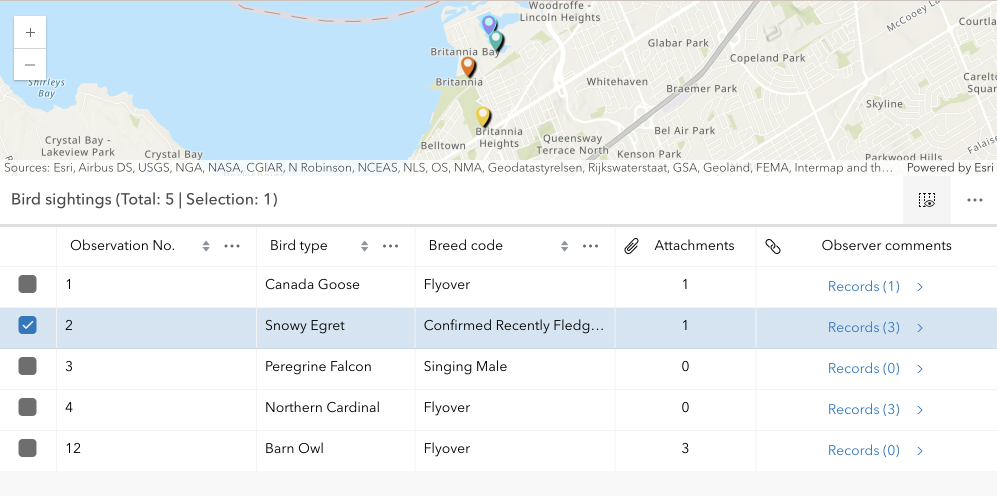
Beginning with version 4.30, the FeatureTable supports the ability to display and edit related records within the table.
| Origin table with related records |
|---|
 |
| Destination table with related records |
|---|
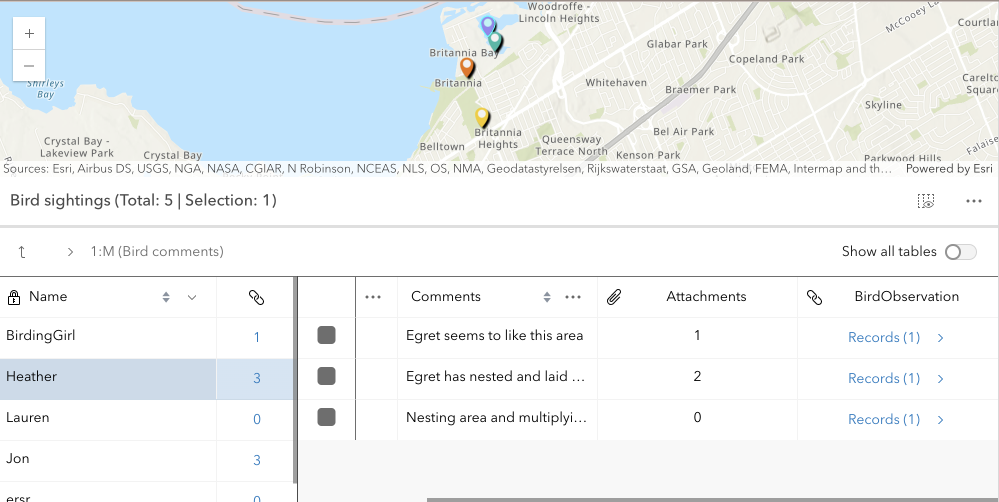 |
This is done by setting the relatedRecordsEnabled property to true. When this property is set, the table will contain a field that links to any related records associated with each feature in the table. When clicked, a separate table displays the related records for that feature. The FeatureTable provides the ability to show nested related records, which are related records that contain their own related records. It automatically recognizes if there are any related tables associated a table and, if applicable, displays links to related records for that feature or row. The following example demonstrates how to configure the FeatureTable to display related records:
const featureTable = new FeatureTable({ view: view, layer: featureLayer, relatedRecordsEnabled: true, container: "tableDiv"});Read More
The main difference with how related records work in comparison to the Editor widget is that the FeatureTable does not have to have a template configured with relationship information for it to be recognized and automatically picked up within the table. In order for related data to display within the table, the relatedRecordsEnabled property must be set to true, the origin table must have an associated relationship class, and its related data must also be contained within the map. If these conditions are met, any related records associated with the table's features will automatically display with embedded links to its related data. The FeatureTable also provides the ability to show nested related records, which are related records that contain their own related records. This is useful for displaying complex relationships within the table.
There are a couple of known limits when working with relationships in the FeatureTable:
- Displaying and editing related records is only supported using ArcGIS Online and ArcGIS Enterprise version 11.2 or higher feature services.
- Editing related records is only supported if the related table is editable.
- The related layers or tables must also be added to the map to be able to display related records within the table.
Configuring columns
The FeatureTable provides various column types that can be configured to display within the table.
These column types include:
column(Column) - This is the column type that supports the underlying functionality for the various column types listed below. Use this column type to create custom columns that display within the table and are not directly tied to data within a layer.field(FieldColumn) - This is the column type that displays the field name and value within the table. This column type is the type used to display the field name and value for features within the table.action(ActionColumn) - This is the column type that displays action buttons within the table.relationship(RelationshipColumn) - This is the column type that displays related records within the table.attachment(AttachmentsColumn) - This is the column type that displays attachments within the table. Take note that viewing attachments directly within the table's cell is not supported, although if a feature contains attachments, the total count per feature will display.group(GroupColumn) - This is the column type that groups columns within the table.
Read More
These column classes contain information about the current table state. And although it is possible to interact directly with these columns, ie. updating properties, calling methods, etc., the recommended approach is to set the tableTemplate with configured column templates prior to table creation. The reason for this is because templates are designed to help configure columns prior to table creation and therefore wil not update based on the table's underlying state changes.
At version 4.30, the FeatureTable's API has been improved to not regenerate columns unless in only very necessary cases, e.g. setting an entirely new tableTemplate and forcing the table to refresh. Although this approach is supported, it may not be necessary as it is possible to directly interact with the underlying columns and not cause unnecessary re-renders.
The column configuration of the FeatureTable is designed to be flexible, providing a rich user experience. While it is generally recommended to update the corresponding template when changes are made to a column's property, it is not mandatory if there is no need to regenerate columns forcefully.
There are some properties pertaining to width and alignment that may not function as expected if modified dynamically.
- The ColumnTemplate class can be used to create and configure custom columns that display within the table.
- The FieldColumnTemplate class is tied to a layer and is used to configure and display field names and values within the table.
- Lastly, the GroupColumnTemplate class is used to configure grouped columns within the table. Each template contains the field name, label, and other properties that define the column's behavior. The following example demonstrates how to configure the field columns within the FeatureTable's table template:
const featureTable = new FeatureTable({ view: view, layer: featureLayer, tableTemplate: ({ // autocastable to table template columnTemplates: [{ type: "field", // autocastable to field column template fieldName: "field1", label: "Field 1" }, { type: "field", fieldName: "field2", label: "Field 2" }] }), container: "tableDiv"});The template classes are designed primarily to configure columns prior to table creation. Once the table is created, the templates will not update based on state changes. The underlying column classes have information about the current table state.
Custom columns
Beginning with version 4.30, support for custom columns, ie. virtual columns, was added. Custom columns can be configured and displayed by leveraging the ColumnTemplate class. The following example demonstrates how to create a custom column that displays a rating of stars within the table based on a feature's rating. It does so using a calcite component that displays the rating as stars. In addition, it makes use of the column template's ColumnTemplate.formatFunction property. This function is useful as it allows for dynamic content to be displayed within the table's cell and provides a way to add a rich user experience to the table.
Read More

const columnConfig = new ColumnTemplate({ fieldName: "rating_stars", icon: "inspection", label: "Average Rating", formatFunction: ({ feature, index }) => { // Reuse existing components for optimal performance let component = ratingComponentMap.get(index); if (component) { return component; } component = document.createElement("calcite-rating"); component.readOnly = true; component.value = Math.round(Math.random() * 5); ratingComponentMap.set(index, component); return component; }});Read More
The default menu items can be configured to be hidden, disabled, or selected by default. The menu items can also be configured to include customized functionality. This is handled via the table's menuConfig property. This property takes an object where custom menu items are set within the table's menu. This object contains an array of menu items that define the label, icon, and click function for each item and whether these items should display by default.
If you want to clear the selection, you can use the clearSelection menu item provided by the API. If you want to delete selected records, you can use the deleteSelection menu item provided by the API. The following example demonstrates how to configure the menu items with similar functionality but with different icons. The default menu items are not hidden and the custom menu items are appended to the menu items. If you wish to hide the default menu items, you can set their visible element to false.
| Default column menu items | Configured column menu items |
|---|---|
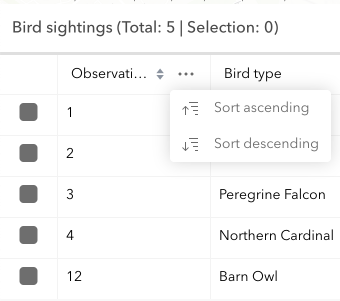 | 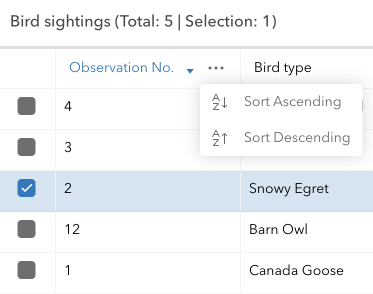 ) ) |
featureTable.menuConfig = { items: [ { label: "Clear selection", icon: "erase", clickFunction: () => { featureTable.highlightIds.removeAll(); } }, { label: "Delete selection", icon: "group-x", clickFunction: () => { featureTable.viewModel.deleteSelectedRecords(); } }]};In addition to configuring the table's menu items, it is also possible to configure an individual column's menu items. This is handled via the ColumnTemplate.menuConfig property. This is similar to what can be configured for the table's menuConfig, but also includes the ability to customize the column's menu icon, and the selection mode of the menu.
The following is an example of how to configure individual menu items within the FeatureTable's column menu. Similar to how the default table menu items are configured, any custom menu items are appended to the menu items. If you wish to hide the default menu items, you can set their visible element to false.
| Default table menu items | Configured table menu items |
|---|---|
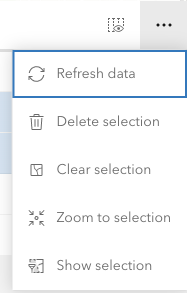 | 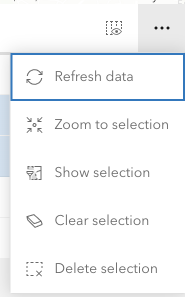 ) ) |
const columnTemplate = new FieldColumnTemplate({ menuConfig: { items: [{ label: "Sort Ascending", icon: "a-z-down", clickFunction: () => { featureTable.sortColumn(columnTemplate.fieldName, "asc"); } }, { label: "Sort Descending", icon: "a-z-up", clickFunction: () => { featureTable.sortColumn(columnTemplate.fieldName, "desc"); } }] }});- See also
Constructors
Constructor
Parameters
| Parameter | Type | Description | Required |
|---|---|---|---|
| properties | | |
Example
// Typical usage for the FeatureTable widget. This will recognize all fields in the layer if none are set.const featureTable = new FeatureTable({ view: view, // The view property must be set for the select/highlight to work layer: featureLayer, container: "tableDiv" // the table must be assigned to the container via the constructor});Properties
actionColumn
- Type
- ActionColumn | null | undefined
- Since
- ArcGIS Maps SDK for JavaScript 4.33
Reference to the current action column. This column is only generated if a configuration has been provided.
- See also
actionColumnConfig
- Type
- ActionColumnConfig | null | undefined
- Since
- ArcGIS Maps SDK for JavaScript 4.30
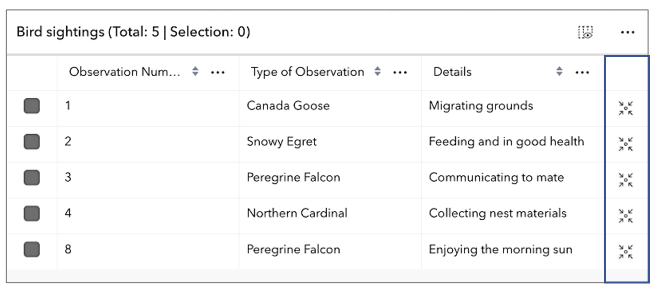
Configuration for the ActionColumn. This property allows for customizing the action column's appearance and behavior. The action column is a column that contains interactive buttons for each row. These buttons can be used to perform actions such as editing, deleting, or viewing additional information about a feature. This column is displayed as the last column in the table and is only displayed if this property is set.
Example
// The following snippet demonstrates how to configure an action column that adds a button// to each row which allows an end-user to zoom to the associated row's feature within the view.featureTable.actionColumnConfig = { label: "Go to feature", icon: "zoom-to-object", callback: (params) => { view.goTo(params.feature); }} activeSortOrders
- Type
- ColumnSortOrder[]
- Since
- ArcGIS Maps SDK for JavaScript 4.25
Use this read-only property if needing to query features while retaining a column's sort order. It returns an array of ColumnSortOrder which contains a column's name and its sort direction. The sort priority is honored in the returned ColumnSortOrder if multiSortEnabled is true with a set FieldColumnTemplate.initialSortPriority.
- Default value
- []
allColumns
- Type
- FeatureTableSupportedColumn[]
- Since
- ArcGIS Maps SDK for JavaScript 4.33
A flattened array of all columns within the table, including nested columns. Take note that group columns are separate entries. This property is useful when applying updates to all columns, including nested columns, as it provides ease of use when iterating through all columns in the table.
allRelatedTablesVisible
- Type
- boolean
- Since
- ArcGIS Maps SDK for JavaScript 4.31
Indicates the table is displaying all related tables in show all mode.
allVisibleColumns
- Type
- FeatureTableSupportedColumn[]
- Since
- ArcGIS Maps SDK for JavaScript 4.33
A flattened array of all visible columns within the table, including nested columns. Group columns are separate entries.
attachmentsColumns
- Type
- AttachmentsColumn[]
- Since
- ArcGIS Maps SDK for JavaScript 4.33
A flattened array of all attachment columns within the table, including nested columns.
attachmentsEnabled
- Type
- boolean
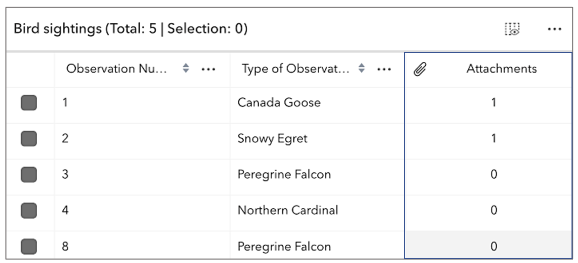
Indicates whether to display the Attachments field in the table. It displays the count of attachments per feature and is only applicable if the feature layer supports attachments.
- Default value
- false
attributeTableTemplate
- Type
- AttributeTableTemplate | null | undefined
- Since
- ArcGIS Maps SDK for JavaScript 4.31
Use this property to configure how columns display within the table in regard to visibility, column order, and sorting.
This property differs from the tableTemplate property. The tableTemplate property provides more fine-grained control over how the table is rendered within the application by offering more advanced configurations such as custom cell rendering, column formatting, and more. It is useful for application-level development that remains within an application. Use the attributeTableTemplate property to access the table's settings across different applications. By using this property, the settings can be saved within a webmap or layer. Please refer to the AttributeTableTemplate and TableTemplate documentation for more information.
- See also
autoRefreshEnabled
- Type
- boolean
- Since
- ArcGIS Maps SDK for JavaScript 4.23
Indicates whether the table should automatically refresh when the underlying data changes. This property is useful when the table is displaying data from a feature layer that is being updated by other clients.
- Default value
- true
autoSaveEnabled
- Type
- boolean
- Since
- ArcGIS Maps SDK for JavaScript 5.0
Indicates whether the table should automatically save edits, or store all edits locally until the 'savePendingEdits' or 'discardPendingEdits' methods are called.
- Default value
- true
canAddRelatedFeature
- Type
- boolean
- Since
- ArcGIS Maps SDK for JavaScript 5.0
Indicates whether the table supports adding a related record based on the current relationship configuration. This accounts for whether table is currently configured to show related features. If the table is not displaying related features, then the value of this property is always false.
- Default value
- false
columnPerformanceModeEnabled
- Type
- boolean
- Since
- ArcGIS Maps SDK for JavaScript 4.33
Indicates whether to enable the table's column performance mode. This mode is designed to improve the performance of the table when working with a large number of columns.
- Default value
- true
columnReorderingEnabled
- Type
- boolean
- Since
- ArcGIS Maps SDK for JavaScript 4.16
Indicates whether the table should allow reordering of columns.
- Default value
- true
columns
A read-only collection of Column, field, group, action, attachment, and relationship columns that are displayed within the table.
By default fields such as CreationDate, Creator, EditDate, Editor, and GlobalID do not show. If these fields are needed, set them via TableTemplate.columnTemplates. In this scenario, it is also necessary to set the column template's visible property to true.
container
- Type
- HTMLElement | null | undefined
The ID or node representing the DOM element containing the widget. Take note that this property can only be set once. The snippets below provide some examples for setting this.
The FeatureTable widget's container property must be set within its constructor and not via the view.ui.add() method.
Examples
// Create the HTML div element programmatically at runtime and set to the widget's containerconst featureTable = new FeatureTable({ view: view, container: document.createElement("tableDiv")});// Specify an already-defined HTML div element in the widget's container
const featureTable = new FeatureTable({ view: view, container: featureTableDiv});
// HTML markup<body> <div id="viewDiv"></div> <div class="container"> <div id="tableDiv"></div> </div></body>// Create the HTML div element programmatically at runtime and set to the widget's containerconst basemapGallery = new BasemapGallery({ view: view, container: document.createElement("div")});
// Add the widget to the top-right corner of the viewview.ui.add(basemapGallery, { position: "top-right"});// Specify an already-defined HTML div element in the widget's container
const basemapGallery = new BasemapGallery({ view: view, container: basemapGalleryDiv});
// Add the widget to the top-right corner of the viewview.ui.add(basemapGallery, { position: "top-right"});
// HTML markup<body> <div id="viewDiv"></div> <div id="basemapGalleryDiv"></div></body>// Specify the widget while adding to the view's UIconst basemapGallery = new BasemapGallery({ view: view});
// Add the widget to the top-right corner of the viewview.ui.add(basemapGallery, { position: "top-right"}); definitionExpression
- Since
- ArcGIS Maps SDK for JavaScript 4.33
The SQL where clause used to filter features visible in the table. Only the features that satisfy the definition expression are displayed in the table. This value takes priority over any definition expression set on the associated layer.
description
- Type
- FeatureTableDescriptionFunction | string | null | undefined
- Since
- ArcGIS Maps SDK for JavaScript 4.30
Text displayed in the table header, under the title. This can be a basic string or custom function that returns a string. This is useful in situations where additional context is needed for the table.
disabled
- Type
- boolean
- Since
- ArcGIS Maps SDK for JavaScript 4.30
Indicates whether the table is disabled. When disabled, the table will not display any data or allow interaction. This is purely a visual override and does not prevent the table from attempting to render data. This property has no effect on the current state property value.
- Default value
- false
editingEnabled
- Type
- boolean
- Since
- ArcGIS Maps SDK for JavaScript 4.16
Indicates whether editing is enabled on the data within the feature table. Double-clicking in a cell will enable editing for that value. In order to edit a feature, the layer must be editable and the user must have the appropriate permissions. In addition, the layer must contain an object ID field.
- Default value
- false
effectiveSize
- Type
- number
- Since
- ArcGIS Maps SDK for JavaScript 4.31
The total number of records displayed in the table's current view. Normally, this is equivalent to size for default configurations.
If paginationEnabled is true, effectiveSize reflects the total number of visible rows for the current page.
This value is usually equivalent to pageSize unless viewing the last page of data. The last page may display less features
than the maximum number for a single page. This property also takes into account all active filters and the current value
of maxSize.
effectiveTable
- Type
- FeatureTable
- Since
- ArcGIS Maps SDK for JavaScript 5.0
A reference to the FeatureTable instance used for menu actions.
fieldColumns
- Type
- FieldColumn[]
- Since
- ArcGIS Maps SDK for JavaScript 4.33
A flattened array of all field columns within the table, including nested columns.
filterBySelectionEnabled
- Type
- boolean
- Since
- ArcGIS Maps SDK for JavaScript 4.30
Indicates whether the table only displays rows that are considered selected. Row selection can be modified by adding or removing associated object IDs from highlightIds. This will cause the store to fetch fresh features to ensure the expected sort order is honored.
- Default value
- false
filterGeometry
- Type
- GeometryUnion | null | undefined
- Since
- ArcGIS Maps SDK for JavaScript 4.19
Set this property to filter the features displayed in the table. It accepts a Geometry, e.g. Extent, and uses it as a spatial filter. When modifying this property, the FeatureTable will completely refresh and re-query for all features.
Example
// Listen for when the view is stationary.// If true, check the view's extent and set// the table to display only the attributes// for the features falling within this extent.
reactiveUtils.when( () => view.stationary === true,() => {  // Get the new extent of view/map whenever map is updated.  if (view.extent) {    // Filter out and show only the visible features in the feature table.    featureTable.filterGeometry = view.extent;  }}, { initial: true });
groupColumns
- Type
- GroupColumn[]
- Since
- ArcGIS Maps SDK for JavaScript 4.33
A flattened array of all group columns within the table.
hasContingentValues
- Type
- boolean
- Since
- ArcGIS Maps SDK for JavaScript 5.0
Convenience property indicating the data set contains contingent values. This includes contingent values in a related table.
- Default value
- false
hasInvalidPendingEdits
- Type
- boolean
- Since
- ArcGIS Maps SDK for JavaScript 5.0
Indicates there are unsaved edits and that they are invalid. This includes invalid pending edits in a related table.
- Default value
- false
hasPendingEdits
- Type
- boolean
- Since
- ArcGIS Maps SDK for JavaScript 5.0
Indicates there are unsaved edits. This includes edits in a related table. This does not account for whether the edits are valid or not.
- Default value
- false
hiddenFields
- Type
- Collection<string>
- Since
- ArcGIS Maps SDK for JavaScript 4.16
A collection of string values which indicate field.names that should be hidden within the table. By default fields such as CreationDate, Creator, EditDate, Editor, and GlobalID do not show. If these fields are needed, set them via TableTemplate.columnTemplates. In this case, it is required to set column template's FieldColumnTemplate.visible property to true.
- See also
Examples
const featureTable = new FeatureTable({ layer: featureLayer, view: view, hiddenFields: ["Primary_Type", "incident_date"], // will not show these two fields within the table container: document.getElementById("tableDiv")});// Set this syntax if needing to display a default hidden field, e.g. 'CreationDate`const featureTable = new FeatureTable({ layer: featureLayer, view: view, tableTemplate: { // autocastable to TableTemplate columnTemplates: [ // takes an array of FieldColumnTemplate and GroupColumnTemplate { //autocastable to FieldColumnTemplate type: "field", fieldName: "date_created", label: "Date created", visible: true }] } container: document.getElementById("tableDiv")}); highlightEnabled
- Type
- boolean
- Since
- ArcGIS Maps SDK for JavaScript 4.25
Indicates whether to highlight the associated feature when a row is selected by checking the corresponding checkbox. This property is only applicable when working with a map and the view property is set.
This property has no effect if syncViewSelection is true or a custom selectionManager has been provided.
- Default value
- true
highlightIds
- Type
- Collection<ObjectId>
- Since
- ArcGIS Maps SDK for JavaScript 4.25
This property accepts and returns a collection of feature object IDs. Use this to access and control which features are currently selected in the table and subsequently highlighted within the map. Once an application sets a collection of object IDs, the table will select the corresponding row and highlight its feature within the map.
Example
// This example instantiates the table with highlighted featuresconst featureTable = new FeatureTable({  view: view,  layer: featureLayer,  container: "tableDiv",  highlightIds});
// Push the object IDs into a collection and selectfeatureTable.highlightIds.push(2, 3, 4);
// Listen for changes in the collection of highlighted featuresfeatureTable.highlightIds.on("change", (event) => { console.log("features selected", event.added); console.log("features deselected", event.removed);}); initialSize
- Since
- ArcGIS Maps SDK for JavaScript 4.31
The user-provided number of total features accessed from the data source. This is used for initial load of the data store as opposed to querying a specified layer. Additionally, the table will query data counts to verify the data's integrity, or when requested via refresh().
isQueryingOrSyncing
- Type
- boolean
- Since
- ArcGIS Maps SDK for JavaScript 4.31
Indicates the table is querying or syncing data. This is useful when determining if the table is busy. This can be especially helpful when the table is querying a large amount of features.
isSyncing
- Type
- boolean
- Since
- ArcGIS Maps SDK for JavaScript 5.0
Indicates the table is syncing data. This is useful when determining if the table is busy.
isSyncingAttachments
- Type
- boolean
- Since
- ArcGIS Maps SDK for JavaScript 4.31
Indicates the table is syncing attachment edits.
layer
- Type
- FeatureTableSupportedLayer | null | undefined
The associated CatalogFootprintLayer, CSVLayer, FeatureLayer, GeoJSONLayer, ImageryLayer, KnowledgeGraphSublayer, ParquetLayer SceneLayer, WFSLayer, OrientedImageryLayer or Sublayer containing the fields and attributes to display within the widget.
The table's pagination defaults to 50 records at a time. If the layer contains less than 50 records, it will use whatever count it has. Note that 0 records do not apply.
Support for CatalogFootprintLayer was added at version 4.30.
Support for ParquetLayer was added at version 4.34. Column sorting is not supported for ParquetLayer.
Support for GeoJSONLayer, CSVLayer, ImageryLayer, and WFSLayer was added at version 4.21.
For an ImageryLayer to work with FeatureTable, it must have a mosaic dataset.
- See also
layers
- Type
- FeatureTableSupportedLayer[] | null | undefined
- Since
- ArcGIS Maps SDK for JavaScript 4.30
An array of layers listed within the dropdown component of the table's header. This component allows changing which table layer it should display. Typically, the dropdown component will display all supported layers within the view unless a specific set of layers is set. The table supports CatalogFootprintLayer, CSVLayer, FeatureLayer, GeoJSONLayer, ImageryLayer, KnowledgeGraphSublayer, SceneLayer, and WFSLayer layers.
layerView
- Since
- ArcGIS Maps SDK for JavaScript 4.30
The layer view associated with the table's layer.
maxSize
- Since
- ArcGIS Maps SDK for JavaScript 4.31
This property is applicable when working with layers that contain a large number of features, as it provides the ability to limit the displayed total feature count. If paginationEnabled is true, and maxSize is greater than the current value of pageSize, multiple pages usually display. If maxSize is less than pageSize, a single page shows the total number of features limited to maxSize.
menuConfig
- Type
- TableMenuConfig | null | undefined
- Since
- ArcGIS Maps SDK for JavaScript 4.16
Set this object to customize the feature table's menu content.
multipleSelectionEnabled
- Type
- boolean
- Since
- ArcGIS Maps SDK for JavaScript 4.30
Controls whether the table allows multiple selected rows.
- Default value
- true
multiSortEnabled
- Type
- boolean
- Since
- ArcGIS Maps SDK for JavaScript 4.23
Indicates whether sorting multiple columns is supported within the table. Use this in combination with the FieldColumnTemplate.initialSortPriority and FieldColumnTemplate.direction properties to set sorting functionality for multiple columns.
- Default value
- false
Example
const featureTableVM = new FeatureTable({ layer: featureLayer, multiSortEnabled: true, tableTemplate: { // autocastable to TableTemplate columnTemplates: [ // takes an array of FieldColumnTemplate and GroupColumnTemplate { // autocastable to FieldColumnTemplate type: "field", fieldName: "ObjectId", direction: "asc", // In order to use initialSortPriority, make sure direction is set initialSortPriority: 1, // This field's sort order takes second-highest priority. }, { type: "field", fieldName: "Name", direction: "asc", // In order to use initialSortPriority, make sure direction is set initialSortPriority: 0, // This field's sort order takes the highest priority. }, { type: "field", fieldName: "Status", direction: "asc", // In order to use initialSortPriority, make sure direction is set initialSortPriority: 2 // This field's sort order is prioritized after Name and ObjectId, respectively. }] }, container: "tableDiv"}); objectIds
- Type
- Collection<ObjectId>
- Since
- ArcGIS Maps SDK for JavaScript 4.30
This property accepts and returns a collection of feature object IDs. Use this to access and control which features are currently visible in the table.
When the collection is empty, all potential rows are displayed. Modifying object IDs is not supported while filterBySelectionEnabled is true as these properties are mutually exclusive.
This filter can also be combined with filterGeometry to display features that satisfy both conditions.
outFields
- Since
- ArcGIS Maps SDK for JavaScript 4.31
An array of field names from the table's data source to include when the table requests data. By default, all fields are requested. This property is useful when working with many fields and only a subset of them is needed for the table. Take note that doing so can improve the table's load time.
pageCount
- Type
- number
- Since
- ArcGIS Maps SDK for JavaScript 4.31
Number of pages of features to be displayed in the table, based on the total number of features and configured pageSize.
pageIndex
- Type
- number
- Since
- ArcGIS Maps SDK for JavaScript 4.31
Represents the index of the page of the feature currently being displayed. The number of features per page can be adjusted by modifying the pageSize. Pagination must be enabled or the value of this property may not be not reliable due to virtualization of visible pages.
pageSize
- Type
- number
- Since
- ArcGIS Maps SDK for JavaScript 4.19
The default page size used when displaying features within the table. By default, the page loads the first 50 features returned by the service. It can be used with paginationEnabled to display a subset of features.
It is not possible to overwrite the maximum page size on the server, ie. maxRecordCount, as this property only applies to set values less than the maximum page size, i.e. maxRecordCount, set on the service.
- Default value
- 50
paginationEnabled
- Type
- boolean
- Since
- ArcGIS Maps SDK for JavaScript 4.31
Controls whether the table should only display a single page of features at any time. Current page can be determined via the pageIndex property. The current page can be modified by calling the goToPage() method and passing in the desired page index.
- Default value
- false
pendingEditsCount
- Type
- number
- Since
- ArcGIS Maps SDK for JavaScript 5.0
Total number of individual cells with pending edits.
relatedTable
- Type
- FeatureTable | null | undefined
- Since
- ArcGIS Maps SDK for JavaScript 4.31
A nested table instance which represents a relationship to another table. This is a reference to the most recently generated table when multiple related tables exist. It is only applicable if the table instance manages all nested tables.
relatedTableHasContingentValues
- Type
- boolean
- Since
- ArcGIS Maps SDK for JavaScript 5.0
Indicates a nested table has contingent values.
relatedTableHasInvalidPendingEdits
- Type
- boolean
- Since
- ArcGIS Maps SDK for JavaScript 5.0
Indicates a nested table has invalid pending edits.
relatedTableHasPendingEdits
- Type
- boolean
- Since
- ArcGIS Maps SDK for JavaScript 5.0
Indicates a nested table has pending edits.
relatedTables
- Type
- Collection<FeatureTable>
- Since
- ArcGIS Maps SDK for JavaScript 4.31
A collection of nested table instances. This is typically used to represent relationships between each other. These are configured and managed by a single table widget instance. Only applies if this particular table instance is responsible for managing all nested tables. Nested tables reference the main table controller via the tableController property.
relationship
- Type
- Relationship | null | undefined
- Since
- ArcGIS Maps SDK for JavaScript 5.0
Reference to the relationship represented by the table.
relationshipColumns
- Type
- RelationshipColumn[]
- Since
- ArcGIS Maps SDK for JavaScript 4.33
A flattened array of all relationship columns within the table, including nested columns.
returnGeometryEnabled
- Type
- boolean
- Since
- ArcGIS Maps SDK for JavaScript 4.27
Indicates whether to fetch geometries for the corresponding features displayed in the table.
Setting this to true can potentially impact the widget's performance.
- Default value
- false
returnMEnabled
- Type
- boolean
- Since
- ArcGIS Maps SDK for JavaScript 4.30
Indicates whether geometries fetched for the corresponding features contain M values, if supported. The returnGeometryEnabled property must also be true.
Setting this to true can potentially impact the widget's performance.
- Default value
- false
returnZEnabled
- Type
- boolean
- Since
- ArcGIS Maps SDK for JavaScript 4.30
Indicates whether the fetched features' geometries contain Z values. This is only applicable if Z-values are supported. The returnGeometryEnabled property must also be true.
Setting this to true can potentially impact the widget's performance.
- Default value
- false
rowHighlightIds
- Type
- Collection<ObjectId>
- Since
- ArcGIS Maps SDK for JavaScript 4.30
This property accepts and returns a collection of feature object IDs. It is used to access and control which rows display a darker background, i.e., highlighted. Take note that highlighted rows are not considered selected as this property is independent of the table's selection state. Use the highlightIds property to choose rows. Setting rowHighlightIds applies an alternative highlight style to an entire row or rows.
Use this property to highlight rows based on an event or action from another component (e.g. the view). For example, purposefully highlighting rows when hovering over a feature on the map or applying a "filter" via another widget to call out specific rows in the table. Generally, this property is not modified based on table events but rather an event or action from a different component.
Example
// This snippet adds an event listener which highlights (not selects) a row in the table// when a mouse pointer hovers over its corresponding row.featureTable.on("cell-pointerover", (event) => {// Add the event's feature to the rowHighlightIds collection if it's not already included if (!featureTable.rowHighlightIds.includes(event.objectId)) { featureTable.rowHighlightIds.push(event.objectId); }});// This snippet adds an event listener which removes the highlight from a row in the table// when a mouse pointer moves out of its corresponding row.featureTable.on("cell-pointerout", (event) => { // Remove the event's feature from the rowHighlightIds collection if it's included const index = featureTable.rowHighlightIds.indexOf(event.objectId); if (index > -1) { featureTable.rowHighlightIds.splice(index, 1); }}); selectionManager
- Type
- SelectionManager | null | undefined
- Since
- ArcGIS Maps SDK for JavaScript 5.0
Use this property to supply a custom selection manager that overrides the default selection manager.
This is useful when applications want to share selection sets between components, without relying on the view's selection manager. This property is ignored if syncViewSelection is true.
state
- Type
- FeatureTableState
The state of the widget.
| Value | Description |
|---|---|
| disabled | Dependencies are missing and therefore the widget is disabled. |
| error | Widget failed to load (added at version 4.30). |
| loaded | Widget is ready to use. |
| loading | Widget is busy loading its resources. |
| ready | Dependencies are met and has valid property values but hasn't started the load process. |
- Default value
- "disabled"
supportsAddAttachments
- Type
- boolean
- Since
- ArcGIS Maps SDK for JavaScript 4.33
Indicates whether the table and associated layer support adding attachments with the current configuration.
supportsAttachments
- Type
- boolean
- Since
- ArcGIS Maps SDK for JavaScript 4.33
Indicates whether the table and associated layer support viewing attachments with the current configuration.
supportsDeleteAttachments
- Type
- boolean
- Since
- ArcGIS Maps SDK for JavaScript 4.33
Indicates whether the table and associated layer support deleting attachments with the current configuration.
supportsResizeAttachments
- Type
- boolean
- Since
- ArcGIS Maps SDK for JavaScript 4.33
Defines whether or not the feature supports resizing
attachments. This depends on whether the
feature layer's capabilities.attachment.supportsResize is set to true.
supportsUpdateAttachments
- Type
- boolean
- Since
- ArcGIS Maps SDK for JavaScript 4.33
Indicates whether the table and associated layer support updating attachments with the current configuration.
syncTemplateOnChangesEnabled
- Type
- boolean
- Since
- ArcGIS Maps SDK for JavaScript 4.33
Indicates whether the table should synchronize the current attributeTableTemplate being used based on changes made to the table's UI.
- See also
- Default value
- true
syncViewSelection
- Type
- boolean
- Since
- ArcGIS Maps SDK for JavaScript 5.0
Indicates whether the FeatureTable should sync with the view's selection manager. Enabling this does not automatically inherit the selection sources from the SelectionManager, (e.g. which layers or graphics collections the view listens to for selections). If you need specific selection sources, configure them separately via SelectionManager.sources.
Setting this property takes precedence over the selectionManager property.
- Default value
- false
tableController
- Type
- FeatureTable | null | undefined
- Since
- ArcGIS Maps SDK for JavaScript 4.31
A reference to top-level controller table. This property is applicable if this table is a related table, nested within and controlled by another table widget.
tableParent
- Type
- FeatureTable | null | undefined
- Since
- ArcGIS Maps SDK for JavaScript 4.31
A reference to the instance of a table widget that is directly associated with this table. This only applies if this table is nested within another table widget. The parent table is responsible for creating this child table instance. The child table reacts to state changes on the parent table, including row selection.
The parent table that this property references may also be nested, meaning it would refer to a different parent table. The top-level table can always be referenced via the tableController property. If only one nested table exists, then the values of tableController and tableParent are the same.
tableTemplate
- Type
- TableTemplate | null | undefined
The associated template used for the feature table.
The TableTemplate is where you configure how the feature table should display and set any associated properties for the table and its columns.
The TableTemplate provides more fine-grained control over how the table is rendered within the application by offering more advanced configurations such as custom cell rendering, column formatting, and more. TableTemplate is useful for application-level development that remains within an application. This property differs from the attributeTableTemplate property as that property should be used to access the table's settings across different applications. By using attributeTableTemplate, the settings can be saved within a webmap or layer. Please refer to the AttributeTableTemplate and TableTemplate documentation for more information.
Take note that it is required to set the type property when creating column templates.
Example
const tableTemplate = new TableTemplate({ columnTemplates: [ // takes an array of FieldColumnTemplate and GroupColumnTemplate { // autocasts to FieldColumnTemplate type: "field", // This must be set when creating field column templates fieldName: "ObjectId", direction: "asc", // In order to use initialSortPriority, make sure direction is set initialSortPriority: 1 // This field's sort order takes the second-highest priority. }, { type: "field", fieldName: "NAME", label: "Name", direction: "asc", // In order to use initialSortPriority, make sure direction is set initialSortPriority: 0 // This field's sort order takes the highest priority }, { type: "field", fieldName: "STATUS", label: "Status", direction: "asc", // In order to use initialSortPriority, make sure direction is set initialSortPriority: 2 // This field's sort order is prioritized after Name and ObjectId, respectively. }]}); timeExtent
- Type
- TimeExtent | null | undefined
- Since
- ArcGIS Maps SDK for JavaScript 4.30
The TimeExtent in which to filter and display data within the FeatureTable widget. Setting this property directly on the widget or its viewModel takes precedence over the layer's FeatureLayer.timeExtent. If this property is set directly on the widget, the table will not refresh when the layer's TimeExtent changes.
- See also
Example
// Filters the table to display only features that fit within the time extentreactiveUtils.watch( () => timeSlider.timeExtent, (extent) => { featureTable.timeExtent = extent; }); timeZone
- Since
- ArcGIS Maps SDK for JavaScript 4.28
Dates and times displayed in the widget will be in terms of this time zone. If not supplied, the view's time zone is used (if available). Depending on the field type, individual columns may have their own unique time zone behavior when the time zone itself is unknown.
The following considerations apply when working with date, time, and big integer field types:
By default, the FeatureTable displays timezones for date and timestamp-offset field types reflecting the MapView's timezone. This timezone can be overridden by setting the table's timeZone property.
If the table's view isn't set, and the table's Feature.timeZone isn't set, the table defaults to system time. The only time that this is not the case is when there is a FeatureLayer.preferredTimeZone set on the table's layer. If the latter is true, the preferred time zone is used as opposed to system.
title
- Type
- FeatureTableTitleFunction | string | null | undefined
- Since
- ArcGIS Maps SDK for JavaScript 4.30
Replacement title for the table widget. This can be a basic string or custom function that returns a string. This is useful in situations where it may be necessary to dynamically update titles based on the current state of the table.
Example
// Create the FeatureTable widgetconst featureTable = new FeatureTable({ // Set the title to a custom function that returns a string title : () => { if (!featureTable) { return; } const state = featureTable.state; switch (state) { case "loading": return "Loading layer data..."; case "loaded": const title = featureTable.layer?.title; const rowCount = featureTable.size; const selectedCount = featureTable.highlightIds?.length ?? 0; return `${title} (${selectedCount} rows selected out of ${rowCount} total)`; case "error": return "Error loading layer."; default: return; } }}) view
- Type
- MapViewOrSceneView | LinkChartView | null | undefined
A reference to the MapView, LinkChartView, or SceneView. This property must be set if wanting to highlight a corresponding feature within the map when a row is selected.
viewModel
The view model for this widget. This is a class that contains all the logic, (ie. properties and methods), that controls the widget's behavior. See the FeatureTableViewModel class to access all properties and methods on the widget.
visible
- Type
- boolean
Indicates whether the widget is visible.
If false, the widget will no longer be rendered in the web document. This may affect the layout of other elements or widgets in the document. For example, if this widget is
the first of three widgets associated to the upper right hand corner of the DefaultUI, then the other widgets will reposition when this widget is made invisible.
For more information, refer to the css display value of "none".
- Default value
- true
Example
// Hides the widget in the viewwidget.visible = false; visibleColumns
- Type
- FeatureTableSupportedColumn[]
- Since
- ArcGIS Maps SDK for JavaScript 4.33
A flattened array of all top-level visible columns. Take note that this does not include nested columns.
visibleElements
- Type
- VisibleElements
The visible elements that are displayed within the widget. This property provides the ability to turn individual elements of the widget's display on/off.
Methods
| Method | Signature | Class |
|---|---|---|
addPendingEdits(edits: FeatureStoreEdits[]): void | | |
classes inherited | classes(...classNames: ((string | null | undefined) | ((string[] | Record<string, boolean>) | null | undefined) | false | null | undefined)[]): string | |
deleteSelection(showWarningPrompt?: boolean): Promise<void> | | |
destroy inherited | destroy(): void | |
discardPendingEdits(edits?: DiscardPendingEditsParameters[] | null | undefined, showWarningPrompt?: boolean): Promise<boolean> | | |
emit inherited | emit<Type extends EventNames<this>>(type: Type, event?: this["@eventTypes"][Type]): boolean | |
exportSelectionToCSV(includeGeometry?: boolean): Promise<void> | | |
findColumn(fieldName: string): GridSupportedColumns | null | undefined | | |
getFeatureStoreItemByObjectId(objectId: ObjectId): FeatureStoreItem | null | undefined | | |
goToPage(index: number): void | | |
hasEventListener inherited | hasEventListener<Type extends EventNames<this>>(type: Type): boolean | |
hideColumn(fieldName: string): void | | |
isFulfilled inherited | isFulfilled(): boolean | |
isRejected inherited | isRejected(): boolean | |
isResolved inherited | isResolved(): boolean | |
nextPage(): void | | |
on inherited | on<Type extends EventNames<this>>(type: Type, listener: EventedCallback<this["@eventTypes"][Type]>): ResourceHandle | |
postInitialize inherited | postInitialize(): void | |
previousPage(): void | | |
refresh(): Promise<void> | | |
refreshCellContent(): void | | |
render inherited | render(): any | null | |
renderNow inherited | renderNow(): void | |
savePendingEdits(): Promise<void> | | |
scheduleRender inherited | scheduleRender(): void | |
scrollLeft(): void | | |
scrollToBottom(): void | | |
scrollToIndex(index: number): void | | |
scrollToRow(objectId: ObjectId): void | | |
scrollToTop(): void | | |
showAllColumns(): void | | |
showColumn(fieldName: string): void | | |
sortColumn(fieldName: string, direction: Direction): void | | |
toggleColumnVisibility(fieldName: string): void | | |
when inherited | when<TResult1 = this, TResult2 = never>(onFulfilled?: OnFulfilledCallback<this, TResult1> | null | undefined, onRejected?: OnRejectedCallback<TResult2> | null | undefined): Promise<TResult1 | TResult2> | |
zoomToSelection(): Promise<void> | |
addPendingEdits
- Signature
-
addPendingEdits (edits: FeatureStoreEdits[]): void
- Since
- ArcGIS Maps SDK for JavaScript 5.0
Creates a pending edit with the specified parameters. A pending edit is not immediately saved to the layer.
Parameters
| Parameter | Type | Description | Required |
|---|---|---|---|
| edits | Pending edits to be cached. Edits must include a valid objectId and field name. | |
- Returns
- void
Example
// Add pending edits for two cells in a single rowtable.addPendingEdits( [ { objectId: 1, updates: [ { fieldName: "Hotel_Name", value: "My Hotel" }, { fieldName: "Address", value: "123 Hotel Street" }, ] } ]); classes
- Signature
-
classes (...classNames: ((string | null | undefined) | ((string[] | Record<string, boolean>) | null | undefined) | false | null | undefined)[]): string
A utility method used for building the value for a widget's class property.
This aids in simplifying css class setup.
Parameters
- Returns
- string
The computed class name.
Example
// .tsx syntax showing how to set css classes while rendering the widget
render() {  const dynamicClasses = {    [css.flip]: this.flip,    [css.primary]: this.primary  };
  return (    <div class={classes(css.root, css.mixin, dynamicClasses)} />  );}
deleteSelection
- Signature
-
deleteSelection (showWarningPrompt?: boolean): Promise<void>
- Since
- ArcGIS Maps SDK for JavaScript 4.25
Deletes all the selected rows from the table.
There must be at least one selected row within the table for this to work. Also, make sure that editingEnabled is set to true and the underlying service data supports deletion.
discardPendingEdits
- Signature
-
discardPendingEdits (edits?: DiscardPendingEditsParameters[] | null | undefined, showWarningPrompt?: boolean): Promise<boolean>
- Since
- ArcGIS Maps SDK for JavaScript 5.0
Cancels any pending edits. This might be edits for a specific field or column, or all pending edits for a specific feature. If no parameters are supplied, all pending edits for all features are discarded. Additionally, if showWarningPrompt is 'true', the value returned from this method will reflect whether or not the user chose to discard the pending edits.
Parameters
| Parameter | Type | Description | Required |
|---|---|---|---|
| edits | Information about which pending edits should be canceled. If nothing is provided, all pending edits are discarded. | | |
| showWarningPrompt | Indicates the table should display a warning prompt, which allows users to confirm if pending edits should be discarded. | |
Example
// Discard pending edits for single cell in a given rowtable.discardPendingEdits([{ objectId: 1, fieldName: "Address" }]);
// Discard pending edits for all cells in a given rowtable.discardPendingEdits([{ objectId: 1 }]);
// Discard all pending editstable.discardPendingEdits();
// Displays a confirmation prompt before discarding all pending edits// Returns 'true' if edits were discardedconst editsWereDiscarded = await table.discardPendingEdits(undefined, true);
emit
- Signature
-
emit <Type extends EventNames<this>>(type: Type, event?: this["@eventTypes"][Type]): boolean
- Type parameters
- <Type extends EventNames<this>>
Emits an event on the instance. This method should only be used when creating subclasses of this class.
exportSelectionToCSV
- Signature
-
exportSelectionToCSV (includeGeometry?: boolean): Promise<void>
- Since
- ArcGIS Maps SDK for JavaScript 4.31
Exports features associated with currently selected rows to a CSV file and displays a download prompt. It automatically includes geometry for features with a point geometry type if invoked from the table's menu. Geometry information is excluded on all other layer types.
Known limitations
This method must be used on selected rows within the table.
Geometry information is only exported for for features with a point geometry type.
Multi-part geometries are not supported.
findColumn
- Signature
-
findColumn (fieldName: string): GridSupportedColumns | null | undefined
- Since
- ArcGIS Maps SDK for JavaScript 4.16
Finds the specified column within the feature table.
Parameters
| Parameter | Type | Description | Required |
|---|---|---|---|
| fieldName | The | |
- Returns
- GridSupportedColumns | null | undefined
The returned column.
getFeatureStoreItemByObjectId
- Signature
-
getFeatureStoreItemByObjectId (objectId: ObjectId): FeatureStoreItem | null | undefined
- Since
- ArcGIS Maps SDK for JavaScript 5.0
Returns information about the feature with the provided object ID.
Parameters
| Parameter | Type | Description | Required |
|---|---|---|---|
| objectId | The | |
- Returns
- FeatureStoreItem | null | undefined
Information about the associated feature.
hasEventListener
- Signature
-
hasEventListener <Type extends EventNames<this>>(type: Type): boolean
- Type parameters
- <Type extends EventNames<this>>
Indicates whether there is an event listener on the instance that matches the provided event name.
Parameters
| Parameter | Type | Description | Required |
|---|---|---|---|
| type | Type | The name of the event. | |
- Returns
- boolean
Returns true if the class supports the input event.
isFulfilled
- Signature
-
isFulfilled (): boolean
isFulfilled() may be used to verify if creating an instance of the class is fulfilled (either resolved or rejected).
If it is fulfilled, true will be returned.
- Returns
- boolean
Indicates whether creating an instance of the class has been fulfilled (either resolved or rejected).
isRejected
- Signature
-
isRejected (): boolean
isRejected() may be used to verify if creating an instance of the class is rejected.
If it is rejected, true will be returned.
- Returns
- boolean
Indicates whether creating an instance of the class has been rejected.
isResolved
- Signature
-
isResolved (): boolean
isResolved() may be used to verify if creating an instance of the class is resolved.
If it is resolved, true will be returned.
- Returns
- boolean
Indicates whether creating an instance of the class has been resolved.
nextPage
- Signature
-
nextPage (): void
- Since
- ArcGIS Maps SDK for JavaScript 4.31
Instructs the table to scroll to or display the next page of data.
- Returns
- void
on
- Signature
-
on <Type extends EventNames<this>>(type: Type, listener: EventedCallback<this["@eventTypes"][Type]>): ResourceHandle
- Type parameters
- <Type extends EventNames<this>>
Registers an event handler on the instance. Call this method to hook an event with a listener.
Parameters
| Parameter | Type | Description | Required |
|---|---|---|---|
| type | Type | An event or an array of events to listen for. | |
| listener | EventedCallback<this["@eventTypes"][Type]> | The function to call when the event fires. | |
- Returns
- ResourceHandle
Returns an event handler with a
remove()method that should be called to stop listening for the event(s).Property Type Description remove Function When called, removes the listener from the event.
Example
view.on("click", function(event){ // event is the event handle returned after the event fires. console.log(event.mapPoint);}); previousPage
- Signature
-
previousPage (): void
- Since
- ArcGIS Maps SDK for JavaScript 4.31
Instructs the table to scroll to or display the previous page of data.
- Returns
- void
refreshCellContent
- Signature
-
refreshCellContent (): void
- Since
- ArcGIS Maps SDK for JavaScript 4.30
Re-renders the cell's content. Generally, this is only required if using a custom function for FieldColumnTemplate.formatFunction or ColumnTemplate.formatFunction. If the rendering function is dependent on external data or its state, and that data or state changes, calling this method will re-render the cell content. If the function is dependent on the feature's attributes, calling this method is not necessary as the cell content will automatically update when the feature's attributes change. The same applies if the function is dependent on the feature's geometry. Calling this method is not necessary as the cell content will automatically update when the feature's geometry changes.
- Returns
- void
scrollLeft
- Signature
-
scrollLeft (): void
- Since
- ArcGIS Maps SDK for JavaScript 4.31
Resets the horizontal scroll position of the table to the default view.
- Returns
- void
scrollToBottom
- Signature
-
scrollToBottom (): void
- Since
- ArcGIS Maps SDK for JavaScript 4.31
Scrolls the table to the bottom row. If pagination is enabled, the table scrolls to the bottom row of the current page.
- Returns
- void
scrollToTop
- Signature
-
scrollToTop (): void
- Since
- ArcGIS Maps SDK for JavaScript 4.31
Scrolls the table to the top row. If pagination is enabled, the table scrolls to the top row of the current page.
- Returns
- void
showAllColumns
- Signature
-
showAllColumns (): void
- Since
- ArcGIS Maps SDK for JavaScript 4.16
Shows all of the columns in the table.
- Returns
- void
when
- Signature
-
when <TResult1 = this, TResult2 = never>(onFulfilled?: OnFulfilledCallback<this, TResult1> | null | undefined, onRejected?: OnRejectedCallback<TResult2> | null | undefined): Promise<TResult1 | TResult2>
when() may be leveraged once an instance of the class is created. This method takes two input parameters: an onFulfilled function and an onRejected function.
The onFulfilled executes when the instance of the class loads. The
onRejected executes if the instance of the class fails to load.
Parameters
| Parameter | Type | Description | Required |
|---|---|---|---|
| onFulfilled | OnFulfilledCallback<this, TResult1> | null | undefined | The function to call when the promise resolves. | |
| onRejected | The function to execute when the promise fails. | |
- Returns
- Promise<TResult1 | TResult2>
Returns a new promise for the result of
onFulfilledthat may be used to chain additional functions.
Example
// Although this example uses MapView, any class instance that is a promise may use when() in the same waylet view = new MapView();view.when(function(){ // This function will execute once the promise is resolved}, function(error){ // This function will execute if the promise is rejected due to an error}); zoomToSelection
- Signature
-
zoomToSelection (): Promise<void>
- Since
- ArcGIS Maps SDK for JavaScript 4.23
Zooms the view to the extent of the current row selection. This can also be triggered as a menu item within the table. This item will display if at least one row is selected and the view is set on the FeatureTable.
Events
| Name | Type |
|---|---|
cell-click inherited | |
cell-dblclick inherited | |
cell-keydown inherited | |
cell-pointerout inherited | |
cell-pointerover inherited | |
column-reorder inherited |
cell-click
cell-click: CustomEvent<TableInteractionCellClickEvent> - Since
- ArcGIS Maps SDK for JavaScript 4.30
Fires when a cell within the table is clicked.
Example
// This snippet removes the selection column and adds an event listener// which toggles the selection of a feature when a cell is clicked.featureTable.visibleElements.selectionColumn = false;featureTable.on("cell-click", (event) => { if (featureTable.highlightIds.includes(event.objectId)) { featureTable.highlightIds.remove(event.objectId); } else { featureTable.highlightIds.push(event.objectId); }}); cell-dblclick
cell-dblclick: CustomEvent<TableInteractionCellDblclickEvent> - Since
- ArcGIS Maps SDK for JavaScript 4.31
Fires when a cell within the table is double-clicked.
cell-keydown
cell-keydown: CustomEvent<TableInteractionCellKeydownEvent> - Since
- ArcGIS Maps SDK for JavaScript 4.30
Fires when a key is pressed down within a cell within the table.
Example
// The following snippet listens for the Enter key to be pressed within a cell and zooms// to the feature associated with the row.featureTable.on("cell-keydown", (event) => { if (event.native.key === "Enter") { view.goTo(event.feature); }}); cell-pointerout
cell-pointerout: CustomEvent<TableInteractionCellPointeroutEvent> - Since
- ArcGIS Maps SDK for JavaScript 4.30
Fires when the mouse pointer is moved out of a cell within the table. This event is useful for scenarios highlighting for things like highlighting a feature in the view, while hovering, without requiring manual interaction to select a row. Another example: these events can also be used to show information about the cell in a tooltip attached to the mouse.
cell-pointerover
cell-pointerover: CustomEvent<TableInteractionCellPointeroverEvent> - Since
- ArcGIS Maps SDK for JavaScript 4.30
Fires when the mouse pointer is moved over a cell within the table.
column-reorder
column-reorder: CustomEvent<TableInteractionColumnReorderEvent> - Since
- ArcGIS Maps SDK for JavaScript 4.31
Fires when a column is reordered via drag-and-drop.
Type definitions
FeatureTableTitleFunction
A custom function used to replace the title for the FeatureTable. This is useful in situations where it may be necessary to dynamically update titles based on the current state of the table.
- Returns
- string
FeatureTableDescriptionFunction
A custom function used to replace the description for the FeatureTable. This is useful in situations where it may be necessary to dynamically update descriptions based on the current state of the table.
- Returns
- string