import Popup from "@arcgis/core/widgets/Popup.js";const Popup = await $arcgis.import("@arcgis/core/widgets/Popup.js");- Since
- ArcGIS Maps SDK for JavaScript 4.0
Overview
The Popup widget allows users to view content from feature attributes. Popups enhance web applications by providing users with a simple way to interact with and view attributes in a layer. They play an important role in relaying information to the user, which improves the storytelling capabilities of the application.
Loading the Popup
At version 4.27, the view's default popup is loaded on demand when View2D.popupEnabled is set to true (which is the default), when the View2D.openPopup() method is called,
or when some widgets need the popup, such as Search. Please see the read more section below for details on how to manually load the popup or take
advantage of the API lazy loading.
Read More
The Popup class can be loaded when the View is instantiated, however, this does not take advantage of the performance improvements of lazily loading the popup.
// Create a new MapViewconst view = new MapView({// set the popup property to a new instance of Popup popup: new Popup(...)});To utilize the performance improvements and the API automatically lazy loading the popup:
- Set options/properties on the view's popup:
const view = MapView({popup: {dockEnabled: true,dockOptions: {position: true,...}}});
- Use View2D.popupEnabled to prevent the popup appearing when the user clicks the view.
// The popup doesn't show for features on selection, but will on Search results and when `openPopup()` is called.view.popupEnabled = false;
- Use View2D.openPopup() instead of open() and View2D.closePopup() instead of close().
// A deprecation warning is prompted if the popup isn't created// and calls view.openPopup() or view.closePopup() respectively under the hood.view.popup.open(...);view.popup.close(...);// Opens or closes the popup on the View.view.openPopup(...);view.closePopup(...);
- Use reactiveUtils to watch properties on the popup and its view model instead of the
watch()method.// This will throw an error that watch() is not a method// since the popup hasn't been created yet.view.popup.watch("selectedFeature", ...)// Call reactiveUtils.watch() on popup properties with optional chaining.reactiveUtils.watch(() => view.popup?.selectedFeature, ...); - Use the when() method to check when the popup instance is created. Once its created, then it's properties or methods can be accessed and called.
// This will throw an error that actions is not a property.view.popup.actions.push(...);// Wait for the popup to load before accessing properties.reactiveUtils.when(() => view.popup?.actions, ()=>{view.popup.actions.push(...);});
Popup UI
All Views contain a default popup. This popup can display generic content, which is set in its title and content properties. When content is set directly on the Popup instance it is not tied to a specific feature or layer.
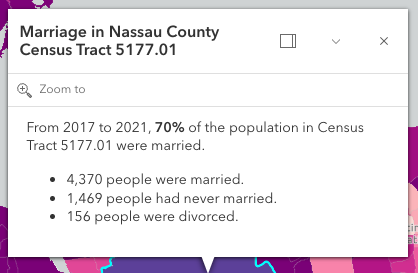
In the image above, the text "Marriage in New York County Census Tract 8" is the popup's title. The remaining text is
its content. A dock button  may also be available in the
top right corner of the popup. This allows the user to dock the popup to one of the sides or corners of the view.
The options for docking may be set in the dockOptions property.
may also be available in the
top right corner of the popup. This allows the user to dock the popup to one of the sides or corners of the view.
The options for docking may be set in the dockOptions property.
Popups can also contain actions that act like buttons,
which execute a function defined by the developer when clicked.
By default, every popup has a "Zoom to" action  that allows users to zoom to the selected feature. See the actions
property for information about adding custom actions to a popup.
that allows users to zoom to the selected feature. See the actions
property for information about adding custom actions to a popup.
The Popup widget is tied to the View, whether it's docked or anchored to the selected feature. If wanting to utilize the Popup functionality outside of the View, the Features widget can be used to display the same content in its own container that's not tied to the View.
Popup and PopupTemplate
PopupTemplate is closely related to Popup, but is more specific to layers and graphics. It allows you to define custom titles and content templates based on the source of the selected feature. When a layer or a graphic has a defined PopupTemplate, the popup will display the content defined in the PopupTemplate when the feature is clicked. The content may contain field values from the attributes of the selected feature.
Custom PopupTemplates may also be assigned directly to a popup by setting graphics on the features property. For more information about Popup and how it relates to PopupTemplate see the samples listed below.
Constructors
Constructor
Parameters
| Parameter | Type | Description | Required |
|---|---|---|---|
| properties | | |
Properties
| Property | Type | Class |
|---|---|---|
| | ||
active readonly | | |
| | ||
| | ||
| | ||
container inherited | HTMLElement | null | undefined | |
PopupViewModel["content"] | | |
currentDockPosition readonly | | |
declaredClass readonly inherited | ||
| | ||
destroyed readonly inherited | ||
| | ||
| | ||
featureCount readonly | | |
Graphic[] | | |
| | ||
| | ||
| | ||
Icon["icon"] | | |
id inherited | ||
| | ||
| | ||
| | ||
| | ||
selectedDrillInFeature readonly | | |
selectedFeature readonly | | |
| | ||
selectedFeatureWidget readonly | | |
| | ||
| | ||
| | ||
| | ||
| |
actions
- Type
- Collection<PopupAction>
Collection of action or action toggle objects.
Each action may be executed by clicking the icon or image symbolizing them.
By default, popups have a Zoom To action styled with a magnifying glass icon .
When this icon is clicked, the view zooms in four LODs and centers on the selected feature.
You may remove this default action by setting PopupViewModel.includeDefaultActions to false, or by setting the
PopupTemplate.overwriteActions property to true in a PopupTemplate.
The order of each action is the order in which they appear in the actions Collection.
The @trigger-action event fires each time an action is clicked.
Actions are defined with the properties listed in the ActionButton or ActionToggle classes.
Example
// Defines an action button to zoom out from the selected featureconst zoomOutAction = { type: "button", // This text is displayed as a tooltip title: "Zoom out", // The ID by which to reference the action in the event handler id: "zoom-out", // Sets the icon used to style the action button icon: "magnifying-glass-minus"};// Adds the custom action to the popup.view.popup.actions.push(zoomOutAction); active
- Type
- boolean
- Since
- ArcGIS Maps SDK for JavaScript 4.30
Indicates if the widget is active when it is visible and is not waiting for results.
- Default value
- false
alignment
- Type
- Alignment
- Since
- ArcGIS Maps SDK for JavaScript 4.8
Position of the popup in relation to the selected feature. The default behavior
is to display above the feature and adjust if not enough room. If needing
to explicitly control where the popup displays in relation to the feature, choose
an option besides auto.
- Default value
- "auto"
Example
// Popup will display on the bottom-right of the selected feature regardless of where that feature is locatedview.popup.alignment = "bottom-right"; collapsed
- Type
- boolean
- Since
- ArcGIS Maps SDK for JavaScript 4.5
Indicates whether the popup displays its content. If true, only the header displays.
- Default value
- false
container
- Type
- HTMLElement | null | undefined
The ID or node representing the DOM element containing the widget. This property can only be set once. The following examples are all valid use case when working with widgets.
Examples
// Create the HTML div element programmatically at runtime and set to the widget's containerconst basemapGallery = new BasemapGallery({  view: view,  container: document.createElement("div")});
// Add the widget to the top-right corner of the viewview.ui.add(basemapGallery, {  position: "top-right"});
// Specify an already-defined HTML div element in the widget's container
const basemapGallery = new BasemapGallery({ view: view, container: basemapGalleryDiv});
// Add the widget to the top-right corner of the viewview.ui.add(basemapGallery, { position: "top-right"});
// HTML markup<body> <div id="viewDiv"></div> <div id="basemapGalleryDiv"></div></body>// Specify the widget while adding to the view's UIconst basemapGallery = new BasemapGallery({ view: view});
// Add the widget to the top-right corner of the viewview.ui.add(basemapGallery, { position: "top-right"}); content
- Type
- PopupViewModel["content"]
The content of the popup. When set directly on the Popup, this content is static and cannot use fields to set content templates. To set a template for the content based on field or attribute names, see PopupTemplate.content.
Example
// This sets generic instructions in the popup that will always be displayed// unless it is overridden by a PopupTemplateview.popup.content = "Click a feature on the map to view its attributes"; currentDockPosition
- Type
- PopupPositionResult | null | undefined
Dock position in the View.
defaultPopupTemplateEnabled
- Type
- boolean
- Since
- ArcGIS Maps SDK for JavaScript 4.11
Enables automatic creation of a popup template for layers that have popups enabled but no
popupTemplate defined. Automatic popup templates are supported for layers that
support the createPopupTemplate method. (Supported for
FeatureLayer,
GeoJSONLayer,
OGCFeatureLayer,
SceneLayer,
CSVLayer,
PointCloudLayer,
StreamLayer,
ImageryLayer, and
VoxelLayer).
- Default value
- false
dockEnabled
- Type
- boolean
Indicates whether the placement of the popup is docked to the side of the view.
Docking the popup allows for a better user experience, particularly when opening popups in apps on mobile devices. When a popup is "dockEnabled" it means the popup no longer points to the selected feature or the location assigned to it. Rather it is attached to a side, the top, or the bottom of the view.
See dockOptions to override default options related to docking the popup.
- See also
- Default value
- false
Example
// The popup will automatically be dockEnabled when made visibleview.popup.dockEnabled = true; dockOptions
- Type
- DockOptions
Docking the popup allows for a better user experience, particularly when opening popups in apps on mobile devices. When a popup is "dockEnabled" it means the popup no longer points to the selected feature or the location assigned to it. Rather it is placed in one of the corners of the view or to the top or bottom of it. This property allows the developer to set various options for docking the popup.
See the object specification table below to override default docking properties on the popup.
- See also
Example
view.popup.dockOptions = { // Disable the dock button so users cannot undock the popup buttonEnabled: false, // Dock the popup when the size of the view is less than or equal to 600x1000 pixels breakpoint: { width: 600, height: 1000 }}; features
- Type
- Graphic[]
An array of features associated with the popup. Each graphic in this array must
have a valid PopupTemplate set. They may share the same
PopupTemplate or have unique
PopupTemplates depending on their attributes.
The content and title
of the popup is set based on the content and title properties of each graphic's respective
PopupTemplate.
When more than one graphic exists in this array, the current content of the Popup is set based on the value of the selected feature.
This value is null if no features are associated with the popup.
Example
// When setting the features property, the graphics pushed to this property// must have a PopupTemplate set.let g1 = new Graphic();g1.popupTemplate = new PopupTemplate({ title: "Results title", content: "Results: {ATTRIBUTE_NAME}"});// Set the graphics as an array to the popup instance. The content and title of// the popup will be set depending on the PopupTemplate of the graphics.// Each graphic may share the same PopupTemplate or have a unique PopupTemplatelet graphics = [g1, g2, g3, g4, g5];view.popup.features = graphics; goToOverride
- Type
- GoToOverride | null | undefined
- Since
- ArcGIS Maps SDK for JavaScript 4.8
This function provides the ability to override either the MapView goTo() or SceneView goTo() methods.
- See also
Example
// The following snippet uses Search but can be applied to any// widgets that support the goToOverride property.search.goToOverride = function(view, goToParams) { goToParams.options = { duration: updatedDuration }; return view.goTo(goToParams.target, goToParams.options);}; headingLevel
- Type
- HeadingLevel
- Since
- ArcGIS Maps SDK for JavaScript 4.20
Indicates the heading level to use for the title of the popup.
By default, the title is rendered
as a level 2 heading (e.g. <h2>Popup title</h2>). Depending on the widget's placement
in your app, you may need to adjust this heading for proper semantics. This is
important for meeting accessibility standards.
- See also
- Default value
- 2
Example
// popup title will render as an <h3>popup.headingLevel = 3; highlightEnabled
- Type
- boolean
Highlight the selected popup feature using the MapView.highlights set on the MapView or the SceneView.highlights set on the SceneView.
- Default value
- true
icon
- Type
- Icon["icon"]
- Since
- ArcGIS Maps SDK for JavaScript 4.27
Icon displayed in the widget's button.
- Default value
- "popup"
location
Point used to position the popup. This is automatically set when viewing the popup by selecting a feature. If using the Popup to display content not related to features in the map, such as the results from a task, then you must set this property before making the popup visible to the user.
- See also
Examples
// Sets the location of the popup to the center of the viewview.popup.location = view.center;// Displays the popupview.popup.visible = true;// Sets the location of the popup to a specific place (using autocast)// Note: using latitude/longitude only works if view is in Web Mercator or WGS84 spatial reference.view.popup.location = {latitude: 34.0571, longitude: -117.1968};// Sets the location of the popup to the location of a click on the viewreactiveUtils.on(()=>view, "click", (event)=>{ view.popup.location = event.mapPoint; // Displays the popup view.popup.visible = true;}); selectedDrillInFeature
- Since
- ArcGIS Maps SDK for JavaScript 4.32
The feature that the widget has drilled into. This feature is either associated with the selected feature in a relationship element or utility network association element.
selectedFeature
The selected feature accessed by the popup. The content of the Popup is determined based on the PopupTemplate assigned to this feature.
title
The title of the popup. This can be set generically on the popup no matter the features that are selected. If the selected feature has a PopupTemplate, then the title set in the corresponding template is used here.
- See also
Example
// This title will display in the popup unless a selected feature's// PopupTemplate overrides itview.popup.title = "Population by zip codes in Southern California"; view
- Type
- MapViewOrSceneView | null | undefined
viewModel
- Type
- PopupViewModel
This is a class that contains all the logic (properties and methods) that controls this widget's behavior. See the PopupViewModel class to access all properties and methods on the widget.
visible
- Type
- boolean
Indicates whether the popup is visible. This property is true when the popup is querying for results, even if it is not open in the view.
Use the PopupViewModel.active property to check if the popup is visible and is not waiting for results.
- See also
Example
// Hides the widget in the viewwidget.visible = false; visibleElements
- Type
- PopupVisibleElements
- Since
- ArcGIS Maps SDK for JavaScript 4.15
The visible elements that are displayed within the widget. This property provides the ability to turn individual elements of the widget's display on/off.
Example
popup.visibleElements = { closeButton: false};Methods
| Method | Signature | Class |
|---|---|---|
blur(): void | | |
classes inherited | classes(...classNames: ((string | null | undefined) | ((string[] | Record<string, boolean>) | null | undefined) | false | null | undefined)[]): string | |
clear(): void | | |
close(): void | | |
destroy inherited | destroy(): void | |
emit inherited | emit<Type extends EventNames<this>>(type: Type, event?: this["@eventTypes"][Type]): boolean | |
fetchFeatures(screenPoint: ScreenPoint, options?: FetchFeaturesOptions): Promise<FetchPopupFeaturesResult> | | |
focus(): void | | |
hasEventListener inherited | hasEventListener<Type extends EventNames<this>>(type: Type): boolean | |
isFulfilled inherited | isFulfilled(): boolean | |
isRejected inherited | isRejected(): boolean | |
isResolved inherited | isResolved(): boolean | |
next(): PopupViewModel | | |
on inherited | on<Type extends EventNames<this>>(type: Type, listener: EventedCallback<this["@eventTypes"][Type]>): ResourceHandle | |
open(options?: PopupOpenOptions): void | | |
postInitialize inherited | postInitialize(): void | |
previous(): PopupViewModel | | |
render inherited | render(): any | null | |
renderNow inherited | renderNow(): void | |
reposition(): void | | |
scheduleRender inherited | scheduleRender(): void | |
triggerAction(actionIndex: number): void | | |
when inherited | when<TResult1 = this, TResult2 = never>(onFulfilled?: OnFulfilledCallback<this, TResult1> | null | undefined, onRejected?: OnRejectedCallback<TResult2> | null | undefined): Promise<TResult1 | TResult2> |
blur
- Signature
-
blur (): void
- Since
- ArcGIS Maps SDK for JavaScript 4.6
Use this method to remove focus from the Widget.
- Returns
- void
classes
- Signature
-
classes (...classNames: ((string | null | undefined) | ((string[] | Record<string, boolean>) | null | undefined) | false | null | undefined)[]): string
- Since
- ArcGIS Maps SDK for JavaScript 4.7
A utility method used for building the value for a widget's class property.
This aids in simplifying css class setup.
Parameters
- Returns
- string
The computed class name.
Example
// .tsx syntax showing how to set css classes while rendering the widget
render() {  const dynamicClasses = {    [css.flip]: this.flip,    [css.primary]: this.primary  };
return ( <div class={classes(css.root, css.mixin, dynamicClasses)} /> );} emit
- Signature
-
emit <Type extends EventNames<this>>(type: Type, event?: this["@eventTypes"][Type]): boolean
- Type parameters
- <Type extends EventNames<this>>
- Since
- ArcGIS Maps SDK for JavaScript 4.5
Emits an event on the instance. This method should only be used when creating subclasses of this class.
fetchFeatures
- Signature
-
fetchFeatures (screenPoint: ScreenPoint, options?: FetchFeaturesOptions): Promise<FetchPopupFeaturesResult>
- Since
- ArcGIS Maps SDK for JavaScript 4.15
Use this method to return feature(s) at a given screen location. These features are fetched from all of the LayerViews in the View. In order to use this, a layer must already have an associated PopupTemplate and have its FeatureLayer.popupEnabled. These features can then be used within a custom Popup or Feature widget experience. One example could be a custom side panel that displays feature-specific information based on an end user's click location. This method allows a developer the ability to control how the input location is handled, and then subsequently, what to do with the results.
Parameters
| Parameter | Type | Description | Required |
|---|---|---|---|
| screenPoint | An object representing a point on the screen. This point can be in either the ScreenPoint or ScreenPoint. | | |
| options | The options
to pass into the | |
- Returns
- Promise<FetchPopupFeaturesResult>
Resolves with the selected
hitTestlocation. In addition, it also returns an array of graphics if thehitTestis performed directly on the View, a single Promise containing an array of all resulting graphics, or an array of objects containing this array of resulting graphics in addition to its associated LayerView.Most commonly if accessing all features, use the single promise returned in the result's allGraphicsPromise and call
.then()as seen in the example snippet.
Example
// Add Feature widget to UIview.ui.add(featureWidget, "top-right");
// Get view's click eventreactiveUtils.on(()=>view, "click", (event)=>{  // Call fetchFeatures and pass in the click event screenPoint  view.popup.fetchFeatures(event.screenPoint).then((response) => {    // Access the response from fetchFeatures    response.allGraphicsPromise.then((graphics) => {      // Set the feature widget's graphic to the returned graphic from fetchFeatures      featureWidget.graphic = graphics[0];    });  });});
focus
- Signature
-
focus (): void
- Since
- ArcGIS Maps SDK for JavaScript 4.6
Use this method to give focus to the Widget if the widget is able to be focused.
- Returns
- void
hasEventListener
- Signature
-
hasEventListener <Type extends EventNames<this>>(type: Type): boolean
- Type parameters
- <Type extends EventNames<this>>
Indicates whether there is an event listener on the instance that matches the provided event name.
Parameters
| Parameter | Type | Description | Required |
|---|---|---|---|
| type | Type | The name of the event. | |
- Returns
- boolean
Returns true if the class supports the input event.
isFulfilled
- Signature
-
isFulfilled (): boolean
isFulfilled() may be used to verify if creating an instance of the class is fulfilled (either resolved or rejected).
If it is fulfilled, true will be returned.
- Returns
- boolean
Indicates whether creating an instance of the class has been fulfilled (either resolved or rejected).
isRejected
- Signature
-
isRejected (): boolean
isRejected() may be used to verify if creating an instance of the class is rejected.
If it is rejected, true will be returned.
- Returns
- boolean
Indicates whether creating an instance of the class has been rejected.
isResolved
- Signature
-
isResolved (): boolean
isResolved() may be used to verify if creating an instance of the class is resolved.
If it is resolved, true will be returned.
- Returns
- boolean
Indicates whether creating an instance of the class has been resolved.
next
- Signature
-
next (): PopupViewModel
Selects the feature at the next index in relation to the selected feature.
- See also
- Returns
- PopupViewModel
Returns an instance of the popup's view model.
on
- Signature
-
on <Type extends EventNames<this>>(type: Type, listener: EventedCallback<this["@eventTypes"][Type]>): ResourceHandle
- Type parameters
- <Type extends EventNames<this>>
Registers an event handler on the instance. Call this method to hook an event with a listener.
Parameters
| Parameter | Type | Description | Required |
|---|---|---|---|
| type | Type | An event or an array of events to listen for. | |
| listener | EventedCallback<this["@eventTypes"][Type]> | The function to call when the event fires. | |
- Returns
- ResourceHandle
Returns an event handler with a
remove()method that should be called to stop listening for the event(s).Property Type Description remove Function When called, removes the listener from the event.
Example
view.on("click", function(event){ // event is the event handle returned after the event fires. console.log(event.mapPoint);}); open
- Signature
-
open (options?: PopupOpenOptions): void
Opens the popup at the given location with content defined either explicitly with content
or driven from the PopupTemplate of input features. This method sets
the popup's visible property to true. Users can alternatively open the popup
by directly setting the visible property to true.
The popup will only display if the view's size constraints in dockOptions are met or the location property is set to a geometry.
Parameters
| Parameter | Type | Description | Required |
|---|---|---|---|
| options | Defines the location and content of the popup when opened. | |
- Returns
- void
Examples
reactiveUtils.on(()=>view, "click", (event)=>{ view.popup.open({ location: event.mapPoint, // location of the click on the view title: "You clicked here", // title displayed in the popup content: "This is a point of interest" // content displayed in the popup });});reactiveUtils.on(()=>view, "click", (event)=>{ view.popup.open({ location: event.mapPoint, // location of the click on the view fetchFeatures: true // display the content for the selected feature if a popupTemplate is defined. }); });view.popup.open({ title: "You clicked here", // title displayed in the popup content: "This is a point of interest", // content displayed in the popup location: event.mapPoint, updateLocationEnabled: true // updates the location of popup based on // selected feature's geometry});view.popup.open({ features: graphics, // array of graphics featureMenuOpen: true, // selected features initially display in a list location: graphics[0].geometry // location of the first graphic in the array of graphics}); previous
- Signature
-
previous (): PopupViewModel
Selects the feature at the previous index in relation to the selected feature.
- See also
- Returns
- PopupViewModel
Returns an instance of the popup's view model.
reposition
- Signature
-
reposition (): void
Positions the popup on the view. Moves the popup into the view's extent if the popup is partially or fully outside the view's extent.
If the popup is partially out of view, the view will move to fully show the popup. If the popup is fully out of view, the view will move to the popup's location.
- Returns
- void
when
- Signature
-
when <TResult1 = this, TResult2 = never>(onFulfilled?: OnFulfilledCallback<this, TResult1> | null | undefined, onRejected?: OnRejectedCallback<TResult2> | null | undefined): Promise<TResult1 | TResult2>
- Since
- ArcGIS Maps SDK for JavaScript 4.6
when() may be leveraged once an instance of the class is created. This method takes two input parameters: an onFulfilled function and an onRejected function.
The onFulfilled executes when the instance of the class loads. The
onRejected executes if the instance of the class fails to load.
Parameters
| Parameter | Type | Description | Required |
|---|---|---|---|
| onFulfilled | OnFulfilledCallback<this, TResult1> | null | undefined | The function to call when the promise resolves. | |
| onRejected | The function to execute when the promise fails. | |
- Returns
- Promise<TResult1 | TResult2>
Returns a new promise for the result of
onFulfilledthat may be used to chain additional functions.
Example
// Although this example uses MapView, any class instance that is a promise may use when() in the same waylet view = new MapView();view.when(function(){ // This function will execute once the promise is resolved}, function(error){ // This function will execute if the promise is rejected due to an error});Events
| Name | Type |
|---|---|
trigger-action inherited |
trigger-action
trigger-action: CustomEvent<ActionEvent> Fires after the user clicks on an action or action toggle in the action bar. This event may be used to define a custom function to execute when particular actions are clicked. See the example below for details of how this works.
Examples
featuresWidget.open({  location: event.mapPoint,  fetchFeatures: true,  featureMenuOpen: true,  actions: [{    // This text is displayed as a tooltip    title: "Zoom out",    // The ID used to reference this action in the event handler    id: "zoom-out",    // Sets the icon font used to style the action button    className: "esri-icon-zoom-out-magnifying-glass"  },  {    title: "Delete Feature",    id: "delete-feature-action",    icon: "trash"  }]});
// Fires each time an action is clickedreactiveUtils.on(()=> featuresWidget, "trigger-action", (event)=>{  // If the zoom-out action is clicked, execute the following code  if(event.action.id === "zoom-out"){    // Zoom out two levels (LODs)    view.goTo({      center: view.center,      zoom: view.zoom - 2    });  }});
// Defines an action button to zoom out from the selected featureconst zoomOutAction = { type: "button", // This text is displayed as a tooltip title: "Zoom out", // The ID by which to reference the action in the event handler id: "zoom-out", // Sets the icon used to style the action button icon: "magnifying-glass-minus"};// Adds the custom action to the popup.view.popup.actions.push(zoomOutAction);
// This event fires for each click on any actionreactiveUtils.on(()=>view.popup?.viewModel, "trigger-action", (event)=>{ // If the zoom-out action is clicked, fire the zoomOut() function if(event.action.id === "zoom-out"){ // in this case the view zooms out two LODs on each click view.goTo({ center: view.center, zoom: view.zoom - 2 }); }});// Defines an action button to zoom out from the selected featureconst zoomOutAction = { type: "button", // This text is displayed as a tooltip title: "Zoom out", // The ID by which to reference the action in the event handler id: "zoom-out", // Sets the icon used to style the action button icon: "magnifying-glass-minus"};// Adds the custom action to the popup.view.popup.actions.push(zoomOutAction);
// This event fires for each click on any actionreactiveUtils.on(()=>view.popup?.popupViewModel, "trigger-action", (event)=>{ // If the zoom-out action is clicked, fire the zoomOut() function if(event.action.id === "zoom-out"){ // in this case the view zooms out two LODs on each click view.goTo({ center: view.center, zoom: view.zoom - 2 }); }});