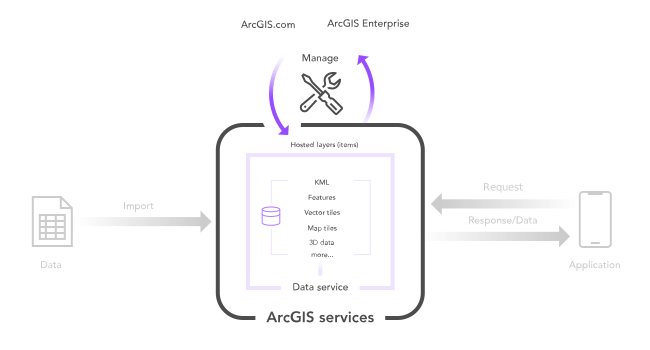
A hosted imagery layer (item)
You can use the item properties to:
- Update the metadata for the hosted layer such as the name, description, and terms of use.
- Make an item more discoverable in a portal.
- Include important terms of use or credits information.
- Find data service information such as the URL endpoint.
- Change the sharing and security settings.

How to manage a hosted imagery layer (item)
When you create a new data service, the hosted layer and data service sharing level (privacy setting) is set to Owner. The item and data service are only available to you. This setting requires that applications provide a valid access token
The steps to change the sharing properties are:
-
Sign in to your portal
ArcGIS portal, also known as a portal, is a website with applications and tools that can be used to create, manage, access, and share geospatial content and data. It supports security and authentication, developer credentials, content and data service management, user and group management, and site administration. A portal can be hosted in Esri's infrastructure or your own infrastructure. :- ArcGIS Location Platform: Go to https://location.arcgis.com > My portal.
- ArcGIS Online: Go to https://www.arcgis.com/home/signin.html.
- ArcGIS Enterprise: Go to your portal URL. Learn more at ArcGIS Enterprise > Use > Get started > Access.
- Find the item.
- Use the item page to change the item properties.
Access an item page
You can manage the properties of a hosted layer by accessing the item page
https://{portal}/home/item.html?{id}Example: https
Content properties
The content properties of a hosted layer
Examples of general properties include the following:
- *ID: The unique identifier for the item.
- *Type: The type of hosted layer.
- *Item created: Date the item was created.
- *Item updated: Date the item was updated.
- *View count: Number of times the item page was viewed.
- *Owner: Name of the owner or publisher of the data.
- Name: The name of the hosted layer.
- Description: Text that describes the layer, what data it contains, and what it is used for.
- Terms of use: Description of usage restrictions for the data.
- Tags: Search text used to find an item in a portal.
- Credits: Attribution for the data.
- Terms of use: The terms and usage restrictions.
*Read-only properties
Data service properties
The service properties of a hosted layer
Examples of service properties include the following:
- *Layers: Access to other layers if present.
- *Source: The type of data service (feature service, vector tile service, map service).
- *Size: The size of the data in KB.
- *URL: The URL used to access the layer in the data service.
*Read-only properties
Code examples
You can use data management tools to get the properties of a hosted map tile layer
Get item properties
To access the imagery layer item properties directly, use the REST API with the item ID. The example below returns the item properties and values for a tiled imagery layer (item).
Request
https://www.arcgis.com/sharing/rest/content/items/366d13d521b844119c9052758b33afc9?f=json&token={access_token}Response
{
"id": "c7b1872373474e9086259f5796228921",
"owner": "mtorrey_devlabs",
"created": 1711998781000,
"isOrgItem": true,
"modified": 1711998906000,
"guid": null,
"name": "Santa_Monica_terrain_10m",
"title": "Santa Monica terrain 10m (static tiles)",
"type": "Image Service",
"typeKeywords": [
"ArcGIS Server",
"Data",
"Image Service",
"Service",
"Tiled Imagery",
"Hosted Service"
],
"description": null,
"tags": [
"image",
"service",
"santa",
"monica"
],
"snippet": null,
"thumbnail": "thumbnail/blob.png",
"documentation": null,
"extent": [
[
-118.63365297389575,
33.94067077410918
],
[
-118.21503805149605,
34.13525783043728
]
],
"categories": [],
"spatialReference": "102100",
"accessInformation": null,
"classification": null,
"licenseInfo": null,
"culture": "",
"properties": {},
"advancedSettings": null,
"url": "https://tiledimageservices3.arcgis.com/GVgbJbqm8hXASVYi/arcgis/rest/services/Santa_Monica_terrain_10m/ImageServer",
"proxyFilter": null,
"access": "private",
"size": 0,
"subInfo": 0,
"appCategories": [],
"industries": [],
"languages": [],
"largeThumbnail": null,
"banner": null,
"screenshots": [],
"listed": false,
"ownerFolder": null,
"protected": false,
"commentsEnabled": true,
"numComments": 0,
"numRatings": 0,
"avgRating": 0,
"numViews": 1,
"itemControl": "admin",
"scoreCompleteness": 50,
"groupDesignations": null,
"token1ExpirationDate": -1,
"token2ExpirationDate": -1,
"lastViewed": 1712001600000
}Get image service properties
If you want to access the image service properties directly, you can do so by using the REST API Image Service endpoint. The example below returns the service properties and values for a hosted image service in ArcGIS.
Request
https://tiledimageservices3.arcgis.com/GVgbJbqm8hXASVYi/arcgis/rest/services/Santa_Monica_terrain_10m/ImageServer?token={access_token}Response
{
"currentVersion": 11.2,
"name": "Santa_Monica_terrain_10m",
"serviceDescription": "",
"description": "",
"type": "ImageServer",
"capabilities": "Image,TilesOnly",
"copyrightText": "",
"serviceItemId": "c7b1872373474e9086259f5796228921",
"meanPixelSize": 10,
"server": "GVgbJbqm8hXASVYi",
"created": null,
"modified": null,
"status": "created",
"access": "SECURE",
"allowAnalysis": true,
"allowCopy": false,
"serviceSourceType": "esriImageServiceSourceTypeDataset",
"spatialReference": {
"wkid": 102100,
"latestWkid": 3857
},
"extent": {
"xmin": -13206237.84,
"ymin": 4020838.34,
"xmax": -13159637.84,
"ymax": 4046978.34,
"spatialReference": {
"wkid": 102100,
"latestWkid": 3857
}
},
"initialExtent": {
"xmin": -13206237.84,
"ymin": 4020838.34,
"xmax": -13159637.84,
"ymax": 4046978.34,
"spatialReference": {
"wkid": 102100,
"latestWkid": 3857
}
},
"fullExtent": {
"xmin": -13206237.84,
"ymin": 4020838.34,
"xmax": -13159637.84,
"ymax": 4046978.34,
"spatialReference": {
"wkid": 102100,
"latestWkid": 3857
}
},
"datasetFormat": "Cache/LERC2D",
"compressionType": "LERC",
"uncompressedSize": 48724960,
"pixelSizeX": 10,
"pixelSizeY": 10,
"blockWidth": 256,
"blockHeight": 256,
"bandCount": 1,
"bandNames": [
"Band 0"
],
"pixelType": "F32",
"minPixelSize": 10,
"maxPixelSize": 160,
"minScale": 604723.2,
"maxScale": 37795.2,
"serviceDataType": "esriImageServiceDataTypeElevation",
"minValues": [
-1.5030213594436646
],
"maxValues": [
768.55615234375
],
"meanValues": [
125.74470303565873
],
"stdvValues": [
145.06171728828704
],
"objectIdField": "",
"fields": [],
"defaultMosaicMethod": "",
"allowedMosaicMethods": "",
"sortField": "",
"sortValue": null,
"sortAscending": true,
"singleFusedMapCache": true,
"tileInfo": {
"rows": 256,
"cols": 256,
"dpi": 96,
"preciseDpi": 96,
"format": "LERC2D",
"storageFormat": "esriMapCacheStorageModeCompactV2",
"packetSize": 16,
"compressionQuality": 0,
"antialiasing": false,
"origin": {
"x": -13206237.84,
"y": 4046978.34
},
"spatialReference": {
"wkid": 102100,
"latestWkid": 3857
},
"lods": [
{
"level": 0,
"resolution": 160,
"scale": 604723.2
},
{
"level": 1,
"resolution": 80,
"scale": 302361.6
},
{
"level": 2,
"resolution": 40,
"scale": 151180.8
},
{
"level": 3,
"resolution": 20,
"scale": 75590.4
},
{
"level": 4,
"resolution": 10,
"scale": 37795.2
}
]
},
"cacheType": "Raster",
"allowRasterFunction": false,
"hasHistograms": true,
"hasColormap": false,
"hasRasterAttributeTable": false,
"exportTilesAllowed": false,
"maxExportTilesCount": 100000,
"hasMultidimensions": false
}Services
Feature service
Add, update, delete, and query feature data.
Vector tile service
Store and access vector tile data.
Map tile service
Store and access map tile data.
Image service
Store and access imagery and raster data.
API support
Use data management tools
- 1. Use portal class and direct REST API requests
- 2. Access via ArcGIS REST JS
- 3. Requires manually setting styles for renderers
- 4. Limited to Feature Services