import Editor from "@arcgis/core/widgets/Editor.js";const Editor = await $arcgis.import("@arcgis/core/widgets/Editor.js");- Since
- ArcGIS Maps SDK for JavaScript 4.11
- Overview
- Editor workflows
- SceneLayer editing
- Snapping in the Editor
- Tooltips and editing constraints
- Relationship editing
- Association editing
- Editing date and time
- Editing big integer data
- Elevated user privileges
- Suggestions and known limitations
Overview
This widget provides an out-of-the-box editing experience to help streamline editing within a web application. It automatically recognizes if there are editable feature layers within the map. The layers that are editable will automatically be used by the widget. It is possible to configure how the Editor behaves by setting its
layerInfos property.
This property takes an array of objects which allows configuring the the editing experience for these layers.
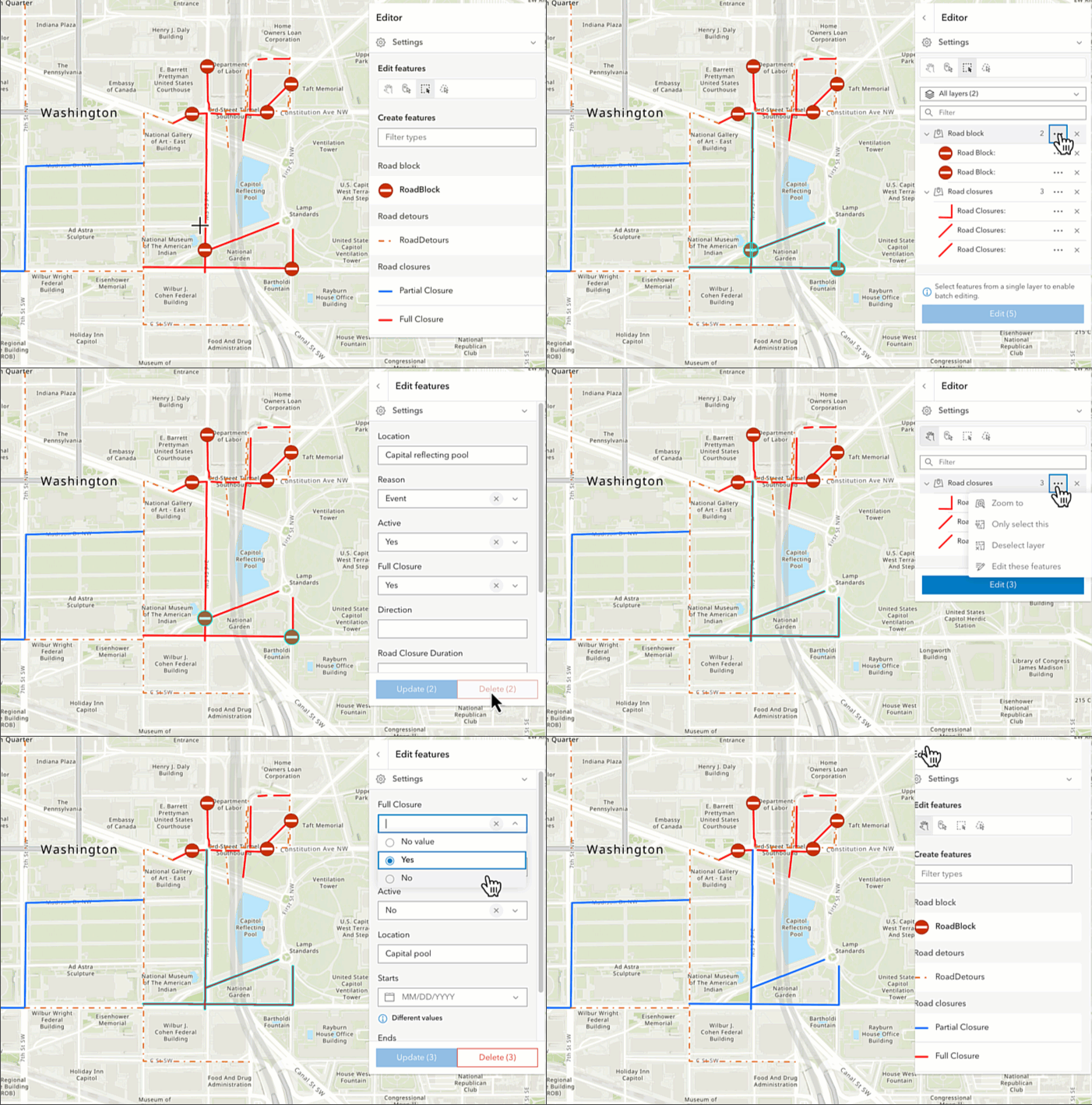
Note that the update operations (such as rotate, move, and transform) happen in the map space. This means that, for example in 3D, if a graphic is rotated in a global WGS84 view, its shape and segment lengths change.
Editor workflows
The widget has different workflows based on the functionality needed. These workflows are dependent upon permissions set on the service or within the client application.
- CreateFeaturesWorkflow - This workflow allows both individual and continuous feature creation at once. It is possible to continuously create multiple features of the same type at once. After the initial sketch is created, the attribute form will display with the set field elements. These fields can be updated as the user creates new features.
- UpdateWorkflow - This workflow allows you to update and/or delete existing features within an editable feature layer.
SceneLayer editing
Since 4.27, it is possible to upload 3D models of various formats to an editable SceneLayer.
The following model formats are currently supported. For additional information, please refer to the ArcGIS Pro documentation. Please note that only one model can be uploaded at a time and zip files should be used for a model with additional texture files.
- COLLADA (.dae)
- Autodesk Filmbox (.fbx)
- Autodesk Drawing (.dwg)
- Industry Foundation Classes (.ifc)
- Universal Scene Description (.usdc, .usdz)
- Wavefront (.obj)
- GL Transmission Format (.glTF)
- Binary GL Transmission Format (.glb)
Snapping in the Editor
Snapping can be configured using the controls in the Editor widget's "Settings" menu. By default, snapping is disabled. Toggle "Enable snapping" to enable it. By default, both geometry guides and feature-to-feature snapping are enabled.
Geometry guides allow the editor to specify how they want their geometries to be drawn. For example, when the segment being drawn is nearly perpendicular to another segment, the cursor may snap to form a precise right angle.
Feature-to-feature snapping allows new or existing geometries to be snapped to other geometries, including those in other layers, as shown within the "Snapping layer" list. By default, all layers that can be configured for snapping are shown in this list. The available layers can be restricted by updating the Editor's snappingOptions by setting the FeatureSnappingLayerSource directly.
Tooltips and editing constraints
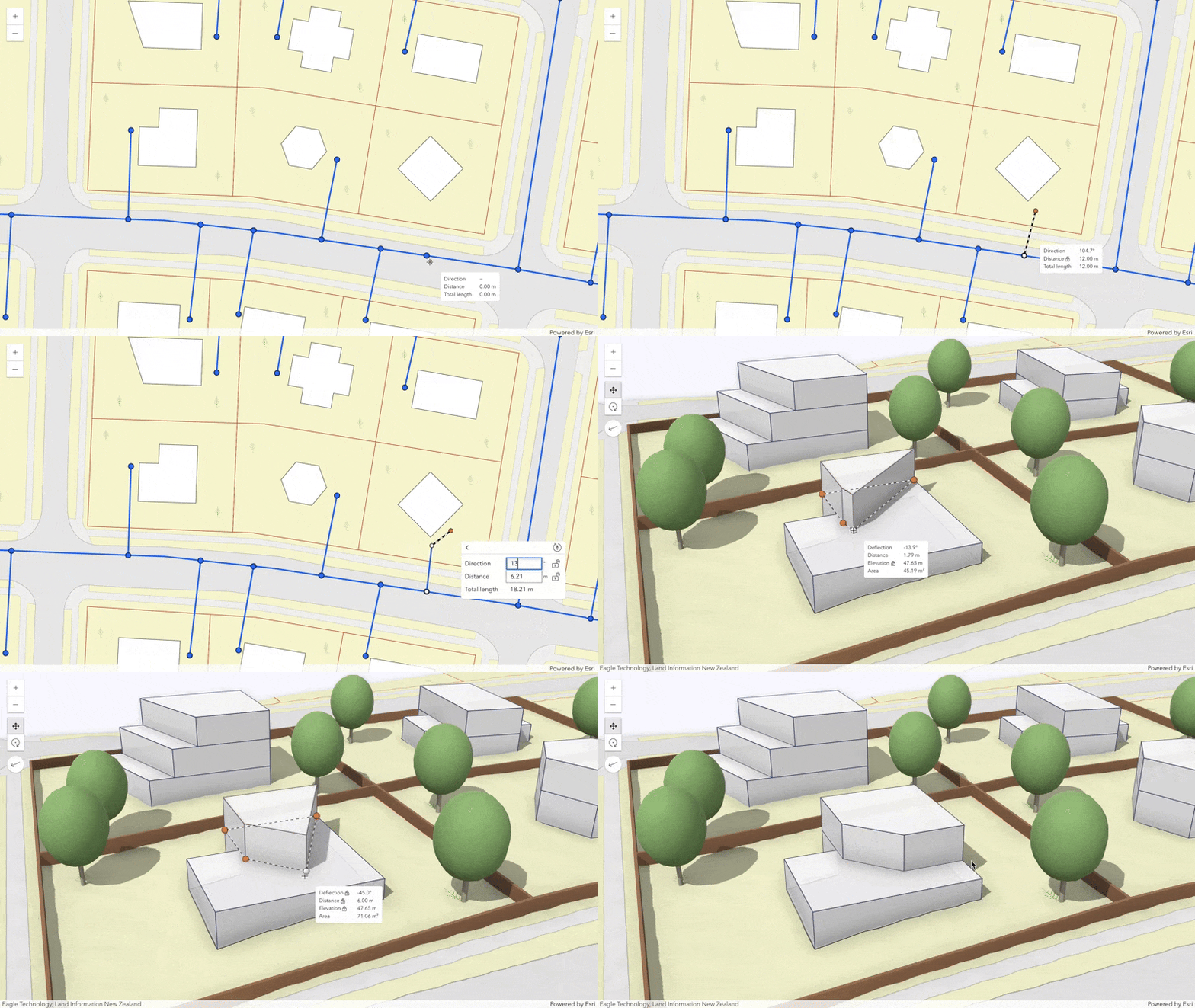
The tooltips provide useful information about a feature or its components (vertices and segments) that are being drawn or edited. For example, they show the position of vertices, the direction and distance of segments, as well as orientation and scale of meshes.
The tooltips can be enabled in the Editor widget's "Settings" menu.
Coordinate inputs and editing constraints are helpful to achieve greater control while drawing features.
Press Tab to activate the input mode while drawing a new feature, or when editing a point, mesh, or a selected vertex.
See more about the available tooltip inputs and constraints under the tooltip options class.
Relationship editing
It is possible to edit related data via the Editor widget. The relationship element provides the functionality needed to configure the relationship within the FormTemplate. These elements must be saved within the form for the Editor to support editing related data. This can be accomplished via the Map Viewer's authoring experience or programmatically using the SDK.
Once the form is authored, the Editor automatically checks if there is a FormTemplate set on the editable layer, or the widget's corresponding LayerInfo. If the form's template is not set or is not configured to contain relationship elements, the Editor will not display the option to edit the relationship data. Additional considerations when using the Editor to edit related data are provided below.

Read More
Considerations when editing related data in the Editor
- Support is limited to 1 and 1 cardinality.
- Support is limited to feature-to-table and feature-to-feature relationships, ie. origin-to-destination. The origin's entry point must be a feature with geometry.
- Relationship editing is only supported using ArcGIS Online and ArcGIS Enterprise version 11.2 or higher feature services.
- The layer and associated relationship elements must be editable in order for the relationship to display.
- The origin (parent) feature must be editable in order to edit the related destination (child) feature/row.
- Data containing related records will display the relationship in the associated form as long as there is a relationship element configured in the layer or form's formTemplate. This can be accomplished via the Map Viewer's authoring experience, Field Maps Designer, or programmatically using the API.
- The related layer or table must also be added to the map to be able to configure relationship elements.
- Editing relationships on layers with preset and group templates are not yet supported.
Association editing
To enable support for editing associated features in Editor, the FormTemplate must include one or more association elements. This can be achieved through the Map Viewer's authoring experience or programmatically via the SDK. Editing associated features is exclusively supported within UtilityNetworks.
Once the form is created, the Editor checks if a FormTemplate is assigned to the layer or the widget's LayerInfo. If the form's template lacks the necessary association elements, the Editor will not display associated features or options to edit them. Also, if an associated feature exists on a layer and that layer is not included in the WebMap being used, the associated feature will not be shown in Editor.

Creating associations
If the FormTemplate includes one or more association elements,
Editor will provide the option to create new associations between the
selected feature and another feature on the map. Only types specified in the formTemplate association
elements can be used for new associations.
To create an association involving the selected feature, navigate to the association type desired for the new association and click "Add" below the list of associated layers. Select the layer containing the feature to form an association with, then select a feature within that layer.
The layers and features shown in the list are those that are compatible with the selected feature and association type based on utility network rules.
After choosing a feature to form the association with, settings specific to the association type can be configured, e.g., midspan location for connectivity associations.
Click "Add" to create the association.

Alternatively, if compatible layers are visible on the map, a feature can be selected on the map using a spatial selection toolbar. Features can be selected at a single point or within a region. Any compatible features at the selected point or within the defined region are displayed in a list. Hover over a feature in the list to highlight it on the map; click a feature in the list to choose the feature to form the association with.

While viewing compatible features on a layer, filters can optionally be used to find a specific feature to form an association with.

Deleting associations
When viewing an associated feature, the Editor widget provides a dropdown next to "Delete". Click the dropdown, then choose "Delete association". Confirm your choice to delete the association between the feature you initially selected and the feature you are now viewing.
Read More
Considerations when deleting associations in the Editor
- For the option to delete an association to display, the feature's layer must support deletions.
- Support is limited to feature-to-table and feature-to-feature associations, ie. origin-to-destination. The origin's entry point must be a feature with geometry.
- To delete a containment association: Select the container feature, navigate to the content feature, then delete the association. Alternatively, select the content feature, navigate to the container feature, then delete the association.
- To delete a connectivity association: Select one of the connected features, navigate to the other connected feature, then delete the association.
- To delete a structural attachment association: Select the structure feature, navigate to the attached feature, then delete the association. Alternatively, select the attached feature, navigate to the structure feature, then delete the association.
If the deletion was successful, the Editor widget will return to the list of associated features for the chosen layer. If no associated features remain on that layer, the widget will return to the list of layers. If the selected feature is no longer involved in any associations, the widget returns to the selected feature.
While viewing associated features on a layer, a search bar can optionally be used to filter by the title of the feature shown in the list.

Editing date and time
The Editor displays the date field Field.type in
the MapView's MapView.timeZone by default.
However, when working with the timestamp-offset type, the data is displayed using the stored date
values from the service. For example, if the stored value is 2023-09-11T22:39:05.242-0400, then
the Editor will present three inputs to edit the date (9/11/2023), time (10:39:05 PM), and time
zone offset (GMT-4) regardless of the MapView time zone.
Here are a few points to consider if using an unknown timezone:
- The layer's setting takes priority over the view. For example, if a layer's timezone is
unknown, bothdateandtimestamp-offsetfield types are shown in UTC. - If a view's timezone is set to to
unknown, but a layer has a FeatureLayer.preferredTimeZone,datefield types will display values with the preferred time zone that is set within the layer. - If a view and layer's timezone are set to
unknown,datefield types will display values using UTC. If a view's timezone is set to tounknownand working withtimestamp-offsetfield types, date is shown as-is, ie. as it's stored within the raw data.
Editing big integer data
The big-integer data type is a 64-bit signed integer that can store very large whole number
integer values with the range of -9007199254740991 and 9007199254740991.
Web applications can only edit whole numbers between -9007199254740991 and 9007199254740991. Any
attempts to edit a number value higher or lower than these thresholds will not work and those edits
will not be saved.
Elevated user privileges
Authenticated users that are layer owners, administrators or users with full editing privileges will have their elevated user privileges applied in regards to editing behavior and data access. This mimics the behavior available in Map Viewer. To opt out, set esriConfig.userPrivilegesApplied to false.
Suggestions and known limitations
- It is not recommended to set a very small FeatureLayer.refreshInterval on an editable layer as this can potentially degrade performance within the application.
- Editor workflows are only enabled if the feature service allows these operations. In addition, if wanting to completely remove the ability to select and update, it is necessary to also set
attachmentsOnUpdateEnabled: falseinlayerInfo.attachmentsOnUpdateEnabled. - If a layer's feature template is not enabled within the Editor, check that the layer's permissions are enabled for editing. In addition, make sure that the layer is visible. If the feature template does not display, make sure that the layer is fully loaded in the map and that the Editor has access to edit it.
- Batch attribute editing is limited to single layers.
- Support for batch attribute editing is not yet supported for relationship and association data.
- Configuring form templates for batch attribute editing is not yet supported.
- Text elements are not recognized within batch attribute forms.
- No support for contingent attribute values.
- There is a limit of 500 features if a layer does not have a corresponding form template.
- There is a limit of 500 features for layers that do have a corresponding form template but contains no complex asynchronous Arcade expressions.
- There is a limit of 50 features for layers that have a corresponding form template containing complex asynchronous Arcade expressions.
- See also
Example
// At the very minimum, set the Editor's viewconst editor = new Editor({  view: view});
view.ui.add(editor, "top-right");
Constructors
Constructor
Parameters
| Parameter | Type | Description | Required |
|---|---|---|---|
| properties | | |
Example
// Typical usage for Editor widget. By default, this will recognize all editable layers in the map if no specific layers are set. It is also possible to iterate through the map's editableLayers and load any layers needed for editing.
const editor = new Editor({  view: view});
Properties
| Property | Type | Class |
|---|---|---|
activeWorkflow readonly | EditorViewModel["activeWorkflow"] | null | undefined | |
container inherited | HTMLElement | null | undefined | |
declaredClass readonly inherited | ||
destroyed readonly inherited | ||
editorItems readonly | | |
| | ||
Icon["icon"] | | |
id inherited | ||
isUsingLegacyCreateTools deprecated readonly | | |
| | ||
| | ||
| | ||
| | ||
| | ||
| | ||
| | ||
| | ||
useLegacyCreateTools deprecated | | |
| | ||
| | ||
| | ||
visible inherited | ||
| |
activeWorkflow
- Type
- EditorViewModel["activeWorkflow"] | null | undefined
A property indicating the current active workflow. This is either CreateFeaturesWorkflow or UpdateWorkflow.
container
- Type
- HTMLElement | null | undefined
The ID or node representing the DOM element containing the widget. This property can only be set once. The following examples are all valid use case when working with widgets.
Examples
// Create the HTML div element programmatically at runtime and set to the widget's containerconst basemapGallery = new BasemapGallery({  view: view,  container: document.createElement("div")});
// Add the widget to the top-right corner of the viewview.ui.add(basemapGallery, {  position: "top-right"});
// Specify an already-defined HTML div element in the widget's container
const basemapGallery = new BasemapGallery({ view: view, container: basemapGalleryDiv});
// Add the widget to the top-right corner of the viewview.ui.add(basemapGallery, { position: "top-right"});
// HTML markup<body> <div id="viewDiv"></div> <div id="basemapGalleryDiv"></div></body>// Specify the widget while adding to the view's UIconst basemapGallery = new BasemapGallery({ view: view});
// Add the widget to the top-right corner of the viewview.ui.add(basemapGallery, { position: "top-right"}); editorItems
- Type
- Collection<EditorItem>
- Since
- ArcGIS Maps SDK for JavaScript 5.0
A predominantly read-only collection of editor items that corresponds to the feature being updated.
headingLevel
- Type
- HeadingLevel
- Since
- ArcGIS Maps SDK for JavaScript 4.20
Indicates the heading level to use for title of the widget. By default, the title (i.e. "Editor") is rendered
as a level 4 heading (e.g. <h4>Editor</h4>). Depending on the widget's placement
in your app, you may need to adjust this heading for proper semantics. This is
important for meeting accessibility standards.
- See also
- Default value
- 4
Example
// "Editor" will render as an <h3>editor.headingLevel = 3; icon
- Type
- Icon["icon"]
- Since
- ArcGIS Maps SDK for JavaScript 4.27
Icon which represents the widget. It is typically used when the widget is controlled by another one (e.g. in the Expand widget).
- Default value
- "pencil"
isUsingLegacyCreateTools
- Type
- boolean
- Since
- ArcGIS Maps SDK for JavaScript 5.0
Use this property to determine if the next generation geometry creation
has been disabled. This can happen when
useLegacyCreateTools is true,
or Editor is used with a non-2D (arcgis-map) view.
- Default value
- false
labelOptions
- Type
- SketchLabelOptions
- Since
- ArcGIS Maps SDK for JavaScript 4.24
Options to configure the sketch labels shown next to each segment of the geometry being created or updated.
Known Limitation
Sketch labels are currently only supported when working with a SceneView.
layerInfos
An array of editing configurations for individual layers. It is possible to iterate through the map's Map.editableLayers and configure these individual layers as needed.
If you have an editable feature layer but do not want
the end user to do any type of editing, you can limit this by
setting the enabled property to false.
Example
const editor = new Editor({ view: view, layerInfos: [{ layer: featureLayer, // pass in the feature layer, formTemplate: { // autocastable to FormTemplate elements: [ { // autocastable to FieldElement type: "field", fieldName: "fulladdr", label: "Full Address" } ] }, enabled: true, // Default is true, set to false to disable editing functionality. addEnabled: true, // Default is true, set to false to disable the ability to add a new feature. updateEnabled: false, // Default is true, set to false to disable the ability to edit an existing feature. deleteEnabled: false, // Default is true, set to false to disable the ability to delete features. attributeUpdatesEnabled: true, // Default is true, set to false to disable the ability to edit attributes in the update workflow. geometryUpdatesEnabled: true, // Default is true, set to false to disable the ability to edit feature geometries in the update workflow. attachmentsOnCreateEnabled: true, //Default is true, set to false to disable the ability to work with attachments while creating features. attachmentsOnUpdateEnabled: true //Default is true, set to false to disable the ability to work with attachments while updating/deleting features. }]}); selectionManager
- Type
- SelectionManager | null | undefined
- Since
- ArcGIS Maps SDK for JavaScript 5.0
Use this property to supply a custom selection manager that overrides the default selection manager.
This is useful when applications want to share selection sets between components, without relying on the view's selection manager. This property is ignored if syncViewSelection is true.
snappingOptions
- Type
- SnappingOptions
- Since
- ArcGIS Maps SDK for JavaScript 4.19
The SnappingOptions for editing. Supports self snapping and feature snapping. Starting with version 4.23, the SnappingControls UI is automatically integrated into the Editor widget.
Modify the snappingOptions if modifications are needed from what is provided in the default UI.
Example
// Creates the Editor with SnappingOptions with no snapping UIconst editor = new Editor({  view: view,  snappingOptions: { // autocasts to SnappingOptions()    enabled: true,    featureSources: [{layer: streetsLayer}] // autocasts to FeatureSnappingLayerSource()  }});
// Add the widgets to the viewview.ui.add(editor, "top-right");
supportingWidgetDefaults
- Type
- SupportingWidgetDefaults | null | undefined
This property allows customization of supporting Editor widgets and their default behavior. These widgets include FeatureForm, FeatureTemplates, and the SketchViewModel.
This property is useful for basic overrides of the default widgets. There may be some limitations
to what the Editor can do with these overridden properties. For example, the Editor will disable the multipleSelectionEnabled property in Sketch.defaultUpdateOptions
no matter what is set within this property.
syncViewSelection
- Type
- boolean
- Since
- ArcGIS Maps SDK for JavaScript 5.0
Indicates whether the Editor should sync with the view's selection manager. Enabling this does not automatically inherit the selection sources from the SelectionManager, (e.g. which layers or graphics collections the view listens to for selections). If you need specific selection sources, configure them separately via SelectionManager.sources.
Setting this property takes precedence over the selectionManager property.
- Default value
- false
tooltipOptions
- Type
- SketchTooltipOptions
- Since
- ArcGIS Maps SDK for JavaScript 4.24
Options to configure the tooltip shown next to the cursor when creating or updating graphics.
useLegacyCreateTools
- Type
- boolean
- Since
- ArcGIS Maps SDK for JavaScript 5.0
Starting with 5.0, Editor is transitioning to a next generation geometry creation experience. This new experience enables the use of advanced curve creation tools and the combination of multiple create tools to define a single geometry.
As of 5.0, this experience is only available in 2D (e.g., MapView, arcgis-map).
This property is available to allow 2D applications to temporarily opt out of this experience.
This option will be removed in an upcoming release.
valueOptions
- Type
- SketchValueOptions
- Since
- ArcGIS Maps SDK for JavaScript 4.29
Options to configure how values are displayed and input when creating or updating graphics.
view
- Type
- MapViewOrSceneView | null | undefined
viewModel
- Type
- EditorViewModel
The view model for this widget. This is a class that contains all the logic (properties and methods) that controls this widget's behavior. See the EditorViewModel class to access all properties and methods on the widget.
visible
- Type
- boolean
Indicates whether the widget is visible.
If false, the widget will no longer be rendered in the web document. This may affect the layout of other elements or widgets in the document. For example, if this widget is
the first of three widgets associated to the upper right hand corner of the DefaultUI, then the other widgets will reposition when this widget is made invisible.
For more information, refer to the css display value of "none".
- Default value
- true
Example
// Hides the widget in the viewwidget.visible = false; visibleElements
- Type
- VisibleElements
- Since
- ArcGIS Maps SDK for JavaScript 4.25
The visible elements that are displayed within the widget. This property provides the ability to turn individual elements of the widget's display on/off.
Example
editor.visibleElements = { snappingControls: true, snappingControlsElements: { featureEnabledToggle: false, // removes "Feature to feature" toggle layerList: false // removes Snapping layers list }};Methods
| Method | Signature | Class |
|---|---|---|
cancelSelectionTool(): void | | |
cancelWorkflow(): Promise<void> | | |
classes inherited | classes(...classNames: ((string | null | undefined) | ((string[] | Record<string, boolean>) | null | undefined) | false | null | undefined)[]): string | |
deleteAssociationFromWorkflow(): Promise<void> | | |
deleteFeatureFromWorkflow deprecated | deleteFeatureFromWorkflow(): Promise<void> | |
deleteFeatures(): Promise<void> | | |
destroy inherited | destroy(): void | |
emit inherited | emit<Type extends EventNames<this>>(type: Type, event?: this["@eventTypes"][Type]): boolean | |
hasEventListener inherited | hasEventListener<Type extends EventNames<this>>(type: Type): boolean | |
isFulfilled inherited | isFulfilled(): boolean | |
isRejected inherited | isRejected(): boolean | |
isResolved inherited | isResolved(): boolean | |
on inherited | on<Type extends EventNames<this>>(type: Type, listener: EventedCallback<this["@eventTypes"][Type]>): ResourceHandle | |
postInitialize inherited | postInitialize(): void | |
render inherited | render(): any | null | |
renderNow inherited | renderNow(): void | |
scheduleRender inherited | scheduleRender(): void | |
startCreateFeaturesWorkflowAtFeatureCreation(creationInfo: CreateFeaturesCreationInfo): Promise<void> | | |
startCreateFeaturesWorkflowAtFeatureEdit(params: EditorStartCreateFeaturesWorkflowAtFeatureEditParameters): Promise<void> | | |
startCreateFeaturesWorkflowAtFeatureTypeSelection(): Promise<void> | | |
startMergeFeaturesWorkflow(features: Graphic[] | FeatureInfo, options?: EditorStartMergeFeaturesWorkflowOptions): Promise<void> | | |
startSplitFeatureWorkflow(feature: Graphic, options?: EditorStartSplitFeatureWorkflowOptions): Promise<void> | | |
startUpdateFeaturesWorkflow(features: Graphic[] | FeatureInfo): Promise<void> | | |
startUpdateWorkflowAtFeatureEdit(feature: Graphic): Promise<void> | | |
startUpdateWorkflowAtFeatureSelection(): Promise<void> | | |
startUpdateWorkflowAtMultipleFeatureSelection(candidates: Graphic[]): Promise<void> | | |
when inherited | when<TResult1 = this, TResult2 = never>(onFulfilled?: OnFulfilledCallback<this, TResult1> | null | undefined, onRejected?: OnRejectedCallback<TResult2> | null | undefined): Promise<TResult1 | TResult2> |
cancelSelectionTool
- Signature
-
cancelSelectionTool (): void
- Since
- ArcGIS Maps SDK for JavaScript 5.0
Cancels any active selection operation.
- Returns
- void
classes
- Signature
-
classes (...classNames: ((string | null | undefined) | ((string[] | Record<string, boolean>) | null | undefined) | false | null | undefined)[]): string
A utility method used for building the value for a widget's class property.
This aids in simplifying css class setup.
Parameters
- Returns
- string
The computed class name.
Example
// .tsx syntax showing how to set css classes while rendering the widget
render() {  const dynamicClasses = {    [css.flip]: this.flip,    [css.primary]: this.primary  };
  return (    <div class={classes(css.root, css.mixin, dynamicClasses)} />  );}
deleteAssociationFromWorkflow
- Signature
-
deleteAssociationFromWorkflow (): Promise<void>
- Since
- ArcGIS Maps SDK for JavaScript 4.32
This is applicable if there is an active UpdateWorkflow. If so, this method deletes the association involved with the workflow feature.
- See also
- Returns
- Promise<void>
Resolves once the active UpdateWorkflow is deleted.
deleteFeatureFromWorkflow
- Signature
-
deleteFeatureFromWorkflow (): Promise<void>
This is applicable if there is an active UpdateWorkflow. If so, this method deletes the workflow feature.
- See also
- Returns
- Promise<void>
Resolves once the active UpdateWorkflow is deleted.
deleteFeatures
- Signature
-
deleteFeatures (): Promise<void>
- Since
- ArcGIS Maps SDK for JavaScript 4.33
If the active workflow is an UpdateWorkflow or UpdateFeaturesWorkflow, this method deletes the feature(s) associated with the workflow.
emit
- Signature
-
emit <Type extends EventNames<this>>(type: Type, event?: this["@eventTypes"][Type]): boolean
- Type parameters
- <Type extends EventNames<this>>
Emits an event on the instance. This method should only be used when creating subclasses of this class.
hasEventListener
- Signature
-
hasEventListener <Type extends EventNames<this>>(type: Type): boolean
- Type parameters
- <Type extends EventNames<this>>
Indicates whether there is an event listener on the instance that matches the provided event name.
Parameters
| Parameter | Type | Description | Required |
|---|---|---|---|
| type | Type | The name of the event. | |
- Returns
- boolean
Returns true if the class supports the input event.
isFulfilled
- Signature
-
isFulfilled (): boolean
isFulfilled() may be used to verify if creating an instance of the class is fulfilled (either resolved or rejected).
If it is fulfilled, true will be returned.
- Returns
- boolean
Indicates whether creating an instance of the class has been fulfilled (either resolved or rejected).
isRejected
- Signature
-
isRejected (): boolean
isRejected() may be used to verify if creating an instance of the class is rejected.
If it is rejected, true will be returned.
- Returns
- boolean
Indicates whether creating an instance of the class has been rejected.
isResolved
- Signature
-
isResolved (): boolean
isResolved() may be used to verify if creating an instance of the class is resolved.
If it is resolved, true will be returned.
- Returns
- boolean
Indicates whether creating an instance of the class has been resolved.
on
- Signature
-
on <Type extends EventNames<this>>(type: Type, listener: EventedCallback<this["@eventTypes"][Type]>): ResourceHandle
- Type parameters
- <Type extends EventNames<this>>
Registers an event handler on the instance. Call this method to hook an event with a listener.
Parameters
| Parameter | Type | Description | Required |
|---|---|---|---|
| type | Type | An event or an array of events to listen for. | |
| listener | EventedCallback<this["@eventTypes"][Type]> | The function to call when the event fires. | |
- Returns
- ResourceHandle
Returns an event handler with a
remove()method that should be called to stop listening for the event(s).Property Type Description remove Function When called, removes the listener from the event.
Example
view.on("click", function(event){ // event is the event handle returned after the event fires. console.log(event.mapPoint);}); startCreateFeaturesWorkflowAtFeatureCreation
- Signature
-
startCreateFeaturesWorkflowAtFeatureCreation (creationInfo: CreateFeaturesCreationInfo): Promise<void>
- Since
- ArcGIS Maps SDK for JavaScript 4.23
Initiates the CreateFeaturesWorkflow by displaying the panel where feature(s) creation begins. This method takes a CreateFeaturesCreationInfo object containing the layer(s) and template(s) to use.
- See also
Parameters
| Parameter | Type | Description | Required |
|---|---|---|---|
| creationInfo | An object containing information needed to create a new feature using the Editor widget. This object provides the feature template and layer for creating a new feature or features. | |
- Returns
- Promise<void>
Resolves when the CreateFeaturesWorkflow initiates and displays the panel where feature(s) creation begins.
startCreateFeaturesWorkflowAtFeatureEdit
- Signature
-
startCreateFeaturesWorkflowAtFeatureEdit (params: EditorStartCreateFeaturesWorkflowAtFeatureEditParameters): Promise<void>
- Since
- ArcGIS Maps SDK for JavaScript 4.29
This method starts the CreateFeaturesWorkflow at the "creating-features" step with the provided feature.
Any CreateFeaturesWorkflow instance generated by this method will only support creating a single feature per operation, (ie. batch creation is disabled).
- See also
Parameters
| Parameter | Type | Description | Required |
|---|---|---|---|
| params | Parameters object containing an | |
- Returns
- Promise<void>
Resolves once the CreateFeaturesWorkflow initiates and displays the panel where additional edits can be made to the provided feature.
startCreateFeaturesWorkflowAtFeatureTypeSelection
- Signature
-
startCreateFeaturesWorkflowAtFeatureTypeSelection (): Promise<void>
- Since
- ArcGIS Maps SDK for JavaScript 4.23
Initiates the CreateFeaturesWorkflow by displaying the FeatureTemplates panel.
- Returns
- Promise<void>
Resolves when the CreateFeaturesWorkflow is initiated and displays the FeatureTemplates panel.
startMergeFeaturesWorkflow
- Signature
-
startMergeFeaturesWorkflow (features: Graphic[] | FeatureInfo, options?: EditorStartMergeFeaturesWorkflowOptions): Promise<void>
- Since
- ArcGIS Maps SDK for JavaScript 4.34
Starts a MergeFeaturesWorkflow for the specified features. All features must belong to the same layer.
- See also
Parameters
| Parameter | Type | Description | Required |
|---|---|---|---|
| features | Graphic[] | FeatureInfo | The features to be merged. These can be supplied either as an array of Graphic instances or as a single FeatureInfo object specifying a layer and the object IDs of the features. | |
| options | Options for the merge features workflow. | |
startSplitFeatureWorkflow
- Signature
-
startSplitFeatureWorkflow (feature: Graphic, options?: EditorStartSplitFeatureWorkflowOptions): Promise<void>
- Since
- ArcGIS Maps SDK for JavaScript 4.34
Starts a split feature workflow for the given feature.
Parameters
| Parameter | Type | Description | Required |
|---|---|---|---|
| feature | The feature to be split. | | |
| options | Options for the split feature workflow. | |
- Returns
- Promise<void>
Resolves once the SplitFeatureWorkflow has been initialized and is active.
startUpdateFeaturesWorkflow
- Signature
-
startUpdateFeaturesWorkflow (features: Graphic[] | FeatureInfo): Promise<void>
- Since
- ArcGIS Maps SDK for JavaScript 4.33
Starts an UpdateFeaturesWorkflow using the provided features.
- See also
Parameters
| Parameter | Type | Description | Required |
|---|---|---|---|
| features | Graphic[] | FeatureInfo | The features to be updated. These can be supplied either as an array of Graphic instances or as a single FeatureInfo object specifying a layer and the object IDs of the features. | |
- Returns
- Promise<void>
Resolves once the UpdateFeaturesWorkflow is initiated.
startUpdateWorkflowAtFeatureEdit
- Signature
-
startUpdateWorkflowAtFeatureEdit (feature: Graphic): Promise<void>
Starts the UpdateWorkflow at the attribute editing panel.
Parameters
| Parameter | Type | Description | Required |
|---|---|---|---|
| feature | The feature to be updated. | |
- Returns
- Promise<void>
Resolves once the UpdateWorkflow initiates the attribute editing panel.
startUpdateWorkflowAtFeatureSelection
- Signature
-
startUpdateWorkflowAtFeatureSelection (): Promise<void>
Starts the UpdateWorkflow using the current selected feature.
- See also
- Returns
- Promise<void>
Resolves once the UpdateWorkflow is initiated using the current selected feature.
startUpdateWorkflowAtMultipleFeatureSelection
- Signature
-
startUpdateWorkflowAtMultipleFeatureSelection (candidates: Graphic[]): Promise<void>
This method starts the UpdateWorkflow where it waits for multiple features to be selected.
- See also
Parameters
| Parameter | Type | Description | Required |
|---|---|---|---|
| candidates | Graphic[] | An array of features to be updated. This is only relevant when there are multiple candidates to update. | |
- Returns
- Promise<void>
Resolves once the UpdateWorkflow is initiated as it waits for multiple features to be selected.
when
- Signature
-
when <TResult1 = this, TResult2 = never>(onFulfilled?: OnFulfilledCallback<this, TResult1> | null | undefined, onRejected?: OnRejectedCallback<TResult2> | null | undefined): Promise<TResult1 | TResult2>
when() may be leveraged once an instance of the class is created. This method takes two input parameters: an onFulfilled function and an onRejected function.
The onFulfilled executes when the instance of the class loads. The
onRejected executes if the instance of the class fails to load.
Parameters
| Parameter | Type | Description | Required |
|---|---|---|---|
| onFulfilled | OnFulfilledCallback<this, TResult1> | null | undefined | The function to call when the promise resolves. | |
| onRejected | The function to execute when the promise fails. | |
- Returns
- Promise<TResult1 | TResult2>
Returns a new promise for the result of
onFulfilledthat may be used to chain additional functions.
Example
// Although this example uses MapView, any class instance that is a promise may use when() in the same waylet view = new MapView();view.when(function(){ // This function will execute once the promise is resolved}, function(error){ // This function will execute if the promise is rejected due to an error});Events
| Name | Type |
|---|---|
sketch-create inherited | |
sketch-update inherited |
sketch-create
sketch-create: CustomEvent<EditorSketchCreateEvent> - Since
- ArcGIS Maps SDK for JavaScript 4.29
Fires when a user starts drawing a feature, is actively drawing a feature, and completes drawing a feature.
Example
// Listen to Editor's create event.editor.on("sketch-create", function(evt) {  const { graphic, tool } = evt.detail;
  // Check if the tool used is a 'polyline'  if (tool === "polyline") {    // Set the active polyline symbol to white while drawing    graphic.symbol.color = "#ffffff";  }});
sketch-update
sketch-update: CustomEvent<EditorSketchUpdateEvent> - Since
- ArcGIS Maps SDK for JavaScript 4.29
Fires when a user starts updating a feature's geometry, is actively updating a feature's geometry, and completes updating a feature's geometry.
Example
// Listen to Editor's update event.editor.on("sketch-update", function(evt) {  const { tool, graphics } = evt.detail;
  // Check if the layer's geometryType is a 'polyline'  if (evt.layer?.geometryType === "polyline") {    // For every feature, update the line symbol    // width to emphasize the feature being updated    graphics.forEach((graphic) => graphic.symbol.width = 5);  }});
Type definitions
EditorStartSplitFeatureWorkflowOptions
defaultSplitterGeometryType
- Type
- SplitterGeometryType | undefined
The preferred Sketch tool to use for drawing the splitter geometry.
splitterGeometry
- Type
- SplitterGeometry | undefined
The geometry with which to split the input geometry. This is required in order to start the workflow at the "reviewing-features" step. Otherwise, it is ignored.
CreateFeaturesCreationInfo
This object provides required properties needed when creating a new feature.
- Supertypes
- Required<Pick<CreationInfo, "layer" | "template">> ‚ Partial<Pick<CreationInfo, "maxFeatures">>