import "@arcgis/map-components/components/arcgis-slice";- Inheritance:
- ArcgisSlice→
PublicLitElement
The Slice component is a 3D analysis tool that can be used to reveal occluded content in a arcgis-scene. It applies slice analysis to any layer type, making it possible to see inside buildings or to explore geological surfaces.
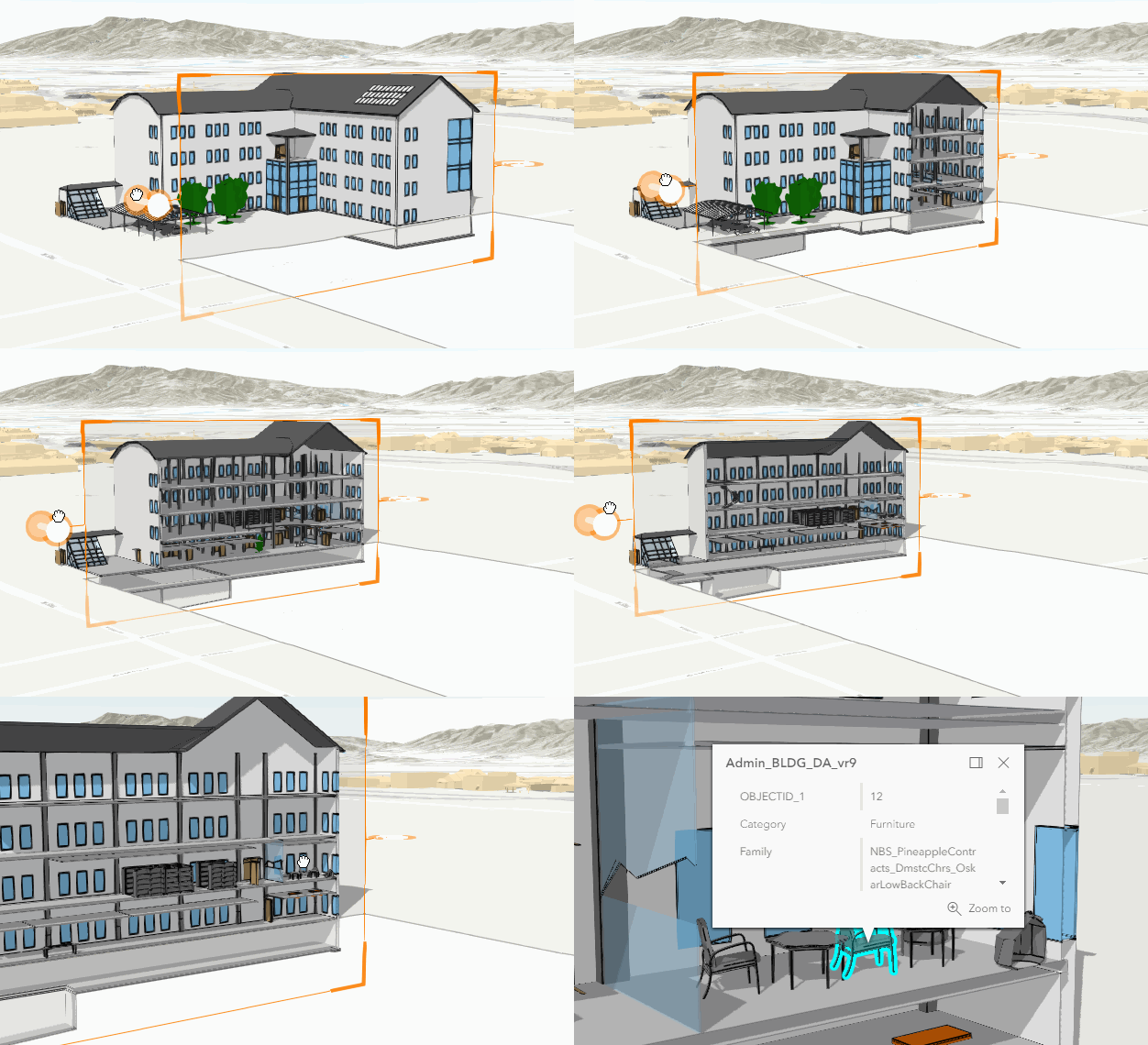
The slicing shape
is always a plane.
By default, the plane is either horizontal or vertical. To allow a tilt angle for the plane, set
tiltEnabled
to true. The slice hides any content in front of the surface. The handles on the sides of the plane can be used to adjust
the size, heading, tilt, and position of the slice plane.
The SlicePlane
can be set or retrieved using the shape property.
Once the slice plane is applied, layers can be excluded from the slicing. For example, by excluding the sublayers which include columns and floor slabs, the inner structure of a building can investigated.
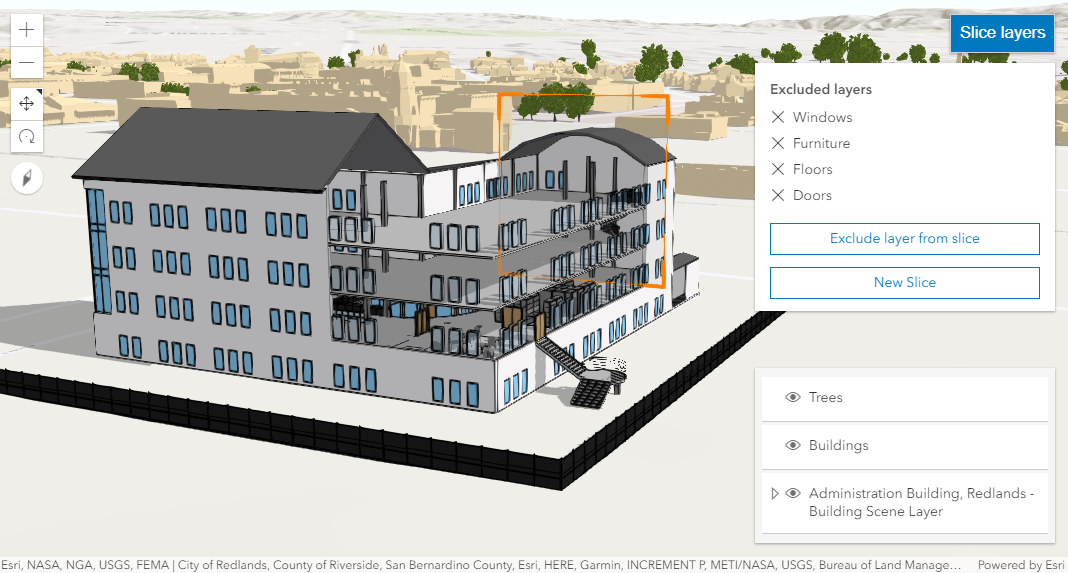
Holding the Shift key while placing a new slice applies it vertically.
Known limitation
Slice is only supported in a 3D arcgis-scene component.
See also
Demo
Properties
| Property | Attribute | Type |
|---|---|---|
| ||
auto-destroy-disabled | ||
| ||
exclude-ground-surface | ||
heading-level | ||
hide-start-button | ||
hide-visualization | ||
icon reflected | icon | Icon["icon"] | undefined |
label | ||
| ||
reference-element | ||
| SlicePlane | null | undefined | |
state readonly | | "disabled" | "ready" | "excludingLayer" | "sliced" | "slicing" |
tilt-enabled | ||
|
analysis
- Type
- SliceAnalysis
The SliceAnalysis created or modified by the component.
When connecting the Slice component to the arcgis-scene component, it automatically creates an empty analysis and adds it to the Scene's arcgis-scene.analyses collection. You can then wait for the SliceAnalysisView3D to be created before interacting with the slice or reading the current slice parameters.
// Get the Scene component and the Slice component, and wait until both are ready.const viewElement = document.querySelector("arcgis-scene");await viewElement.viewOnReady();const sliceElement = document.querySelector("arcgis-slice");await sliceElement.componentOnReady();
// Get the SliceAnalysis created by the Slice component.const analysis = sliceElement.analysis;
// Get the SliceAnalysisView3D and watch for changes.const analysisView = await viewElement.whenAnalysisView(analysis);const handle = reactiveUtils.watch(  () => analysis.shape,  () => {    console.log("Slice active:", analysisView.active);    console.log("Slice interactive:", analysisView.interactive);    console.log("Slice shape:", analysis.shape);  },);
Whenever the component is destroyed, the analysis is automatically removed from the collection.
Alternatively, a programmatically created SliceAnalysis can be provided to the component. Then, the application itself needs to add it to and later remove it from the analyses collection of the Scene component.
// Create the SliceAnalysis.const sliceAnalysis = new SliceAnalysis({   shape: new SlicePlane({     position: new Point({       spatialReference: { latestWkid: 3857, wkid: 102100 },       x: -13624925.727820931,       y: 4550341.695170021,       z: 56     }),     tilt: 270,     width: 310,     height: 190,     heading: 45   })});// Get the Scene component and the Slice component, and wait until both are ready.const viewElement = document.querySelector("arcgis-scene");await viewElement.viewOnReady();const sliceElement = document.querySelector("arcgis-slice");await sliceElement.componentOnReady();
// Add the analysis to the analyses collection of the Scene component.viewElement.analyses.add(sliceAnalysis);
// Connect the analysis to the slice component:sliceElement.analysis = sliceAnalysis;
autoDestroyDisabled
- Type
- boolean
If true, the component will not be destroyed automatically when it is disconnected from the document. This is useful when you want to move the component to a different place on the page, or temporarily hide it. If this is set, make sure to call the destroy() method when you are done to prevent memory leaks.
- Attribute
- auto-destroy-disabled
- Default value
- false
excludedLayers
- Type
- Collection<SliceableLayer>
Add layers to this collection to exclude them from the slice. Layers that are draped on the ground surface are not affected by this property
headingLevel
- Type
- HeadingLevel
Indicates the heading level to use for the "Excluded layers" heading.
- Attribute
- heading-level
- Default value
- 3
hideStartButton
- Type
- boolean
- Since
- ArcGIS Maps SDK for JavaScript 5.0
If true, the button that starts a new slice will be hidden.
- Attribute
- hide-start-button
- Default value
- false
hideVisualization
- Type
- boolean
- Since
- ArcGIS Maps SDK for JavaScript 5.0
Indicates whether the component's visualization is hidden in the view.
- Attribute
- hide-visualization
- Default value
- false
icon
- Type
- Icon["icon"] | undefined
Icon which represents the component. Typically used when the component is controlled by another component (e.g. by the Expand component).
- See also
- Attribute
- icon
- Default value
- "slice"
referenceElement
- Type
- ArcgisReferenceElement | string | undefined
By assigning the id attribute of the Map or Scene component to this property, you can position a child component anywhere in the DOM while still maintaining a connection to the Map or Scene.
- Attribute
- reference-element
shape
- Type
- SlicePlane | null | undefined
- Since
- ArcGIS Maps SDK for JavaScript 4.28
The shape used to slice elements in a 3D scene. Currently the only supported shape is a plane.
Examples
// Create a slice plane programmatically.const shape = new SlicePlane({ position: new Point({ spatialReference: { latestWkid: 3857, wkid: 102100 }, x: -13624925.727820931, y: 4550341.695170021, z: 56 }), tilt: 270, width: 310, height: 190, heading: 45});// Apply the new shape to the slice component's shape.slice.shape = shape;// Clone the shape to modify its properties.const shape = slice.shape.clone();// Set new values for heading and tilt.shape.heading = 180;shape.tilt = 45;// Apply the new shape to the slice component's shape.slice.shape = shape; state
- Type
- "disabled" | "ready" | "excludingLayer" | "sliced" | "slicing"
The component's state. The values mean the following:
disabled- not ready yetexcludingLayer- currently excluding a layer from the sliceready- ready for slicingslicing- currently slicingsliced- finished slicing and a valid shape is available
tiltEnabled
- Type
- boolean
Enable tilting the slice shape. If set to true, the slice shape will orient itself as best as possible to the surface under the cursor when first placing the shape. If set to false, the slice shape is restricted to be either horizontal or vertical.
- Attribute
- tilt-enabled
- Default value
- false
view
The view associated with the component.
Note: The recommended approach is to fully migrate applications to use map and scene components and avoid using MapView and SceneView directly. However, if you are migrating a large application from widgets to components, you might prefer a more gradual transition. To support this use case, the SDK includes this
viewproperty which connects a component to a MapView or SceneView. Ultimately, once migration is complete, the arcgis-slice component will be associated with a map or scene component rather than using theviewproperty.
Methods
| Method | Signature |
|---|---|
clear(): Promise<void> | |
componentOnReady inherited | componentOnReady(): Promise<this> |
destroy(): Promise<void> | |
start(): Promise<void> |
clear
- Signature
-
clear (): Promise<void>
Clear the shape of the slice, effectively removing it from the view. Other properties like excludedLayers
and excludeGroundSurface are not modified.
Calling this method changes the state to ready.
componentOnReady
- Signature
-
componentOnReady (): Promise<this>
Creates a promise that resolves once the component is fully loaded.
- Returns
- Promise<this>
Example
const arcgisSlice = document.querySelector("arcgis-slice");document.body.append(arcgisSlice);await arcgisSlice.componentOnReady();console.log("arcgis-slice is ready to go!");Events
| Name | Type |
|---|---|
| CustomEvent<{ name: "analysis" | "state"; }> | |
arcgisPropertyChange
arcgisPropertyChange: CustomEvent<{ name: "analysis" | "state"; }> Emitted when the value of a property is changed. Use this to listen to changes to properties.
arcgisReady
arcgisReady: CustomEvent<void> Emitted when the component associated with a map or scene view is ready to be interacted with.