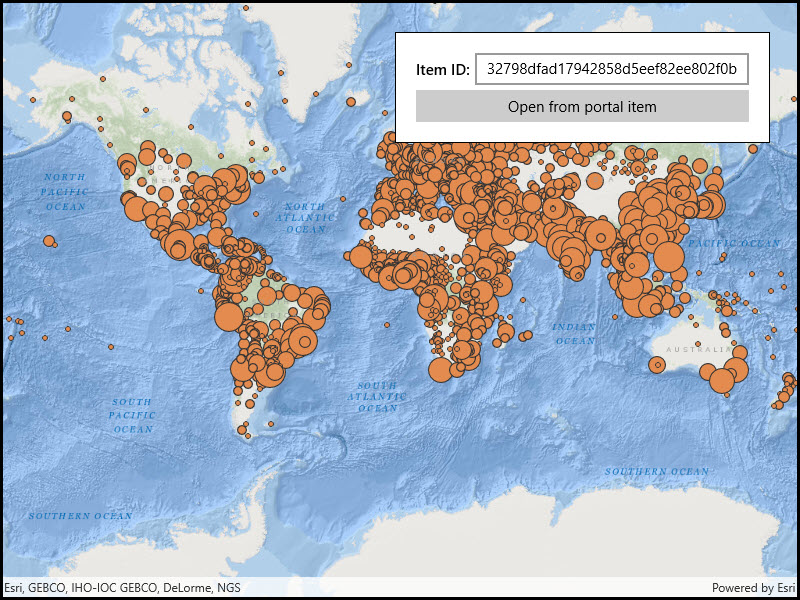
Create a feature collection layer from a portal item.
Use case
Feature collection layers are often used to hold features with mixed geometry or unstructured data. You can display feature collections stored in a Portal, which are often used for showing content from a CSV or map notes.
How to use the sample
The feature collection is loaded from the Portal item when the sample starts.
How it works
- Create a .
- Create the , referring to the portal and an item ID.
- Verify that the item represents a feature collection.
- Create a from the item.
- Create a , referring to the feature collection.
- Add the feature collection layer to the map’s collection.
Relevant API
- FeatureCollection
- FeatureCollectionLayer
- Portal
- PortalItem
About the data
The sample uses a sample layer depicting world populations.
Tags
collection, feature collection, feature collection layer, id, item, map notes, portal
Sample Code
<UserControl x:Class="ArcGIS.WinUI.Samples.FeatureCollectionLayerFromPortal.FeatureCollectionLayerFromPortal" xmlns="http://schemas.microsoft.com/winfx/2006/xaml/presentation" xmlns:x="http://schemas.microsoft.com/winfx/2006/xaml" xmlns:esriUI="using:Esri.ArcGISRuntime.UI.Controls"> <Grid> <esriUI:MapView x:Name="MyMapView" /> <Border Style="{StaticResource BorderStyle}"> <Grid> <Grid.RowDefinitions> <RowDefinition Height="Auto" /> <RowDefinition Height="Auto" /> </Grid.RowDefinitions> <Grid.ColumnDefinitions> <ColumnDefinition Width="Auto" /> <ColumnDefinition Width="*" /> </Grid.ColumnDefinitions> <TextBlock Grid.Row="0" Grid.Column="0" VerticalAlignment="Center" FontWeight="SemiBold" Text="Item ID:" /> <TextBox x:Name="CollectionItemIdTextBox" Grid.Row="0" Grid.Column="1" Margin="5,0,0,0" HorizontalAlignment="Stretch" /> <Button Grid.Row="1" Grid.Column="0" Grid.ColumnSpan="2" Margin="0,5,0,0" HorizontalAlignment="Stretch" Click="Open_Click" Content="Open from portal item" /> </Grid> </Border> </Grid></UserControl>// Copyright 2018 Esri.//// Licensed under the Apache License, Version 2.0 (the "License"); you may not use this file except in compliance with the License.// You may obtain a copy of the License at: http://www.apache.org/licenses/LICENSE-2.0//// Unless required by applicable law or agreed to in writing, software distributed under the License is distributed on an// "AS IS" BASIS, WITHOUT WARRANTIES OR CONDITIONS OF ANY KIND, either express or implied. See the License for the specific// language governing permissions and limitations under the License.
using Esri.ArcGISRuntime.Data;using Esri.ArcGISRuntime.Mapping;using Esri.ArcGISRuntime.Portal;using Microsoft.UI.Xaml;using System;using System.Threading.Tasks;
namespace ArcGIS.WinUI.Samples.FeatureCollectionLayerFromPortal{ [ArcGIS.Samples.Shared.Attributes.Sample( name: "Create feature collection layer (Portal item)", category: "Layers", description: "Create a feature collection layer from a portal item.", instructions: "The feature collection is loaded from the Portal item when the sample starts.", tags: new[] { "collection", "feature collection", "feature collection layer", "id", "item", "map notes", "portal" })] public partial class FeatureCollectionLayerFromPortal { // Default portal item Id to load features from. private const string FeatureCollectionItemId = "32798dfad17942858d5eef82ee802f0b";
public FeatureCollectionLayerFromPortal() { InitializeComponent();
// Create the UI, setup the control references and execute initialization. Initialize(); }
private void Initialize() { // Add a default value for the portal item Id. CollectionItemIdTextBox.Text = FeatureCollectionItemId;
// Create a new map with the oceans basemap and add it to the map view. Map myMap = new Map(BasemapStyle.ArcGISOceans); MyMapView.Map = myMap; }
private async Task OpenFeaturesFromArcGISOnline(string itemId) { try { // Open a portal item containing a feature collection. ArcGISPortal portal = await ArcGISPortal.CreateAsync(); PortalItem collectionItem = await PortalItem.CreateAsync(portal, itemId);
// Verify that the item is a feature collection. if (collectionItem.Type == PortalItemType.FeatureCollection) { // Create a new FeatureCollection from the item. FeatureCollection featureCollection = new FeatureCollection(collectionItem);
// Create a layer to display the collection and add it to the map as an operational layer. FeatureCollectionLayer featureCollectionLayer = new FeatureCollectionLayer(featureCollection) { Name = collectionItem.Title };
MyMapView.Map.OperationalLayers.Add(featureCollectionLayer); } else { var messageDlg = new MessageDialog2("Portal item with ID '" + itemId + "' is not a feature collection.", "Feature Collection"); await messageDlg.ShowAsync(); } } catch (Exception ex) { var messageDlg = new MessageDialog2("Unable to open item with ID '" + itemId + "': " + ex.Message, "Error"); await messageDlg.ShowAsync(); } }
private void Open_Click(object sender, RoutedEventArgs e) { // Get the portal item Id from the user. string collectionItemId = CollectionItemIdTextBox.Text.Trim();
// Make sure an Id was entered. if (String.IsNullOrEmpty(collectionItemId)) { var messageDlg = new MessageDialog2("Please enter a portal item ID", "Feature Collection ID"); _ = messageDlg.ShowAsync(); return; }
// Call a function to add the feature collection from the specified portal item. _ = OpenFeaturesFromArcGISOnline(collectionItemId); } }}