Display and configure electronic navigational charts per ENC specification.
Use case
The S-52 standard defines how Electronic Navigational Chart (ENC) content should be displayed to ensure that data is presented consistently across every charting system. S-52 defines several display options, including variations on symbology to ensure that charts are readable both at night and in direct sunlight.
How to use the sample
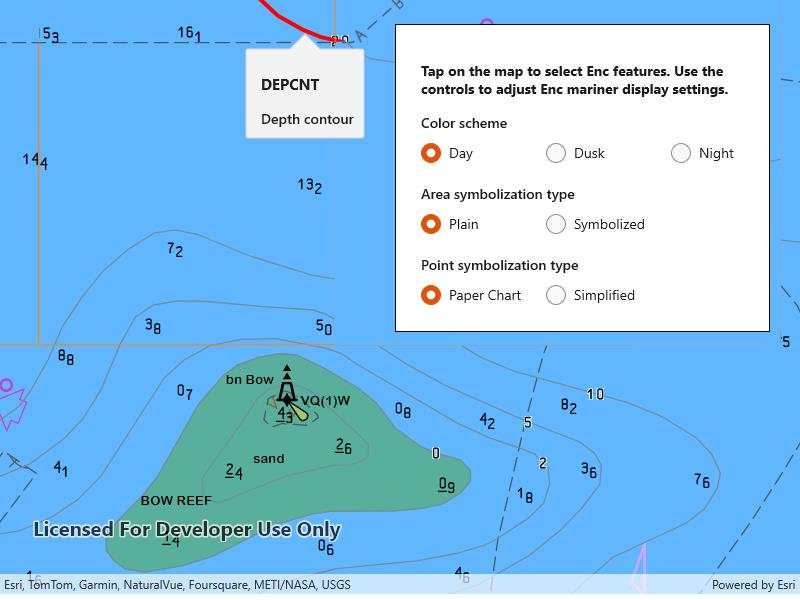
When opened, the sample displays an electronic navigational chart. Tap on the map to select Enc features and view the feature’s acronyms and descriptions shown in a callout. Tap “Display Settings” and use the options to adjust some of the Enc mariner display settings, such as the colors and symbology.
How it works
- To display Enc content:
- Create an using a path to the local Enc exchange set files and load it.
- Make an for each of the and then make an from each cell.
- Add the layers to the map using and create a to display the map.
- To select Enc features:
- Use on the map view to get the screen point from the tapped location.
- Identify nearby features to the tapped location with .
- From the resulting , get the from and the (s) from .
- Use to select the Enc feature(s).
- To set Enc display settings:
- Get the instance from .
- Use , , and to access the settings instances and set their properties.
- Reset the display settings using on the settings instances.
Relevant API
- EncCell
- EncDataset
- EncDisplaySettings
- EncEnvironmentSettings
- EncExchangeSet
- EncLayer
- EncMarinerSettings
- EncTextGroupVisibilitySettings
- EncViewingGroupSettings
- IdentifyLayerResult
Offline data
This sample downloads the ENC Exchange Set without updates item from ArcGIS Online automatically.
The latest Hydrography Data can be downloaded from the Esri Developer downloads. The
file is contained there.Additional information
Read more about displaying and deploying electronic navigational charts on Esri Developer.
Tags
ENC, hydrography, identify, IHO, layers, maritime, nautical chart, S-52, S-57, select, settings, symbology
Sample Code
<UserControl x:Class="ArcGIS.WinUI.Samples.ConfigureElectronicNavigationalCharts.ConfigureElectronicNavigationalCharts" xmlns="http://schemas.microsoft.com/winfx/2006/xaml/presentation" xmlns:x="http://schemas.microsoft.com/winfx/2006/xaml" xmlns:esriUI="using:Esri.ArcGISRuntime.UI.Controls"> <UserControl.Resources> <Style TargetType="TextBlock"> <Setter Property="FontWeight" Value="SemiBold" /> <Setter Property="Margin" Value="5,15,0,0" /> </Style> <Style TargetType="RadioButton"> <Setter Property="Margin" Value="5,5,0,0" /> </Style> </UserControl.Resources> <Grid> <esriUI:MapView x:Name="MyMapView" GeoViewTapped="MyMapView_GeoViewTapped" /> <Border Style="{StaticResource BorderStyle}"> <StackPanel> <TextBlock FontWeight="Bold" Text="Tap on the map to select Enc features. Use the controls to adjust Enc mariner display settings." TextWrapping="WrapWholeWords" /> <TextBlock Text="Color scheme" /> <StackPanel Orientation="Horizontal"> <RadioButton x:Name="DayRadioButton" Content="Day" GroupName="ColorScheme" IsChecked="True" /> <RadioButton x:Name="DuskRadioButton" Content="Dusk" GroupName="ColorScheme" /> <RadioButton x:Name="NightRadioButton" Content="Night" GroupName="ColorScheme" /> </StackPanel> <TextBlock Text="Area symbolization type" /> <StackPanel Orientation="Horizontal"> <RadioButton x:Name="PlainAreaRadioButton" Content="Plain" GroupName="Area" IsChecked="True" /> <RadioButton x:Name="SymbolizedAreaRadioButton" Content="Symbolized" GroupName="Area" /> </StackPanel> <TextBlock Text="Point symbolization type" /> <StackPanel Orientation="Horizontal"> <RadioButton x:Name="PaperPointRadioButton" Content="Paper Chart" GroupName="Point" IsChecked="True" /> <RadioButton x:Name="SimplifiedRadioButton" Content="Simplified" GroupName="Point" /> </StackPanel> </StackPanel> </Border> </Grid></UserControl>// Copyright 2018 Esri.//// Licensed under the Apache License, Version 2.0 (the "License"); you may not use this file except in compliance with the License.// You may obtain a copy of the License at: http://www.apache.org/licenses/LICENSE-2.0//// Unless required by applicable law or agreed to in writing, software distributed under the License is distributed on an// "AS IS" BASIS, WITHOUT WARRANTIES OR CONDITIONS OF ANY KIND, either express or implied. See the License for the specific// language governing permissions and limitations under the License.
using ArcGIS.Samples.Managers;using Esri.ArcGISRuntime.Data;using Esri.ArcGISRuntime.Geometry;using Esri.ArcGISRuntime.Hydrography;using Esri.ArcGISRuntime.Mapping;using Esri.ArcGISRuntime.UI;using Esri.ArcGISRuntime.UI.Controls;using System;using System.Collections.Generic;using System.Linq;using System.Threading.Tasks;
namespace ArcGIS.WinUI.Samples.ConfigureElectronicNavigationalCharts{ [ArcGIS.Samples.Shared.Attributes.Sample( name: "Configure electronic navigational charts", category: "Layers", description: "Display and configure electronic navigational charts per ENC specification.", instructions: "When opened, the sample displays an electronic navigational chart. Tap on the map to select Enc features and view the feature's acronyms and descriptions shown in a callout. Tap \"Display Settings\" and use the options to adjust some of the Enc mariner display settings, such as the colors and symbology.", tags: new[] { "ENC", "IHO", "S-52", "S-57", "hydrography", "identify", "layers", "maritime", "nautical chart", "select", "settings", "symbology" })] [ArcGIS.Samples.Shared.Attributes.OfflineData("9d2987a825c646468b3ce7512fb76e2d")] public partial class ConfigureElectronicNavigationalCharts { public ConfigureElectronicNavigationalCharts() { InitializeComponent();
// Setup the control references and execute initialization. _ = Initialize(); }
private async Task Initialize() { // Apply initial display settings. UpdateDisplaySettings();
// Initialize the map with an oceans basemap. MyMapView.Map = new Map(BasemapStyle.ArcGISOceans);
// Get the path to the ENC Exchange Set. string encPath = DataManager.GetDataFolder("9d2987a825c646468b3ce7512fb76e2d", "ExchangeSetwithoutUpdates", "ENC_ROOT", "CATALOG.031");
// Create the Exchange Set. // Note: this constructor takes an array of paths because so that update sets can be loaded alongside base data. EncExchangeSet myEncExchangeSet = new EncExchangeSet(new string[] { encPath });
try { // Wait for the exchange set to load. await myEncExchangeSet.LoadAsync();
// Store a list of data set extent's - will be used to zoom the mapview to the full extent of the Exchange Set. List<Envelope> dataSetExtents = new List<Envelope>();
// Add each data set as a layer. foreach (EncDataset myEncDataSet in myEncExchangeSet.Datasets) { // Create the cell and layer. EncLayer myEncLayer = new EncLayer(new EncCell(myEncDataSet));
// Add the layer to the map. MyMapView.Map.OperationalLayers.Add(myEncLayer);
// Wait for the layer to load. await myEncLayer.LoadAsync();
// Add the extent to the list of extents. dataSetExtents.Add(myEncLayer.FullExtent); }
// Use the geometry engine to compute the full extent of the ENC Exchange Set. Envelope fullExtent = dataSetExtents.CombineExtents();
// Set the viewpoint. MyMapView.SetViewpoint(new Viewpoint(fullExtent));
// Subscribe to notifications about leaving so that settings can be re-set. this.Unloaded += SampleUnloaded;
// Enable the setting change UI. DayRadioButton.Checked += Setting_Checked; DuskRadioButton.Checked += Setting_Checked; NightRadioButton.Checked += Setting_Checked; PaperPointRadioButton.Checked += Setting_Checked; SymbolizedAreaRadioButton.Checked += Setting_Checked; PlainAreaRadioButton.Checked += Setting_Checked; SimplifiedRadioButton.Checked += Setting_Checked; } catch (Exception e) { await new MessageDialog2(e.ToString(), "Error").ShowAsync(); } }
private void UpdateDisplaySettings() { // Hold a reference to the application-wide ENC Display Settings. EncDisplaySettings globalDisplaySettings = EncEnvironmentSettings.Default.DisplaySettings;
// Hold a reference to the application-wide ENC Mariner Settings (part of display settings). EncMarinerSettings globalMarinerSettings = globalDisplaySettings.MarinerSettings;
// Apply color scheme. if (DayRadioButton.IsChecked == true) { globalMarinerSettings.ColorScheme = EncColorScheme.Day; } else if (DuskRadioButton.IsChecked == true) { globalMarinerSettings.ColorScheme = EncColorScheme.Dusk; } else if (NightRadioButton.IsChecked == true) { globalMarinerSettings.ColorScheme = EncColorScheme.Night; }
// Apply area symbolization. if (PlainAreaRadioButton.IsChecked == true) { globalMarinerSettings.AreaSymbolizationType = EncAreaSymbolizationType.Plain; } else { globalMarinerSettings.AreaSymbolizationType = EncAreaSymbolizationType.Symbolized; }
// Apply point symbolization. if (PaperPointRadioButton.IsChecked == true) { globalMarinerSettings.PointSymbolizationType = EncPointSymbolizationType.PaperChart; } else { globalMarinerSettings.PointSymbolizationType = EncPointSymbolizationType.Simplified; } }
private void Setting_Checked(object sender, Microsoft.UI.Xaml.RoutedEventArgs e) { // Apply display settings. UpdateDisplaySettings(); }
private void ClearAllSelections() { // For each layer in the operational layers that is an ENC layer foreach (EncLayer layer in MyMapView.Map.OperationalLayers.OfType<EncLayer>()) { // Clear the layer's selection layer.ClearSelection(); }
// Clear the callout MyMapView.DismissCallout(); }
private async void MyMapView_GeoViewTapped(object sender, GeoViewInputEventArgs e) { // First clear any existing selections ClearAllSelections();
try { // Perform the identify operation. IReadOnlyList<IdentifyLayerResult> results = await MyMapView.IdentifyLayersAsync(e.Position, 10, false);
// Return if there are no results. if (results.Count < 1) { return; }
// Get the results that are from ENC layers. IEnumerable<IdentifyLayerResult> encResults = results.Where(result => result.LayerContent is EncLayer);
// Get the first result with ENC features. (Depending on the data, there may be more than one IdentifyLayerResult that contains ENC features.) IdentifyLayerResult firstResult = encResults.First();
// Get the layer associated with this set of results. EncLayer containingLayer = (EncLayer)firstResult.LayerContent;
// Get the GeoElement identified in this layer. EncFeature encFeature = (EncFeature)firstResult.GeoElements.First();
// Select the feature. containingLayer.SelectFeature(encFeature);
// Create the callout definition. CalloutDefinition definition = new CalloutDefinition(encFeature.Acronym, encFeature.Description);
// Show the callout. MyMapView.ShowCalloutAt(e.Location, definition); } catch (Exception ex) { await new MessageDialog2(ex.ToString(), "Error").ShowAsync(); } }
private void SampleUnloaded(object sender, Microsoft.UI.Xaml.RoutedEventArgs e) { // ENC environment settings apply to the entire application. // They need to be reset after leaving the sample to avoid affecting other samples. EncEnvironmentSettings.Default.DisplaySettings.MarinerSettings.ResetToDefaults(); EncEnvironmentSettings.Default.DisplaySettings.ViewingGroupSettings.ResetToDefaults(); EncEnvironmentSettings.Default.DisplaySettings.TextGroupVisibilitySettings.ResetToDefaults(); } }}