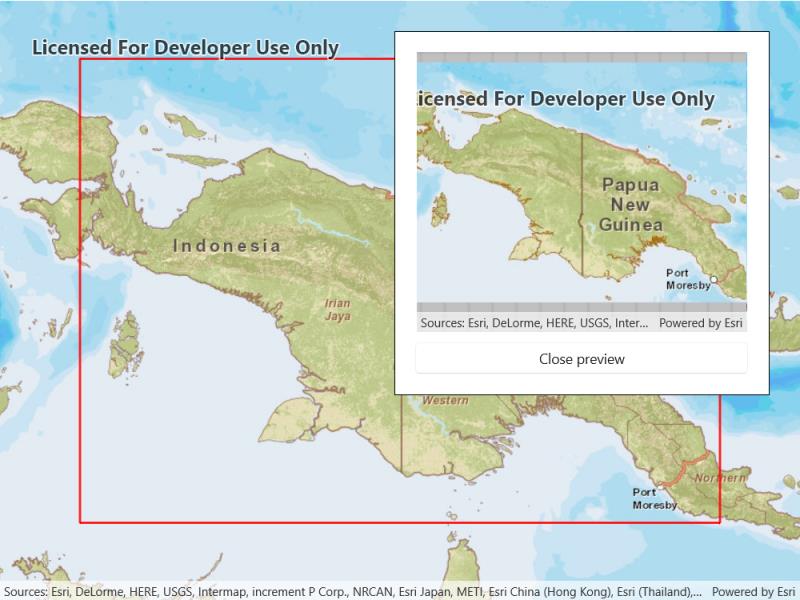
Download tiles to a local tile cache file stored on the device.
Use case
Field workers with limited network connectivity can use exported tiles as a basemap for use offline.
How to use the sample
Pan and zoom into the desired area, making sure the area is within the red boundary. Click the ‘Export tiles’ button to start the process. On successful completion you will see a preview of the downloaded tile package.
How it works
- Create a map and set its to 10,000,000. Limiting the scale in this sample limits the potential size of the selection area, thereby keeping the exported tile package to a reasonable size.
- Create an , passing in the URI of the tiled layer.
- Create default for the task, specifying extent, minimum scale and maximum scale.
- Use the parameters and a path to create an from the task.
- Start the job, and when it completes successfully, get the resulting .
- Use the tile cache to create an , and display it in the map.
Relevant API
- ArcGISTiledLayer
- ExportTileCacheJob
- ExportTileCacheParameters
- ExportTileCacheTask
- TileCache
Additional information
ArcGIS tiled layers do not support reprojection, query, select, identify, or editing. See the Layer types discussion in the developers guide to learn more about the characteristics of ArcGIS tiled layers.
Tags
cache, download, export, local, offline, package, tiles
Sample Code
<UserControl x:Class="ArcGIS.WinUI.Samples.ExportTiles.ExportTiles" xmlns="http://schemas.microsoft.com/winfx/2006/xaml/presentation" xmlns:x="http://schemas.microsoft.com/winfx/2006/xaml" xmlns:esriUI="using:Esri.ArcGISRuntime.UI.Controls"> <Grid> <esriUI:MapView x:Name="MyMapView" /> <Border Style="{StaticResource BorderStyle}"> <StackPanel> <Button x:Name="MyExportButton" HorizontalAlignment="Stretch" Click="MyExportButton_Click" Content="Export tiles" IsEnabled="False" /> <Grid> <ProgressBar x:Name="MyProgressBar" Width="330" MinHeight="20" Margin="0,10,0,0" HorizontalAlignment="Center" Background="Transparent" Maximum="100" Minimum="0" Visibility="Collapsed" /> <TextBlock x:Name="MyProgressBarLabel" Margin="0,10,0,0" HorizontalAlignment="Center" VerticalAlignment="Center" Visibility="Collapsed" /> </Grid> <esriUI:MapView x:Name="MyPreviewMapView" Width="330" Height="280" Visibility="Collapsed" /> <Button x:Name="MyCancelJobButton" Margin="0,10,0,0" HorizontalAlignment="Stretch" Click="CancelJobButton_Click" Content="Cancel" Visibility="Collapsed" /> <Button x:Name="MyClosePreviewButton" Margin="0,10,0,0" HorizontalAlignment="Stretch" Click="ClosePreview_Click" Content="Close preview" Visibility="Collapsed" /> </StackPanel> </Border> </Grid></UserControl>// Copyright 2018 Esri.//// Licensed under the Apache License, Version 2.0 (the "License"); you may not use this file except in compliance with the License.// You may obtain a copy of the License at: http://www.apache.org/licenses/LICENSE-2.0//// Unless required by applicable law or agreed to in writing, software distributed under the License is distributed on an// "AS IS" BASIS, WITHOUT WARRANTIES OR CONDITIONS OF ANY KIND, either express or implied. See the License for the specific// language governing permissions and limitations under the License.
using Esri.ArcGISRuntime.Geometry;using Esri.ArcGISRuntime.Mapping;using Esri.ArcGISRuntime.Symbology;using Esri.ArcGISRuntime.Tasks.Offline;using Esri.ArcGISRuntime.UI;using Microsoft.UI.Xaml;using System;using System.Drawing;using System.IO;using System.Linq;using System.Threading.Tasks;
namespace ArcGIS.WinUI.Samples.ExportTiles{ [ArcGIS.Samples.Shared.Attributes.Sample( name: "Export tiles", category: "Layers", description: "Download tiles to a local tile cache file stored on the device.", instructions: "Pan and zoom into the desired area, making sure the area is within the red boundary. Click the 'Export tiles' button to start the process. On successful completion you will see a preview of the downloaded tile package.", tags: new[] { "cache", "download", "export", "local", "offline", "package", "tiles" })] public partial class ExportTiles { // URL to the service that tiles will be exported from. private Uri _serviceUri = new Uri("https://services.arcgisonline.com/arcgis/rest/services/World_Topo_Map/MapServer");
// Hold a reference to the export job for use in event handlers. private ExportTileCacheJob _job;
// Path to the tile package on disk. private string _tilePath;
public ExportTiles() { InitializeComponent();
// Call a function to set up the map. _ = Initialize(); }
private async Task Initialize() { // Create the tile layer. try { ArcGISTiledLayer myLayer = new ArcGISTiledLayer(_serviceUri);
// Load the layer. await myLayer.LoadAsync();
// Create the basemap with the layer. Map myMap = new Map(new Basemap(myLayer)) { // Set the min and max scale - export task fails if the scale is too big or small. MaxScale = 5000000, MinScale = 10000000 };
// Assign the map to the mapview. MyMapView.Map = myMap;
// Create a new symbol for the extent graphic. // This is the red box that visualizes the extent for which tiles will be exported. SimpleLineSymbol myExtentSymbol = new SimpleLineSymbol(SimpleLineSymbolStyle.Solid, Color.Red, 2);
// Create a graphics overlay for the extent graphic and apply a renderer. GraphicsOverlay extentOverlay = new GraphicsOverlay { Renderer = new SimpleRenderer(myExtentSymbol) };
// Add the graphics overlay to the map view. MyMapView.GraphicsOverlays.Add(extentOverlay);
// Subscribe to changes in the mapview's viewpoint so the preview box can be kept in position. MyMapView.ViewpointChanged += MyMapView_ViewpointChanged;
// Update the extent graphic so that it is valid before user interaction. UpdateMapExtentGraphic();
// Enable the export tile button once sample is ready. MyExportButton.IsEnabled = true;
// Set viewpoint of the map. MyMapView.SetViewpoint(new Viewpoint(-4.853791, 140.983598, myMap.MinScale)); } catch (Exception ex) { await ShowStatusMessage(ex.Message); } }
private void MyMapView_ViewpointChanged(object sender, EventArgs e) { UpdateMapExtentGraphic(); }
/// <summary> /// Function used to keep the overlaid preview area marker in position /// This is called by MyMapView_ViewpointChanged every time the user pans/zooms /// and updates the red box graphic to outline 80% of the current view /// </summary> private void UpdateMapExtentGraphic() { // Return if mapview is null. if (MyMapView == null) { return; }
// Get the new viewpoint. Viewpoint myViewPoint = MyMapView.GetCurrentViewpoint(ViewpointType.BoundingGeometry);
// Return if viewpoint is null. if (myViewPoint == null) { return; }
// Get the updated extent for the new viewpoint. Envelope extent = myViewPoint.TargetGeometry as Envelope;
// Return if extent is null. if (extent == null) { return; }
// Create an envelope that is a bit smaller than the extent. EnvelopeBuilder envelopeBldr = new EnvelopeBuilder(extent); envelopeBldr.Expand(0.80);
// Get the (only) graphics overlay in the map view. GraphicsOverlay extentOverlay = MyMapView.GraphicsOverlays.FirstOrDefault();
// Return if the extent overlay is null. if (extentOverlay == null) { return; }
// Get the extent graphic. Graphic extentGraphic = extentOverlay.Graphics.FirstOrDefault();
// Create the extent graphic and add it to the overlay if it doesn't exist. if (extentGraphic == null) { extentGraphic = new Graphic(envelopeBldr.ToGeometry()); extentOverlay.Graphics.Add(extentGraphic); } else { // Otherwise, update the graphic's geometry. extentGraphic.Geometry = envelopeBldr.ToGeometry(); } }
private async Task StartExport() { // Get the parameters for the job. ExportTileCacheParameters parameters = GetExportParameters();
// Create the task. ExportTileCacheTask exportTask = await ExportTileCacheTask.CreateAsync(_serviceUri);
// Get the tile cache path. _tilePath = $"{Path.GetTempFileName()}.tpkx";
// Create the export job. _job = exportTask.ExportTileCache(parameters, _tilePath);
// Update the UI. MyProgressBar.Value = 0; MyProgressBar.Visibility = Visibility.Visible; MyProgressBarLabel.Visibility = Visibility.Visible; MyCancelJobButton.Visibility = Visibility.Visible;
// Add an event handler to update the progress bar as the task progresses. _job.ProgressChanged += Job_ProgressChanged;
// Add an event handler to hide the cancel job button if the job completes, fails or is cancelled. _job.StatusChanged += Job_StatusChanged;
// Start the export job. _job.Start();
// Get the result. TileCache cache = await _job.GetResultAsync();
// Do the rest of the work. await HandleExportComplete(cache); }
private async Task HandleExportComplete(TileCache cache) { // Update the view if the job is complete. if (_job.Status == Esri.ArcGISRuntime.Tasks.JobStatus.Succeeded) { // Show the exported tiles on the preview map. await UpdatePreviewMap(cache);
// Update the UI. MyPreviewMapView.Visibility = Visibility.Visible; MyClosePreviewButton.Visibility = Visibility.Visible; MyExportButton.Visibility = Visibility.Collapsed; MyProgressBar.Visibility = Visibility.Collapsed; MyProgressBarLabel.Visibility = Visibility.Collapsed; MyExportButton.IsEnabled = true; } else if (_job.Status == Esri.ArcGISRuntime.Tasks.JobStatus.Failed) { // Notify the user. await ShowStatusMessage("Job failed");
// Update the UI. MyProgressBar.Visibility = Visibility.Collapsed; MyProgressBarLabel.Visibility = Visibility.Collapsed; }
// Remove the event handlers. _job.ProgressChanged -= Job_ProgressChanged; _job.StatusChanged -= Job_StatusChanged; }
private ExportTileCacheParameters GetExportParameters() { // Create a new parameters instance. ExportTileCacheParameters parameters = new ExportTileCacheParameters();
// Get the (only) graphics overlay in the map view. GraphicsOverlay extentOverlay = MyMapView.GraphicsOverlays.First();
// Get the area selection graphic's extent. Graphic extentGraphic = extentOverlay.Graphics.First();
// Set the area for the export. parameters.AreaOfInterest = extentGraphic.Geometry;
// Set the highest possible export quality. parameters.CompressionQuality = 100;
// Add level IDs 1-9. // Note: Failing to add at least one Level ID will result in job failure. for (int x = 1; x < 10; x++) { parameters.LevelIds.Add(x); }
// Return the parameters. return parameters; }
private async Task UpdatePreviewMap(TileCache cache) { // Load the cache. await cache.LoadAsync();
// Create a tile layer with the cache. ArcGISTiledLayer myLayer = new ArcGISTiledLayer(cache);
// Apply the map to the preview mapview. MyPreviewMapView.Map = new Map(new Basemap(myLayer)); }
private async Task ExportTask() { try { // Update the UI. MyExportButton.IsEnabled = false; MyPreviewMapView.Visibility = Visibility.Collapsed; MyClosePreviewButton.Visibility = Visibility.Collapsed; MyExportButton.Visibility = Visibility.Visible;
// Start the export. await StartExport(); } catch (Exception ex) { await ShowStatusMessage(ex.Message); } }
private void MyExportButton_Click(object sender, RoutedEventArgs e) { _ = ExportTask(); }
private async Task ShowStatusMessage(string message) { // Display the message to the user. await new MessageDialog2(message).ShowAsync(); }
private void ClosePreview_Click(object sender, RoutedEventArgs e) { // Update the UI. MyPreviewMapView.Visibility = Visibility.Collapsed; MyClosePreviewButton.Visibility = Visibility.Collapsed; MyExportButton.Visibility = Visibility.Visible; }
private void CancelJobButton_Click(object sender, RoutedEventArgs e) { if (_job != null) { _ = _job.CancelAsync();
// Remove the event handlers. _job.ProgressChanged -= Job_ProgressChanged; _job.StatusChanged -= Job_StatusChanged;
// Update the UI. MyCancelJobButton.Visibility = Visibility.Collapsed; MyProgressBar.Visibility = Visibility.Collapsed; MyProgressBarLabel.Visibility = Visibility.Collapsed; MyExportButton.IsEnabled = true; } }
private void Job_ProgressChanged(object sender, EventArgs e) { DispatcherQueue.TryEnqueue(() => { MyProgressBar.Value = _job.Progress; MyProgressBarLabel.Text = $"{MyProgressBar.Value}%"; }); }
private void Job_StatusChanged(object sender, Esri.ArcGISRuntime.Tasks.JobStatus e) { DispatcherQueue.TryEnqueue(() => { bool showCancelJobButton = (_job.Status != Esri.ArcGISRuntime.Tasks.JobStatus.Failed && _job.Status != Esri.ArcGISRuntime.Tasks.JobStatus.Succeeded && _job.Status != Esri.ArcGISRuntime.Tasks.JobStatus.Canceling);
MyCancelJobButton.Visibility = showCancelJobButton ? Visibility.Visible : Visibility.Collapsed; }); } }}