Edit the values of a KML ground overlay.
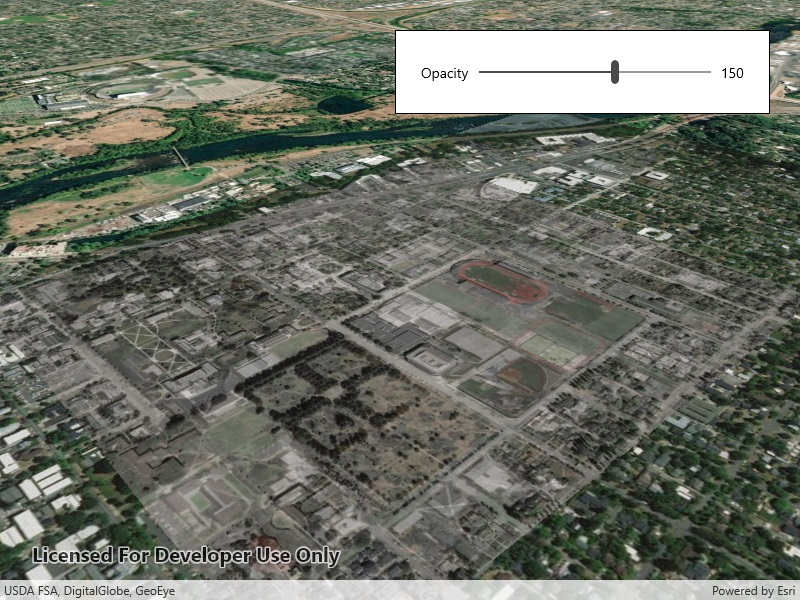
Use case
KML ground overlays are used for showing aerial imagery, symbology, or other images draped over a scene. Changing the geometry, rotation, and other attributes of a ground overlay after it has been loaded allows for live editing. For example, editing the geometry and opacity of a historical image draped over present day satellite imagery makes it possible to view change over time.
How to use the sample
Use the slider to adjust the opacity of the ground overlay.
How it works
- Create an defining the geometry of the overlay.
- Create a using a linking to an image.
- Create a using the envelope and icon.
- Set the value of.
- Create a using the ground overlay.
- Create a using the dataset.
- Add the KML layer to the scene.
- Listen for changes to the opacity slider and change the value appropriately.
Relevant API
- KmlDataset
- KmlGroundOverlay
- KmlIcon
- KmlLayer
Offline data
This sample uses an .jpg image downloaded from ArcGIS Online.
About the data
The image used in this sample is an aerial view of the campus of the University of Oregon. This imagery was taken in 1944 by the U.S. Army Corps of Engineers. It is publicly available as Online Aerial Imagery hosted by Oregon University Library. It is also available as a Portal item on ArcGIS Online as University of Oregon Campus Aerial Imagery - 1944.

Tags
imagery, Keyhole, KML, KMZ, OGC
Sample Code
<UserControl x:Class="ArcGIS.WinUI.Samples.EditKmlGroundOverlay.EditKmlGroundOverlay" xmlns="http://schemas.microsoft.com/winfx/2006/xaml/presentation" xmlns:x="http://schemas.microsoft.com/winfx/2006/xaml" xmlns:esriUI="using:Esri.ArcGISRuntime.UI.Controls"> <Grid> <esriUI:SceneView x:Name="MySceneView" /> <Border Style="{StaticResource BorderStyle}"> <Grid> <Grid.ColumnDefinitions> <ColumnDefinition Width="auto" /> <ColumnDefinition Width="*" /> <ColumnDefinition Width="auto" /> </Grid.ColumnDefinitions> <TextBlock Grid.Column="0" Margin="5" HorizontalAlignment="Center" VerticalAlignment="Center" Text="Opacity" /> <Slider x:Name="OpacitySlider" Grid.Column="1" Margin="5" VerticalAlignment="Center" Maximum="255" Minimum="0" Value="255" /> <TextBlock Grid.Column="2" Margin="5" HorizontalAlignment="Center" VerticalAlignment="Center" Text="{Binding ElementName=OpacitySlider, Path=Value}" /> </Grid> </Border> </Grid></UserControl>// Copyright 2019 Esri.//// Licensed under the Apache License, Version 2.0 (the "License"); you may not use this file except in compliance with the License.// You may obtain a copy of the License at: http://www.apache.org/licenses/LICENSE-2.0//// Unless required by applicable law or agreed to in writing, software distributed under the License is distributed on an// "AS IS" BASIS, WITHOUT WARRANTIES OR CONDITIONS OF ANY KIND, either express or implied. See the License for the specific// language governing permissions and limitations under the License.
using ArcGIS.Samples.Managers;using Esri.ArcGISRuntime.Geometry;using Esri.ArcGISRuntime.Mapping;using Esri.ArcGISRuntime.Ogc;using System;
namespace ArcGIS.WinUI.Samples.EditKmlGroundOverlay{ [ArcGIS.Samples.Shared.Attributes.Sample( name: "Edit KML ground overlay", category: "Layers", description: "Edit the values of a KML ground overlay.", instructions: "Use the slider to adjust the opacity of the ground overlay.", tags: new[] { "KML", "KMZ", "Keyhole", "OGC", "imagery" })] [ArcGIS.Samples.Shared.Attributes.OfflineData("1f3677c24b2c446e96eaf1099292e83e")] public partial class EditKmlGroundOverlay { private readonly Uri _imageryUri = new Uri(DataManager.GetDataFolder("1f3677c24b2c446e96eaf1099292e83e", "1944.jpg"));
public EditKmlGroundOverlay() { InitializeComponent(); Initialize(); }
private void Initialize() { // Create a scene for the sceneview. Scene myScene = new Scene(BasemapStyle.ArcGISImageryStandard); MySceneView.Scene = myScene;
// Create a geometry for the ground overlay. Envelope overlayGeometry = new Envelope(-123.066227926904, 44.04736963555683, -123.0796942287304, 44.03878298600624, SpatialReferences.Wgs84);
// Create a KML Icon for the overlay image. KmlIcon overlayImage = new KmlIcon(_imageryUri);
// Create the KML ground overlay. KmlGroundOverlay overlay = new KmlGroundOverlay(overlayGeometry, overlayImage);
// Set the rotation of the ground overlay. overlay.Rotation = -3.046024799346924;
// Create a KML dataset with the ground overlay as the root node. KmlDataset dataset = new KmlDataset(overlay);
// Create a KML layer for the scene view. KmlLayer layer = new KmlLayer(dataset);
// Add the layer to the map. MySceneView.Scene.OperationalLayers.Add(layer);
// Move the viewpoint to the ground overlay. MySceneView.SetViewpoint(new Viewpoint(overlay.Geometry, new Camera(overlay.Geometry.Extent.GetCenter(), 1250, 45, 60, 0)));
// Add an event handler for the on-screen slider. OpacitySlider.ValueChanged += (s, e) => { // Change the color of the KML ground overlay image to edit the alpha-value. (Other color values are left as-is in the original image.) overlay.Color = System.Drawing.Color.FromArgb((int)e.NewValue, 0, 0, 0);
// Make the value an integer (For the UI). OpacitySlider.Value = (int)OpacitySlider.Value; }; } }}