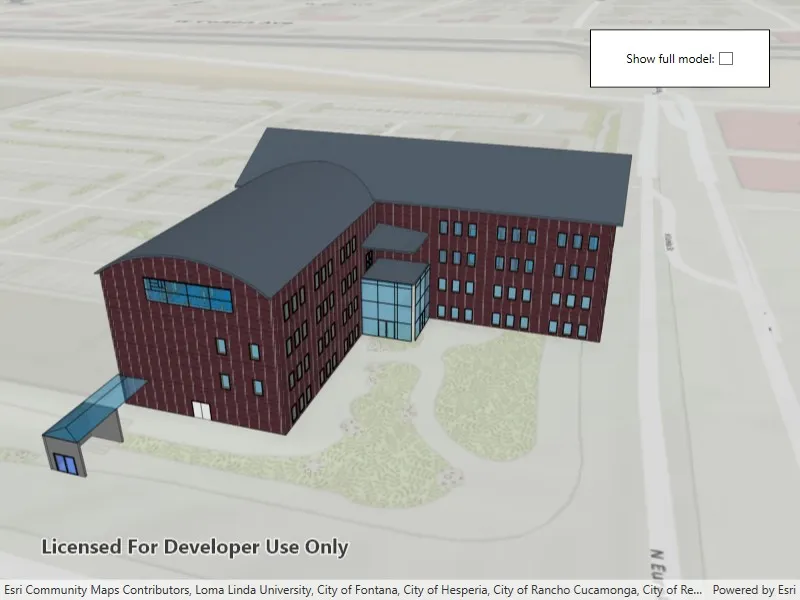
Add a layer to a local scene to visualize and interact with 3D building models developed using Building Information Modeling (BIM) tools.
Use case
Building Scene Layers allow you to display and analyze detailed building models created from 3D BIM data. Unlike 3D object scene layers, which represent all features within a single layer, Building Scene Layers are organized into a hierarchy of sublayers representing individual building components such as walls, light fixtures, and mechanical systems. These sublayers are often grouped by disciplines like Architectural, Mechanical, or Structural. This structure enables deeper interaction and analysis of both interior and exterior features, providing insight into how a building is designed, used, and situated in its spatial context.
How to use the sample
When loaded, the sample displays a scene with a Building Scene Layer. By default, the Overview sublayer is visible, showing the building’s exterior shell. Use the “Full Model” toggle to switch to the Full Model sublayer, which reveals the building’s components. Pan around and zoom in to observe the detailed features such as walls, light fixtures, mechanical systems, and more, both outside and inside the building.
How it works
- Create a local scene object with the
Scene.Scene(BasemapStyle, SceneViewingMode)constructor andLocalviewing mode. - Create an
ArcGISTiledElevationSourceobject and add it to the local scene’s base surface. - Create a
BuildingSceneLayerand add it to the local scene’s operational layers. - Create a
LocalSceneViewobject to display the scene. - Set the local scene to the
LocalSceneView.
Relevant API
- ArcGISTiledElevationSource
- BuildingSceneLayer
- BuildingSublayer
- LocalSceneView
- Scene
Tags
3D, buildings, elevation, layers, scene, surface
Sample code
// Copyright 2025 Esri.//// Licensed under the Apache License, Version 2.0 (the "License"); you may not use this file except in compliance with the License.// You may obtain a copy of the License at: http://www.apache.org/licenses/LICENSE-2.0//// Unless required by applicable law or agreed to in writing, software distributed under the License is distributed on an// "AS IS" BASIS, WITHOUT WARRANTIES OR CONDITIONS OF ANY KIND, either express or implied. See the License for the specific// language governing permissions and limitations under the License.
using Esri.ArcGISRuntime.Geometry;using Esri.ArcGISRuntime.Mapping;using System;using System.Linq;using System.Threading.Tasks;
namespace ArcGIS.WPF.Samples.AddBuildingSceneLayer{    [ArcGIS.Samples.Shared.Attributes.Sample(        name: "Add building scene layer",        category: "Layers",        description: "Add a layer to a local scene to visualize and interact with 3D building models developed using Building Information Modeling (BIM) tools.",        instructions: "When loaded, the sample displays a scene with a Building Scene Layer. By default, the Overview sublayer is visible, showing the building's exterior shell. Use the \"Full Model\" toggle to switch to the Full Model sublayer, which reveals the building's components. Pan around and zoom in to observe the detailed features such as walls, light fixtures, mechanical systems, and more, both outside and inside the building.",        tags: new[] { "3D", "buildings", "elevation", "layers", "scene", "surface" })]    [ArcGIS.Samples.Shared.Attributes.OfflineData()]    public partial class AddBuildingSceneLayer    {        private BuildingSublayer _overviewSublayer;        private BuildingSublayer _fullModelSublayer;
        public AddBuildingSceneLayer()        {            InitializeComponent();            _ = Initialize();        }
        private async Task Initialize()        {            // Create a new scene with topographic basemap and a local scene viewing mode.            var scene = new Scene(SceneViewingMode.Local, BasemapStyle.ArcGISTopographic);
            // Add world elevation source to the scene's surface.            var elevationSource = new ArcGISTiledElevationSource(                new Uri("https://elevation3d.arcgis.com/arcgis/rest/services/WorldElevation3D/Terrain3D/ImageServer"));            scene.BaseSurface.ElevationSources.Add(elevationSource);
            // Set the scene's initial viewpoint.            var camera = new Camera(                new MapPoint(-13045148, 4036775, 454, SpatialReferences.WebMercator),                heading: 343,                pitch: 64,                roll: 0);            scene.InitialViewpoint = new Viewpoint(camera.Location, camera);
            // Set the scene.            MySceneView.Scene = scene;
            // Add the Building Scene Layer.            var buildingSceneLayer = new BuildingSceneLayer(                new Uri("https://www.arcgis.com/home/item.html?id=669f6279c579486eb4a0acc7eb59d7ca"));
            // Sets the altitude offset of the building scene layer.            // The altitude offset is set to align the model with the ground surface.            buildingSceneLayer.AltitudeOffset = 1;
            // Load the building scene layer.            await buildingSceneLayer.LoadAsync();
            // Add the building scene layer to the scene's operational layers.            scene.OperationalLayers.Add(buildingSceneLayer);
            // Get the overview and full model sublayers for the toggle.            var sublayers = buildingSceneLayer.Sublayers;            _overviewSublayer = sublayers.FirstOrDefault(s => s.ModelName == "Overview");            _fullModelSublayer = sublayers.FirstOrDefault(s => s.ModelName == "FullModel");
            // Enable checkbox only if full model sublayer exists.            FullModelCheckBox.IsEnabled = _fullModelSublayer != null;
            // Wire up checkbox event.            FullModelCheckBox.Checked += OnCheckBoxChanged;            FullModelCheckBox.Unchecked += OnCheckBoxChanged;
            // Set the initial visibility of sublayers based on the checkbox's current state.            UpdateSublayerVisibility(FullModelCheckBox.IsChecked == true);        }
        // Event handler that is called when the checkbox state changes.        private void OnCheckBoxChanged(object sender, System.Windows.RoutedEventArgs e)        {            UpdateSublayerVisibility(FullModelCheckBox.IsChecked == true);        }
        // Method to update the visibility of the overview and full model sublayers.        // This does not affect the 'isVisible' property of the individual sublayers within the full model.        private void UpdateSublayerVisibility(bool showFullModel)        {            if (_fullModelSublayer != null)                _fullModelSublayer.IsVisible = showFullModel;
if (_overviewSublayer != null) _overviewSublayer.IsVisible = !showFullModel; } }}<UserControl x:Class="ArcGIS.WPF.Samples.AddBuildingSceneLayer.AddBuildingSceneLayer" xmlns="http://schemas.microsoft.com/winfx/2006/xaml/presentation" xmlns:x="http://schemas.microsoft.com/winfx/2006/xaml" xmlns:esriUI="clr-namespace:Esri.ArcGISRuntime.UI.Controls;assembly=Esri.ArcGISRuntime.WPF"> <Grid Style="{DynamicResource EsriSampleContainer}"> <esriUI:LocalSceneView x:Name="MySceneView" Style="{DynamicResource EsriSampleGeoView}" /> <Border Width="180" HorizontalAlignment="Right" Style="{DynamicResource BorderStyle}"> <StackPanel HorizontalAlignment="Center" Orientation="Horizontal"> <TextBlock Text="Show full model: " /> <CheckBox x:Name="FullModelCheckBox" IsChecked="False" IsEnabled="False" /> </StackPanel> </Border> </Grid></UserControl>